Custom orders often involve different product options, prices, and components, making it easy for details to get lost between quoting and production. In Odoo 20, configurable Make-to-Order products connect these steps in one workflow, carrying the customer’s selected options from quotation to manufacturing. Product attributes and extra prices determine the quote, a single BoM with variant-specific components defines what each configuration needs, and the MTO route triggers manufacturing when the sales order is confirmed. In this guide, we set up a configurable product and follow it from quotation to manufacturing.
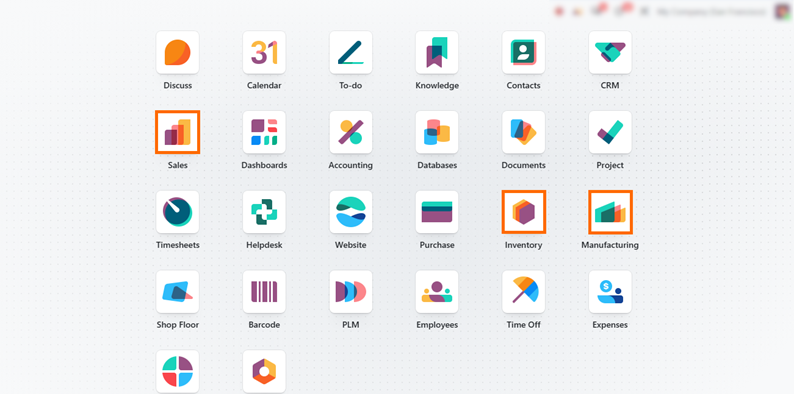
- Open the Odoo dashboard and ensure Sales, Inventory, and Manufacturing are installed. Sales manages quotations, Inventory handles products, variants, and routes, while Manufacturing manages BoMs and manufacturing orders.
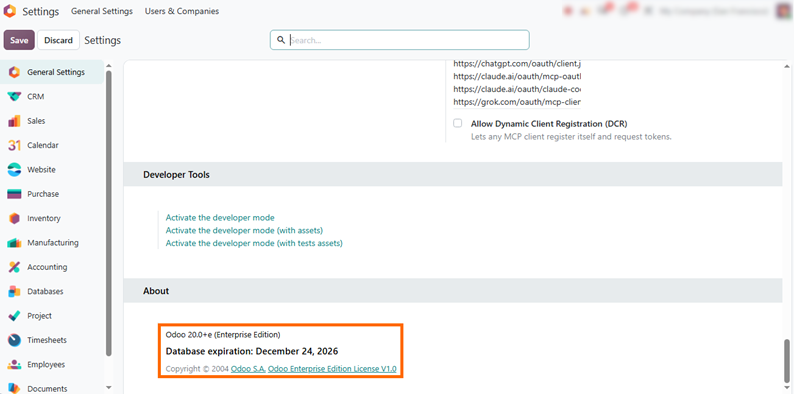
BoMs and manufacturing orders are available in both Odoo Community and Enterprise. The ECO guide linked later in this article requires PLM, which is available only in Odoo Enterprise.
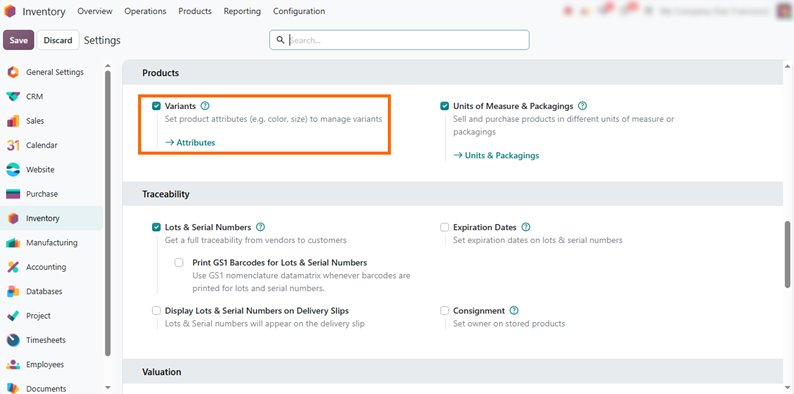
Go to Inventory, open Configuration, select Settings, and enable Variants in the Products section. This enables Odoo product variants, so you can configure attributes and use variant-specific components in the BoM.
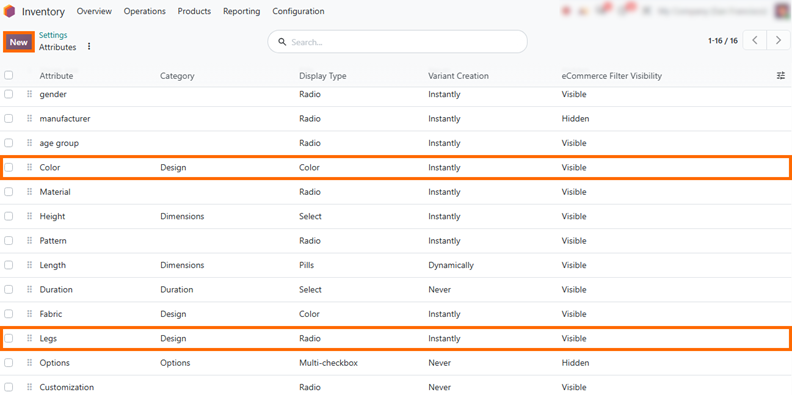
Open the Attributes page from the Variants setting to review attributes such as Legs and Color. Both have Variant Creation set to Instantly, so Odoo creates variants as soon as attribute values are added.
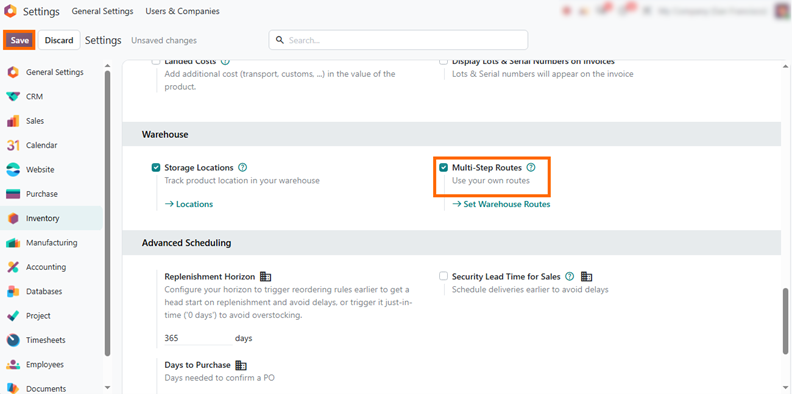
Return to Inventory Settings, scroll to the Warehouse section, enable Multi-Step Routes, and click Save. This is required to activate the Replenish on Order (MTO) route later in this guide.
Define Product Options and Set Variant-Specific Prices
Attributes turn one product into a set of configurable options, and extra prices make each choice change the quote automatically. With Odoo product variants, businesses can manage different product configurations through a single product template. Because pricing lives in the same database as the product, Odoo adds the extra price to the base price in the same way for every quote of the same configuration. Rules can also block combinations that cannot be built. By keeping product options and pricing rules on a single product template, your team can quote different configurations consistently without creating and maintaining a separate product for every customer requirement.
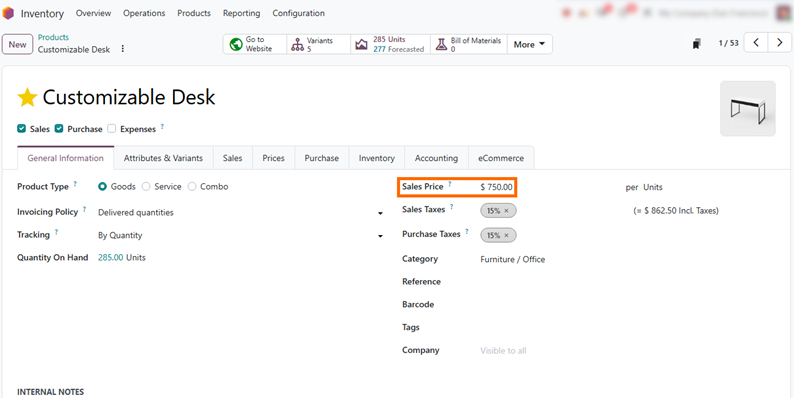
- Open the Inventory app, go to Products, and select Customizable Desk. The product card shows the base Sales Price of $750.00 and a Variants smart button, which we use to check the result later.
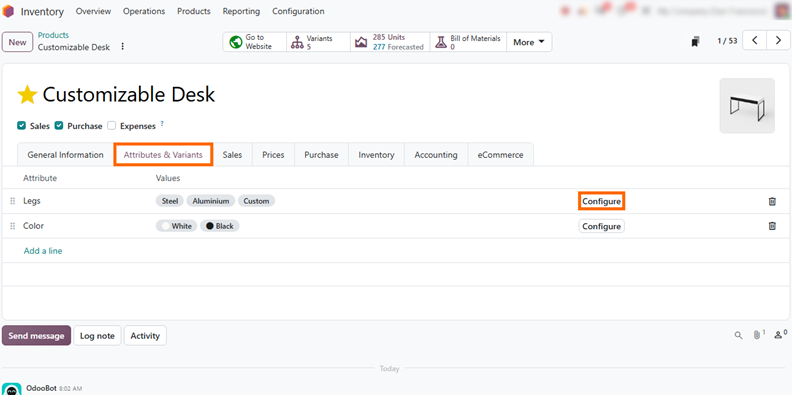
Open the Attributes & Variants tab. It lists the two attributes, Legs and Color, with the values available for each. These are the options the customer chooses from in
the configurator. Click Configure next to the Legs attribute to open its values.
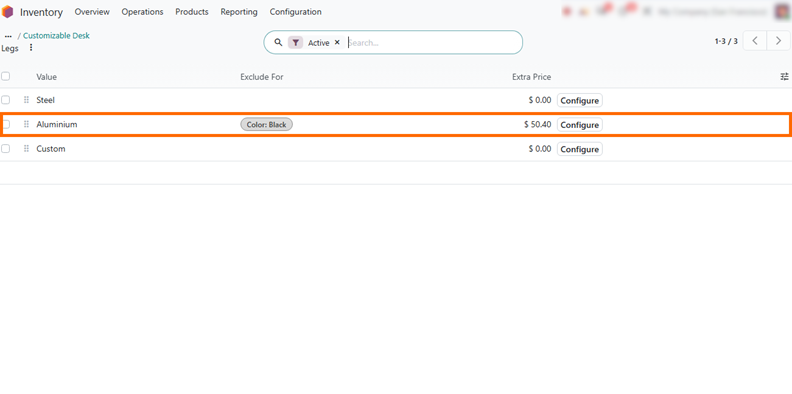
- Aluminium has an Extra Price of $50.40, while Steel and Custom have no extra charge. Odoo adds this surcharge to the base price. In Exclude For, Aluminium is excluded for Color: Black, preventing this combination in the configurator.
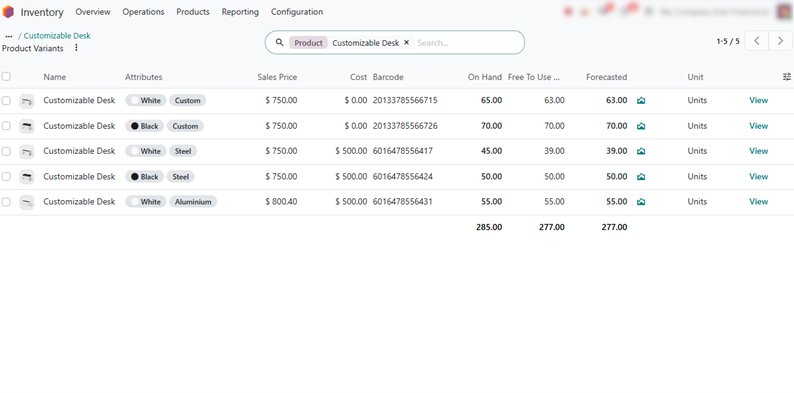
Return to the product form and click the Variants smart button. Odoo creates five variants instead of six because Aluminium with Black is excluded, and Aluminium with White costs $800.40 while the others remain at $750.00.
Use One BoM for Multiple Product Variants
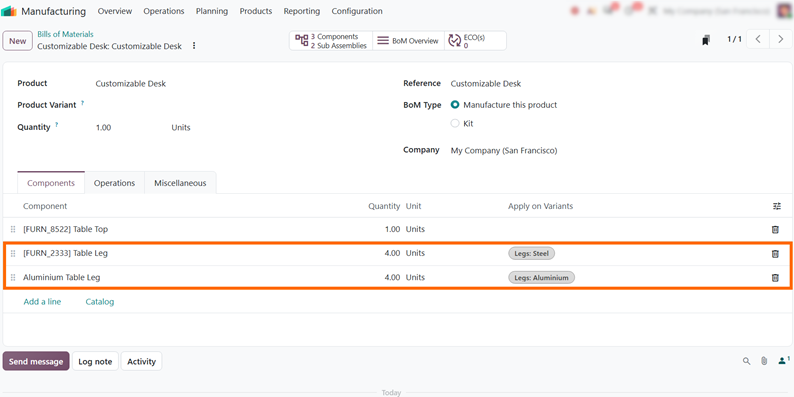
With Odoo BoM variants, one BoM holds the components shared by all variants, and the Apply on Variants option limits other components to specific attribute values. Because the BoM lives in the same database as the product, the variant chosen on the quote decides which components the manufacturing order uses. Components with no value in the Apply on Variants column are used in every variant, so only what actually changes needs to be assigned. Once variant-specific lines are in place, keep the BoM accurate over time. See how to manage BoM revisions with ECOs in Odoo 20, which requires PLM, available only in Odoo Enterprise. In this section, we build one BoM for the Customizable Desk, with different legs for the Steel and Aluminium variants.
-
Go to Manufacturing,
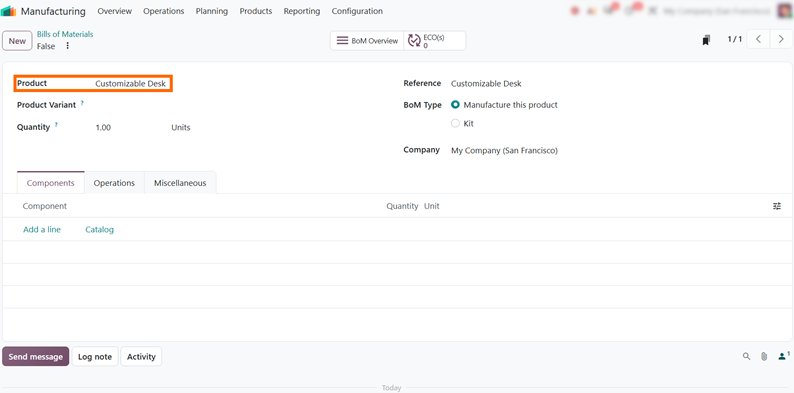
open Products, select Bills of Materials, and click New. In the Product field,
select Customizable Desk and leave Product Variant empty, so the
BoM covers every variant. Keep BoM Type set to Manufacture this product.
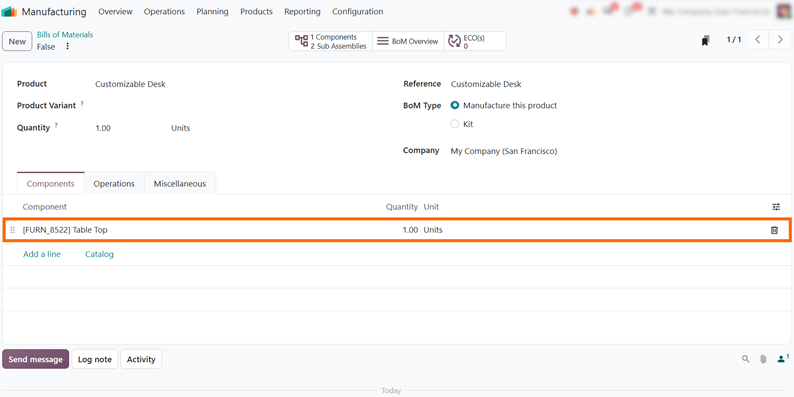
- On the Components tab, add Table Top with a quantity of 1.00. Since it is shared by all variants, leave Product Variant empty so Odoo includes it in every manufacturing order.
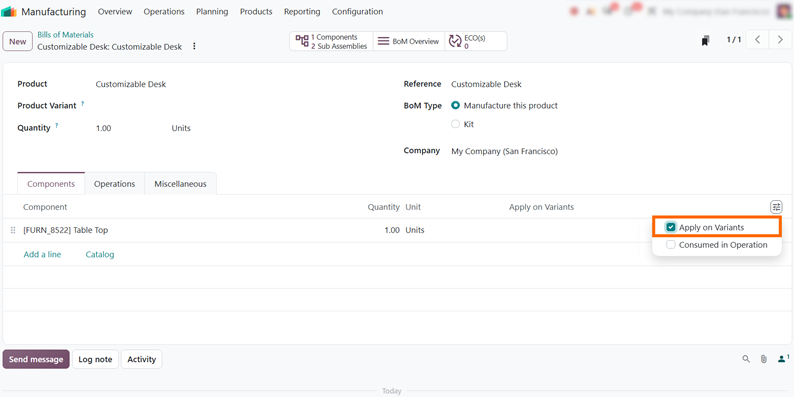
Open the optional columns menu in the Components header and enable Apply on Variants. This column limits a component to specific attribute values, so only the parts that actually differ need to be assigned.
Add Table Leg with a quantity of 4.00 and apply it to Legs: Steel. Then add Aluminium Table Leg with a quantity of 4.00 and apply it to Legs: Aluminium. Save the BoM to use one BoM for all variants.
Automate Production Replenishment with Odoo MTO
For customized products, make to order Odoo helps align production with actual customer demand. The replenish on order Odoo route links a confirmed sales order to the replenishment process for the required product. When the product has a BoM and the Manufacture route is configured, Odoo can create a manufacturing order for the selected variant. This allows the production team to work from the customer’s chosen options and the components defined in the BoM. In Odoo 20, the Manufacture route is automatically applied to products with a BoM, so the key setup step is enabling Replenish on Order (MTO).
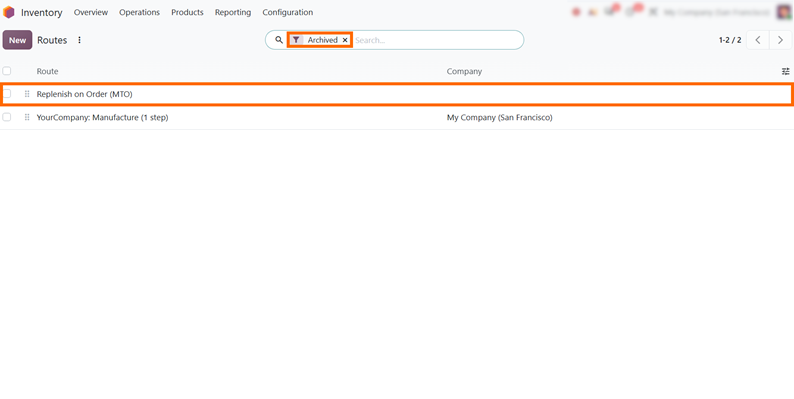
- Go to Inventory, open Configuration, and select Routes, which appears once Multi-Step Routes is enabled. Apply the Archived filter to show only the routes Odoo hides by default, and open Replenish on Order (MTO).
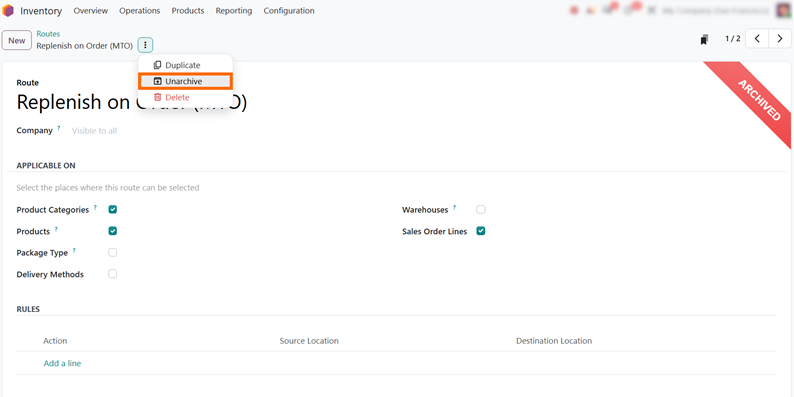
Click the three-dot menu next to the route name and select Unarchive. The Archived ribbon disappears, making the route available for use. You can now assign Replenish on Order (MTO) to the product and link it to the manufacturing workflow.
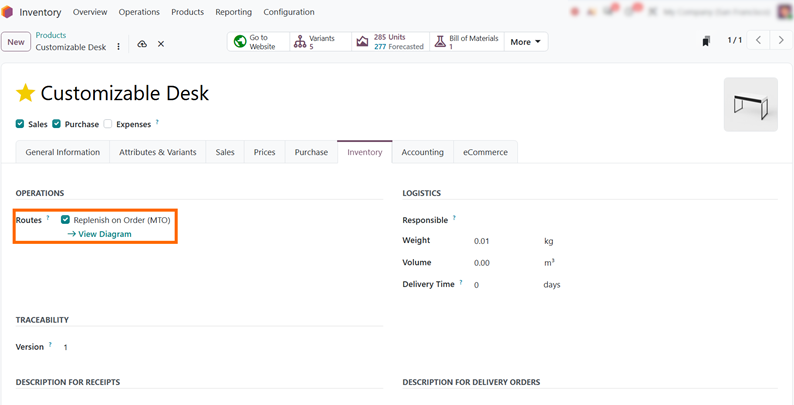
- Open the Customizable Desk product,
go to the Inventory tab, and select Replenish on Order (MTO) in the Routes
section. Click Save, and
each confirmed sales order will now trigger a manufacturing order.
Configure the Product and Price the Quotation
Accurate quotes help job shops respond to customer requests faster and avoid pricing errors when products have multiple options. With the Odoo product configurator, estimators can select the required product attributes directly on the quotation, while Odoo applies the extra prices to the base sales price. This keeps the customer’s configuration and its price together, reducing manual calculations and helping ensure that the quote reflects what will actually be produced. In this section, we create a quotation for the Customizable Desk and configure it with Aluminium legs and White color.
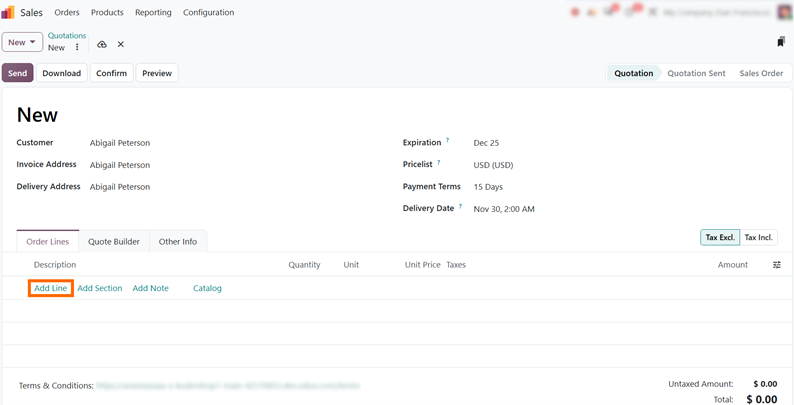
- Open the Sales app, go to Orders, and select Quotations. Click New to create a quotation, then add Customizable Desk to the Order Lines. This starts a quote for the customer and prepares the product for configuration.
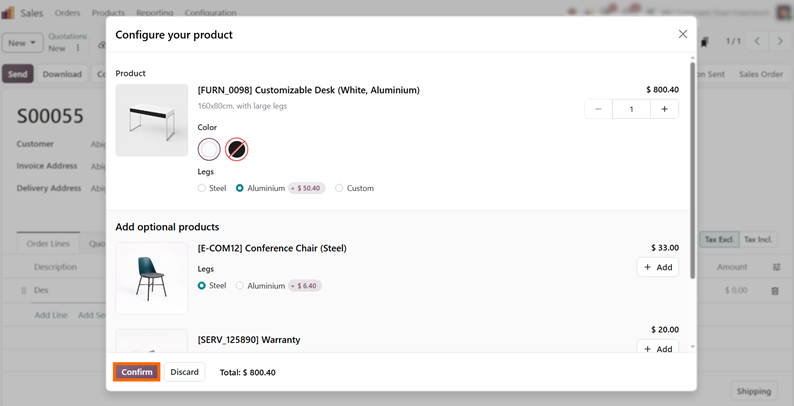
Select Aluminium for Legs and White for Color, then click Confirm. Odoo crosses out incompatible combinations, applies the Aluminium surcharge (+$50.40), and adds the configured desk to the quotation.
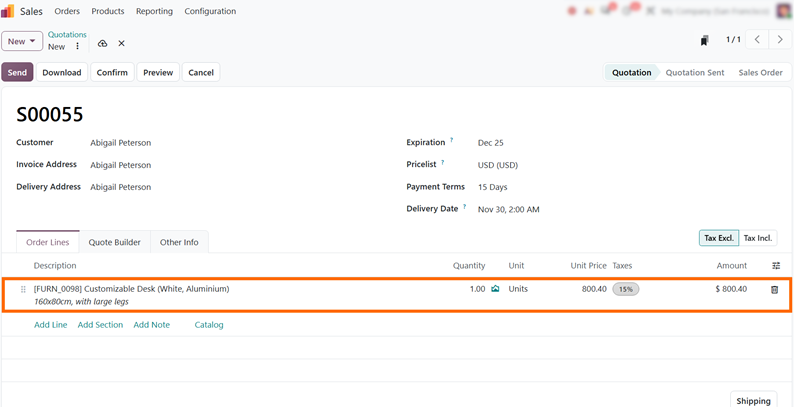
Check the quotation line and verify that the configured Customizable Desk has a unit price of $800.40. This includes the $750.00 base price and the $50.40 extra price for Aluminium.
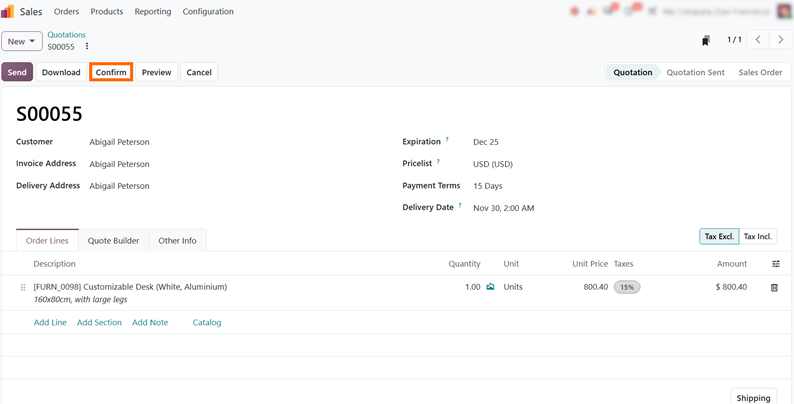
Click Confirm on the quotation to create a sales order. Before confirming, check that Table Top and the Aluminium Table Legs are in stock. See how to track real-time availability and replenishment in Odoo.
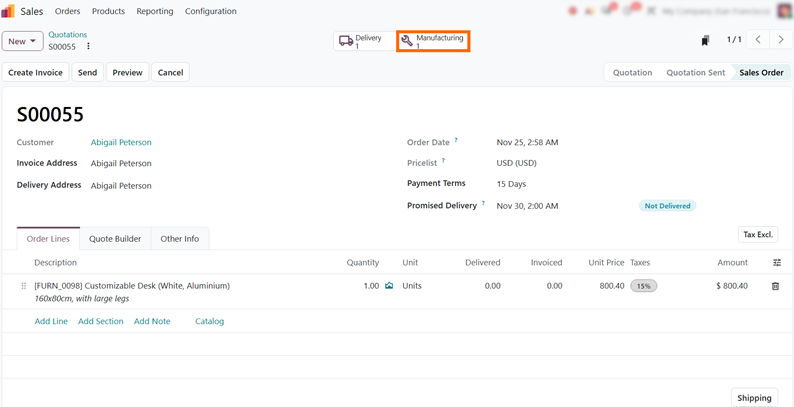
Open the Manufacturing smart button on the sales order to access the manufacturing order generated by the MTO route. This links the confirmed sale to the production order.
Verify Lead Times and Manufacturing Readiness
Before the sales team starts creating quotations, review the settings that affect delivery dates, manufacturing planning, and product configuration. While the product configurator and variant-specific BoM ensure that each order is priced and built correctly, lead times determine whether the promised delivery date is realistic. Checking these settings before going live helps prevent delays, keeps customer expectations aligned with production capacity, and ensures that custom requirements are clearly communicated to the manufacturing team.
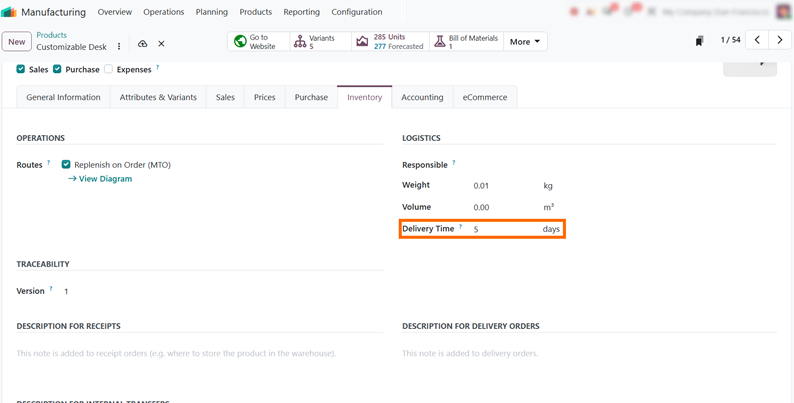
- Open Customizable Desk and go to the Inventory tab. In the Logistics section, set Delivery Time to 5 days as an example lead time, and adjust it to match your actual fulfillment and shipping schedule.
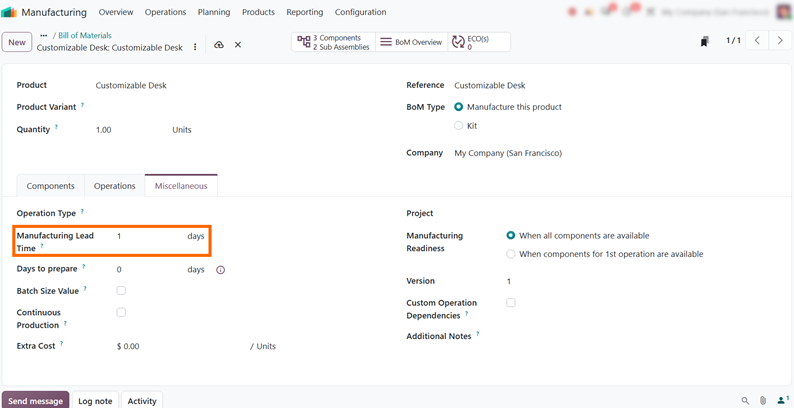
Open the BoM and check Manufacturing Lead Time on the Miscellaneous tab. Set it to 1 day for this example, and adjust it to match your actual production time. This
helps Odoo plan manufacturing and calculate more realistic delivery dates.
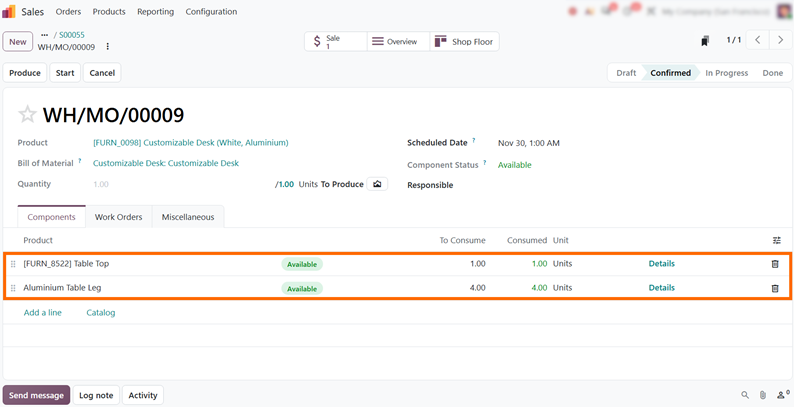
- Open the generated manufacturing order WH/MO/00009 and verify that it shows the White, Aluminium variant with the correct components: 1 Table Top and 4 Aluminium Table Legs.
Conclusion: One Database from Quote to Shop Floor
Combining configurable products with a make to order Odoo workflow lets quotes, pricing, and production run from a single database. Attributes and extra prices drive the quote, one BoM with variant-specific lines defines the components, and the MTO route turns each confirmed sales order into a matching manufacturing order.
Before adopting this setup, teams should decide which options customers can
choose, which components depend on them, and how special requests reach production.
To decide when standard settings are enough, read our guide to choosing between configuration and customization in
Odoo.