A Bill of Materials (BoM) defines which components and quantities go into a manufactured product, so outdated entries can lead to incorrect purchases, rework, or scrap. BoM version control gives engineering teams a structured way to propose, review, and approve changes without editing the production BoM directly. In Odoo 20, Manufacturing stores BoMs and manufacturing orders, while PLM adds Engineering Change Orders (ECOs) and revision tracking. Each ECO keeps proposed changes in a separate revision until they are approved and applied, helping production continue with the current BoM in the meantime. PLM is available in Odoo Enterprise. To explore more manufacturing updates, see Odoo 20 Headline Features for Manufacturers.
- Open the Odoo Apps dashboard and search for Manufacturing to confirm the app is installed. Manufacturing stores the Bills of Materials and manufacturing orders that the ECO process will update.
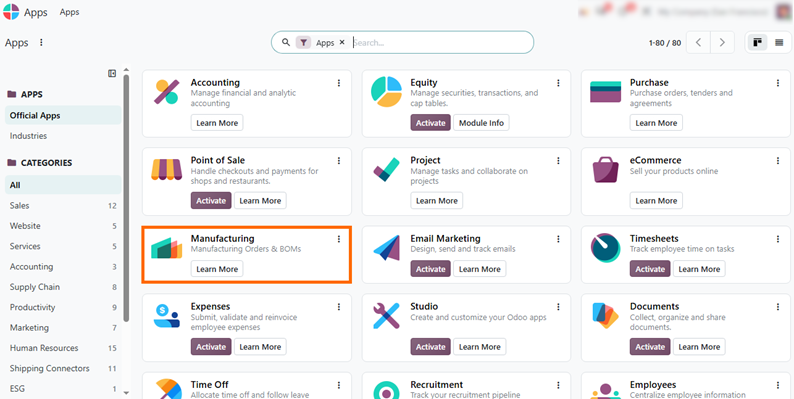
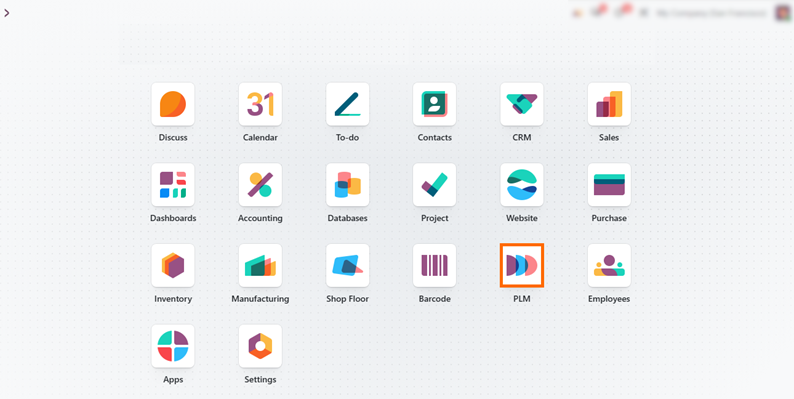
Search for PLM in the Apps dashboard and confirm it is installed. PLM adds Engineering Change Orders, ECO stages, and approval steps, allowing teams to manage and track product changes through a structured workflow.
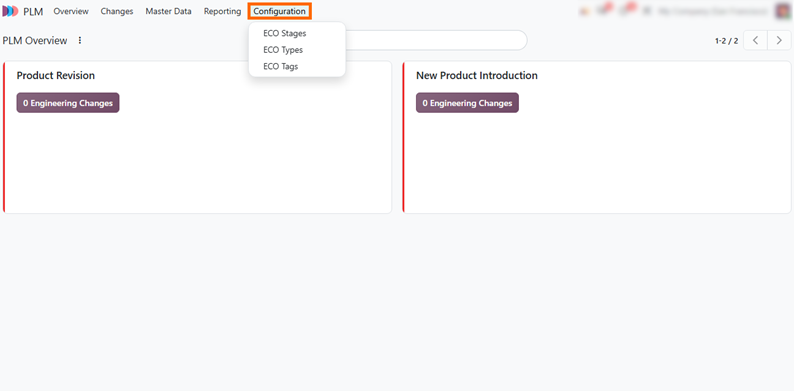
Open the PLM app and go to Configuration to see the settings that control how engineering changes are organized. The menu includes ECO Types, ECO Stages, and ECO Tags.
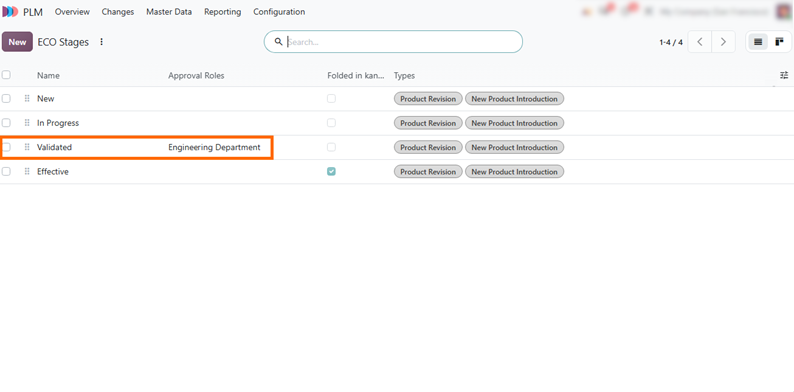
Open ECO Stages to check the workflow steps. The Approval Roles column defines sign-offs for each stage. In this example, the Validated stage requires approval from the Engineering Department.
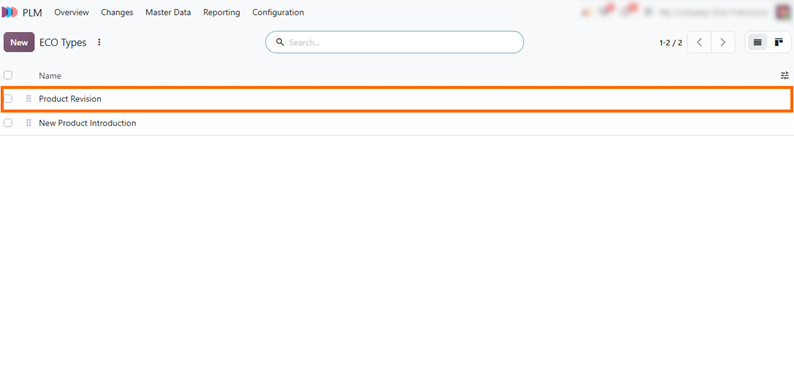
Select ECO Types to see the two default types, Product Revision and New Product Introduction. In this guide, we use Product Revision, since we are changing the BoM of an existing product.
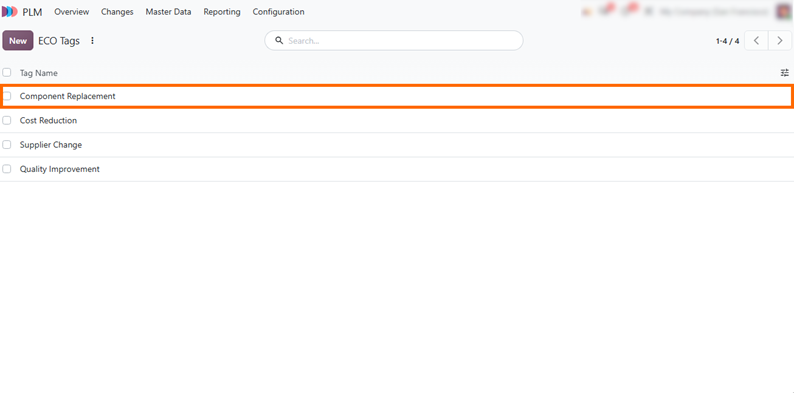
Open ECO Tags to create labels for quick filtering and organization (e.g., Component Replacement, Cost Reduction, Quality Improvement). While tags are optional, they help categorize changes across engineering teams.
Create an Engineering Change Order
for an Existing BoM
Uncontrolled product changes can cause scrap, purchasing errors, and downtime on the shop floor. Accurate manufacturing data also helps teams make better production decisions. Learn how to turn manufacturing data in Odoo into actionable production insights. To prevent these disruptions, engineering teams use ECOs to propose and document updates in a separate BoM revision before applying them to the active production BoM. This helps engineering managers track the reason for each change, who approved it, and how it affects the Bill of Materials. In this section, we use Odoo’s standard Desk Combination BoM to create an ECO, replace a component, and document the reason for the change.
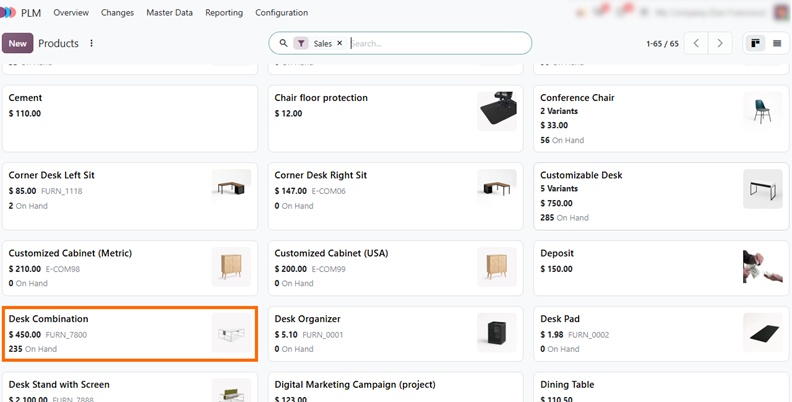
- Open the PLM app, go to Master Data, and select Products. Open Desk Combination to see its product card, which includes smart buttons for the Bill of Materials and ECOs linked to this product.
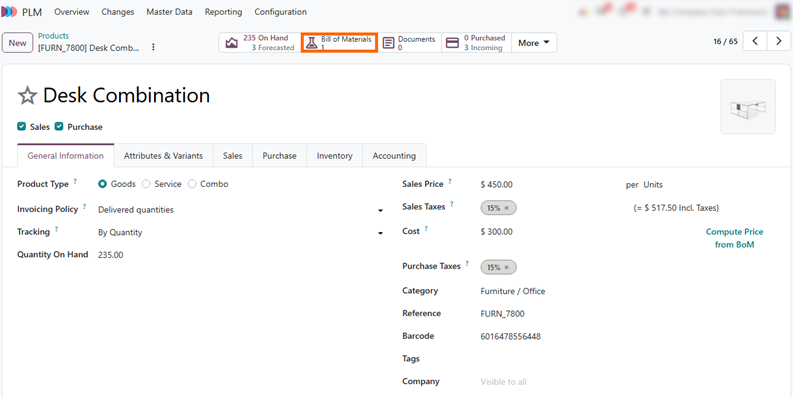
Click the Bill of Materials smart button on the product card to open the BoM tied to Desk Combination. This BoM is the production version that manufacturing orders currently use.
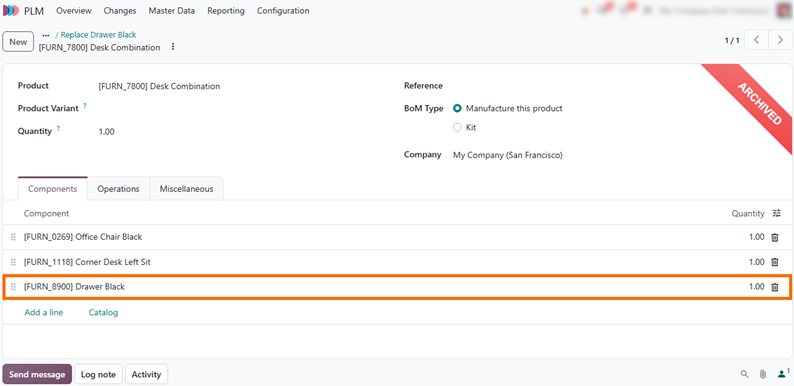
On the Components tab, review the components that make up the product: Office Chair Black, Corner Desk Left Sit, and Drawer Black, each with a quantity of 1.00. This is the starting point we will change through an ECO.
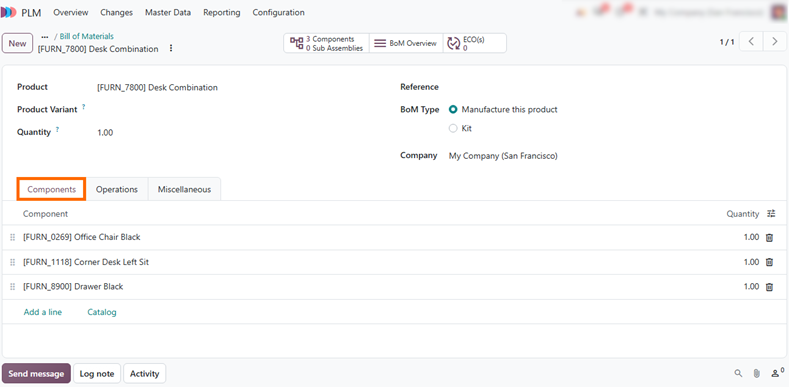
Check the ECO(s) smart button at the top of the BoM. It shows 0, which means no ECOs are linked to this BoM yet. You can also click this button and select New to create an ECO for this BoM directly, without leaving the BoM.
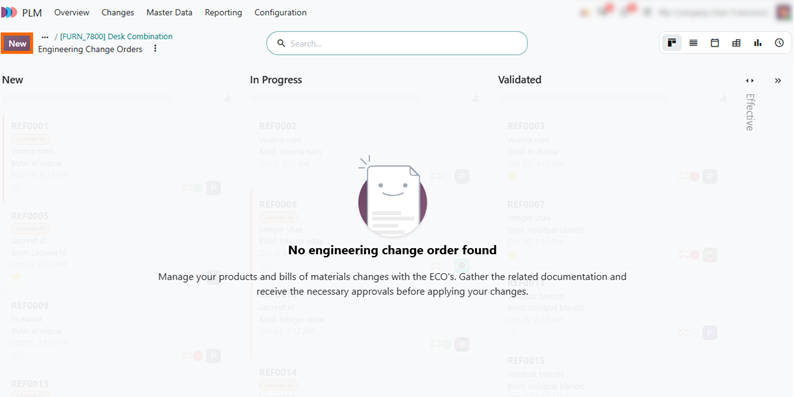
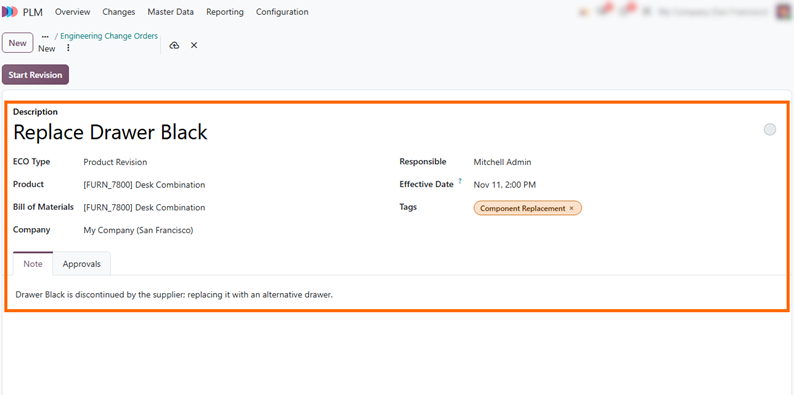
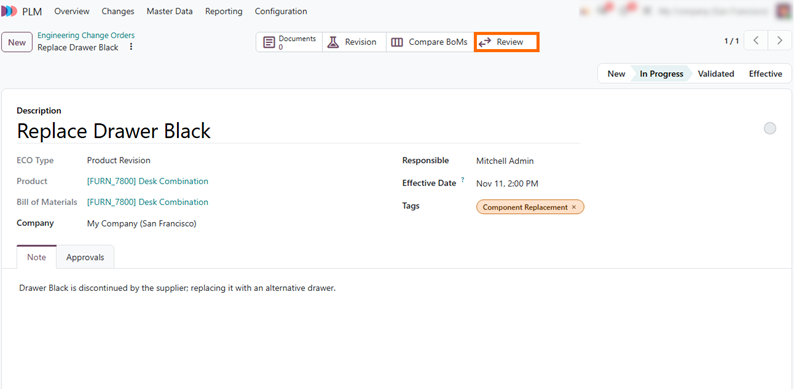
Enter a description such as Replace Drawer Black and add a tag, such as Component Replacement. The ECO Type, Product, and Bill of Materials are already filled in, so open the Note tab and record the reason for the change, such as the supplier discontinuing Drawer Black.
Revise the BoM and Replace a Component in Odoo 20
Once an ECO is started, Odoo creates a separate revision of the Bill of Materials where engineering teams can work on the proposed change. The production BoM stays unchanged in the meantime, because changes made in the revision do not take effect until the ECO is approved and applied. This isolation lets teams edit components, quantities, or operations, check the result, and review the difference against the current BoM before anything reaches production. Revisions also keep a clear link to the ECO that requested them, so every change can be traced back to its reason. In this section, we replace Drawer Black in the revised BoM and return to the ECO to prepare it for review.
-
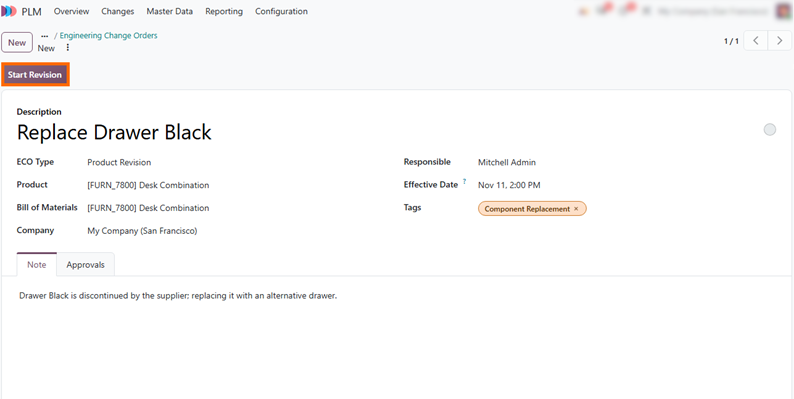
Once the ECO details are
filled in, click Start Revision. Odoo copies the production BoM into a
revision, shown by the new Revision smart button, while the production
BoM stays unchanged.
- Click the Revision smart button to open the revised BoM, marked as Archived in this view. It contains the proposed changes, while the original production BoM remains unchanged until the ECO is approved and applied. On the Components tab, delete Drawer Black to remove it from the proposed revision.
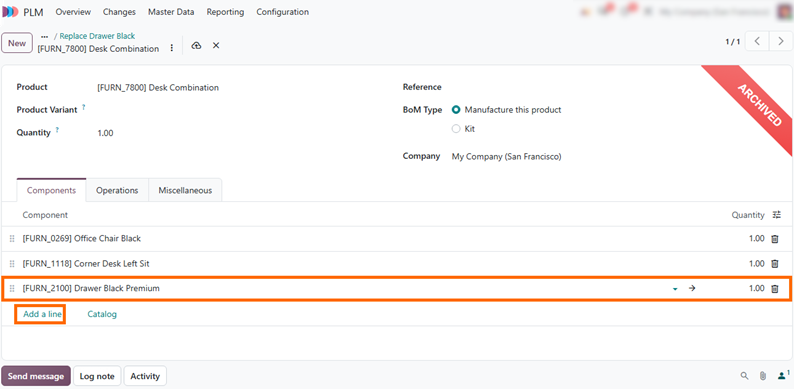
Click Add a line, select Drawer Black Premium, and keep the quantity at 1.00. This updates the proposed revision with the replacement component. Save the BoM and
return to the ECO using the breadcrumbs.
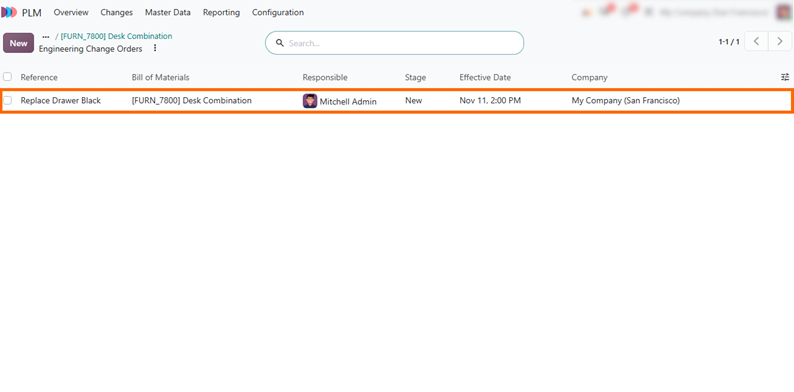
- Return to the Engineering Change Orders list to confirm that the new ECO has been created. The Replace Drawer Black request should appear in the New stage, showing that the proposed BoM change is recorded and waiting for review.
Review and Approve the Engineering Change Order
Once an ECO is created, the next step is to review the proposed changes before they reach production. Odoo PLM supports BoM version control by allowing engineering teams to compare the current BoM with the proposed Bill of Materials revision, verify component updates, and check that all changes are properly documented. Reviewers can examine the updated component list, confirm that quantities remain correct, and assess whether the change meets engineering requirements. Once the proposed revision is verified, the ECO can move through the configured approval stages. This helps identify discrepancies before the revised BoM is approved and applied to production.
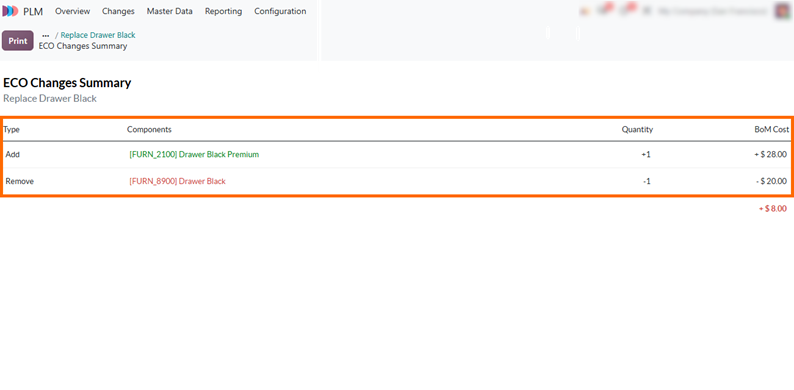
- Open the created ECO and click Review to open the ECO Changes Summary. It lists the added and removed components and the effect on the BoM cost, so reviewers can confirm the change before approving it.
Review the summary table to verify the changes: Drawer Black is marked as Remove (-1) for -$20.00, and Drawer Black Premium as Add (+1) for +$28.00, giving a net increase of +$8.00
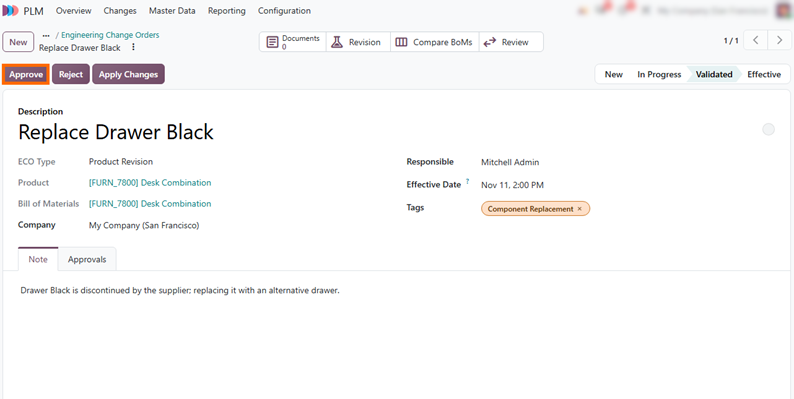
Once changes are verified, move the ECO to the Validated stage by clicking it in the stage bar at the top right. Click Approve in the top action bar to log the Engineering Department sign-off, so the change is reviewed and approved before it reaches the production BoM.
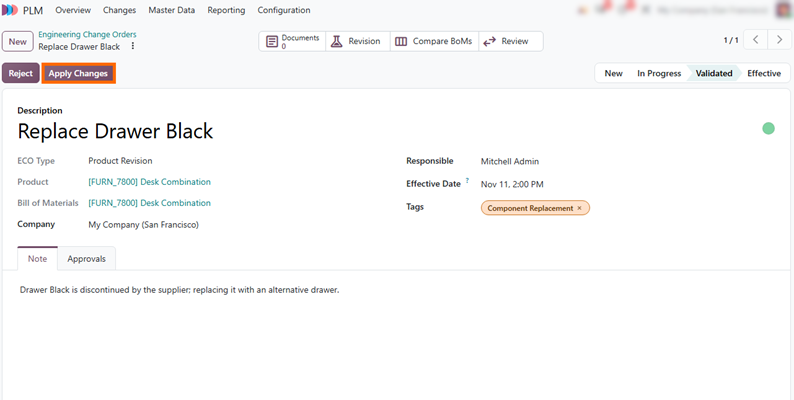
Click Apply Changes in the top action bar to apply the approved revision to the production BoM. The previous version is archived, and the revised BoM becomes the one used in production.
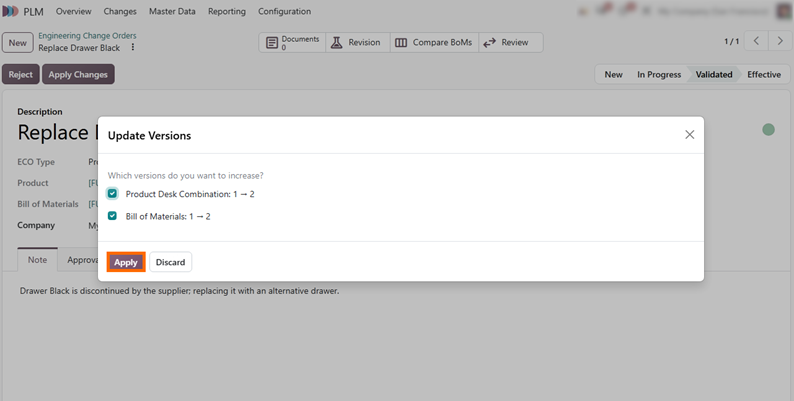
- In the Update Versions dialog that appears, keep both options selected (Product and Bill of Materials) to advance their version numbers from 1 to 2, and click Apply to move the ECO to the Effective stage and update the live production BoM.
Track BoM Revisions and Review Archived Versions
Once an ECO takes effect, Odoo PLM updates the active production specification and keeps the previous revisions on record. Retaining these records helps engineering managers trace structural changes back to their ECO, investigate quality issues, and review what was in production before. Rather than overwriting historical specifications, Odoo archives outdated versions while keeping them readily accessible for comparison and troubleshooting. In this section, we verify the updated BoM, inspect the archived version, and review the change in reports.
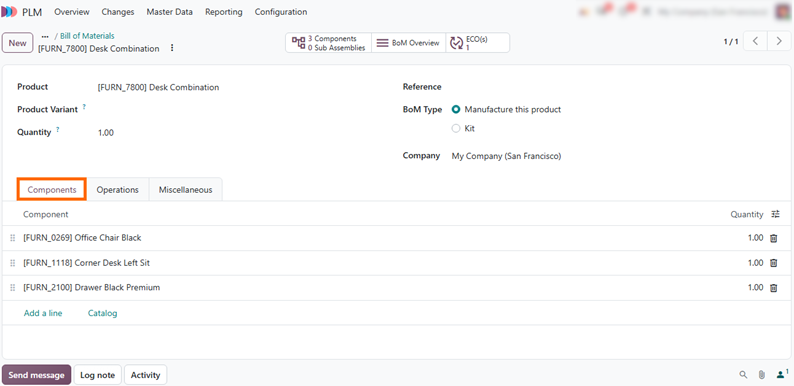
- Open the Bill of Materials from the Desk Combination product card and review the Components tab. Drawer Black Premium has replaced Drawer Black, and the ECO(s) smart button now shows 1, linking the BoM to the ECO that changed it.
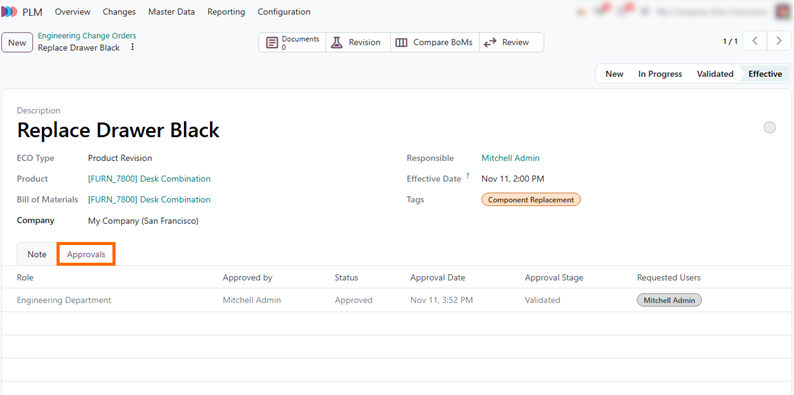
Click the ECO(s) smart button to open the ECO, now in the Effective stage, and open the Approvals tab. It records who approved the change and when: here, Mitchell Admin signed off for the Engineering Department at the Validated stage.
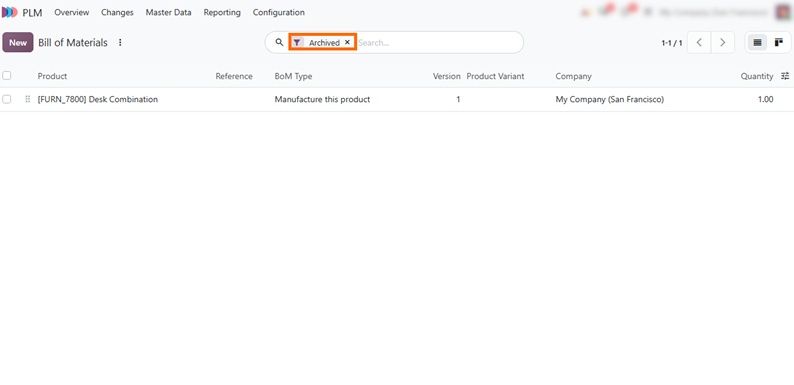
Open the Bill of Materials list and apply the Archived filter. The previous version of the Desk Combination BoM appears with Version 1, kept as a record of the BoM that was in production before the change.
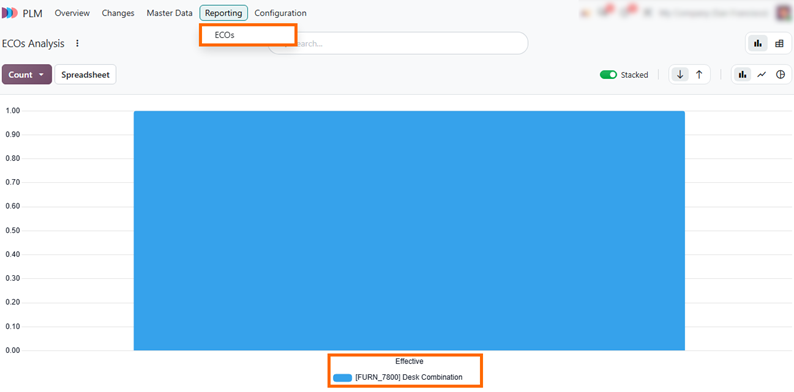
Go to Reporting and select ECOs to open the ECOs Analysis report, which groups engineering changes by stage and product. Managers can use it to see how many ECOs are in each stage, such as the one for Desk Combination in Effective.
Conclusion: Keeping BoM Changes Controlled and Traceable
BoM version control in Odoo 20 keeps proposed changes separate from the production BoM until they are reviewed, approved, and applied. Through PLM, each Bill of Materials revision is linked to an ECO that records the reason for the change, its cost impact, and the previous version. This helps engineering managers trace a change back to its request and approval.
Before adopting this process, teams should define which changes require an ECO, who approves them, and which stages need sign-off. The stages and approvals in this guide use standard PLM settings, so teams can set up revision control without custom development. If their requirements go beyond standard settings, they may need customization. To understand when each approach makes sense, read our guide to choosing between configuration and customization in Odoo.