When adapting Odoo to your business processes, deciding whether a requirement can be handled through standard Odoo configuration or requires Odoo customization is critical. Not every operational change requires custom development. Many can be resolved by reviewing the system's standard functionality to determine if the requirement is already supported out of the box. Other cases may call for low-code Odoo Studio adjustments or custom Python development. Choosing the right approach helps avoid unnecessary development costs, reduces future maintenance effort, and keeps Odoo aligned with your long-term business needs. This guide explains what each option handles best and when it makes sense to move from standard configuration to more advanced customization.
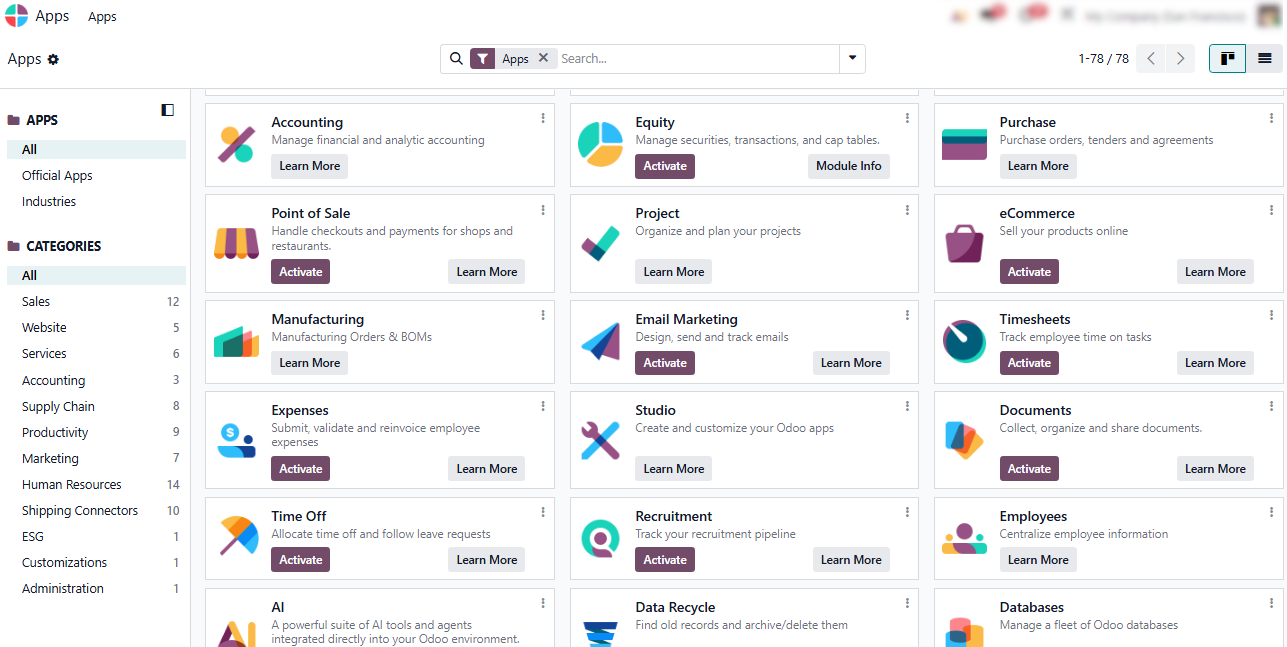
- Open the Apps dashboard to explore official Odoo modules, such as Sales, Manufacturing, or Invoicing, and click “Activate” to deploy standard functional blocks as part of your Odoo setup.
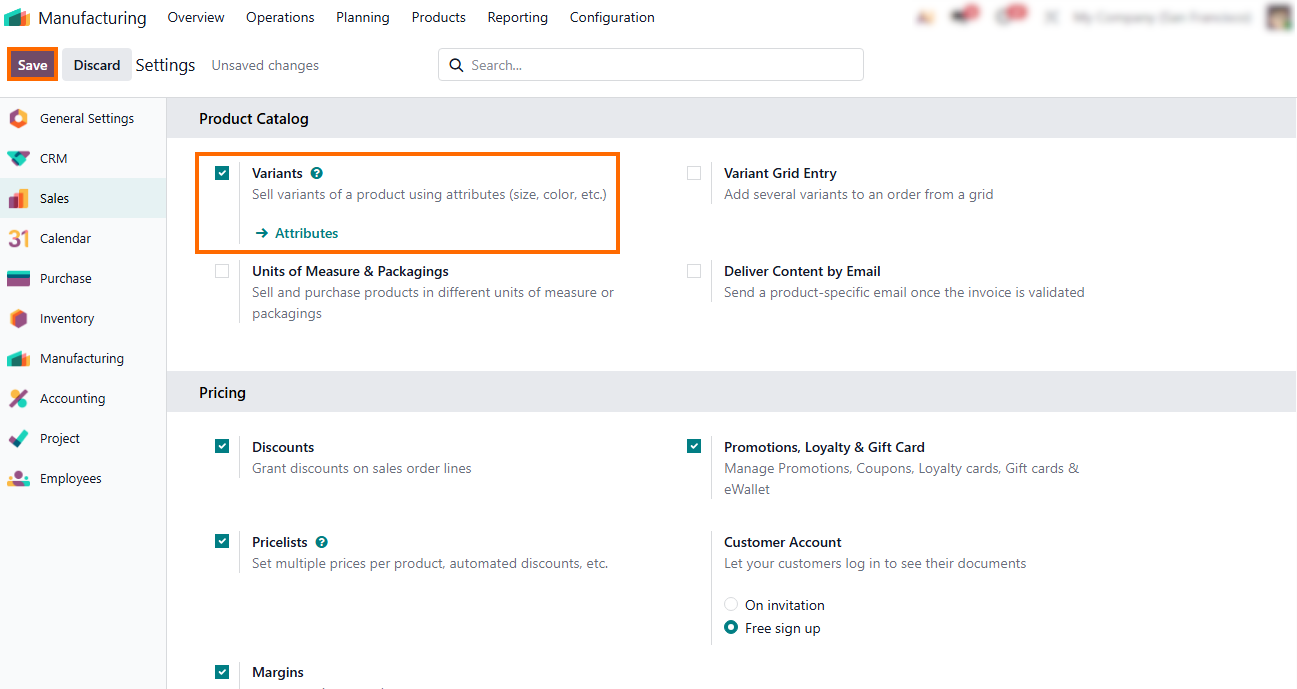
Enable standard parameters, including Variants, Pricelists, Promotions & Loyalty, or Margins, then click “Save” to apply the configuration and make the related functionality available.
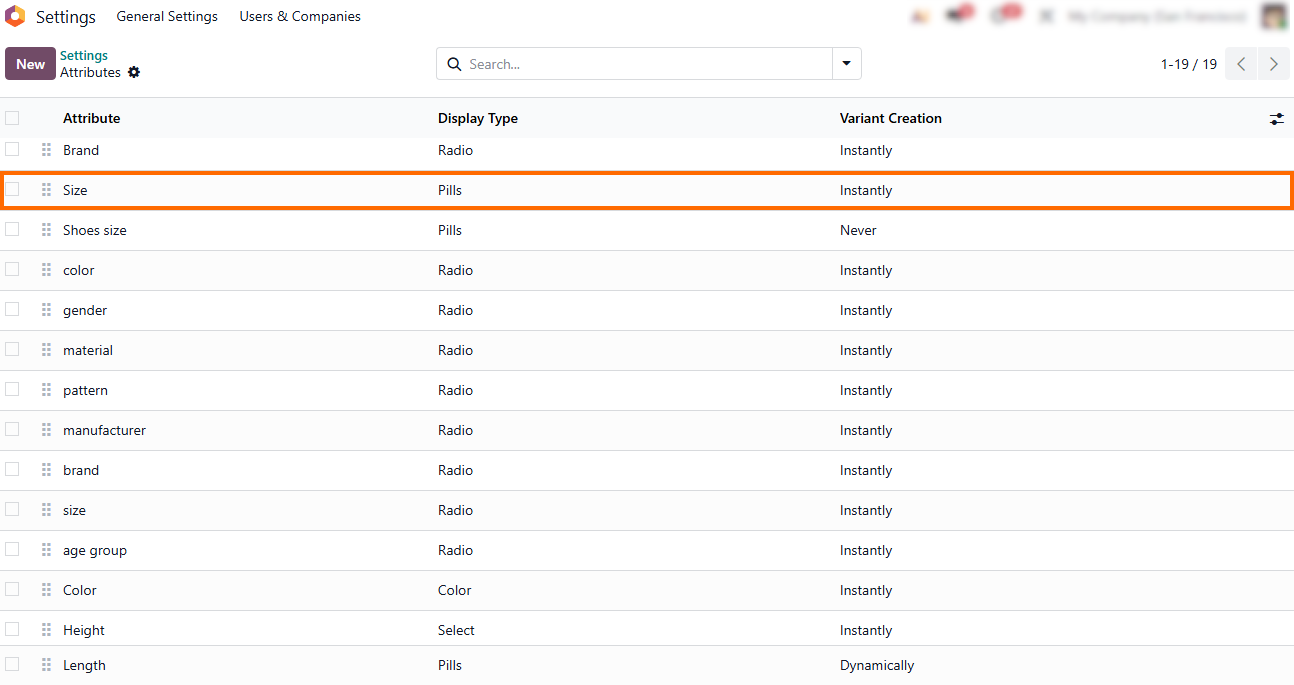
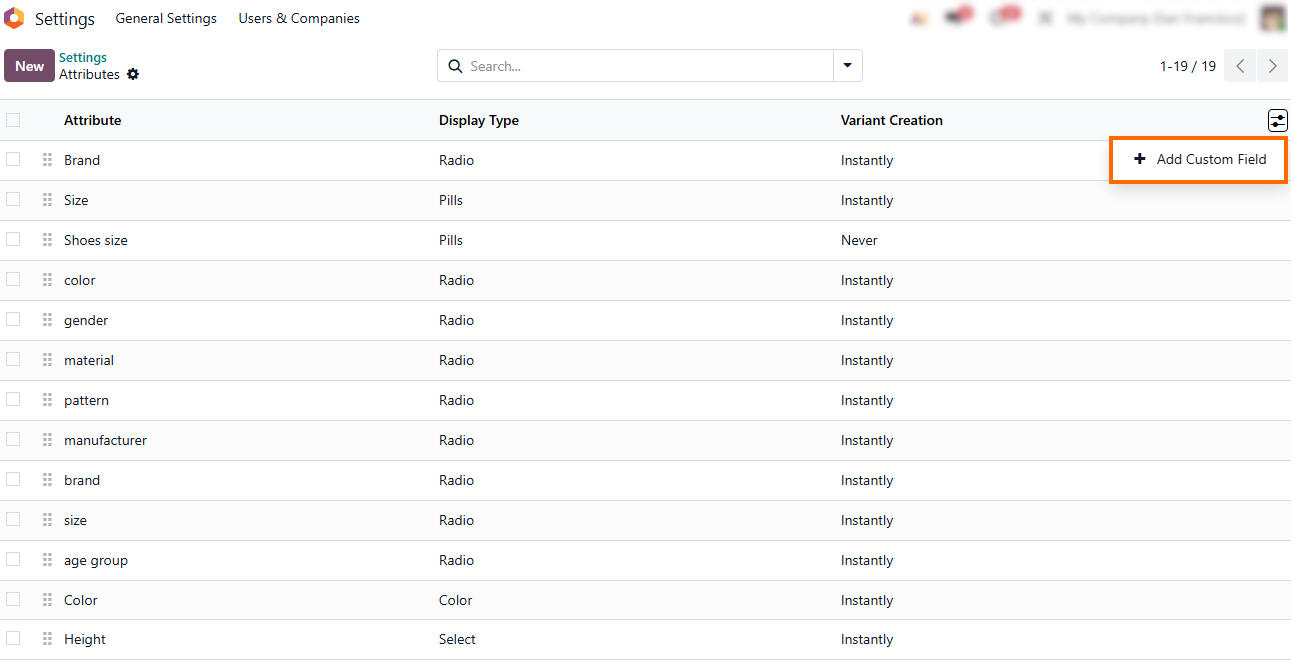
Once core parameters are enabled, native features can be configured directly in app menus. You can define product Attributes such as Brand, Size, or Color and set their display types without modifying database structures or custom UI templates.
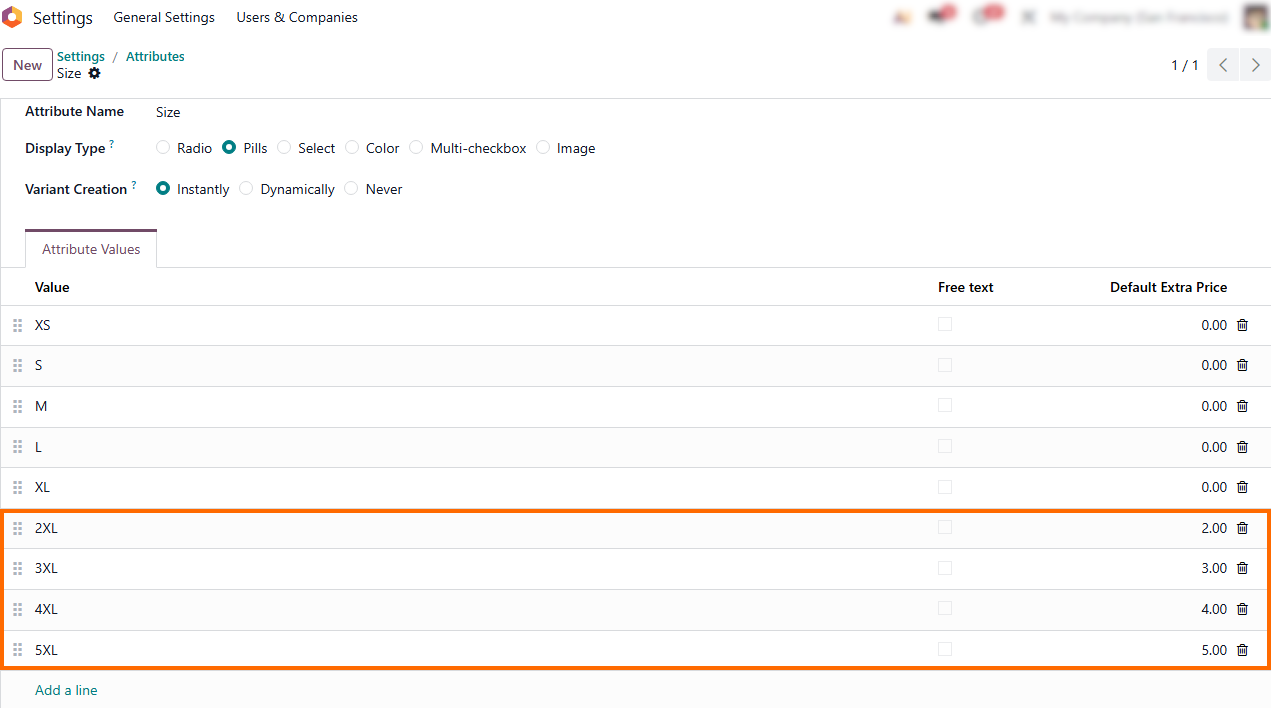
Native attributes also handle dynamic commercial logic out of the box. You can assign an Extra Price to specific options (like premium finishes), allowing Odoo to automatically adjust final order pricing without writing custom calculation scripts.
Native master data structures handle core variations out of the box. Once standard fields are not enough, tools like “+ Add Custom Field” provide a direct way to extend system functionality with Odoo Studio.
Testing Odoo Configuration in a
Real Sales Workflow
Once the required product options are configured, test them in a real sales workflow to see whether standard Odoo functionality fully covers the business requirement. Using the configured features in an actual transaction provides a practical way to confirm that the process works as expected before introducing any additional customization. This keeps the decision focused on the actual business need rather than assuming that every gap requires development. The goal is to verify the expected result using the tools already available in Odoo. For example, a configured product variant can be tested directly in a quotation to confirm that the selected attributes and pricing behave as expected.
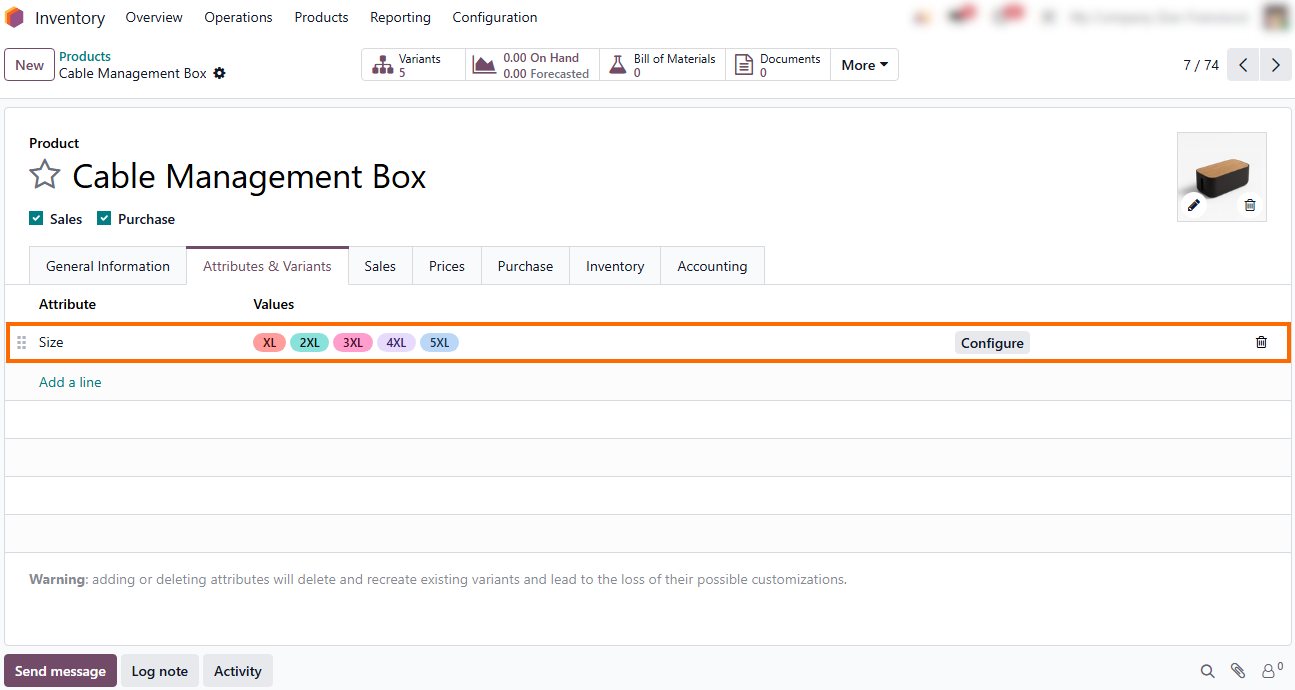
- Check assigned item characteristics under the “Attributes & Variants” tab on the product template, using out-of-the-box configuration to handle variant parameters and confirm that native features function properly before adding further customizations.
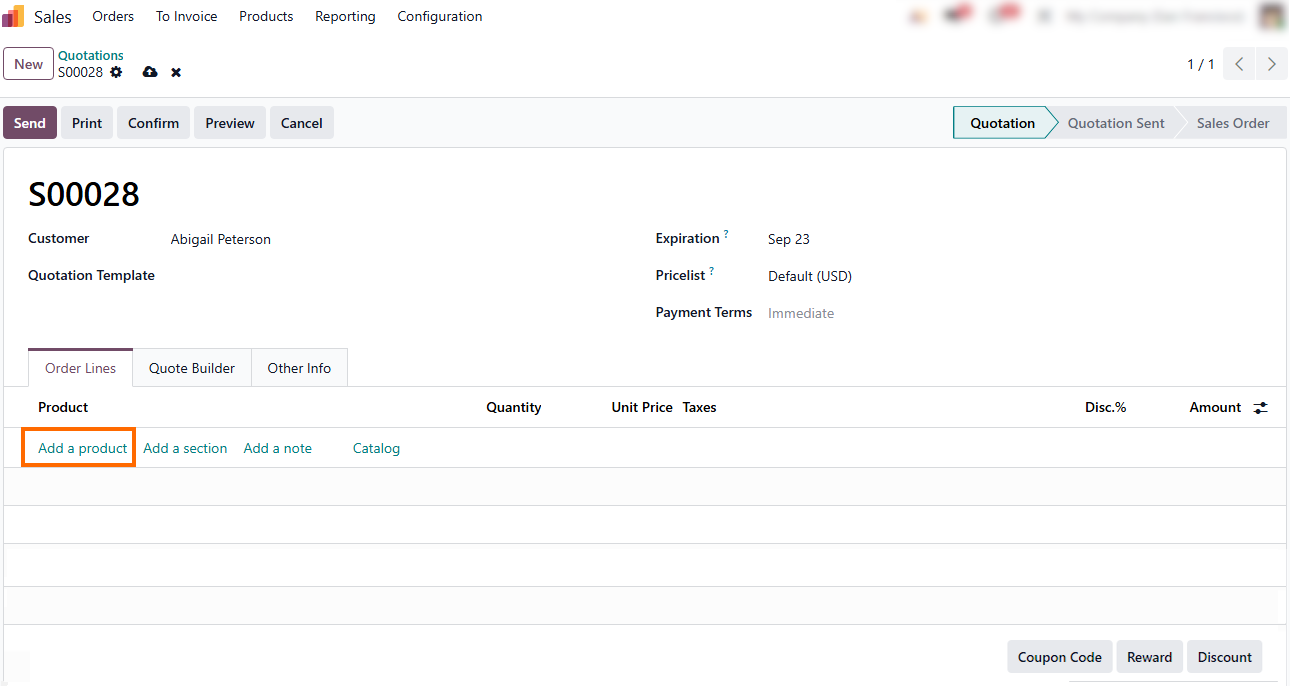
Create a new sales quotation and click “Add a product” under the “Order Lines” tab to trigger the attribute configurator, testing whether Odoo's native product configurator handles your pricing.
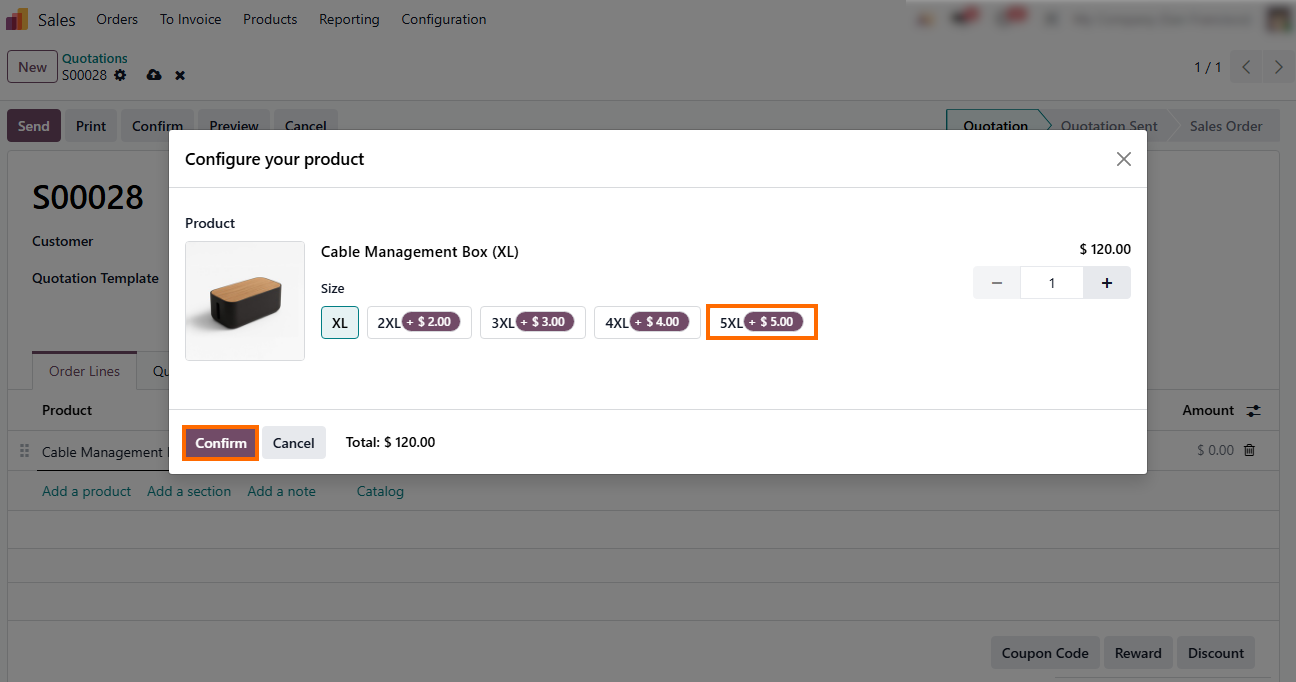
Observe how Odoo automatically applies price surcharges based on the selected variant size (e.g., +$5.00 for 5XL), demonstrating that dynamic pricing logic can be handled natively without custom Python development or manual manager intervention.
Leverage Odoo's native stock availability alerts, highlighted by the red forecasting icon, to immediately warn sales reps when a selected product variant is unavailable, eliminating the need for custom inventory verification workflows.
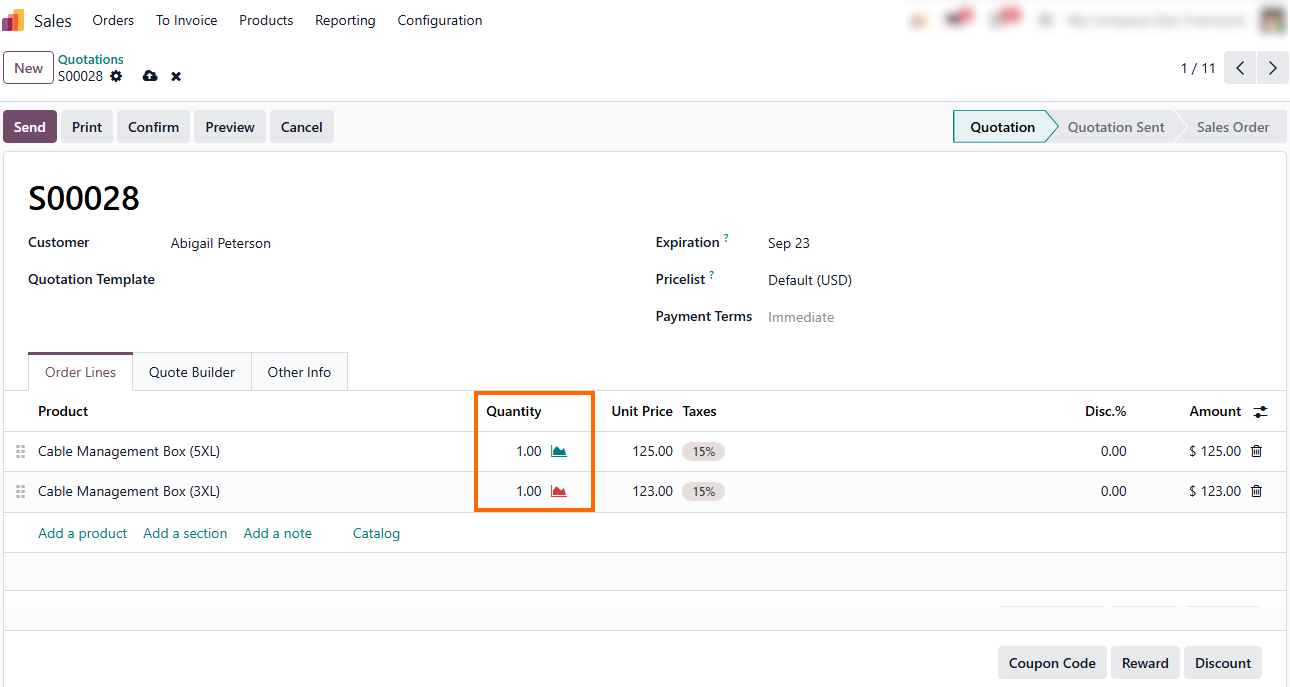
Confirm the completed quotation to verify that the selected product variant, applied pricing, and final order amount are carried correctly into the sales workflow without requiring additional customization.
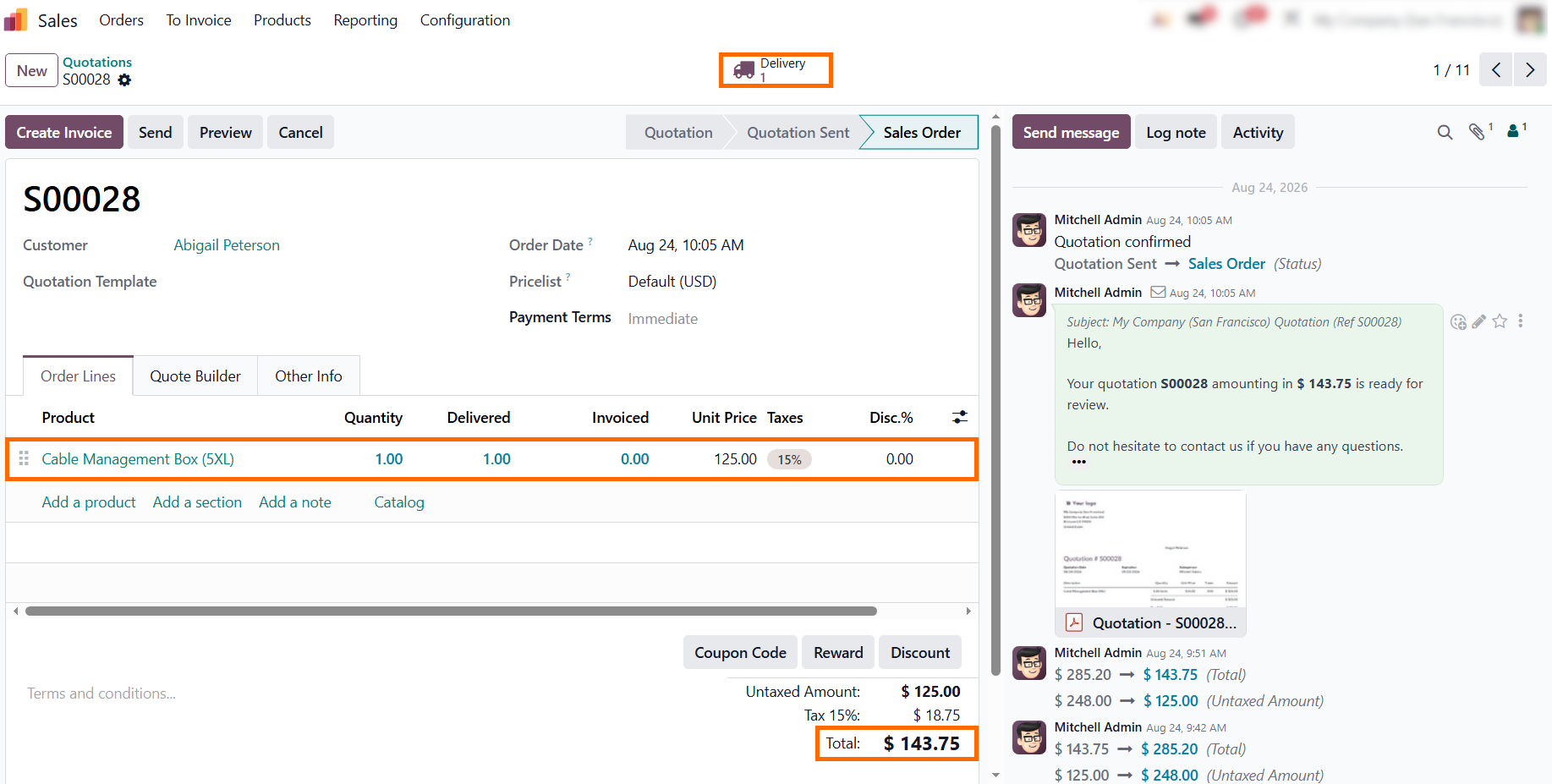
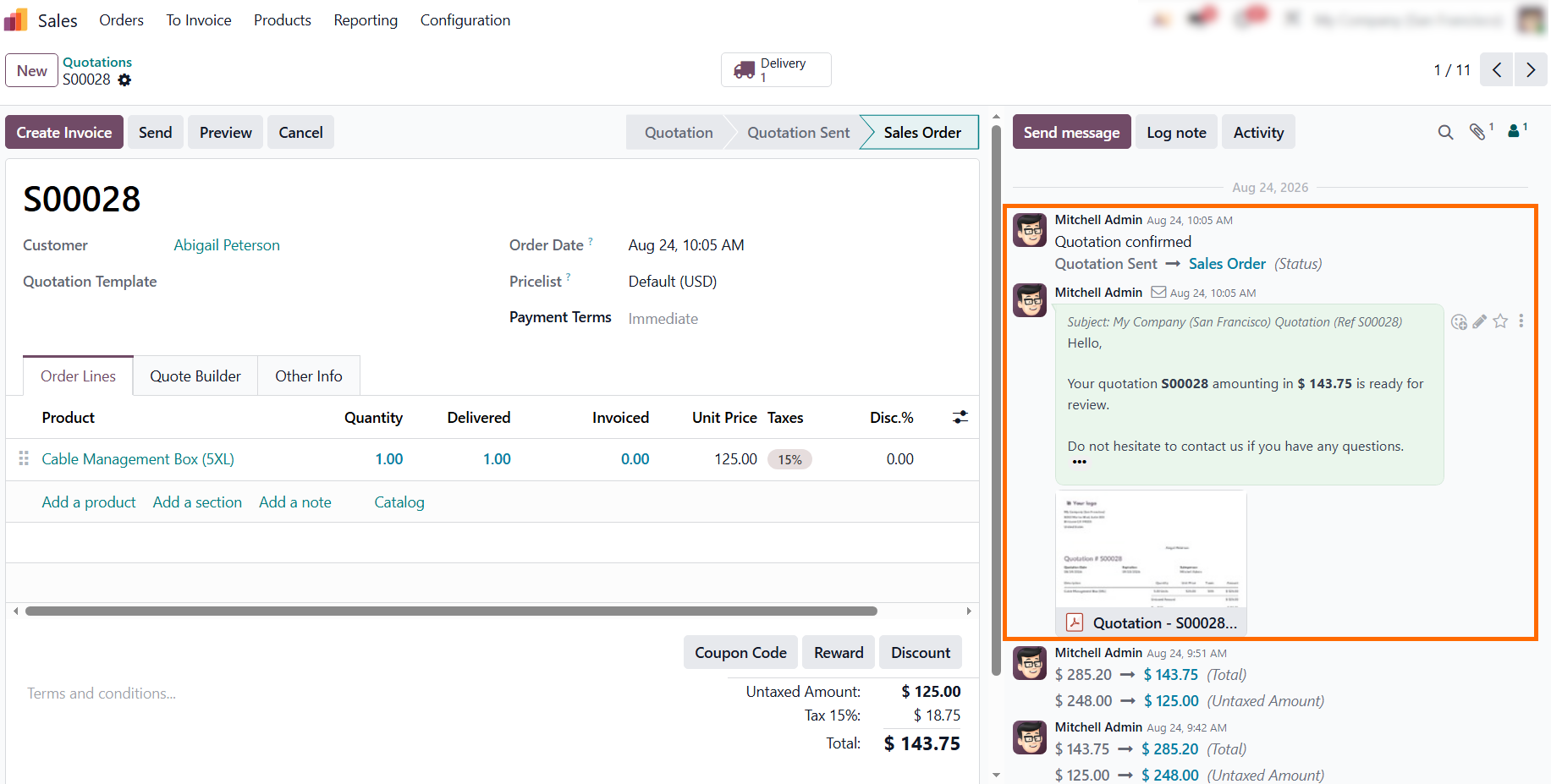
Review the transaction audit trail in the chatter log to confirm that status changes, pricing calculations, and generated documents are recorded automatically without custom code.
Expanding System Capabilities with Odoo Studio
When standard settings and master data forms no longer cover your specific operational needs, Odoo Studio provides an alternative to custom development. It acts as a low-code bridge between basic native configuration and full Python customization. Exclusive to Odoo Enterprise, Studio operates directly within Odoo, allowing you to add custom fields, adjust views, automate actions, and extend existing workflows without requiring direct changes to the underlying source code. These changes remain within the same Odoo environment and can be used across relevant business processes without requiring manual data synchronization or external API setups. This approach gives you a practical range of Odoo customization options for adapting the system quickly while minimizing technical debt and reliance on external development resources.
- Use the “+ Add” tab to pick from native field types, including simple inputs, relational links, and automated logic, to collect extra data points when standard settings are not enough.
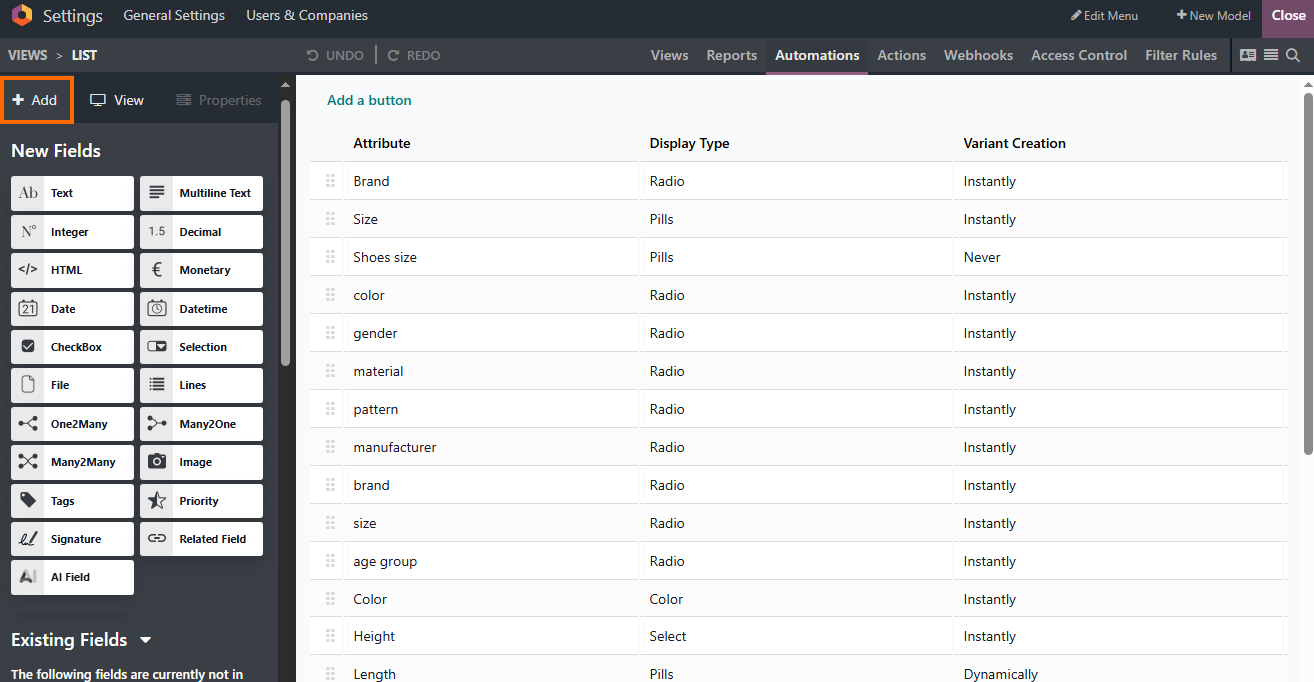
Drag and drop the selected field directly into the form or list view to customize your workspace layout in real time and make the new information visible to users without changing the underlying code.
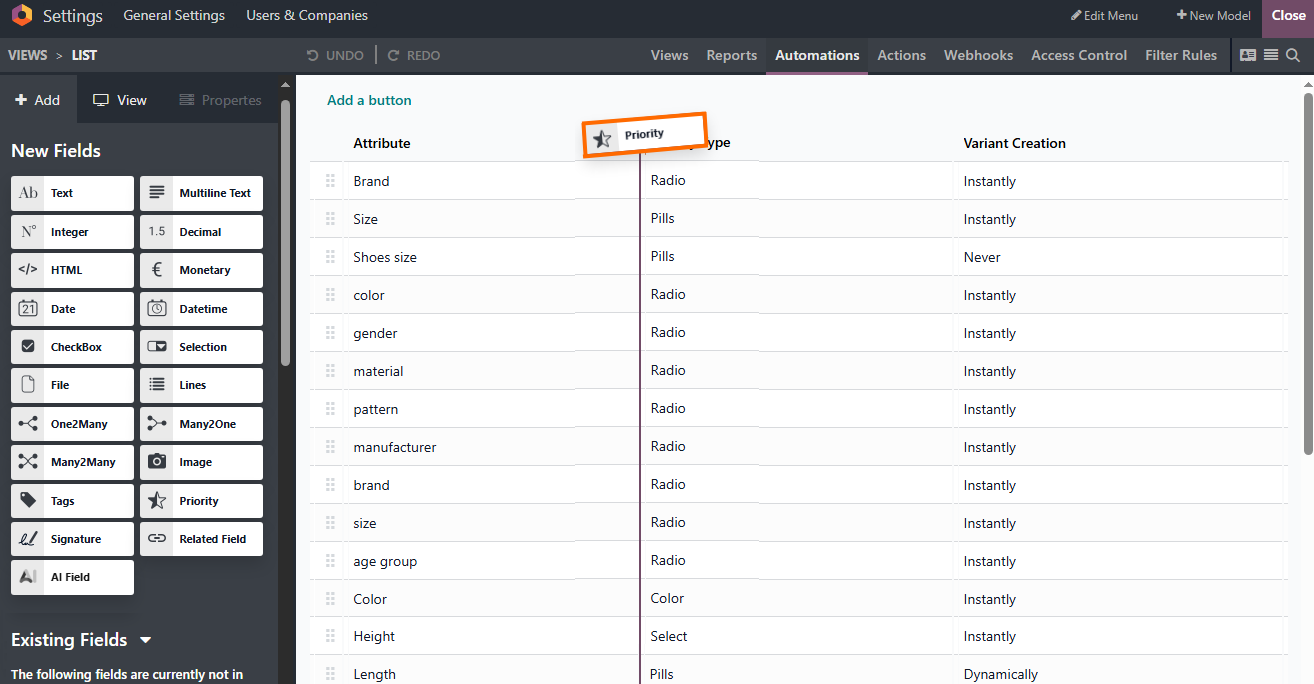
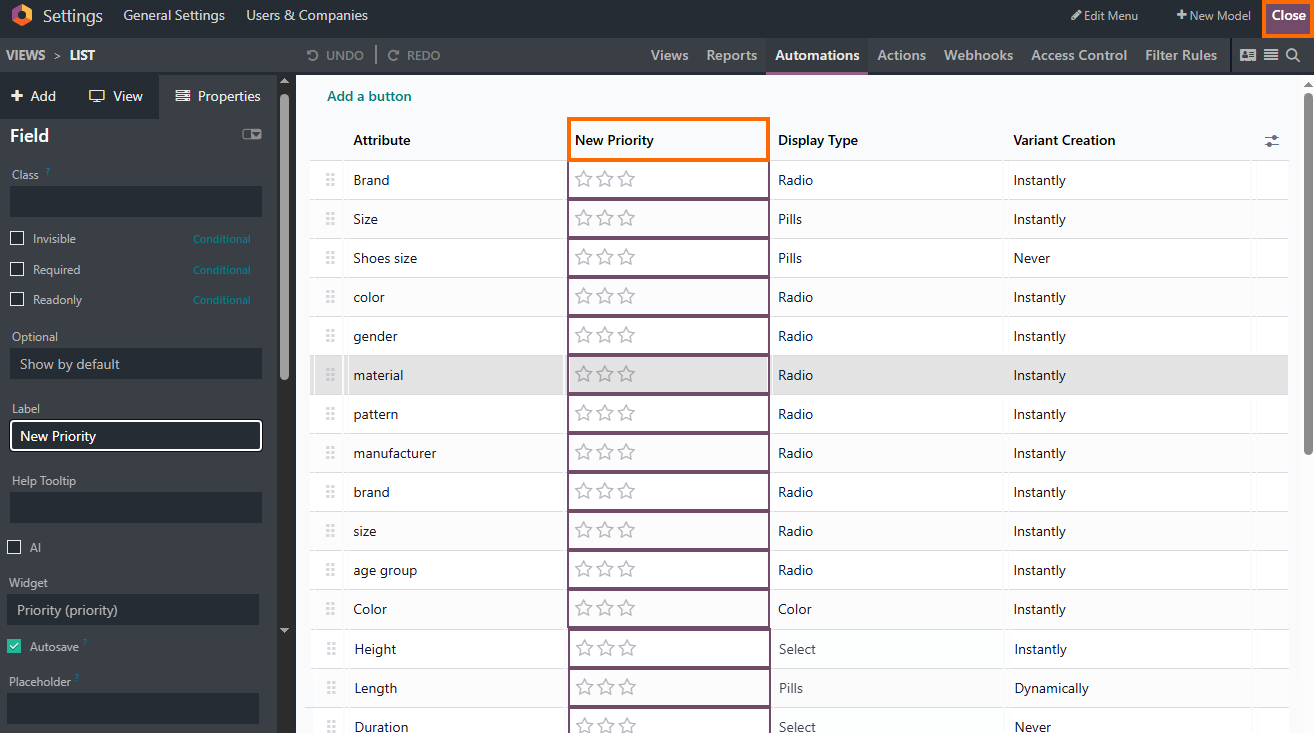
Add a custom “Priority” field via Odoo Studio so sales teams can rank high-demand catalog attributes directly in the list view without writing backend code or relying on developers.
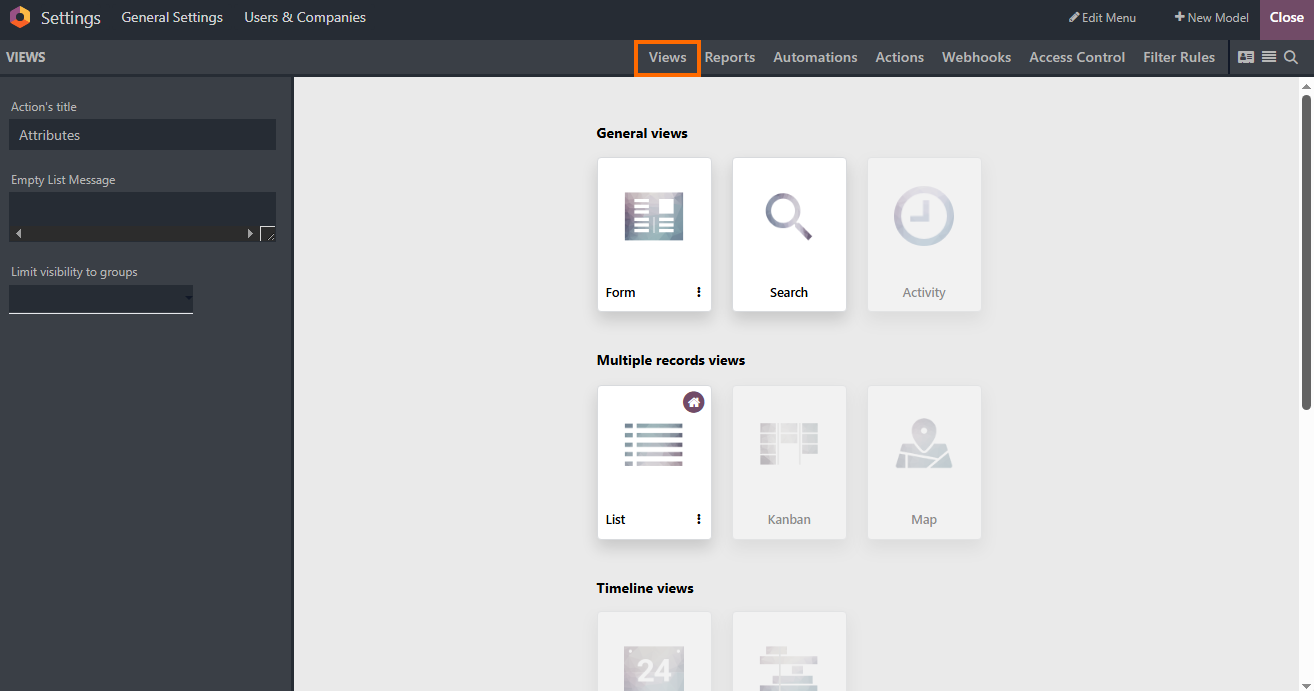
Use the “Views” menu in Studio to customize Odoo views and manage how users interact with your model across different layouts, such as Kanban, Map, or Activity views, adjusting each view to display the information most relevant to your
workflow.
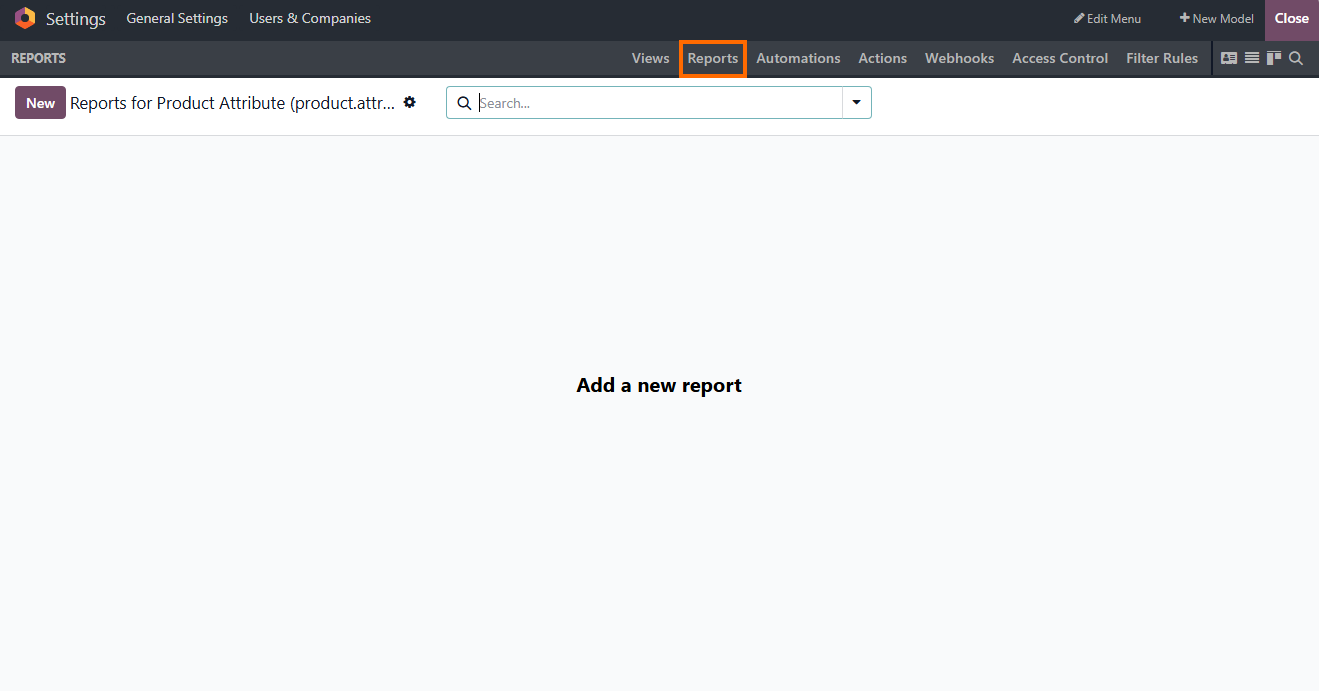
- Open the “Reports” tab to generate custom print templates, commercial quotes, or shipping labels, modifying structural document layouts directly through the visual designer without building QWeb views from scratch.
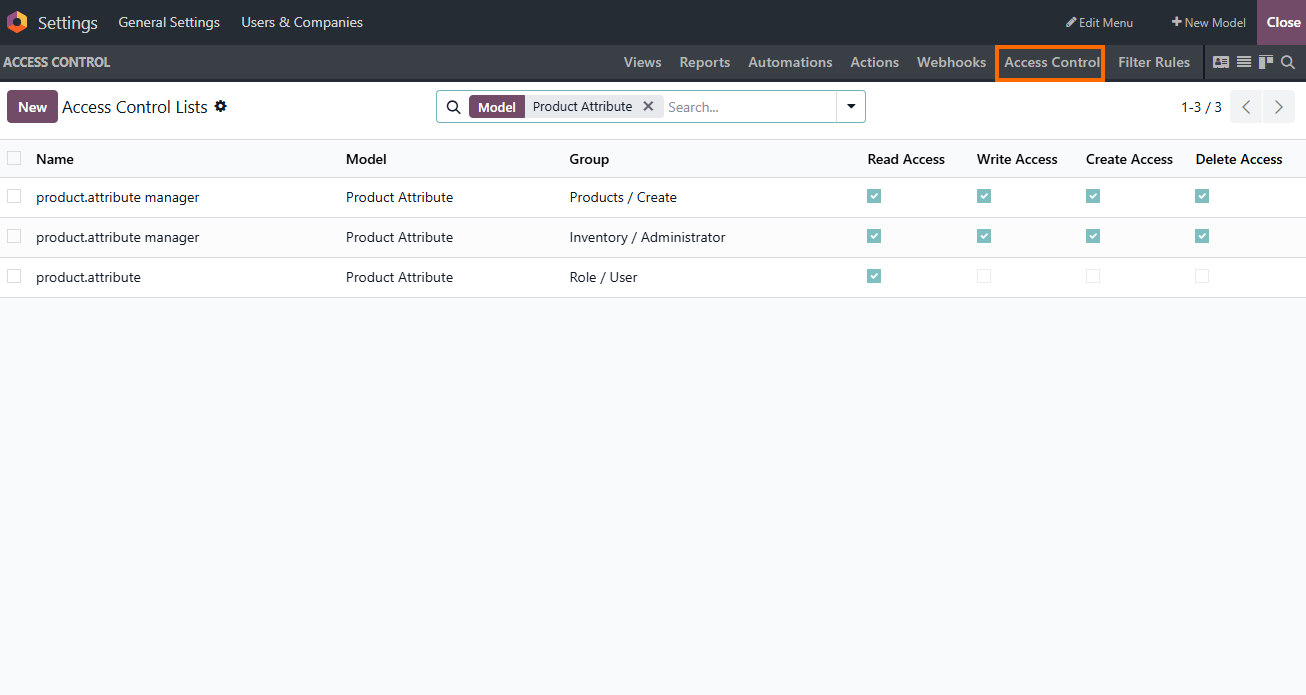
Use the “Access Control” tab to define granular user permissions by granting or restricting read, write, create, and delete rights per user group directly within the
interface, without configuring access rules manually in code.
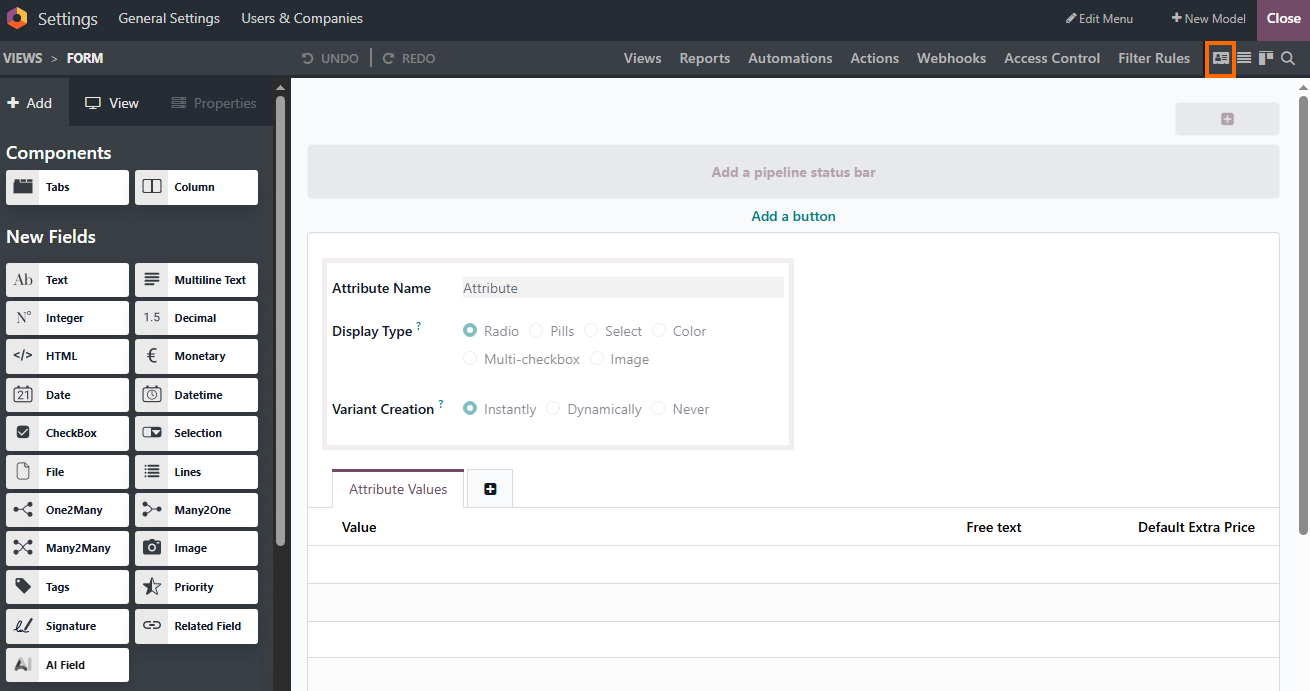
- Ultimately, switch to the “Form” view to restructure document layouts by adding custom tabs, grouping parameters into clean columns, or embedding dynamic action buttons directly on the master data card.
How to Assess the Need for Odoo Custom
Development
If testing demonstrates that standard settings or Studio adjustments cannot fulfill complex business logic, custom Odoo development may become necessary. Complex backend rules, specialized integrations, and advanced data processing may require technical solutions beyond what configuration and Studio can provide. Custom development allows these requirements to be addressed without forcing business processes into unsuitable standard workflows. Partnering with experienced specialists for Odoo customization services ensures that advanced Python scripts and API endpoints are implemented while following maintainable development practices and minimizing upgrade-related risks.
- Activate “Developer Mode” and access advanced system parameters and developer tools directly in “Settings” to inspect technical data models or set up complex automation rules before writing backend code.
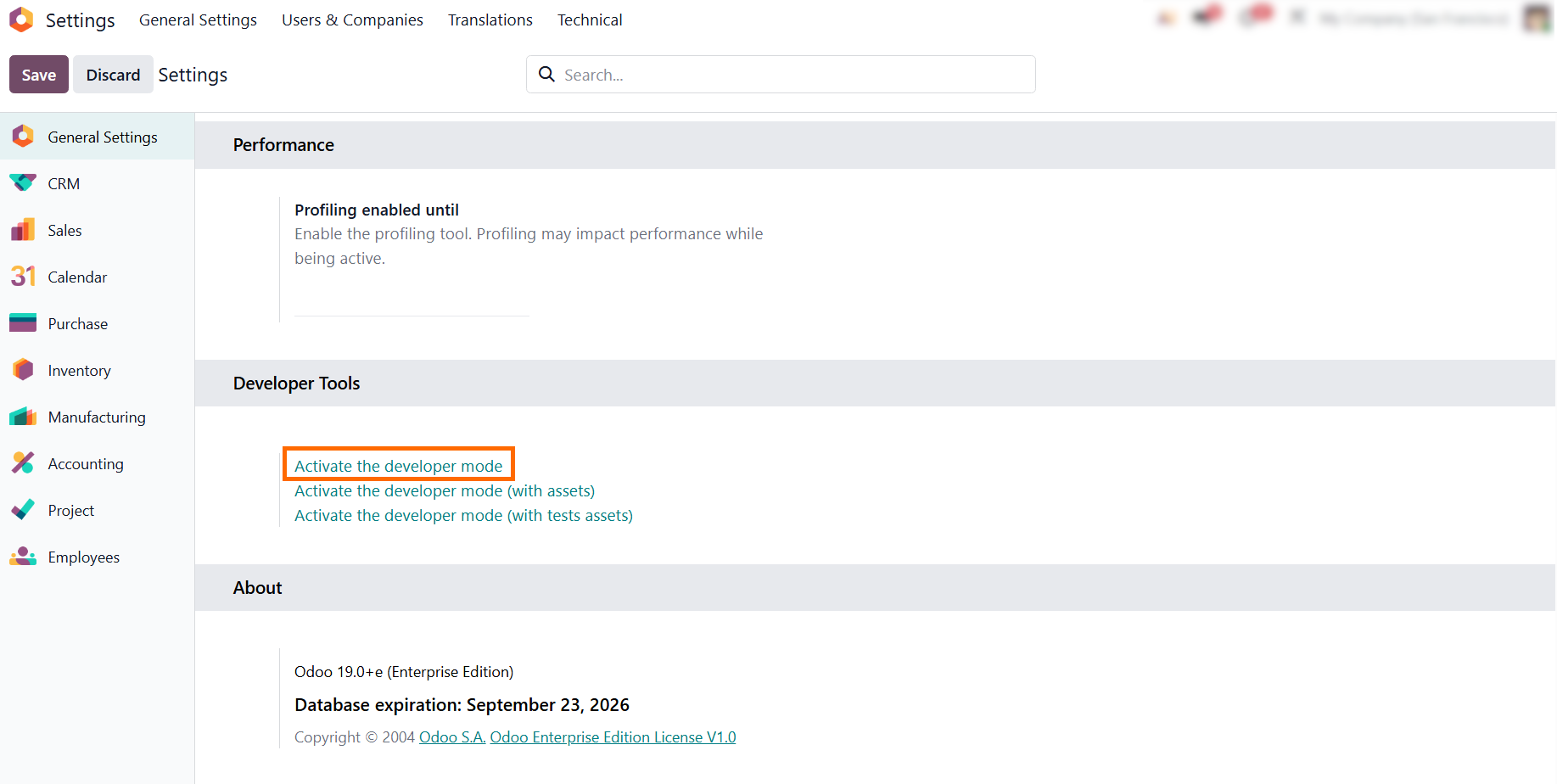
Inspect the underlying data structures and model fields to understand relational dependencies and technical constraints before deciding whether custom Python code is necessary.
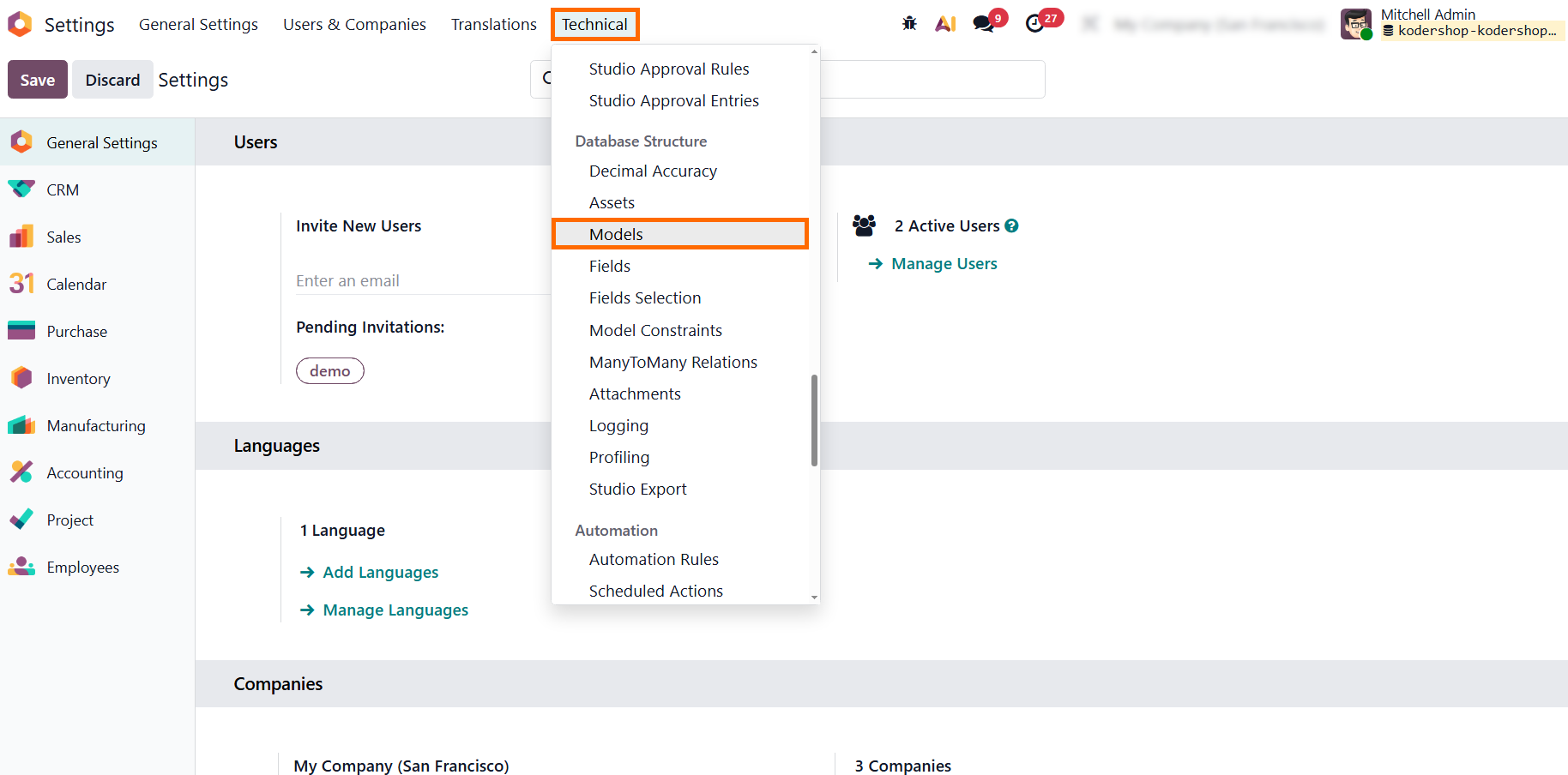
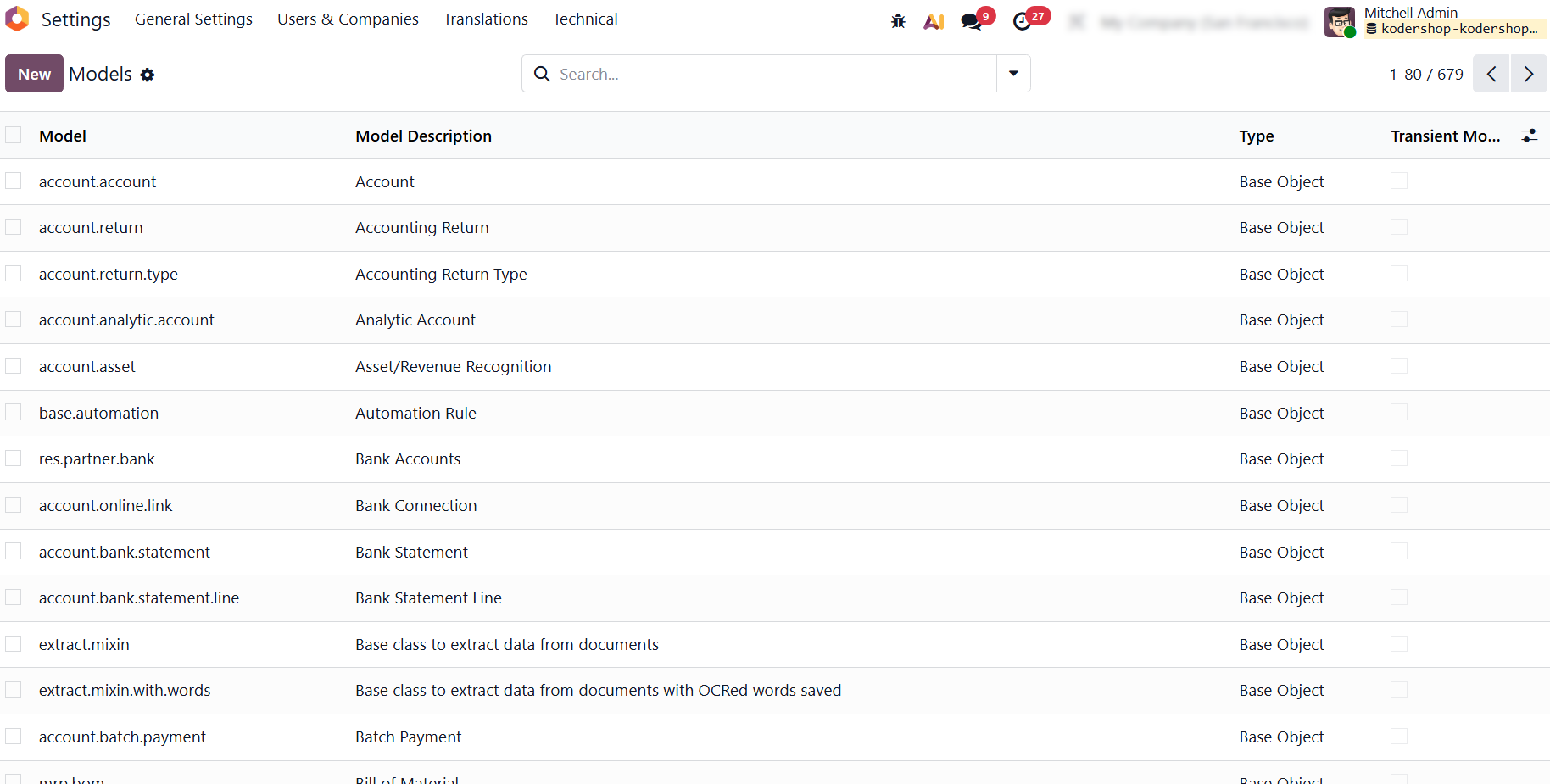
Evaluate the list of standard models to determine whether the available fields, relationships, and data structures can support your business requirements before committing to backend code development.
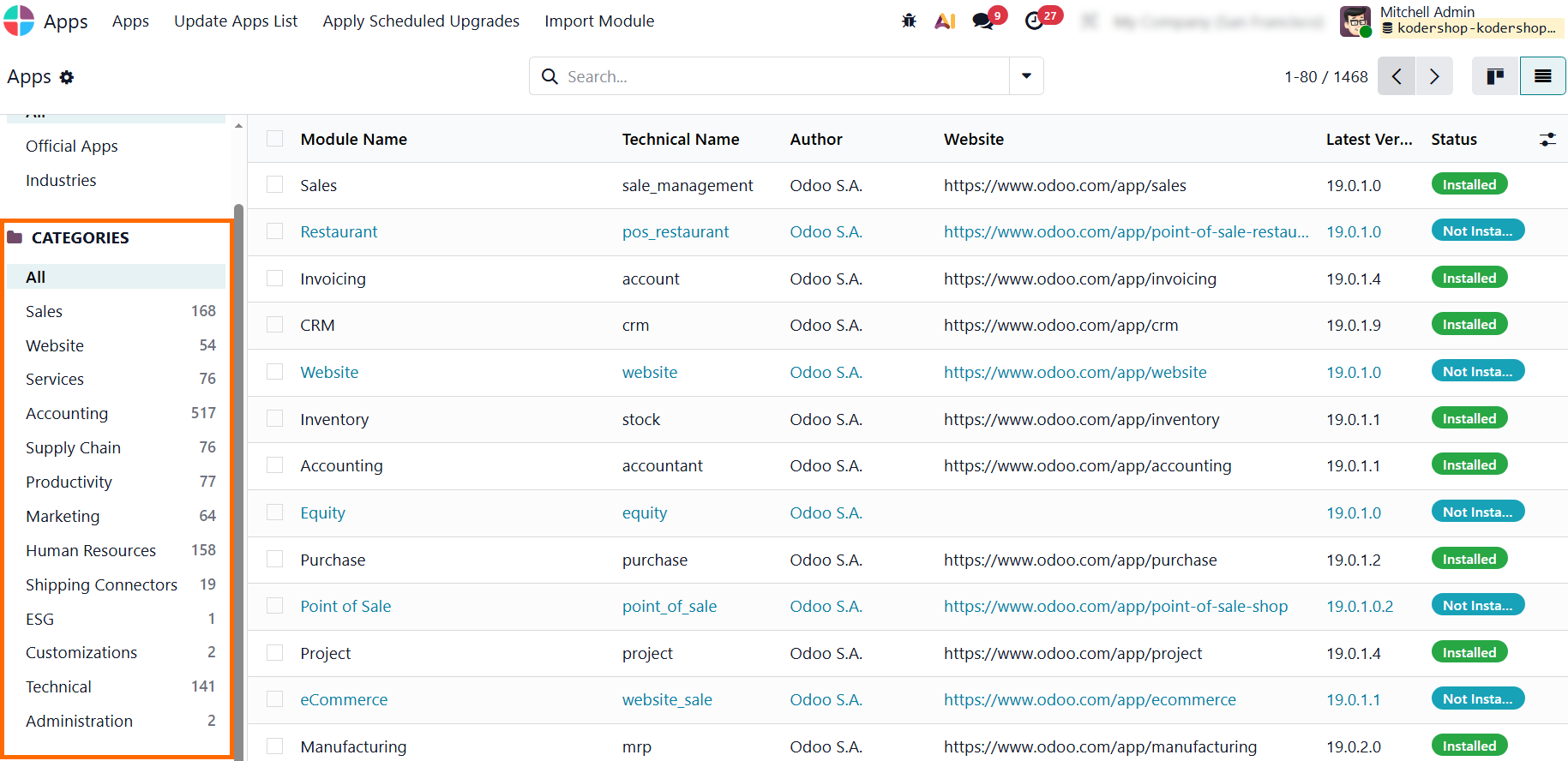
- Explore
specialized third-party addons directly in the Apps dashboard or collaborate
with experienced developers to build a custom Python module, ensuring tailored
business logic is deployed safely without compromising system upgrades.
Making the Right Decision for Your Business
Finding the right balance between standard Odoo configuration and customization starts with one simple rule: try standard features first. Testing native capabilities early helps you avoid spending time and budget rebuilding workflows that Odoo already supports out of the box.
When standard settings are not enough, Odoo Studio provides a practical middle ground. It allows you to adapt forms, add fields, and customize views without changing the underlying code. For requirements involving complex business logic, specialized integrations, or backend automation, custom Odoo development may be the right next step.
A successful implementation is not about avoiding custom code entirely. It is about choosing the right level of customization for each workflow and using it when it delivers real business value. By moving from standard configuration to Studio and custom development only when needed, you can build an Odoo environment that fits your business while remaining clean, maintainable, and ready for future upgrades.