When engineering approves a change to a Bill of Materials (BoM), production rarely stands still. Manufacturing orders (MOs) may already be open, and shop floor teams may still be working with components listed in the previous BoM. If these orders are not managed carefully, the change can lead to component mismatches, rework, or scrap. In Odoo 20, Engineering Change Orders (ECOs) in PLM help avoid this: once an ECO is applied, the revised BoM becomes the new production version, while MOs already in progress keep their original components. Draft orders can be updated to the new BoM, and new orders pick it up automatically. In this guide, we apply an approved ECO while production is running and check how orders in different states respond.
- Make sure Manufacturing and PLM are installed. Manufacturing stores the BoMs and manufacturing orders, while PLM adds the ECOs that update them. PLM is available only in Odoo Enterprise, so the ECO steps in this guide require that edition.
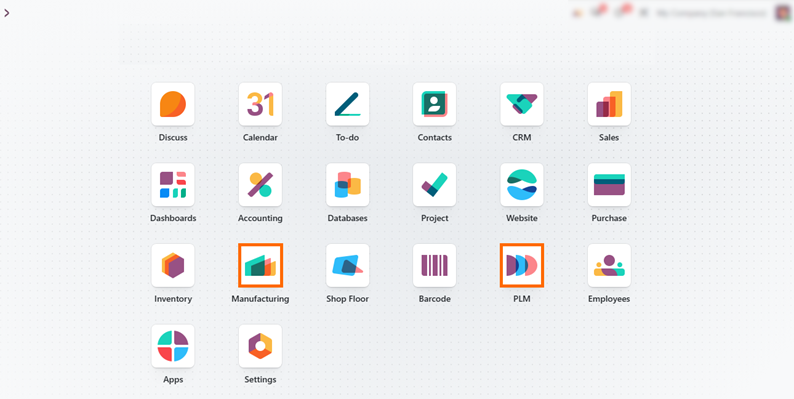
Open the PLM app, go to Changes, and select the Replace Drawer Black ECO. It is in the Validated stage, so the Engineering Department has already approved the change. In this example, two Desk Combination manufacturing orders already exist: one in Draft and one in progress.
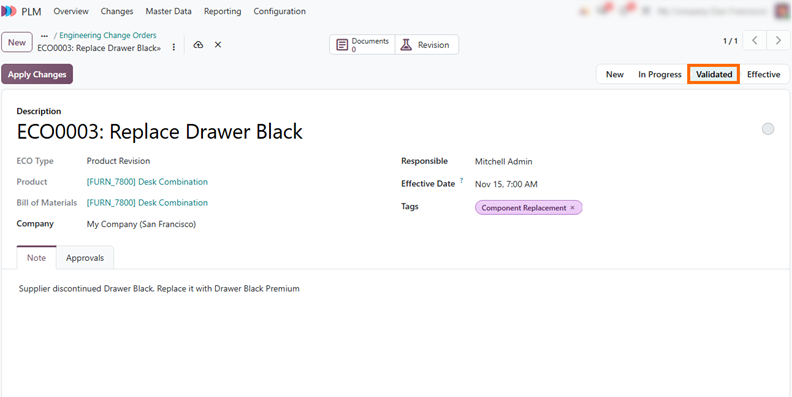
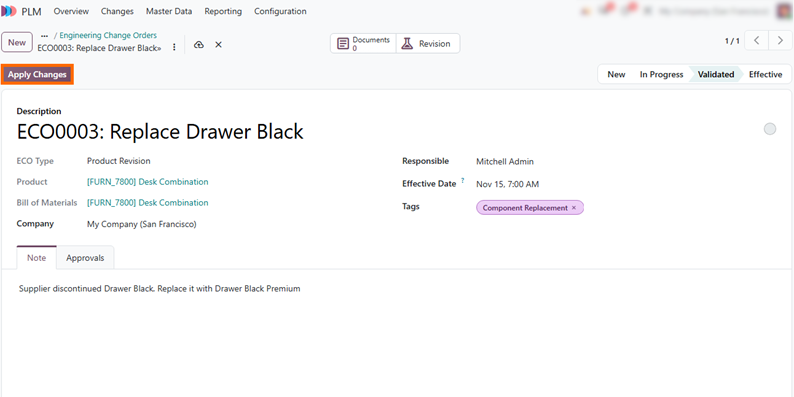
Click Apply Changes in the top action bar to release the approved revision to production. Odoo automatically archives the previous BoM version so it stays available for reference, while making the revised BoM the active production standard.
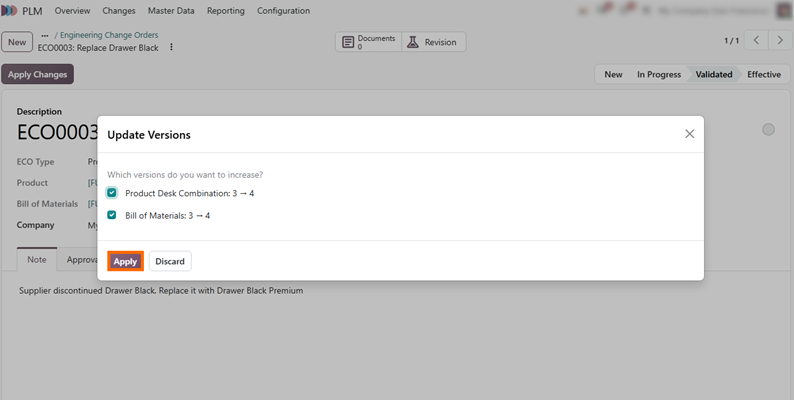
In the Update Versions dialog, keep Product and Bill of Materials selected to keep their version numbers aligned, and click Apply. Odoo moves the ECO to the Effective stage and updates the live production BoM without losing the history of earlier revisions.
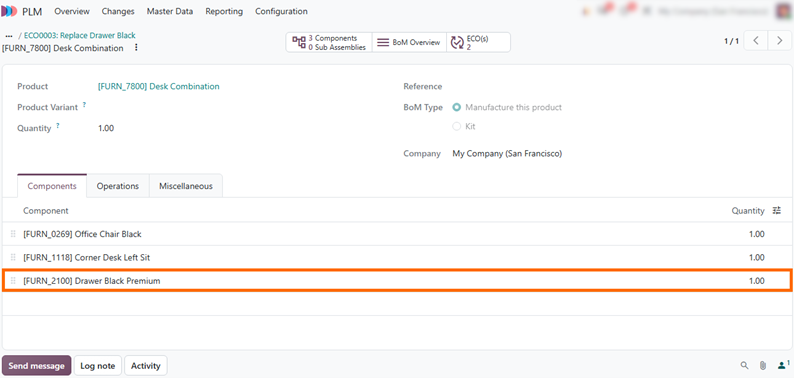
Open the Desk Combination BoM and check the Components tab. Drawer Black Premium now replaces Drawer Black, while the Draft and in-progress orders already in the system remain on their original BoM. We check how each one reacts next.
Update Draft Orders and Create New Ones from the Revised BoM
Applying an ECO changes the production BoM, but it does not rewrite manufacturing orders that already exist. Each order copies its components from the BoM when it is created, and changing an order that is already being worked on could cause mismatches between what was planned and what was used. A draft order has not been confirmed yet, so you can update the BoM in a manufacturing order using the Update BoM button. New orders created after the ECO is applied start from the revised BoM, so Odoo updates the manufacturing order components automatically in the standard workflow. In this section, we check both cases in Manufacturing using the Desk Combination orders.
Open the manufacturing order that was in Draft when the ECO was applied. The Components tab still lists Drawer Black. Click the red Update BoM button next to the Bill of Material field to replace it with Drawer Black Premium.
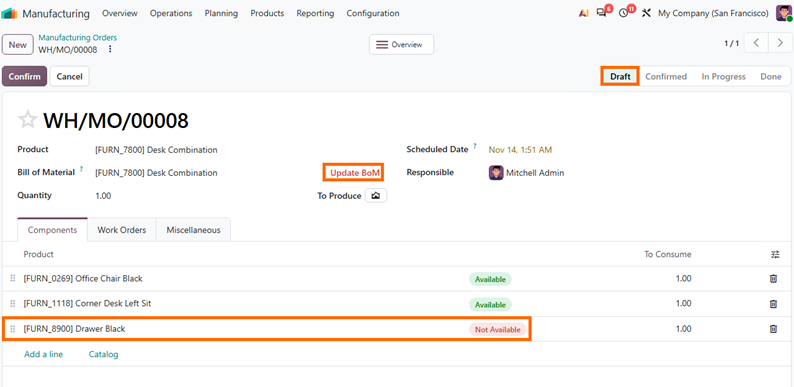
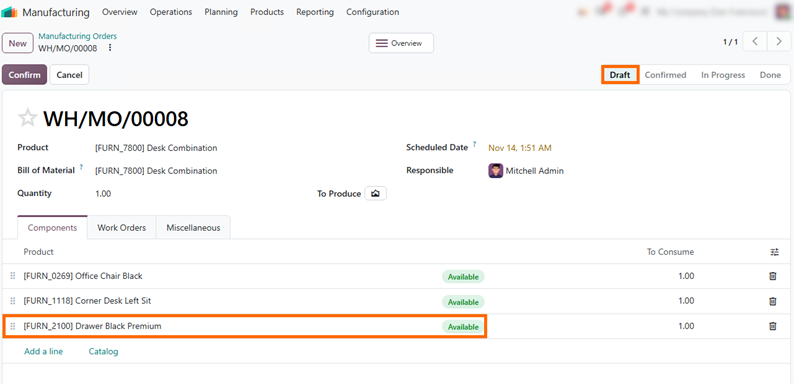
After the update, the Update BoM button no longer appears next to the Bill of Material field, and the Components tab lists Drawer Black Premium. The order remains in Draft, allowing you to review the updated components before confirming it and continuing with the standard workflow.
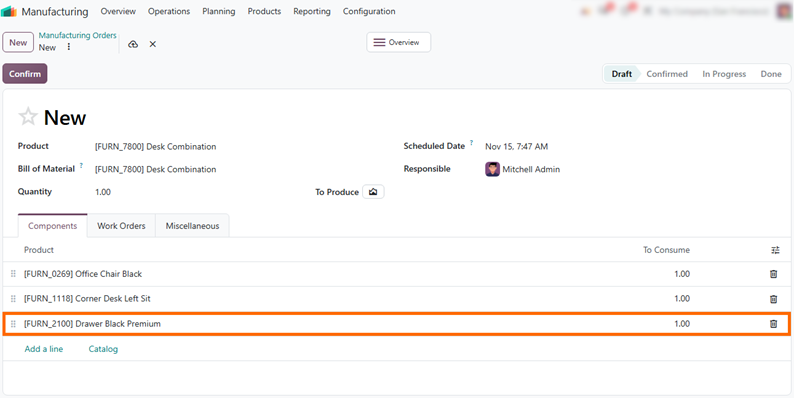
- Go to Operations, select Manufacturing Orders, and click New. In the Product field, select Desk Combination. Odoo uses the updated BoM automatically, so no manual update is needed.
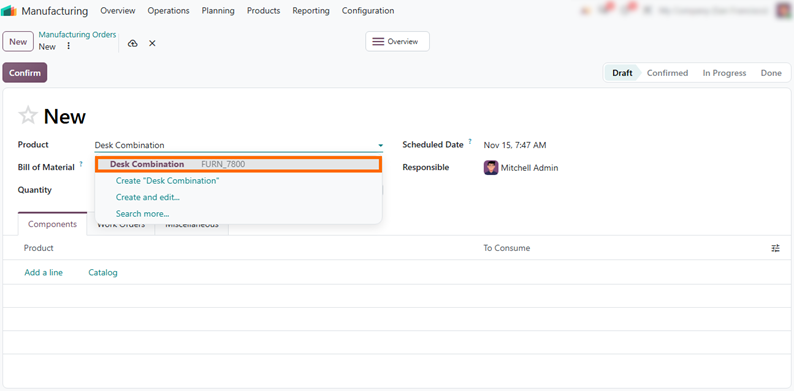
The Components tab now lists Drawer Black Premium instead of Drawer Black, as long as the product has one applicable BoM. Before confirming, check that the replacement component is in stock. For a broader view, see how to track real-time availability and replenishment in Odoo.
Verify That In-Progress Orders Keep Their Original BoM
Orders that were already in progress when the ECO was applied keep their original components and quantities. This prevents unexpected changes while operators are already working from the previous specifications or have already consumed materials. Keeping the original component list helps production teams avoid material discrepancies, rework, and delays caused by switching specifications mid-process. You cannot use Update BoM to change the BoM in a manufacturing order that is already in progress, so the revised BoM applies only to upcoming production. If such an order must follow the new BoM, the team decides how to handle it. In this section, we check the order’s components and see whether the Update BoM button affects them.
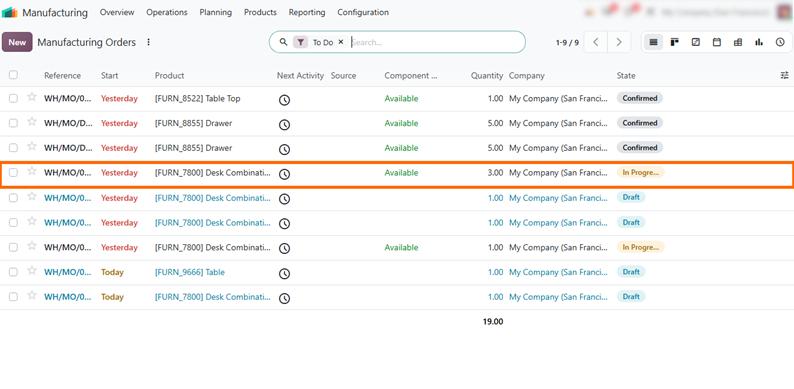
- Go to Operations, select Manufacturing Orders, and find the Desk Combination order that was already in progress when the ECO was applied. The State column shows In Progress, which means production on this order has already started.
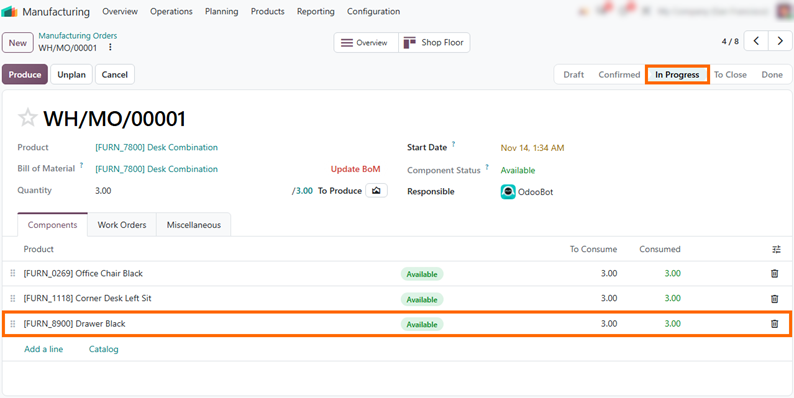
Open the order and check the Components tab. It still lists Drawer Black instead of Drawer Black Premium, with the quantities already consumed. The order keeps working from the original BoM. To see this for yourself, click Update BoM next to the Bill of Material field and check the Components tab again.
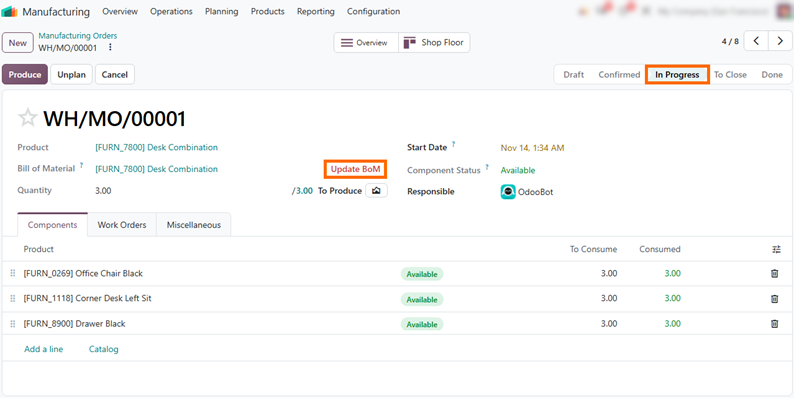
Even though Update BoM still appears next to Bill of Material on an order in progress, it does not overwrite active components. The order keeps Drawer Black with consumed quantities until completion.
Review the ECO Approval Record and the Previous BoM Version
After the ECO is applied, engineering and quality managers can confirm what changed and who approved it. This matters most when production is already running: if a quality issue or a question about a specific batch comes up later, the team can go back to the ECO and see exactly what was changed. Odoo keeps the approval record in the ECO and archives the previous BoM instead of deleting it, so the original specification stays available for comparison. In this section, we check the approval record in the ECO and compare the archived BoM with the current one.
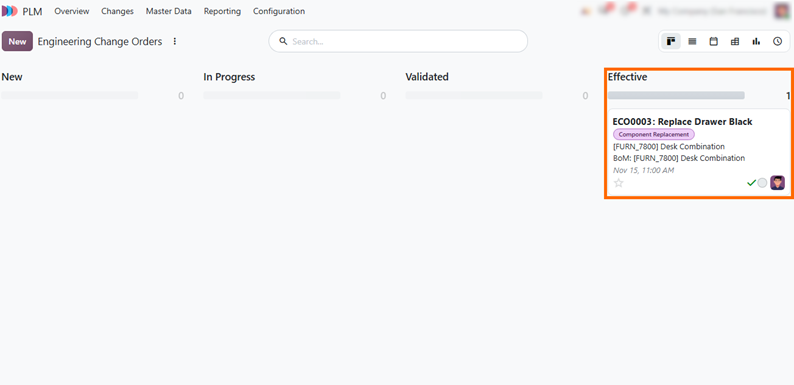
- Open the PLM app, go to Changes, and select the Replace Drawer Black ECO. It now sits in the Effective stage, confirming that the approved revision has been applied to production. For the full ECO workflow, see how to manage BoM revisions with ECOs in Odoo 20.
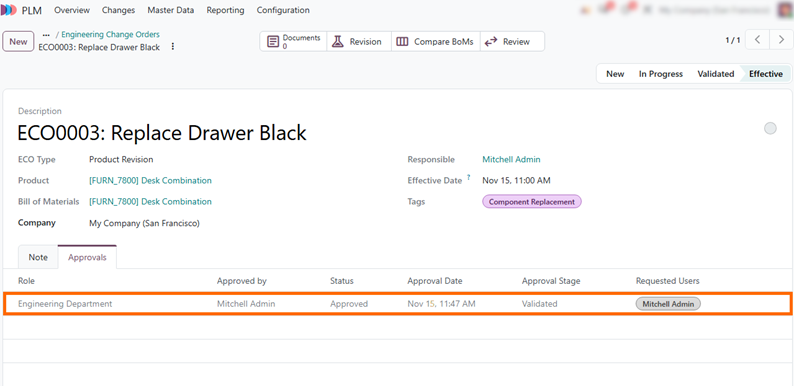
- Open
the Approvals tab in the ECO to check the approval record. It lists the
assigned approver, their role, and the status confirming who signed off on the
change before it went live.
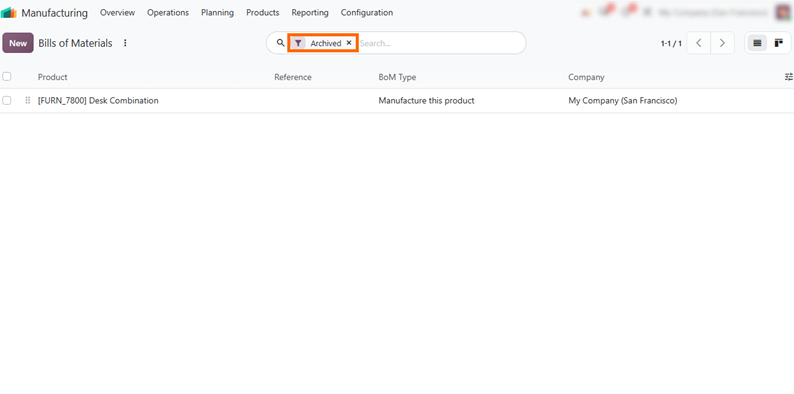
- Go to Manufacturing, open Products, select Bills of
Materials, and apply the Archived filter. The previous Desk Combination BoM is
listed with Drawer Black, so
you can see exactly what was replaced.
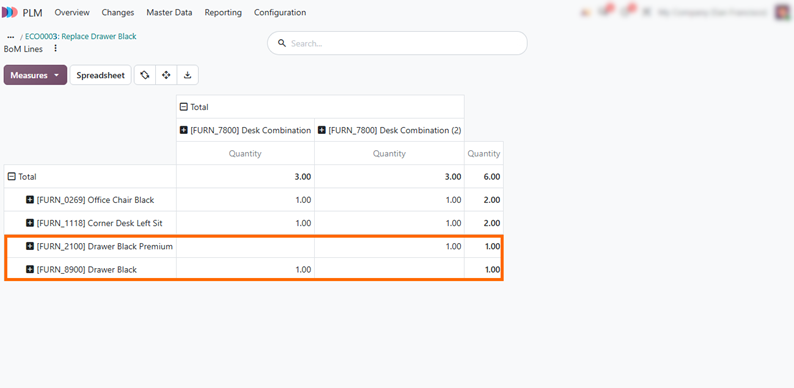
- Compare both BoMs with your orders. The order that was
in progress still lists Drawer Black, which matches the archived BoM, while new
orders match the
current one with Drawer Black Premium.
Conclusion: Keeping Production Stable While BoMs Change
Applying an ECO while production is running keeps the shop floor on a controlled specification. Draft and new orders follow the revised BoM, while orders already in progress keep the components they started with. This lets engineering teams release an improvement without interrupting work that is already underway, and gives quality managers a clear record of what changed, who approved it, and what was in production before.
Before adopting this process, teams should decide who approves ECOs, who can change the BoM in a manufacturing order while it is still in draft, and how to handle in-progress orders that need the updated component. If your production rules go beyond standard behavior, for example when open orders must be handled differently, these decisions are worth defining with your Odoo team before the first ECO goes live. Odoo 20 also brings other updates for ongoing production, such as splitting active manufacturing orders.