Manually verifying whether fulfilled shipments were accurately invoiced and paid drains operational efficiency. As transaction volumes scale, maintaining clear cross-department visibility becomes increasingly difficult. Any disconnect between sales, logistics, and finance creates information gaps that directly trigger delayed billing, manual data entry errors, and revenue leakage. To eliminate these bottlenecks, businesses require an unbroken operational chain. This guide breaks down the standard Odoo Sales to Inventory architecture, demonstrating how to synchronize every transaction stage so that a confirmed Odoo Sales Order automatically drives seamless warehouse fulfillment and final financial reconciliation.
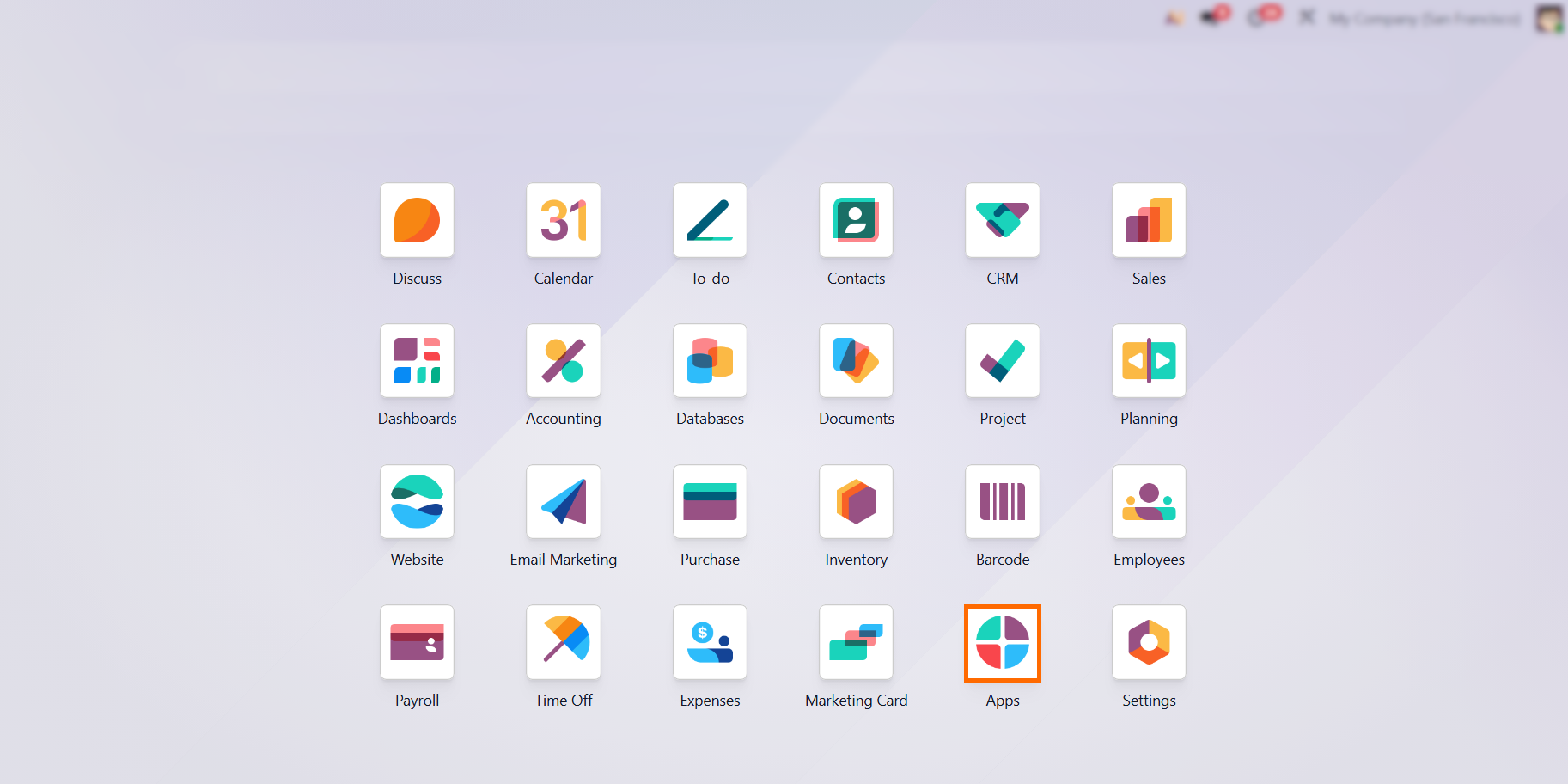
- Before automating workflows, ensure Odoo 19 is configured with interconnected sales, inventory, and billing modules. Isolated app setups break full data visibility and compromise the entire Quote to Payment cycle.
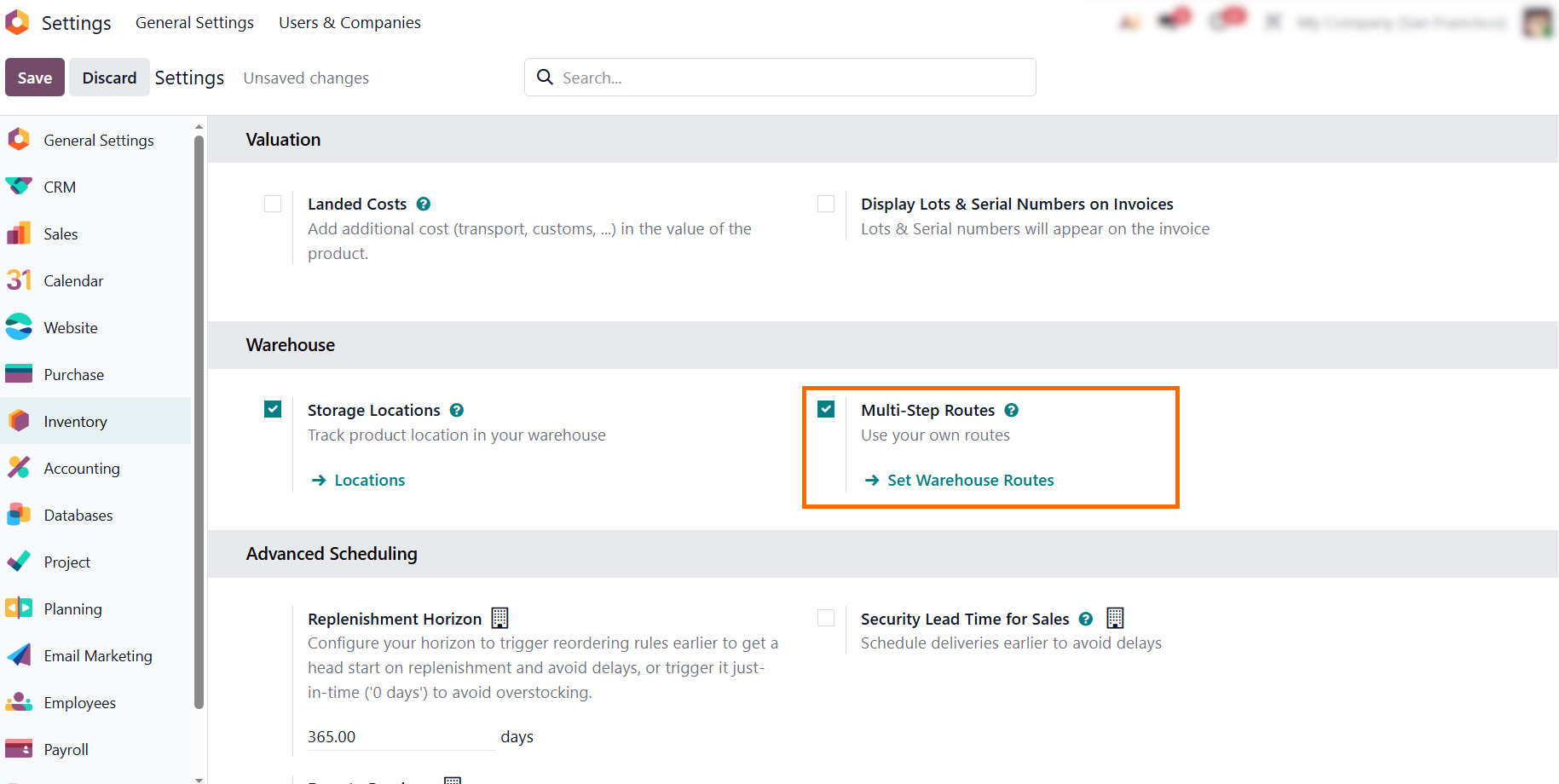
- Enable "Multi-Step Routes" if your warehouse requires advanced routing (like Pick-Pack-Ship), ensuring complex fulfillment flows trigger automatically without manual work.
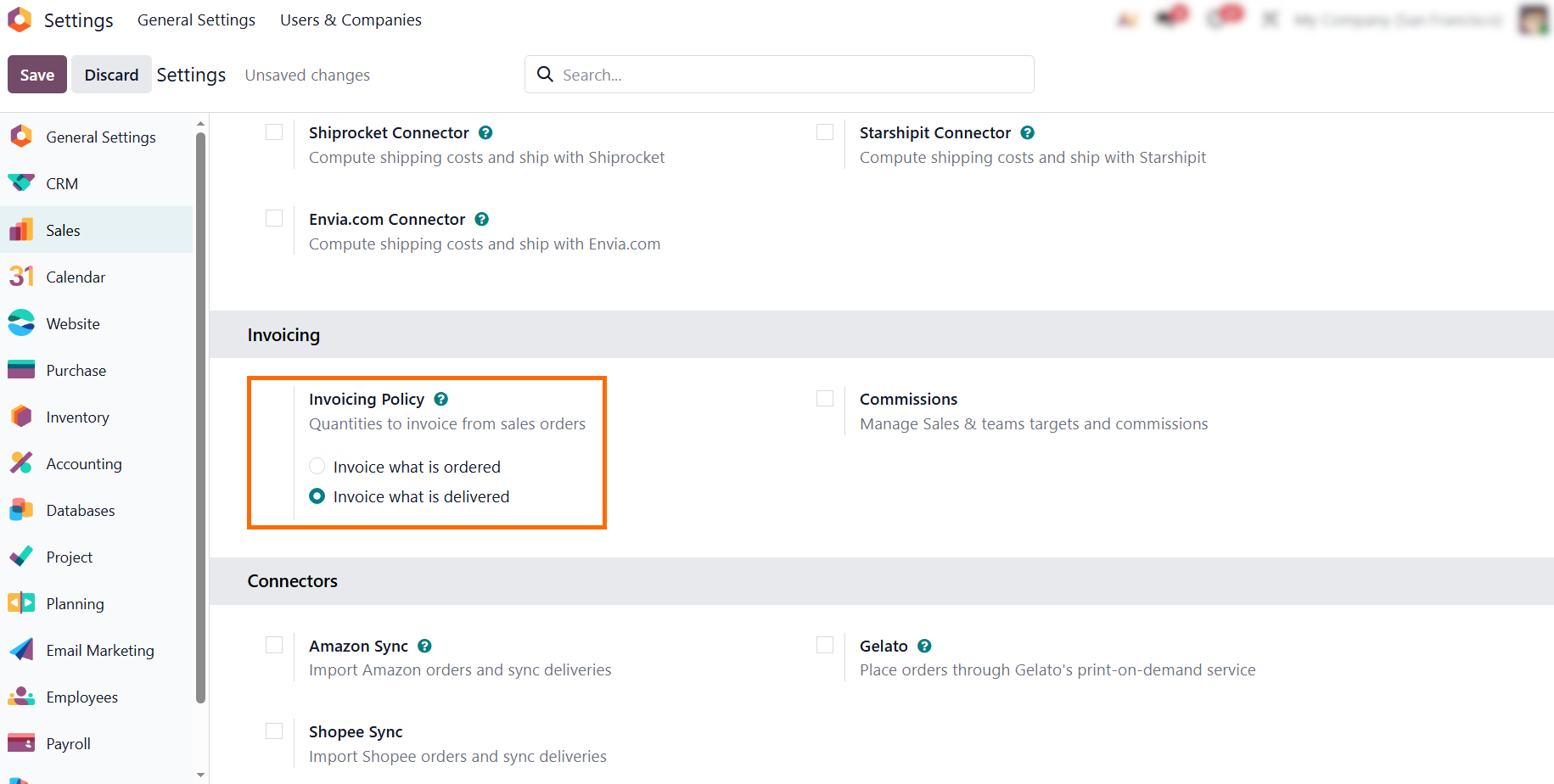
In Invoicing settings, select your "Invoicing Policy" for Ordered or Delivered quantities. This establishes a clear Odoo Delivery to Invoice rule, ensuring accounting never misses a billable shipment or leaks revenue.
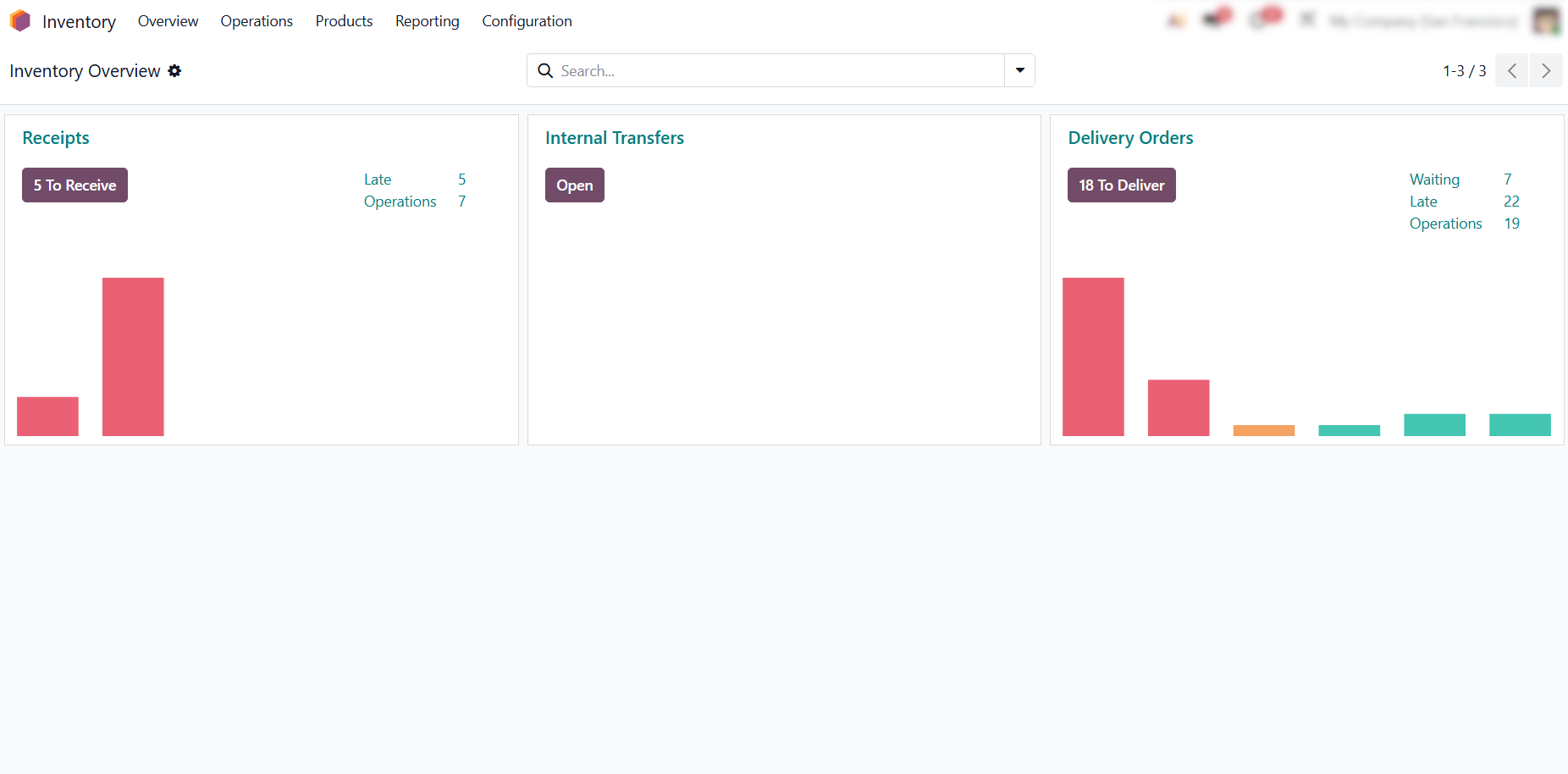
- This setup eliminates manual status checks and inter-departmental follow-ups. Data moves between sales, logistics, and finance automatically, streamlining your entire Odoo Payment Tracking pipeline.
Locking
Core Transaction Data via the Odoo Sales Order
Every order lifecycle starts within the Sales application as a provisional quotation. At this stage, the document serves as a flexible commercial proposal, allowing teams to negotiate pricing and quantities without impacting Odoo Inventory or triggering financial entries. Confirming this quotation is what unlocks a seamless Odoo Sales to Inventory handoff. Before a single item leaves the warehouse, the system locks in the exact transaction terms to align sales, logistics, and accounting. This formal step secures the foundation of the entire Odoo Quote to Payment cycle, ensuring that what you promised is exactly what gets fulfilled and billed, with zero manual re-entry.
- With configurations complete, navigate to the Sales module. This dashboard centralizes all quotations, where you can modify active quotations or click "New" to create a new one.
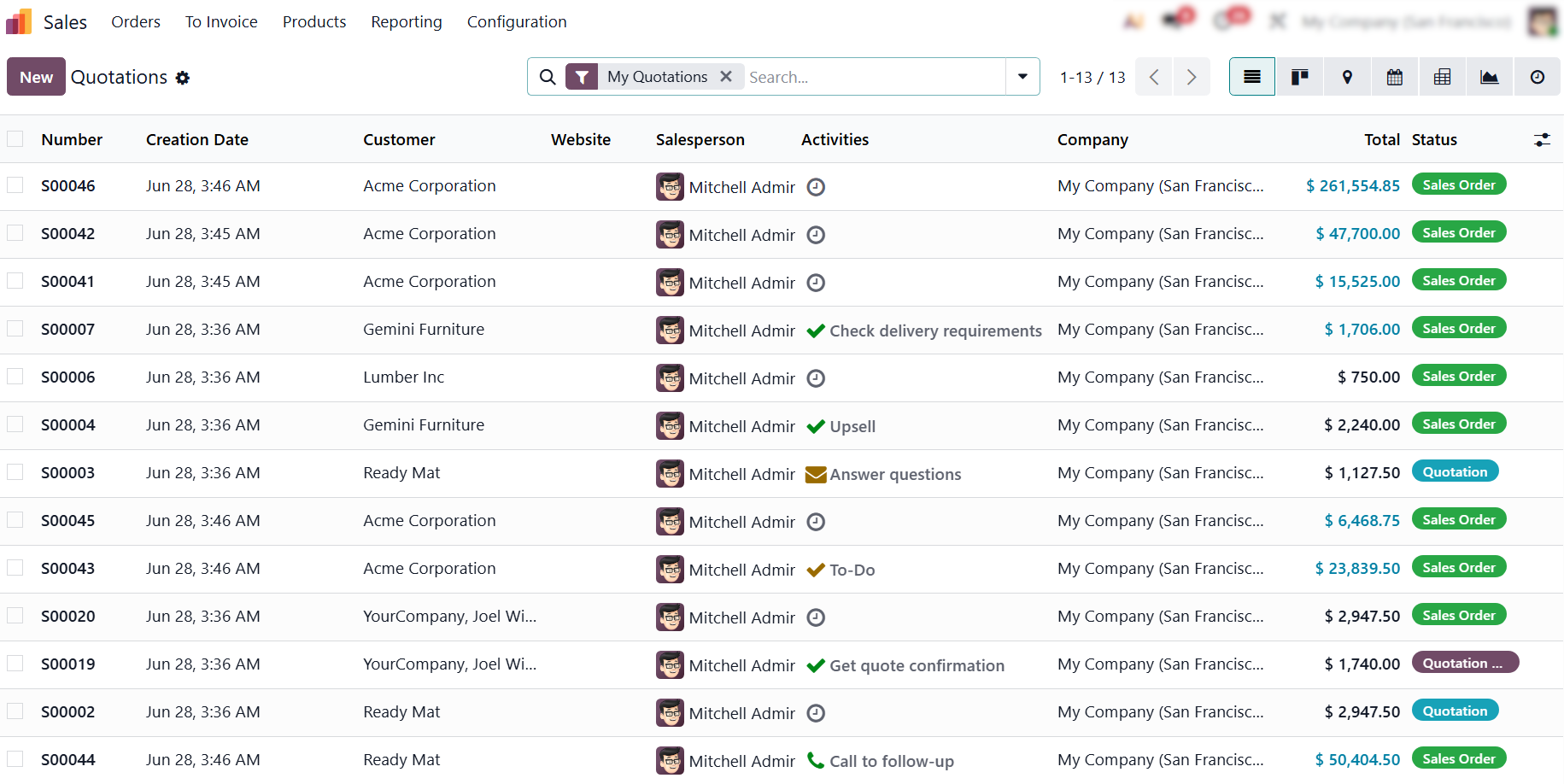
- Select a customer and add product lines. At this draft stage, no warehouse stock is reserved yet. Click "Preview" to view the document exactly as the customer will see it on the portal.
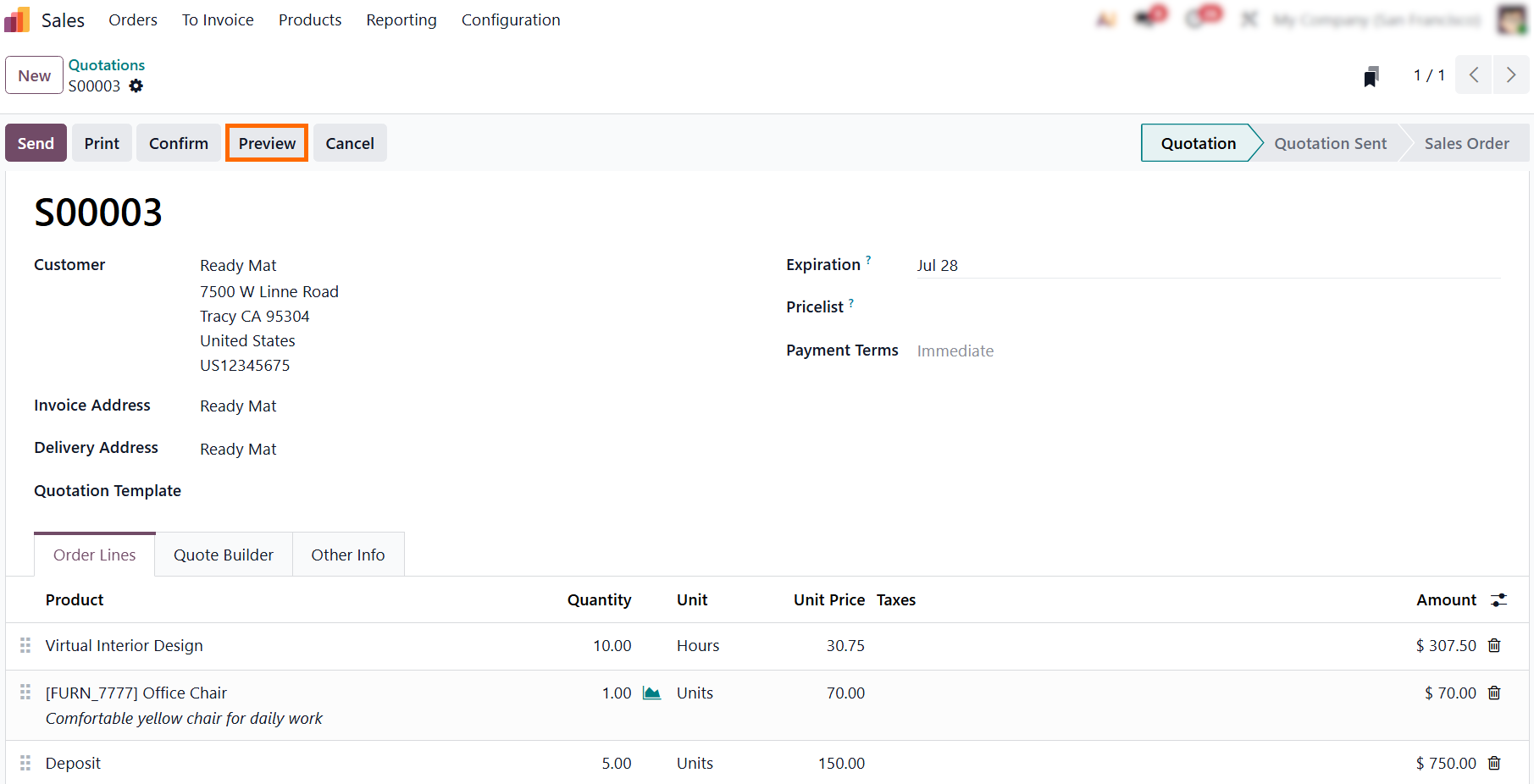
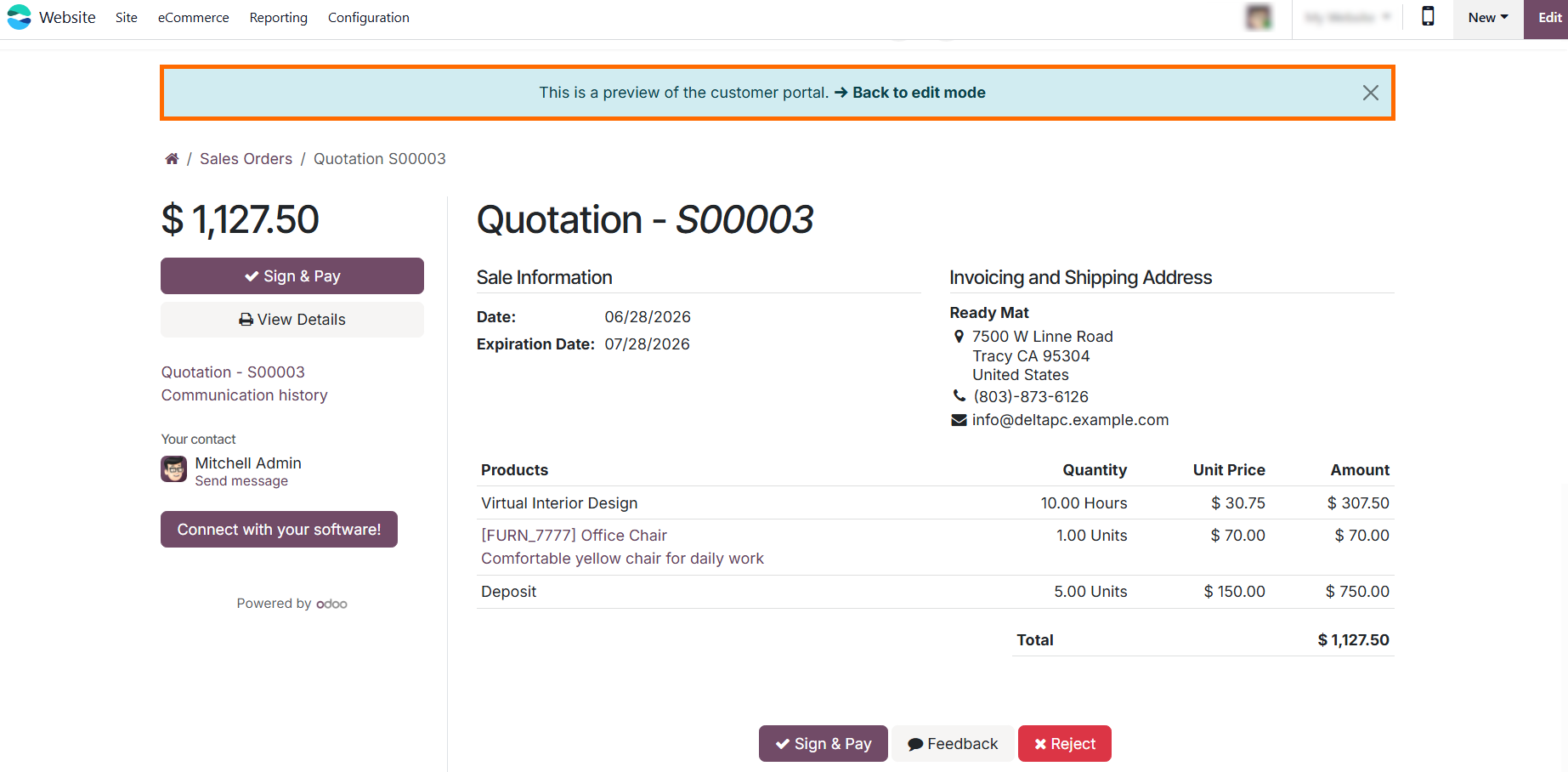
- Use the preview to verify what the client sees before confirmation. This ensures complete alignment and prevents data discrepancies further down the Odoo Quote to Payment cycle.
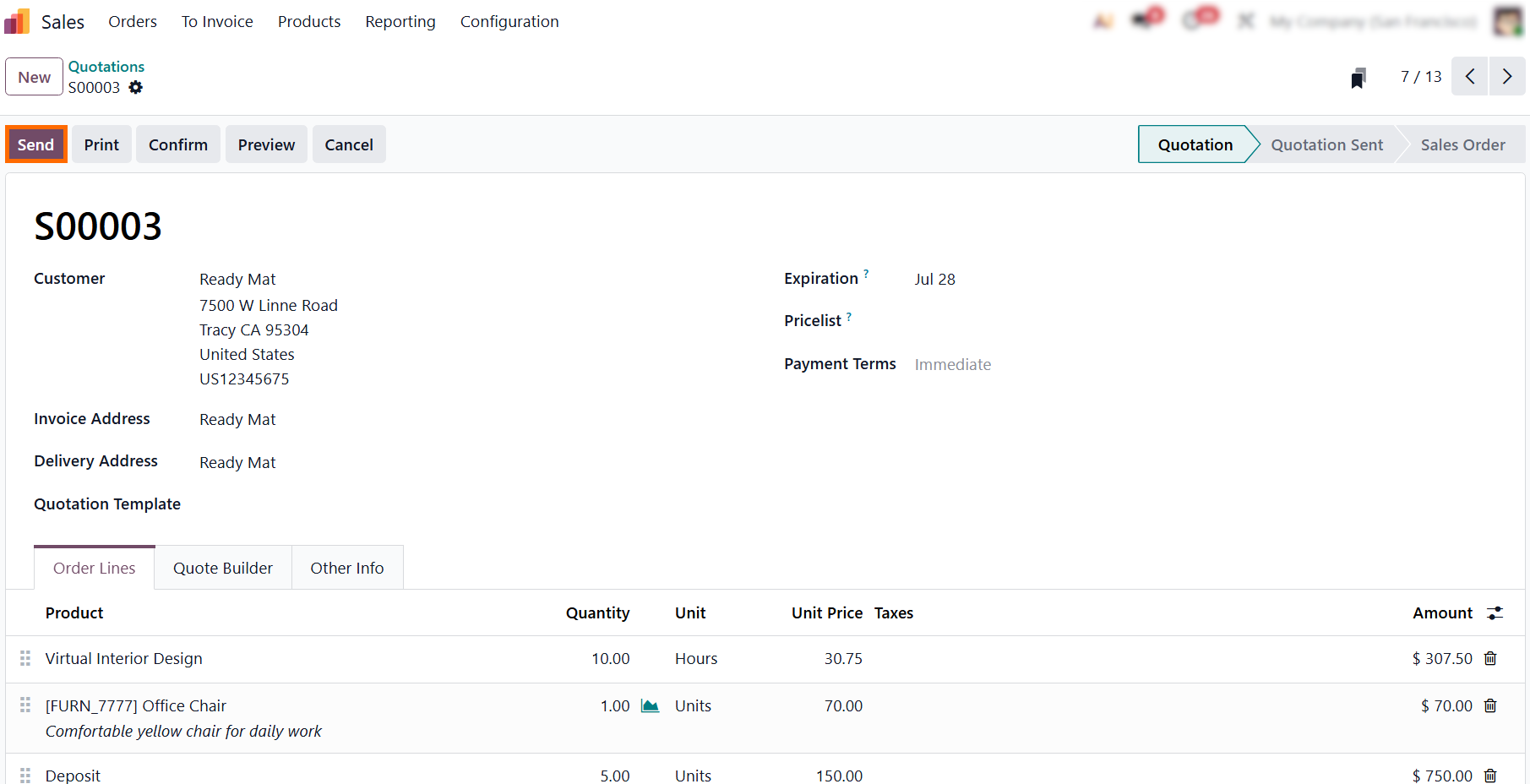
- Click "Send"
to send the proposal via email. This opens an official communication channel,
advances the stage to Quotation Sent, and attaches all future customer replies
directly to this single record.
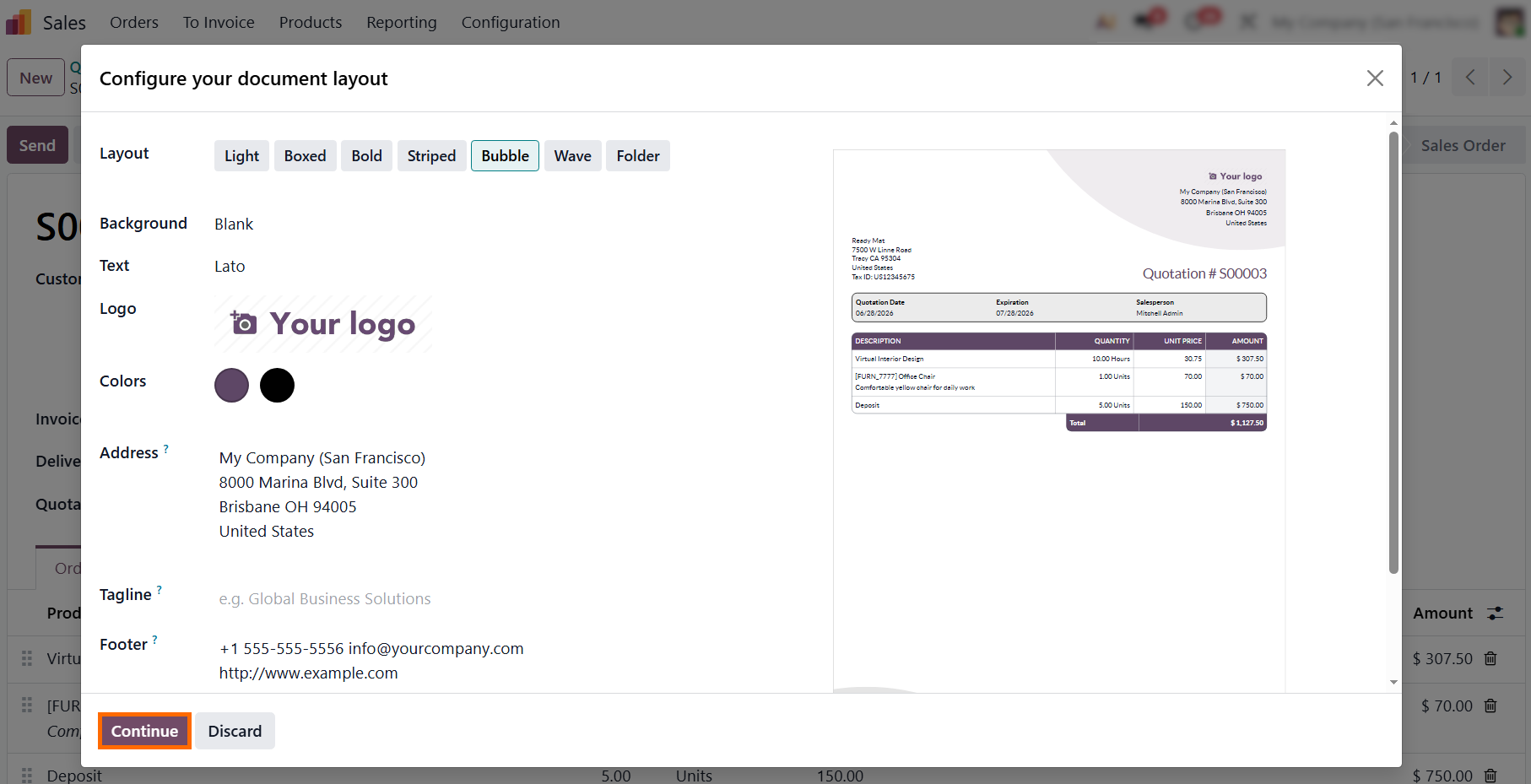
If sending for the first time, Odoo opens the layout configurator. Customize your fonts, colors, and branding, then click "Continue" to save these document settings and open the email composer.
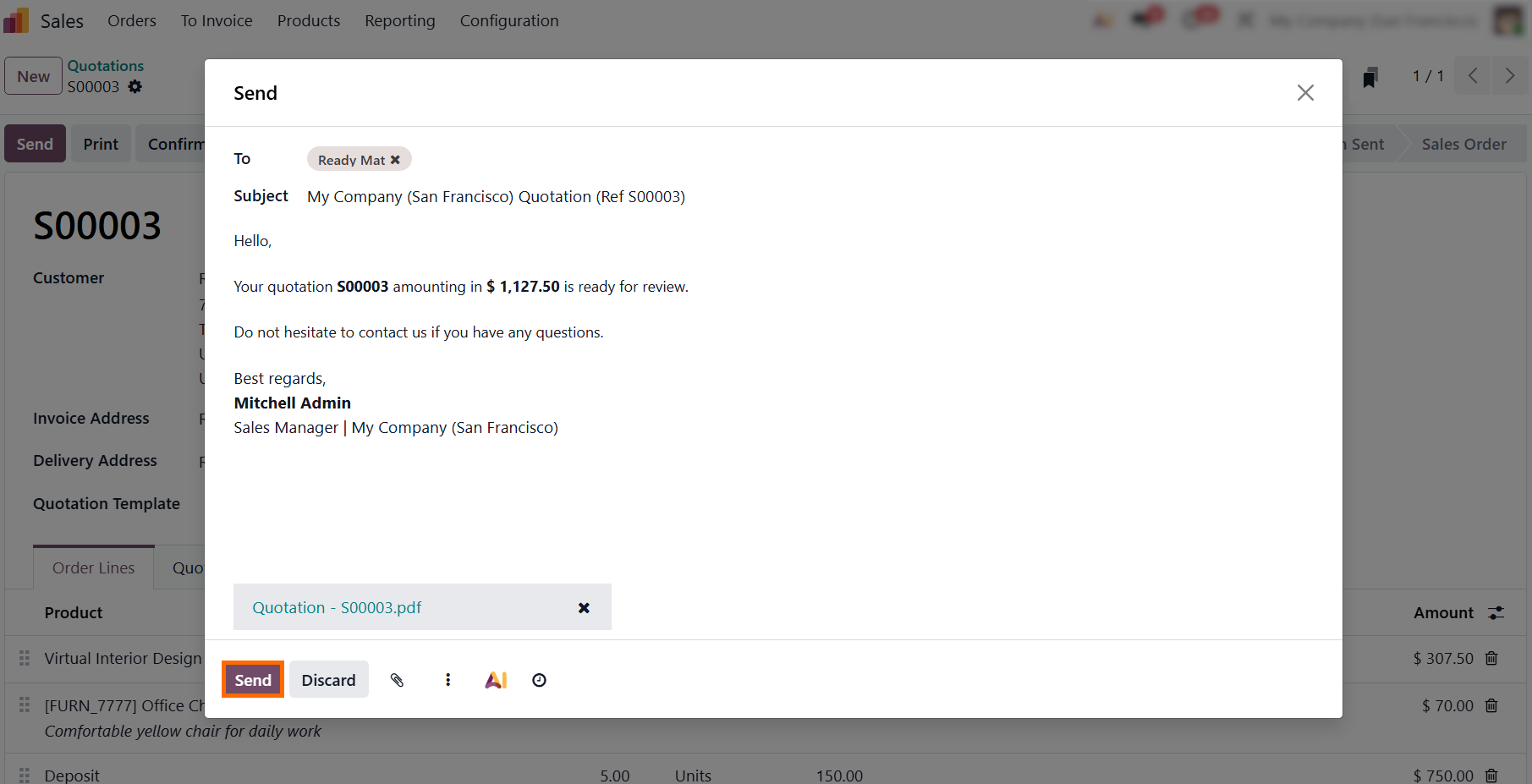
- Odoo generates a default message with the quotation attached as a PDF. Apply saved signatures or edit job titles directly in the composer before sending the offer to ensure your communication remains professional and personalized.
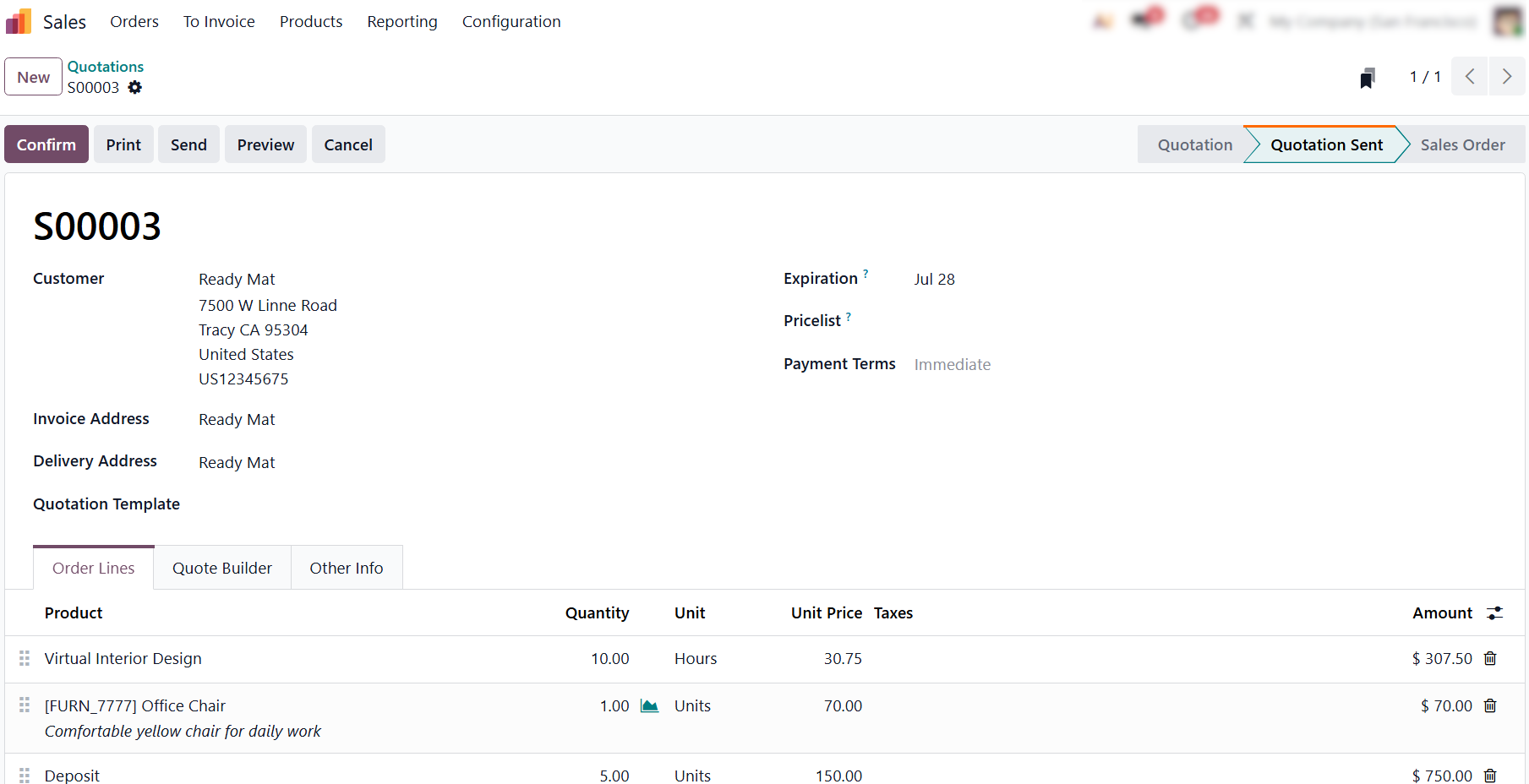
- The updated "Quotation Sent" status allows real-time tracking of the quote-to-payment cycle, ensuring teams see outstanding proposals before system automation locks in inventory or financial data.
Bridging
Sales and Logistics for Instant Order Fulfillment
Once a customer reviews and accepts the commercial proposal, the transition from a flexible quote to an immutable business transaction takes place. Finalizing this stage secures the core transaction data and kickstarts a seamless, cross-departmental automation loop. This eliminates the need for teams to manually duplicate records or coordinate status updates over chat. Instead of manually copying data between apps, Odoo transforms the draft quotation into an official Odoo Sales Order. It instantly triggers warehouse operations for physical products, ensuring a flawless Odoo Sales to Inventory handoff. This guarantees that logistics, project management, and accounting departments can immediately begin execution based on a single source of truth.
- Once the customer accepts the terms, click "Confirm". This locks the core transaction data, converts the quotation into a Sales Order, and instantly triggers downstream inventory and accounting operations.
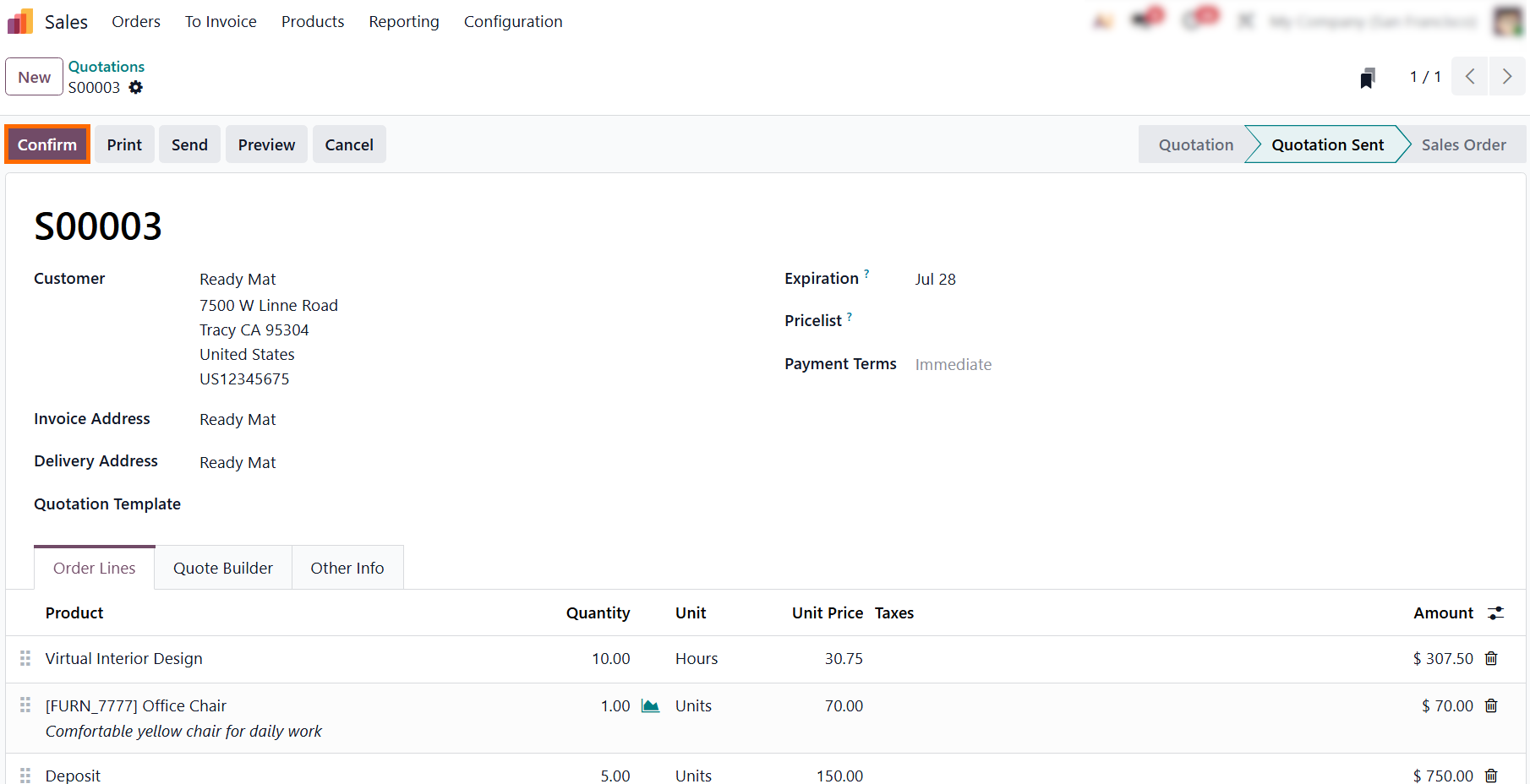
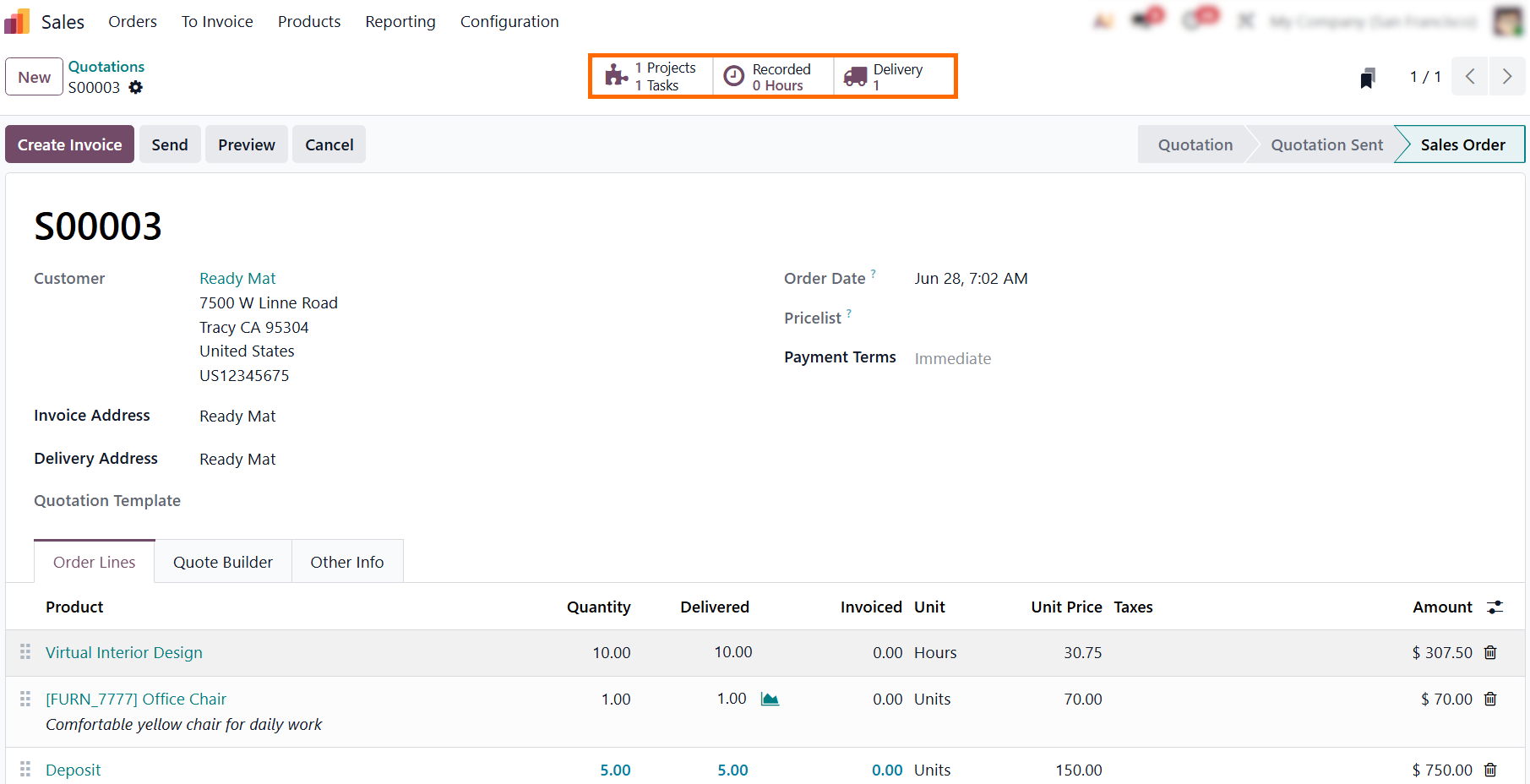
- Upon confirmation, Odoo instantly generates smart buttons at the top of the document, linking service fulfillment via Projects and Tasks while seamlessly triggering Delivery logistics.
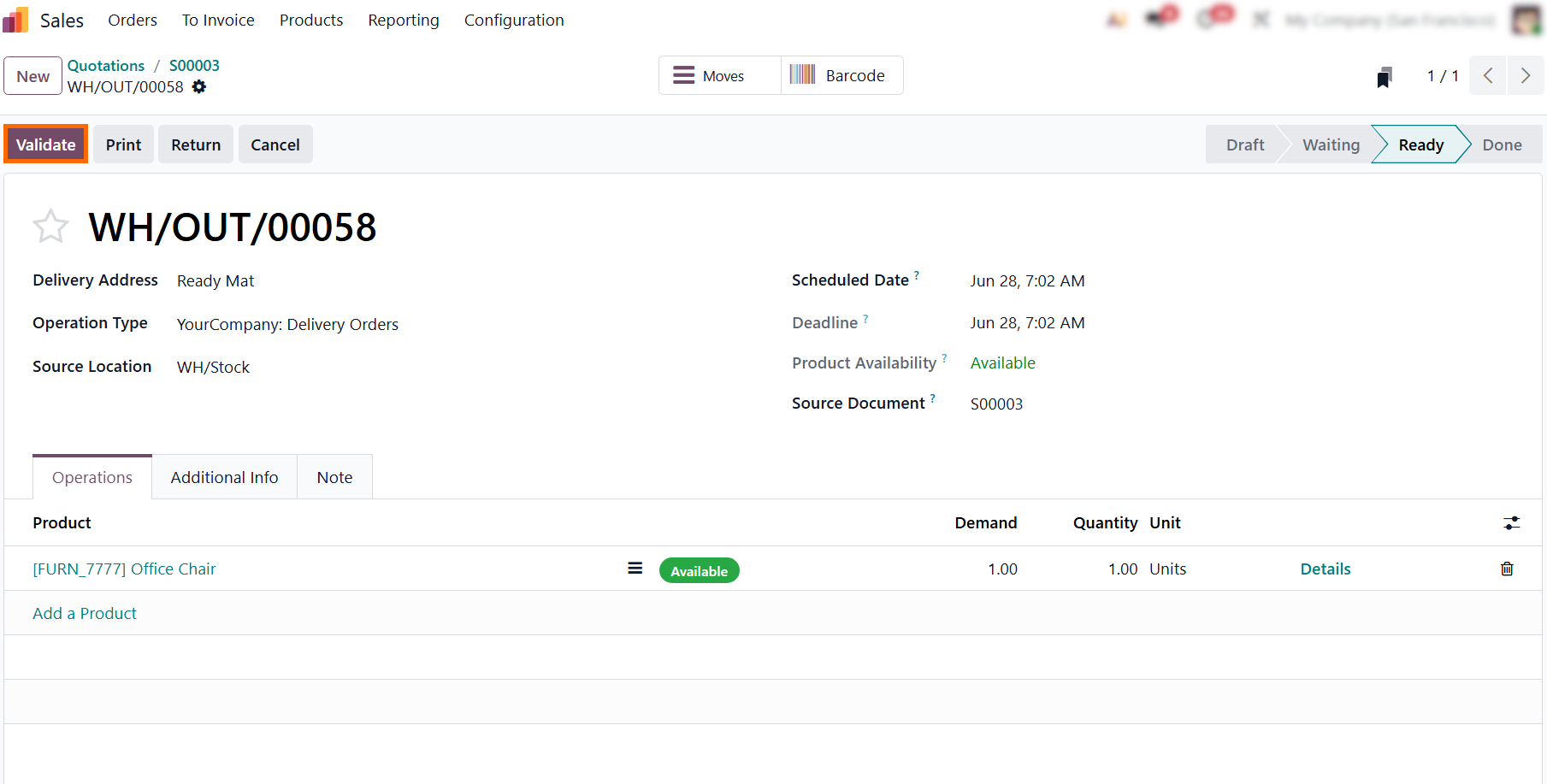
- Once physical picking is complete, click "Validate". This officially logs the physical stock movement, updates the inventory ledger, and automatically pushes the fulfillment data back to the originating Sales Order lines.
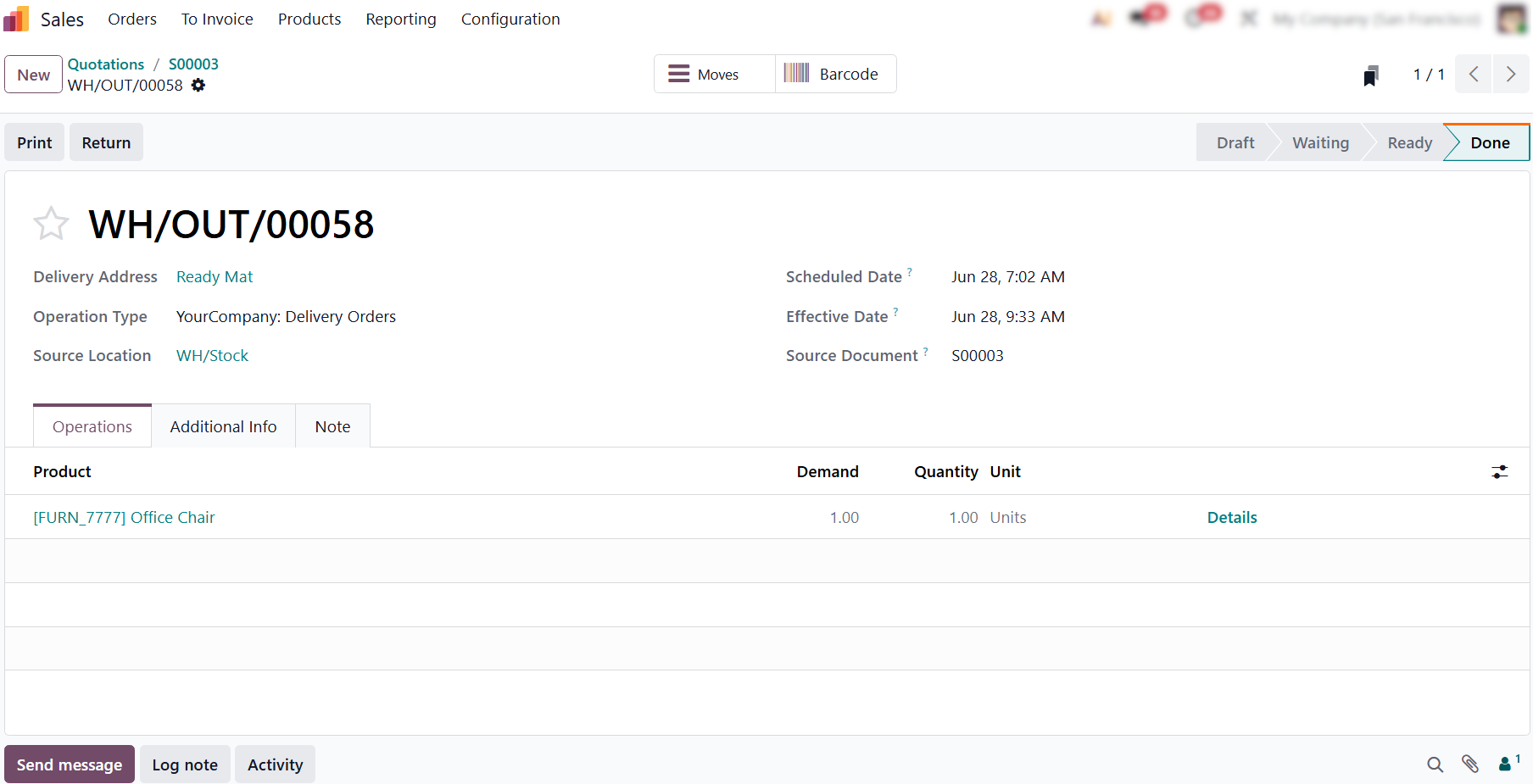
- The delivery order instantly transitions to "Done" as Odoo logs the Effective Date. This provides an unalterable audit trail and readies the order for immediate invoicing without manual data re-entry.
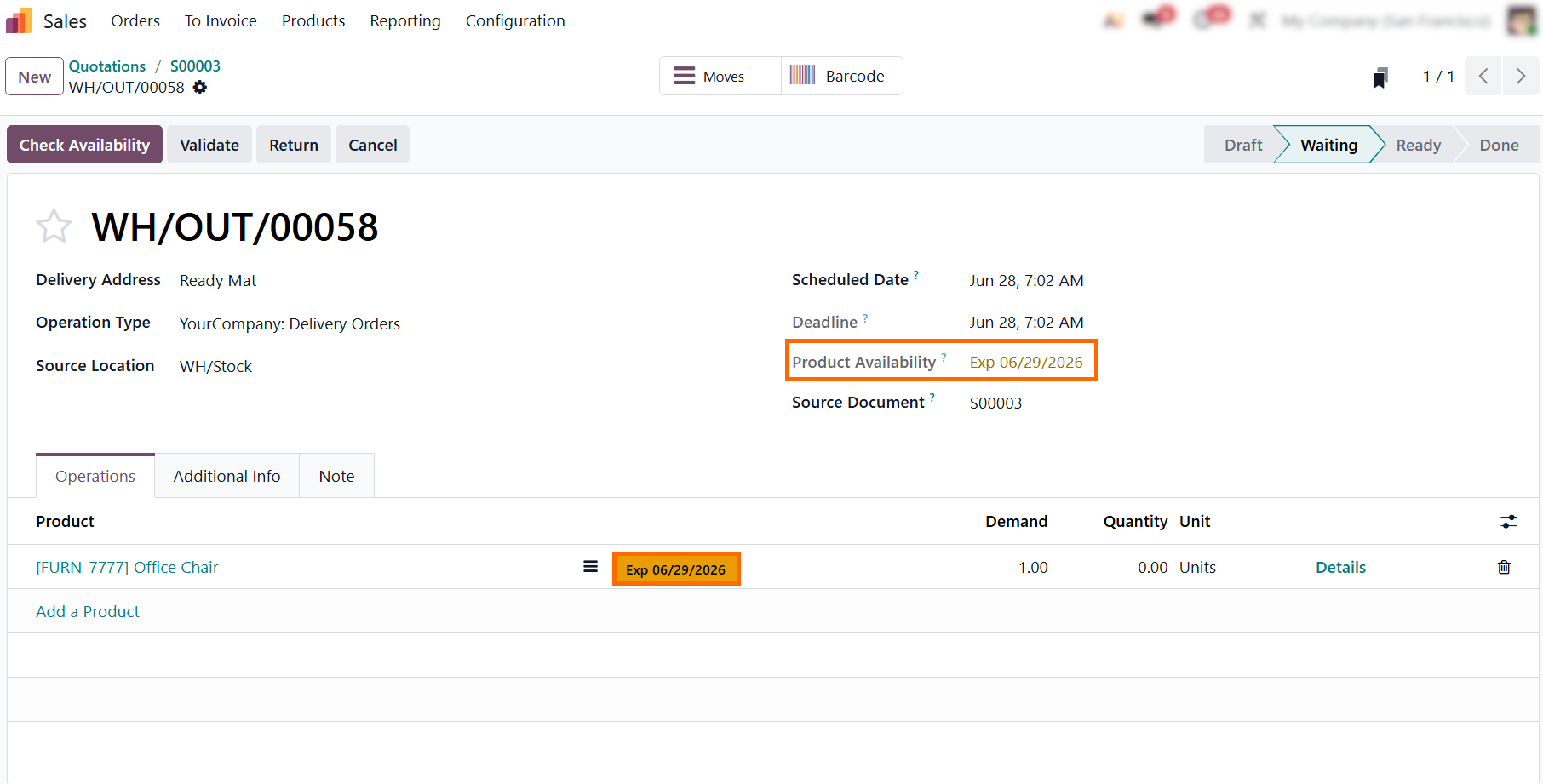
- Pro tip: If stock is missing, Odoo keeps the order in "Waiting" and highlights the expected replenishment date in amber as shown in the screenshot. This alerts logistics to incoming supply dates, eliminating manual follow-ups.
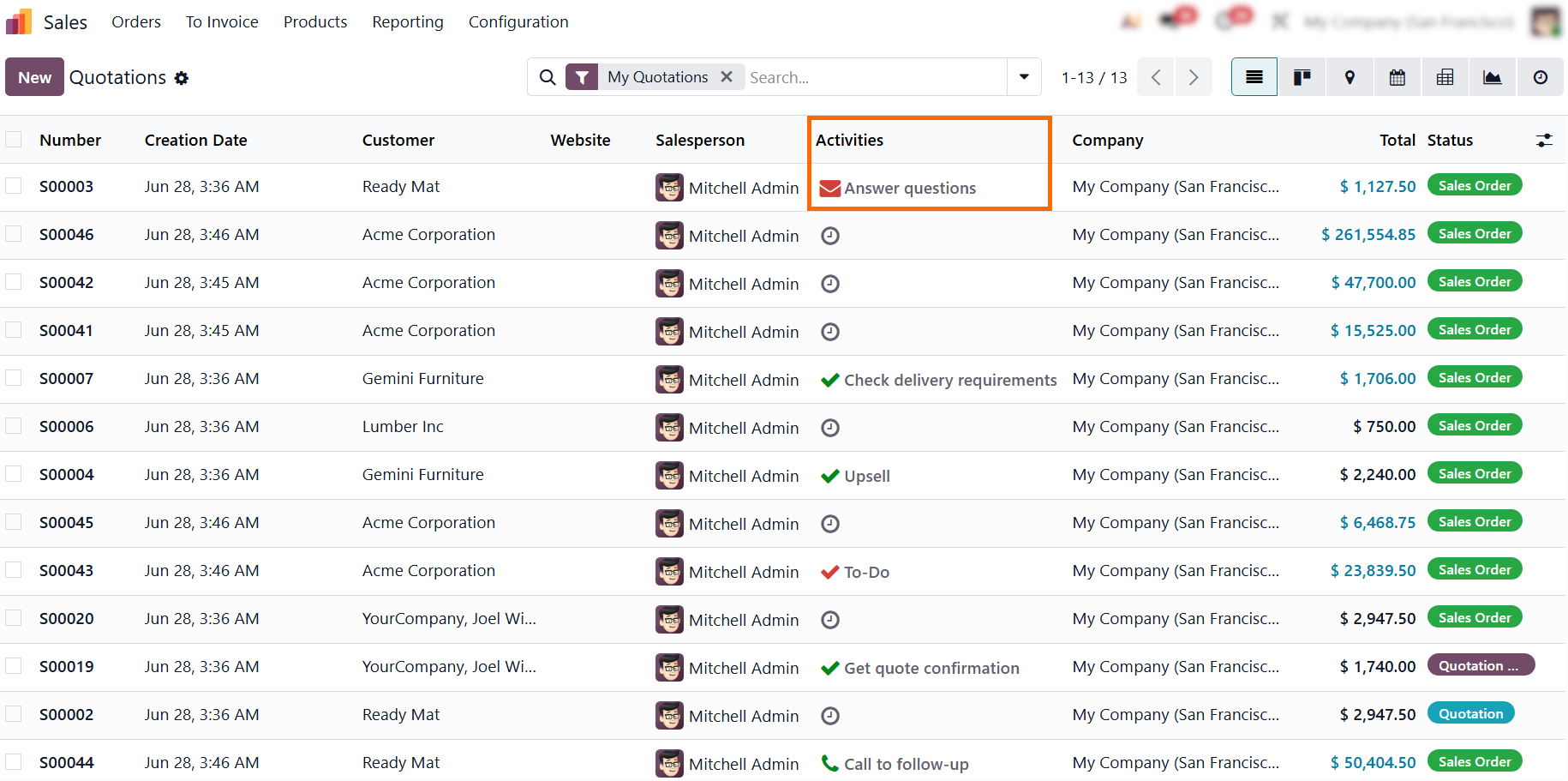
- The sales dashboard maintains an "Activities" column to track automated or manual next steps post-confirmation. This allows teams to review outstanding tasks and coordinate post-delivery actions across all active orders at a glance.
Automating the Odoo Delivery to Invoice Pipeline
Once the warehouse validation is complete, the transaction enters its final financial phase. Odoo eliminates the traditional disconnect between logistics and finance by ensuring that billing operations are driven directly by fulfillment data. This seamless synchronization guarantees that customers are billed only for what they actually received. Accounting teams no longer need to manually review shipping logs or double-check quantities. The system cross-references the original agreement with actual warehouse movements, automatically generating an accurate invoice in real time. By automating this transition, you enforce a strict Odoo Delivery to Invoice pipeline that eliminates revenue leakage and speeds up your collection cycle.
-
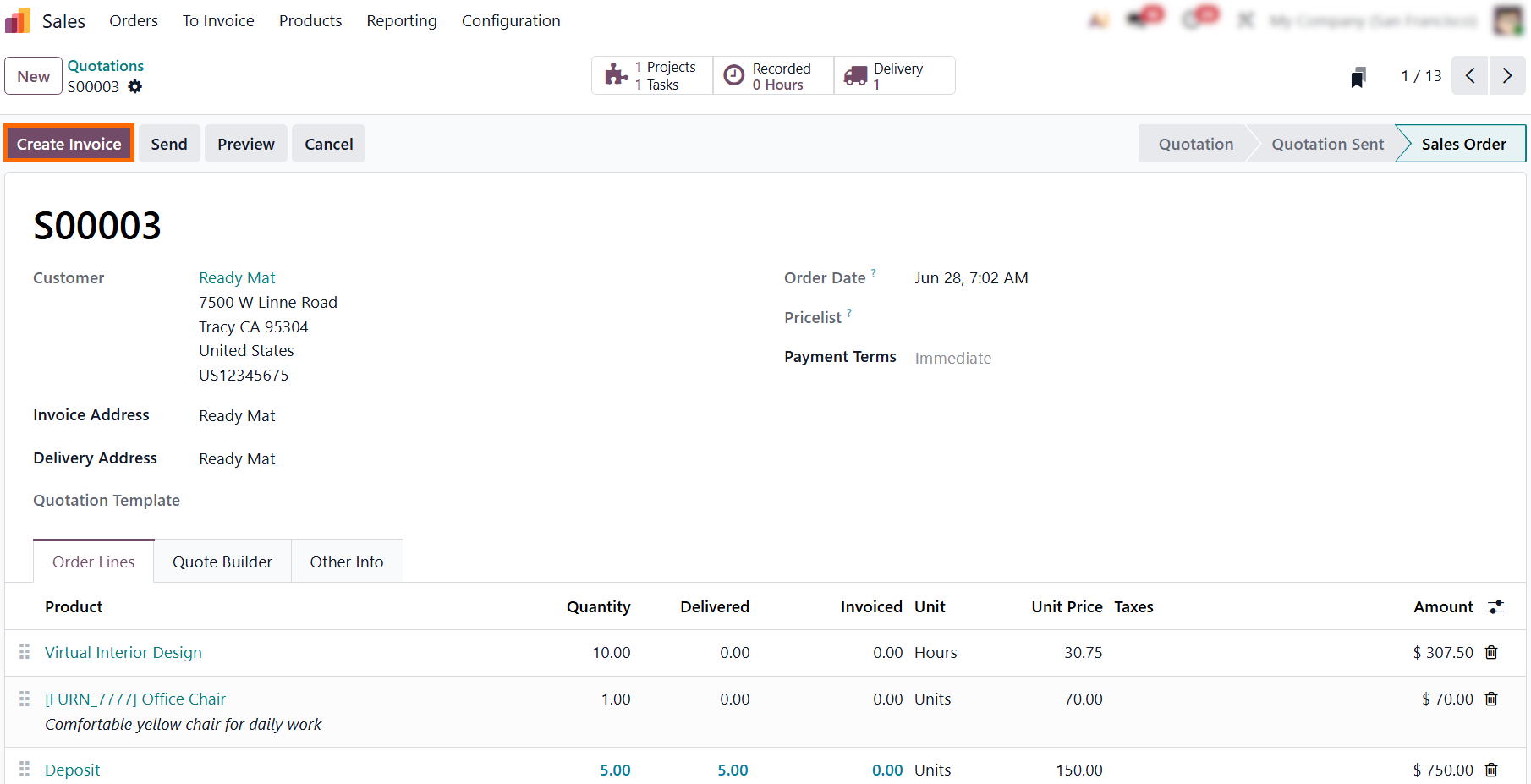
Navigate back to the confirmed
Sales Order and click "Create Invoice". Odoo automatically processes
the lines based on your invoicing policy, generating a draft invoice that mirrors the
fulfilled quantities.
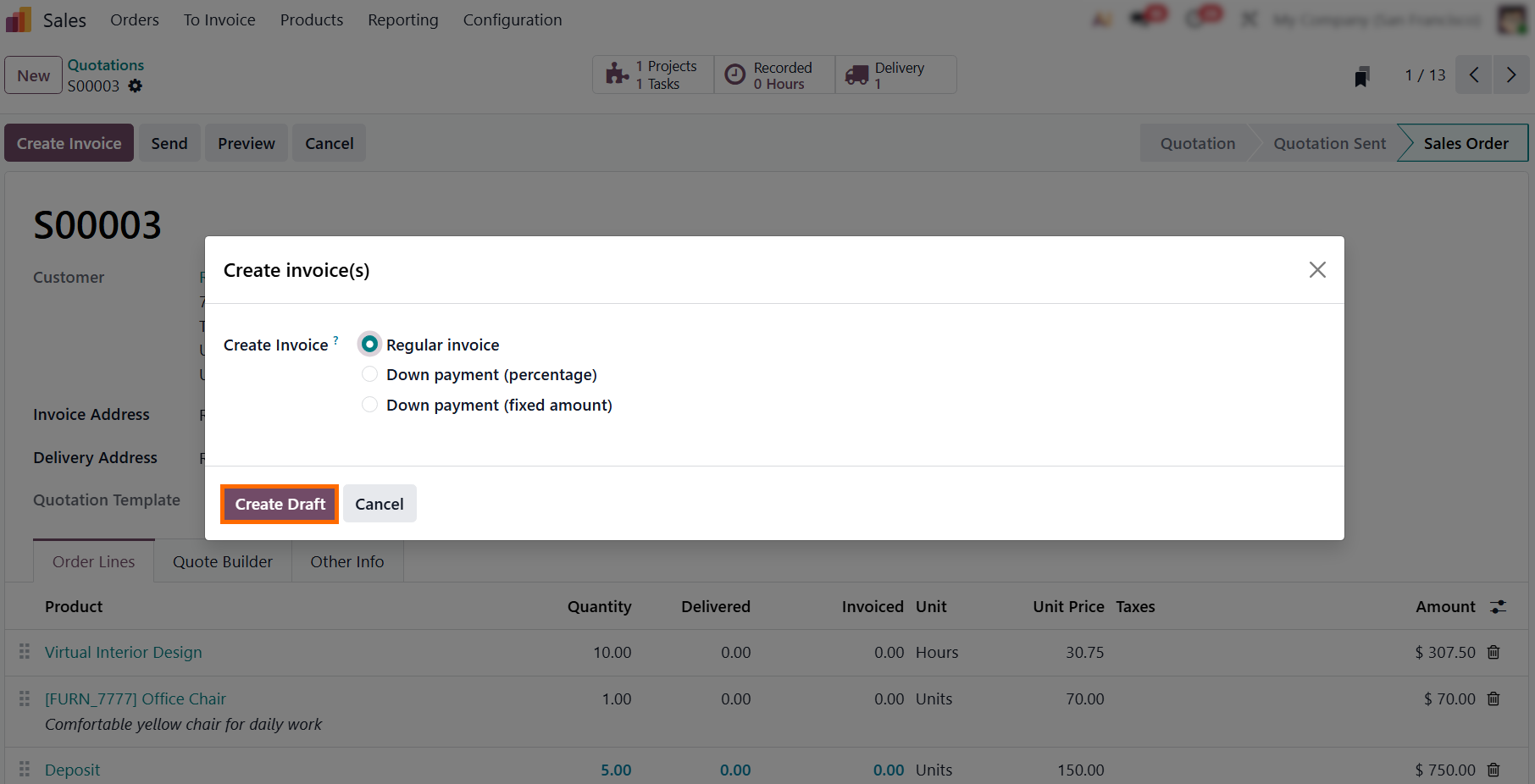
- Select "Regular invoice" and click "Create Draft". Under the "Invoice what is delivered" policy, Odoo automatically omits undelivered lines (Office Chair, Design service) and pulls only the verified Deposit milestone.
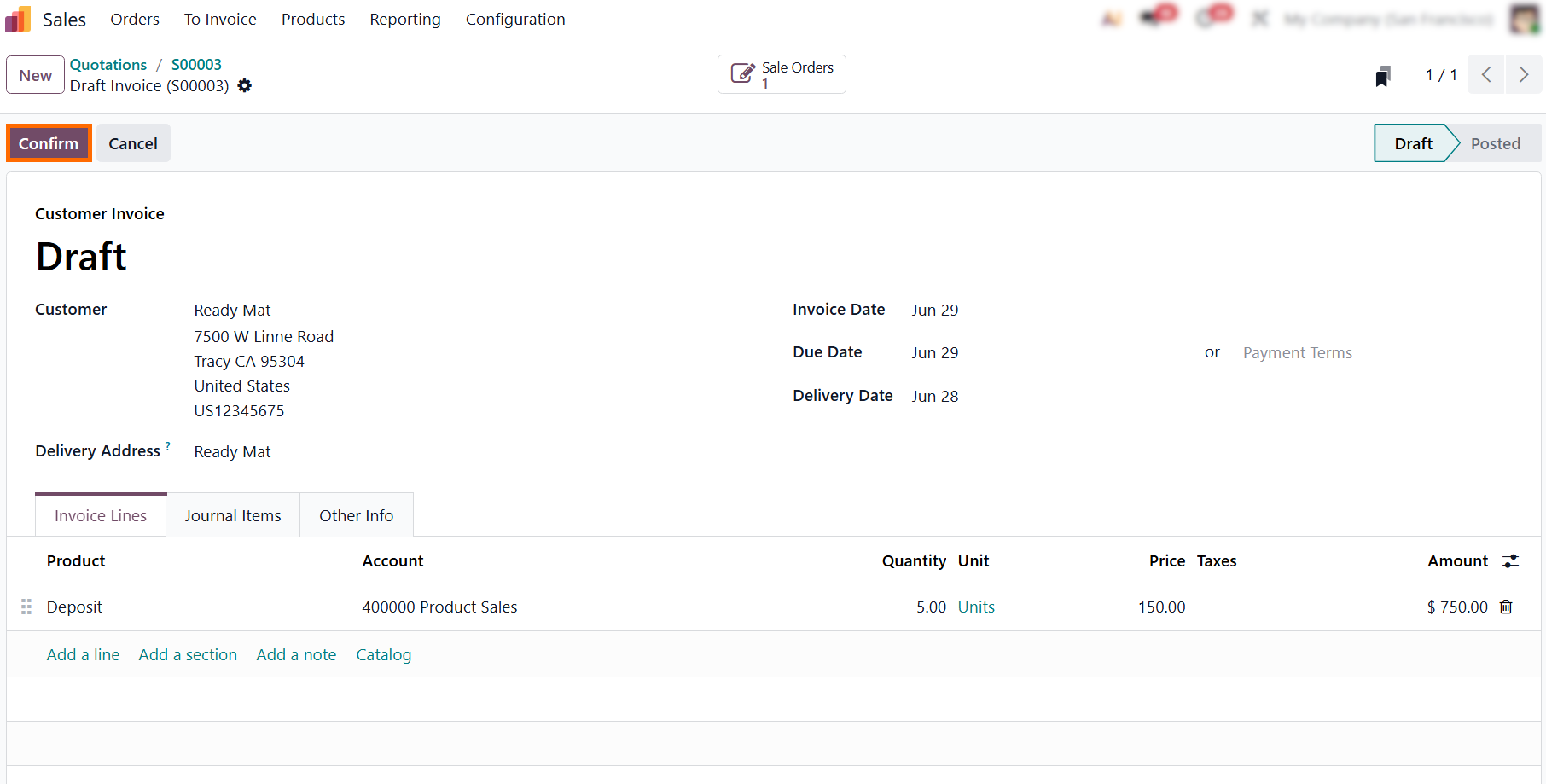
- Review the draft invoice for accuracy. Once verified, click "Confirm" to post the journal entries to the general ledger, officially transforming the draft into an unalterable financial document and generating a unique invoice number.
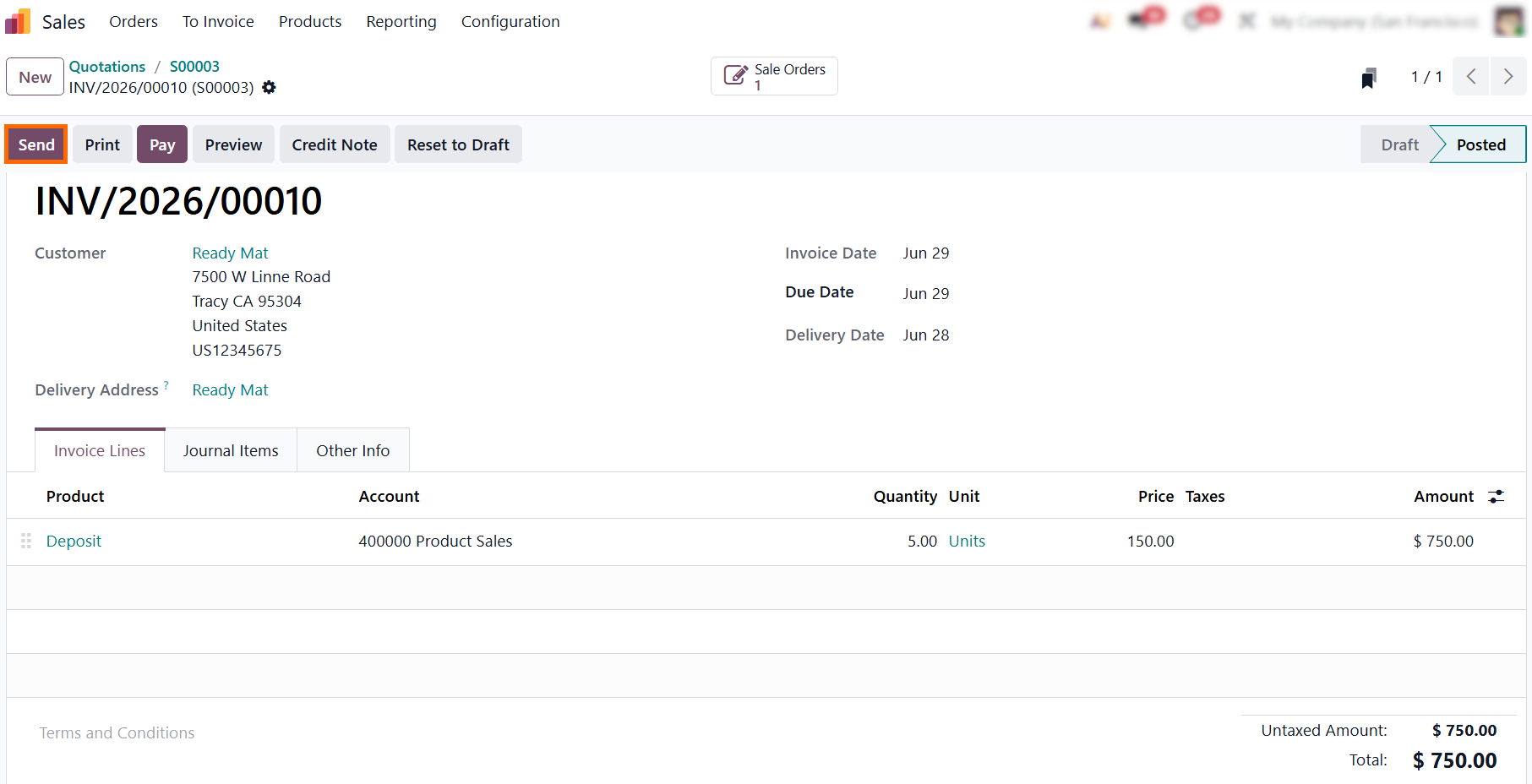
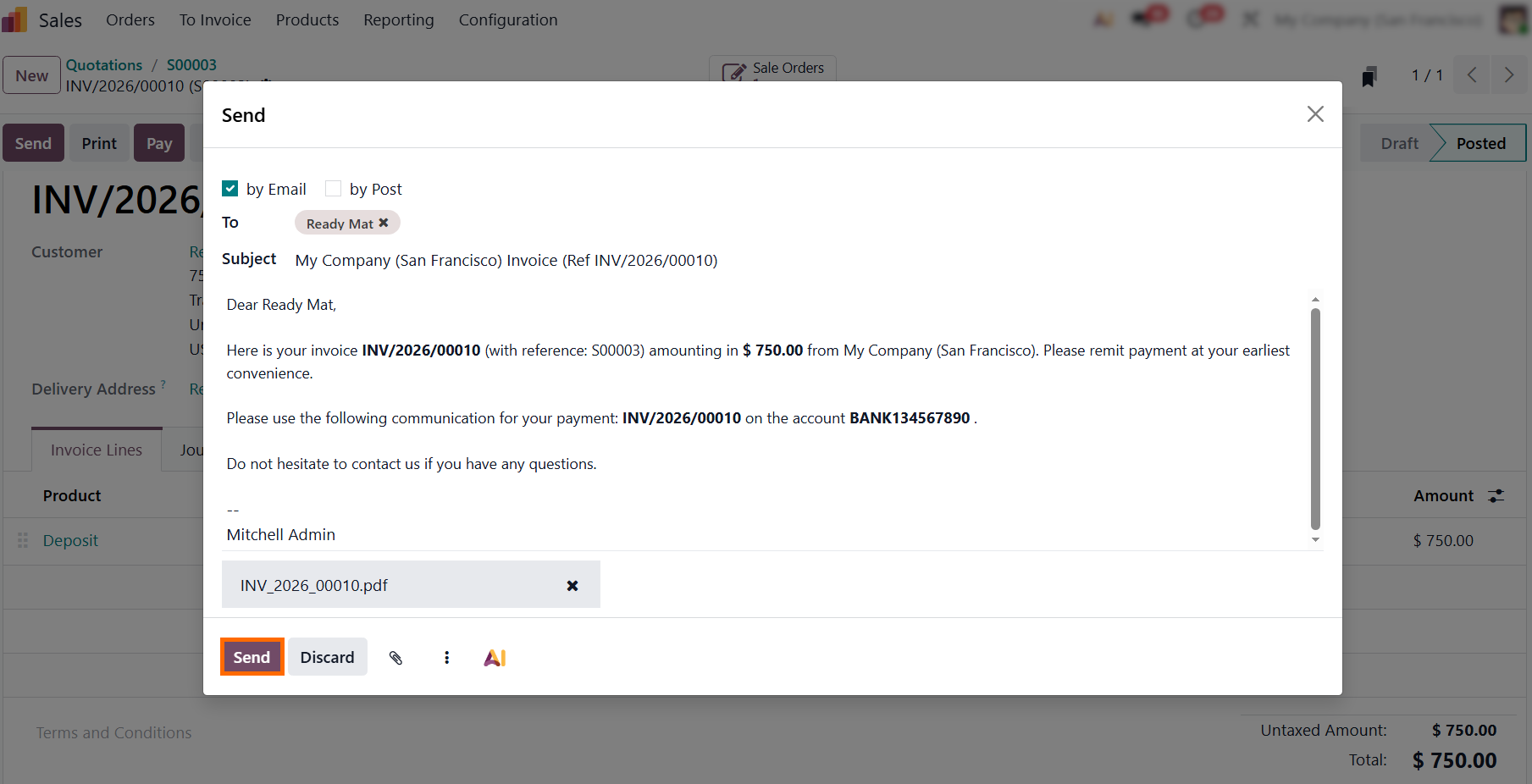
- Click "Send" to dispatch the finalized invoice directly to the customer. This opens the email composer with the PDF invoice attached, ensuring the entire communication history remains linked to the financial record.
- Choose between "By Email" for digital delivery or
"By Post" to generate a physical
copy for mailing and verify the transmission channel before finalizing the dispatch.
Recording
Payments and Financial Reconciliation
Once an invoice is validated, registering the payment marks the formal closure of the Quote to Payment cycle, transforming open receivables into actual corporate cash flow. Odoo treats this step not merely as a status update, but as a core ledger operation that directly feeds your financial reporting. Instead of forcing accountants to manually pair bank statements with open balances, integrated reconciliation journals handle the heavy lifting. This instantly updates your Odoo Payment Tracking system, eliminates human error in payment matching, and provides management with a real-time view of corporate liquidity.
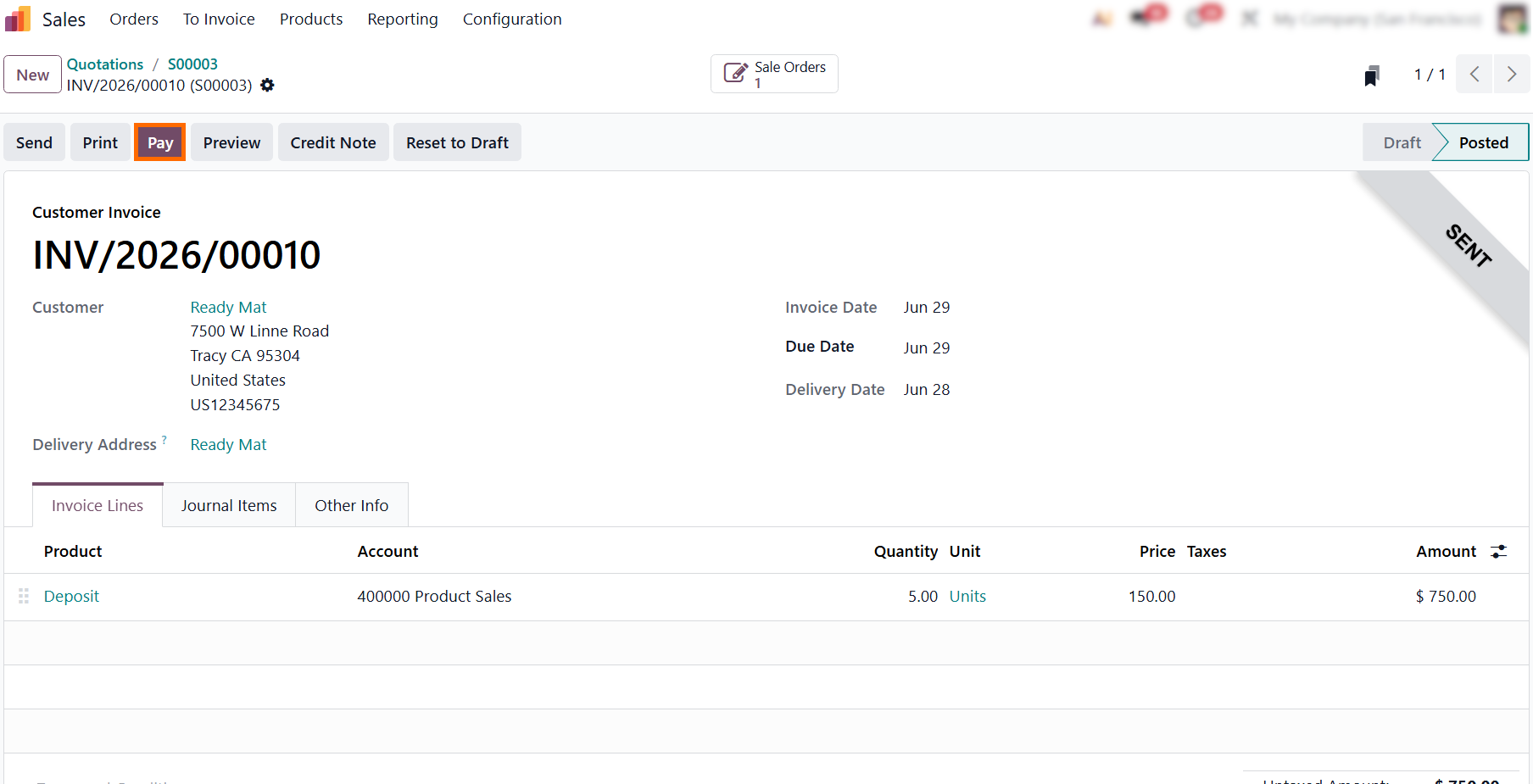
- Upon receiving the actual funds from the customer, click "Pay" directly from the invoice header. This opens the reconciliation window to select the appropriate bank or cash journal and validate the transaction.
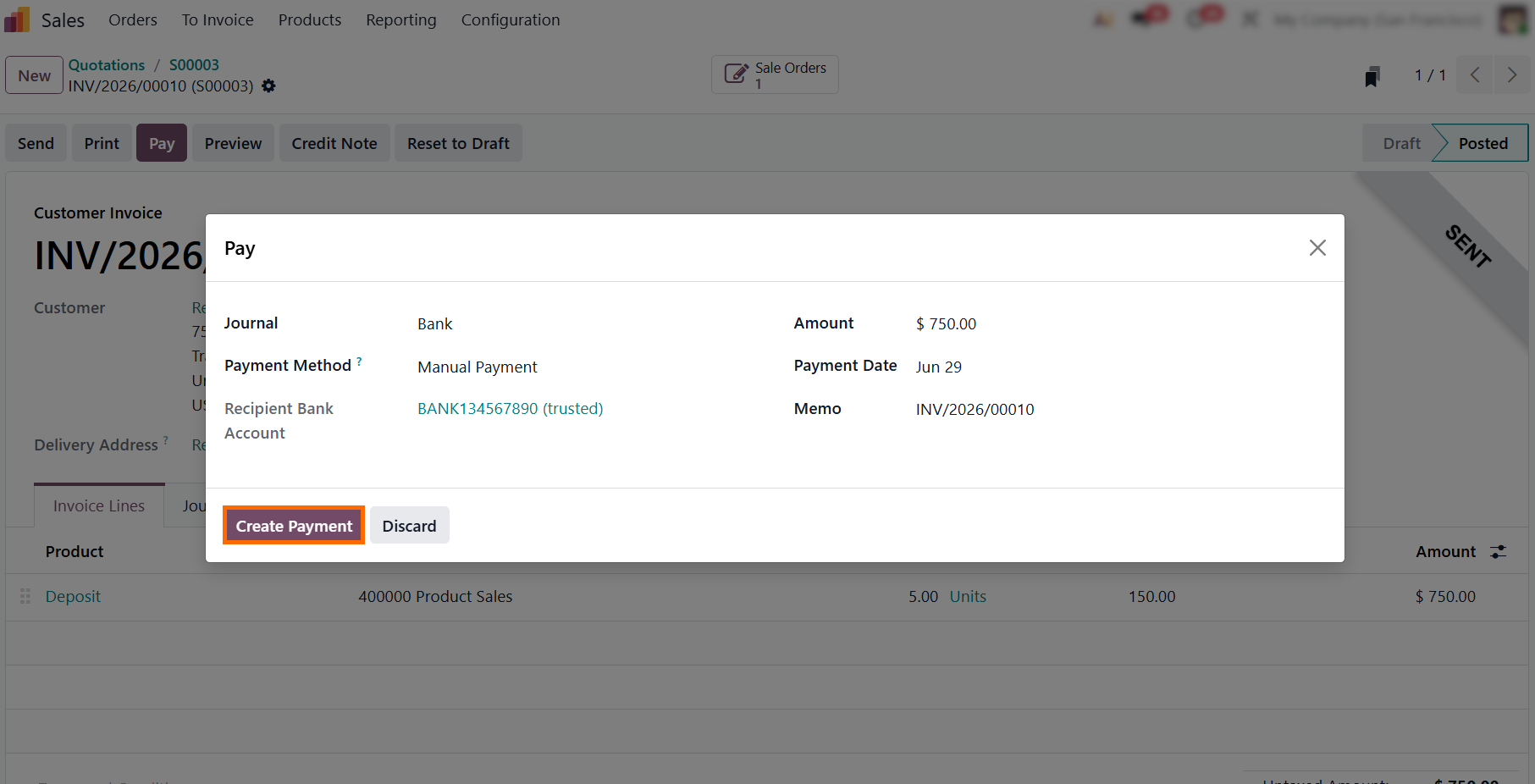
- Check the Journal and Payment Method, confirm that the Amount and Payment Date match the actual transaction, and verify the Recipient Bank Account before clicking "Create Payment" to complete the reconciliation.
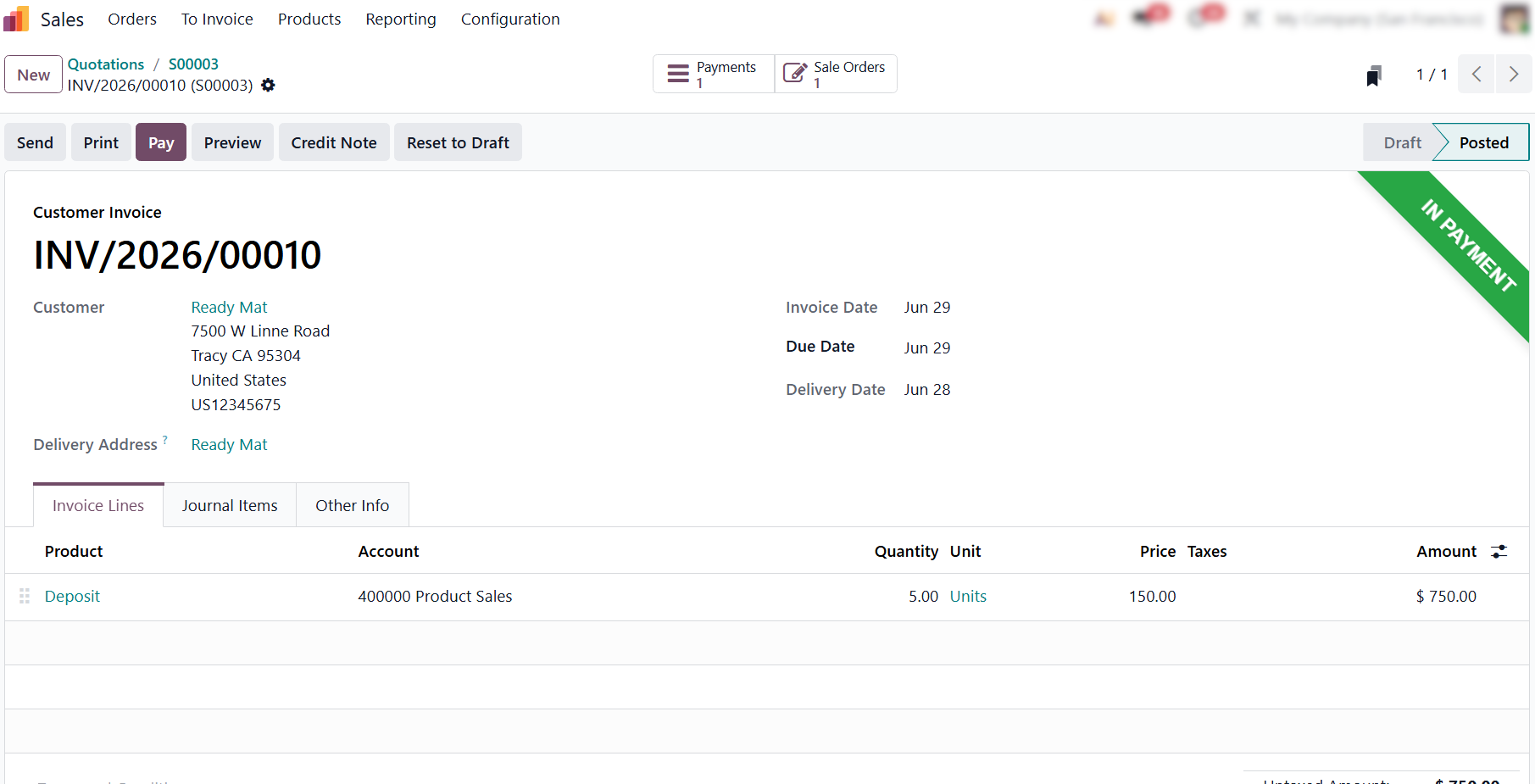
- Once the payment is registered, the invoice
header displays a green "In Payment" ribbon, while a
"Payments" smart button appears at the top to provide direct
traceability
to the validated journal entry.
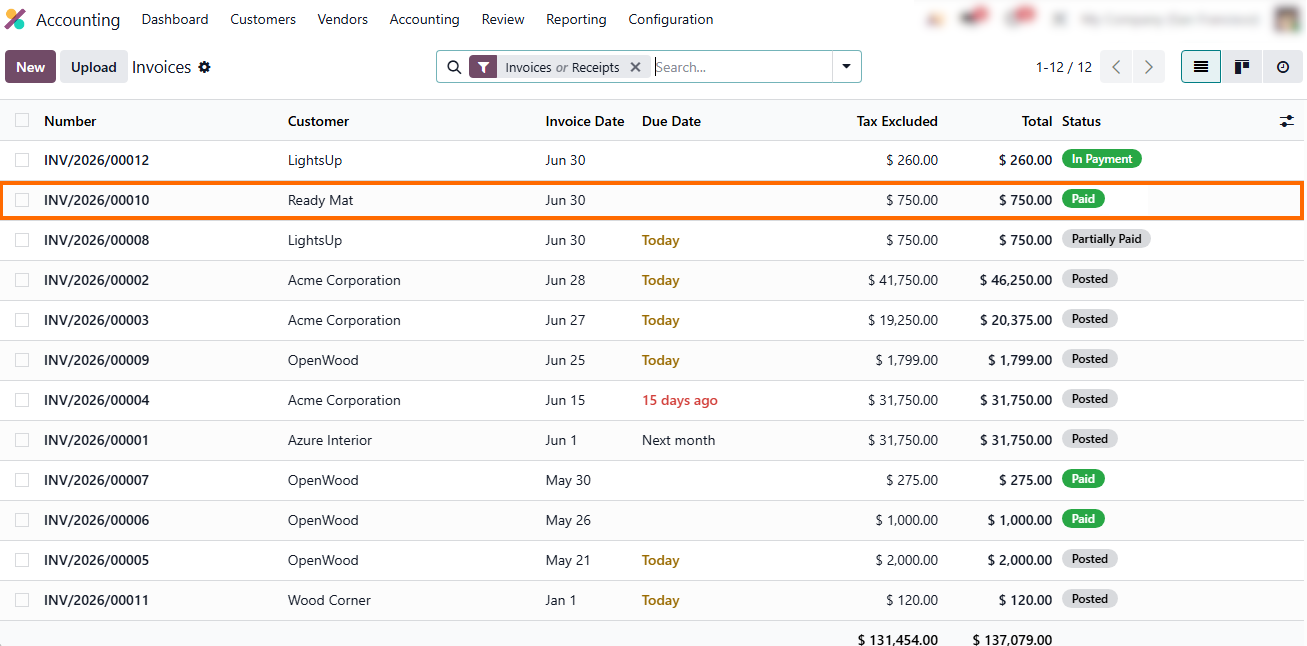
- Review the overall pipeline under the Invoices dashboard. Completed bank reconciliations transition the document to a final "Paid" status, officially closing the order lifecycle.
Conclusion:
Achieving Full Traceability in Odoo 19
Eliminating data gaps in the Odoo Quote to Payment cycle links transactions into a traceable ledger chain. With Sales, Inventory, and Invoicing sharing one database, a confirmed Sales Order serves as the sole source of truth. Any update, from warehouse validation to payment registration, instantly syncs across smart buttons for immediate cross-departmental auditing.
This workflow provides full operational visibility without manual reconciliation. Anchoring invoices directly to delivery data prevents unbilled shipments, eliminates double-entry errors, and ensures accounting ledgers accurately reflect physical stock movements.