Equipment failures or bad batches of raw materials are rarely discovered at the exact moment they occur. In many cases, manufacturers only notice the impact when a work center stops, production slows down, or the next operation is left waiting. This delay between detecting an issue and taking action is where production time, efficiency, and revenue are lost. Odoo Manufacturing and the Shop Floor app eliminate that delay by making disruptions visible immediately. By linking Odoo Quality checks and Maintenance workflows directly to production operations, defects automatically generate Odoo Quality Alerts, while equipment failures create maintenance requests without interrupting production.
- Navigate to the Apps menu and verify that the required apps
are installed. Having the necessary manufacturing, quality, and
maintenance apps enabled ensures all disruption workflows can work
together.
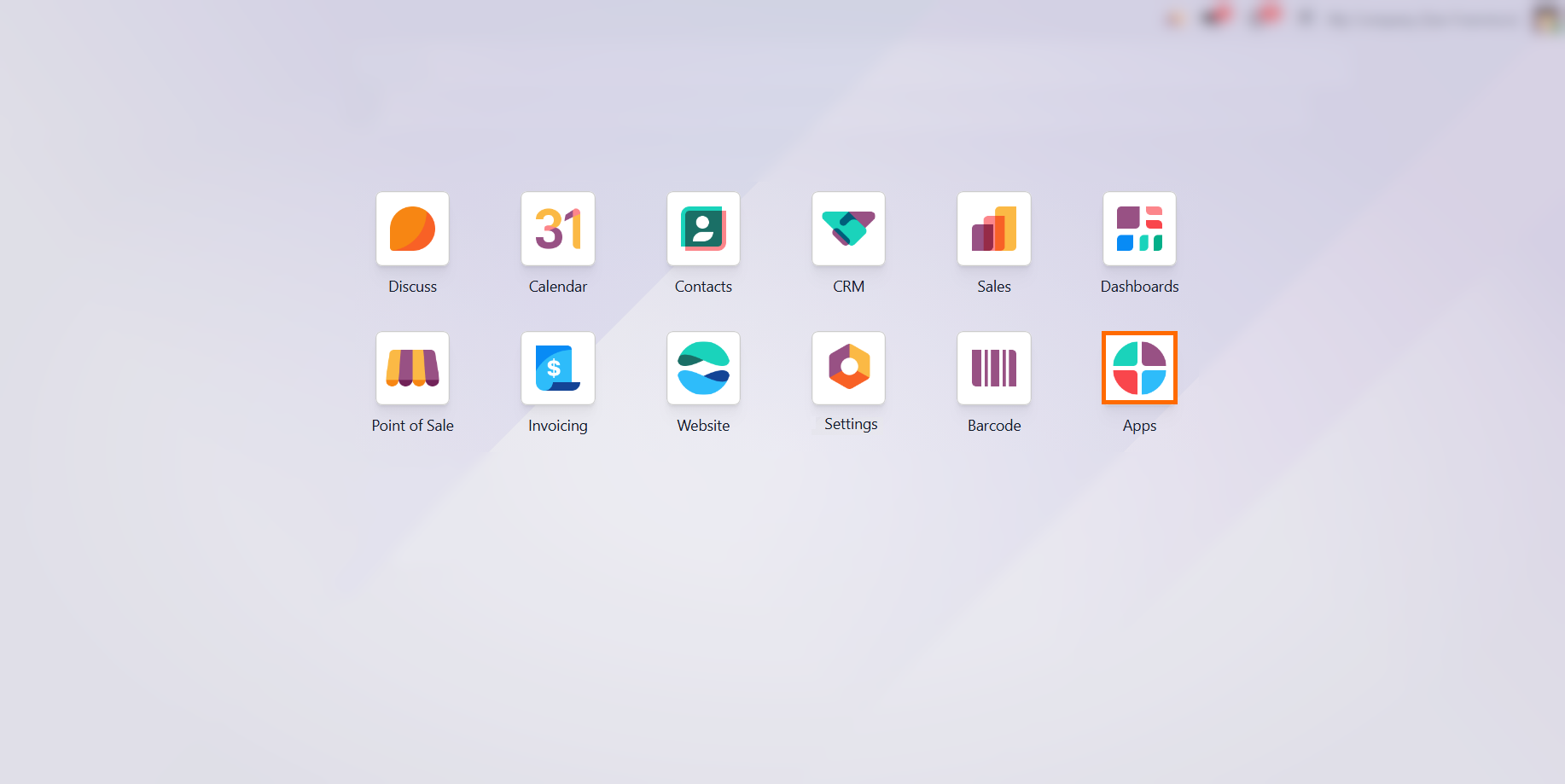
Enable Odoo Manufacturing, Shop Floor, Quality, and Maintenance. Together, these apps form the core infrastructure needed to track production lines, log real-time defects, and instantly route repair requests to the right teams.
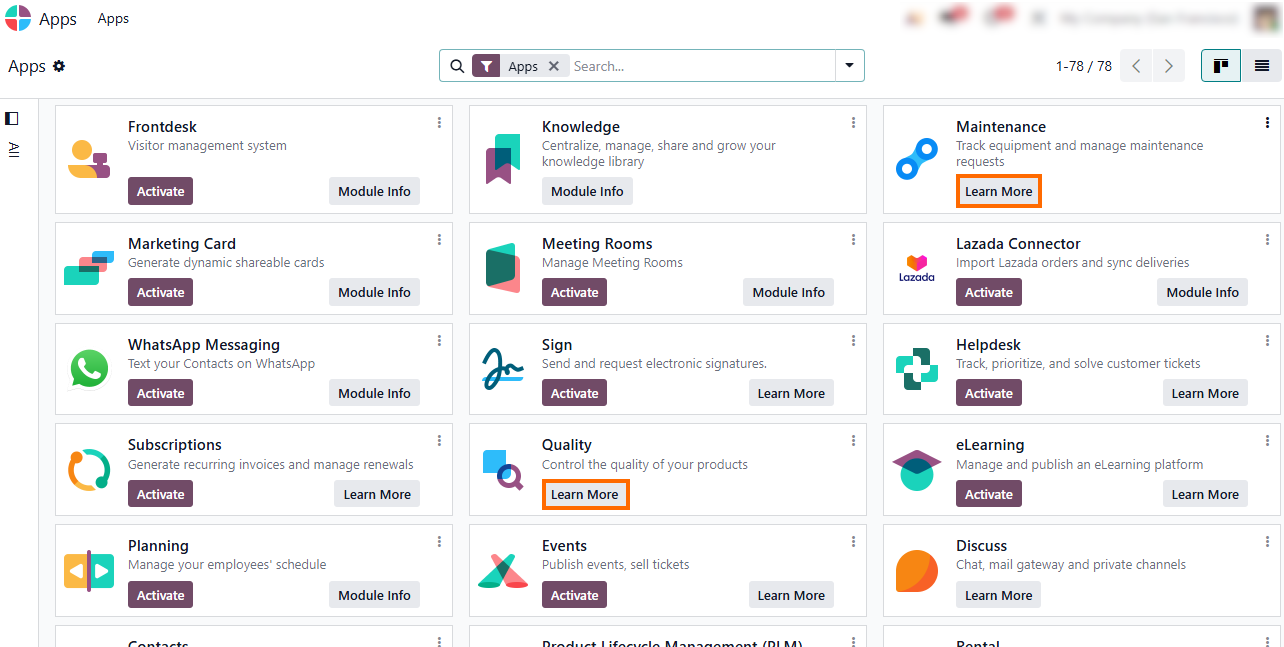
With the apps active, proceed to set up dedicated Odoo Quality Teams. Establishing these teams creates clear ownership over defects, ensuring real-time alerts reach authorized
personnel immediately to make fast scrap, rework, or line-stop decisions.
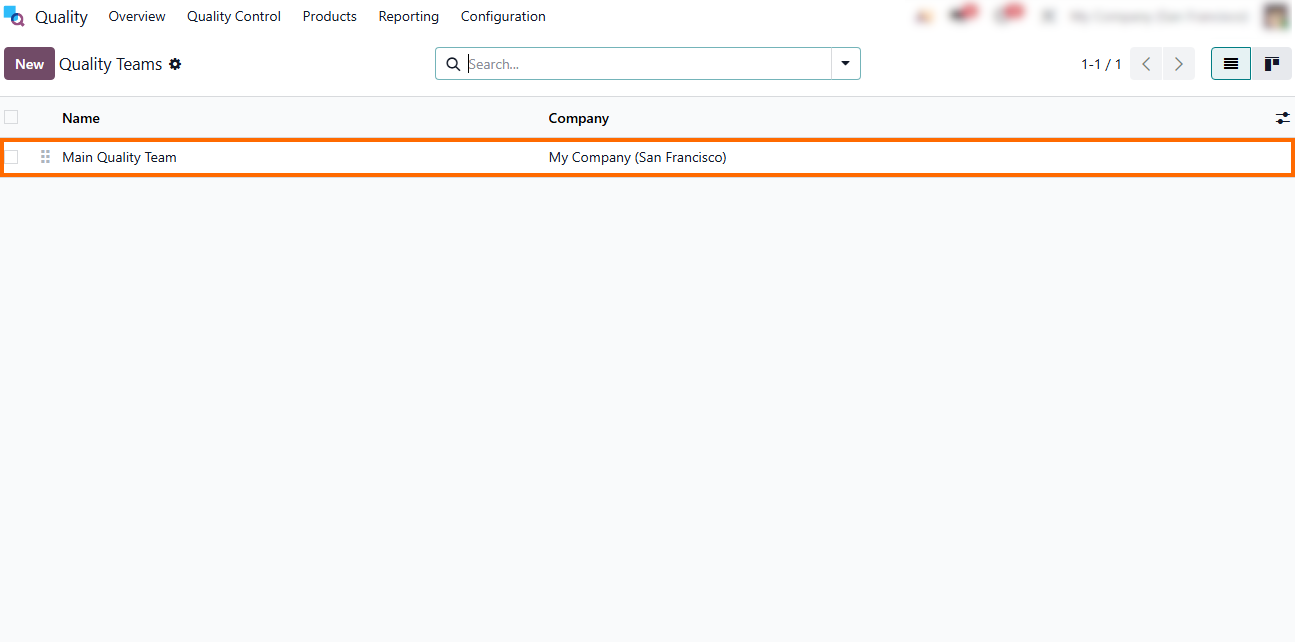
- Assign a clear team name and link it to the appropriate company branch. Configuring a dedicated email alias also ensures incoming disruption reports or automated alerts seamlessly populate the team’s quality pipeline.
Setting Up Odoo Quality Control
Points for Early Issue Detection
Managing manufacturing disruptions with Odoo requires predefined rules that catch issues before they escalate across the shop floor. In Odoo Quality, Quality Control Points act as automated guards at critical manufacturing steps, helping teams detect issues before they affect downstream operations. By configuring these control mechanisms in advance, you ensure that any deviation from quality standards immediately generates Quality Checks and allows teams to respond before defects move further through production. This prevents out-of-spec components from advancing through the assembly line and ensures standard compliance at every critical stage.
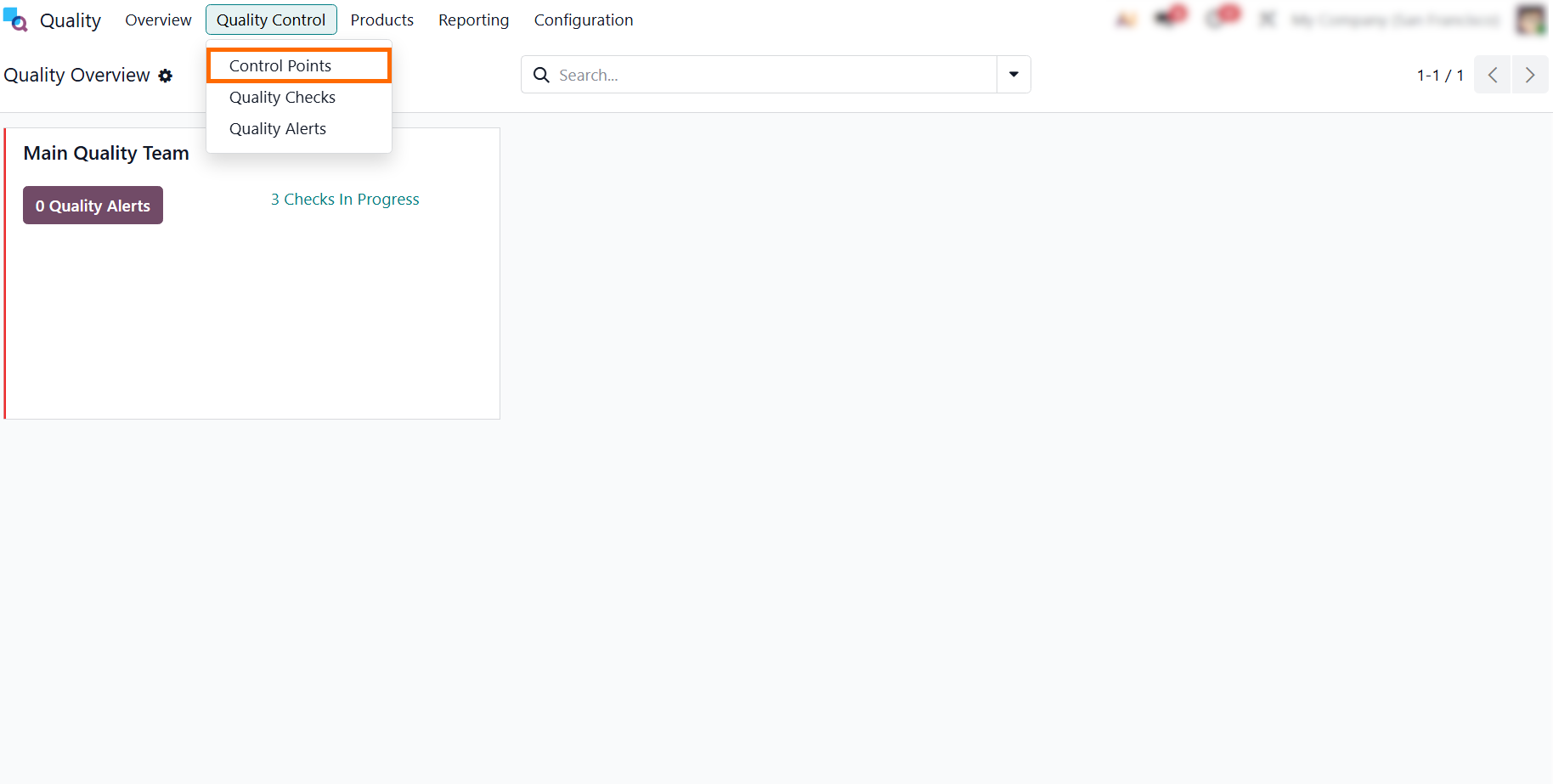
- Access the Quality Control menu in the Quality app and select Control Points to manage inspection rules across your production line. This creates mandatory quality gates at critical manufacturing steps before work orders move forward.
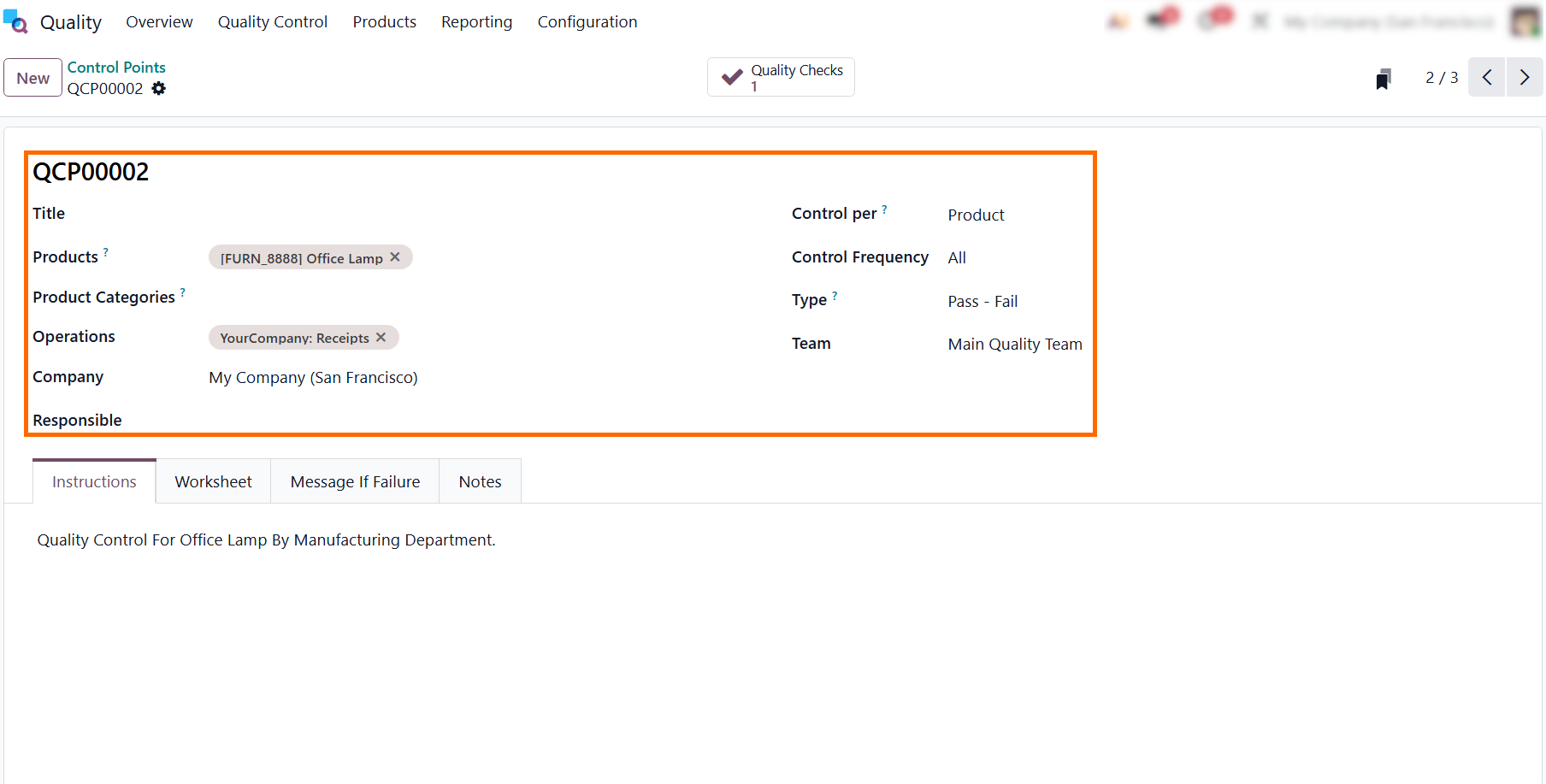
Define Quality Control Points for critical operations. Select the specific product, operation, or work center where quality checks must occur, and set the Control Type to
dictate whether inspections happen per batch, per operation, or randomly.
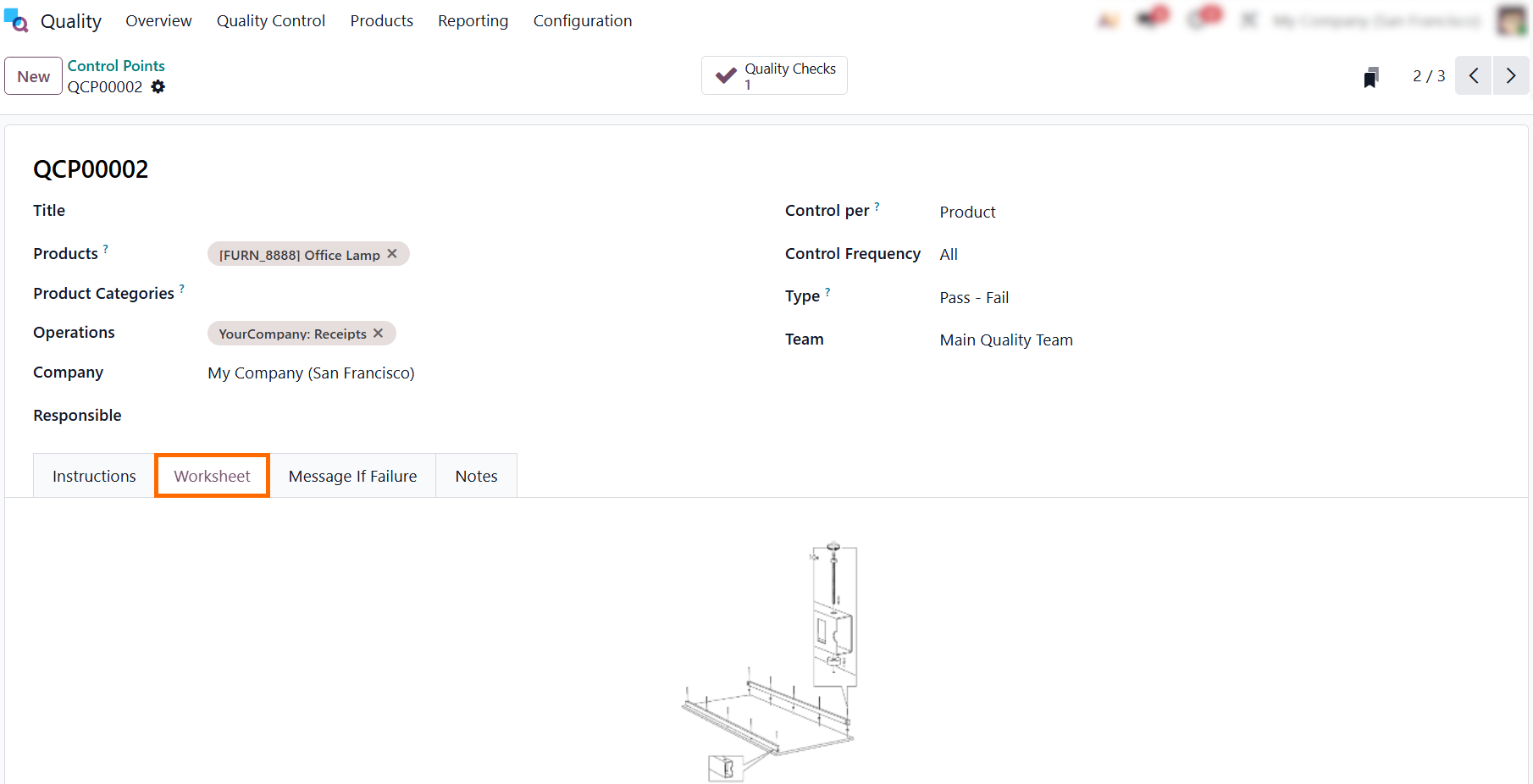
- Switch to the Worksheet tab to attach detailed visual instructions, product blueprints, or custom check forms. This ensures inspectors have immediate access to clear visual references and specific criteria during the quality control process.
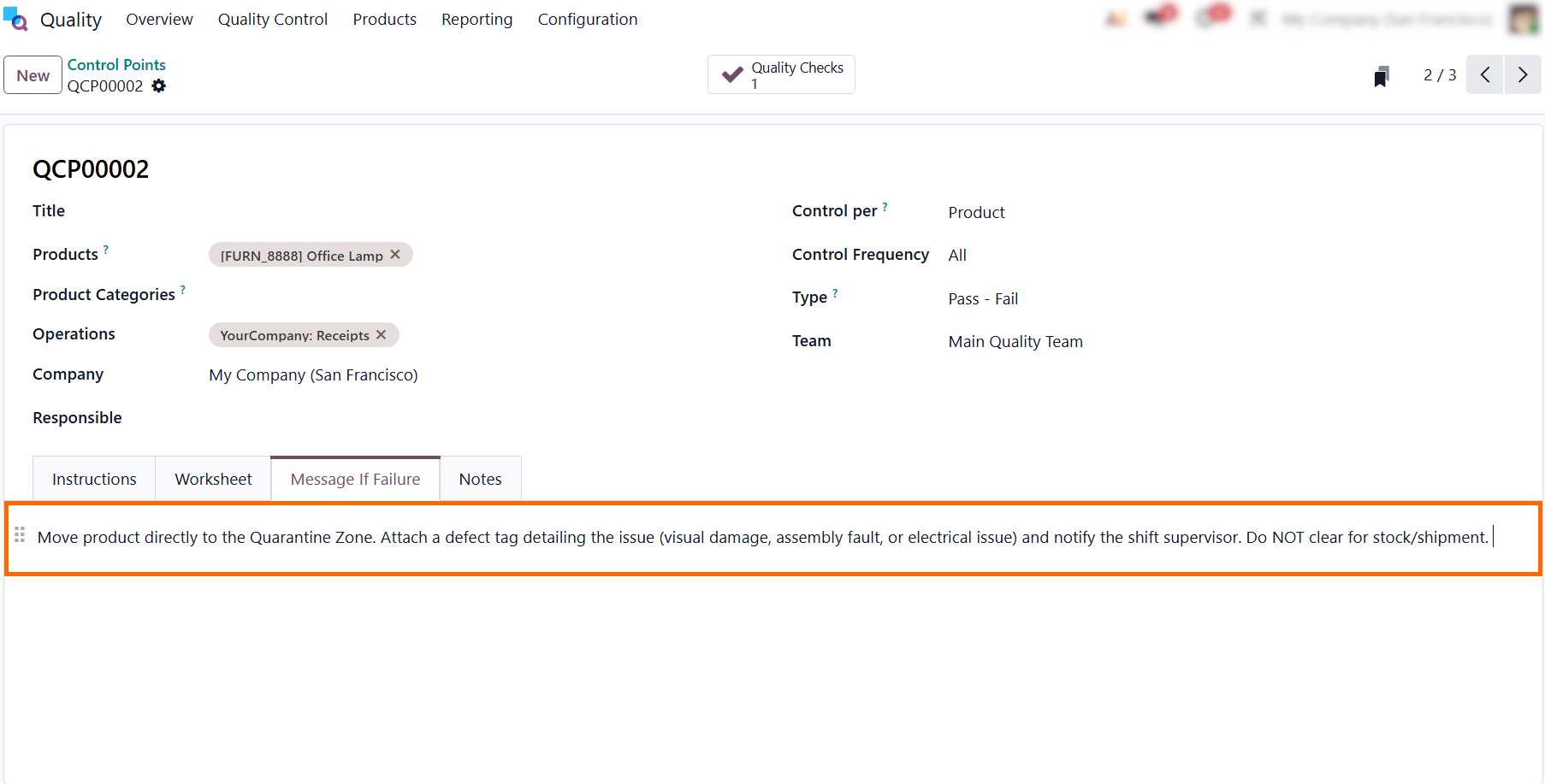
Navigate to the Message If Failure tab and enter a clear action protocol, such as quarantine instructions, tagging requirements, and supervisor notifications, to guide
workers if the quality check fails.
- With the Quality Control Point configured and failure
protocols set, Odoo immediately triggers real-time warnings whenever a
check fails. Let’s look at how this plays out in
practice under Quality Checks.
Handling Failed Inspections with Odoo
Quality Alerts
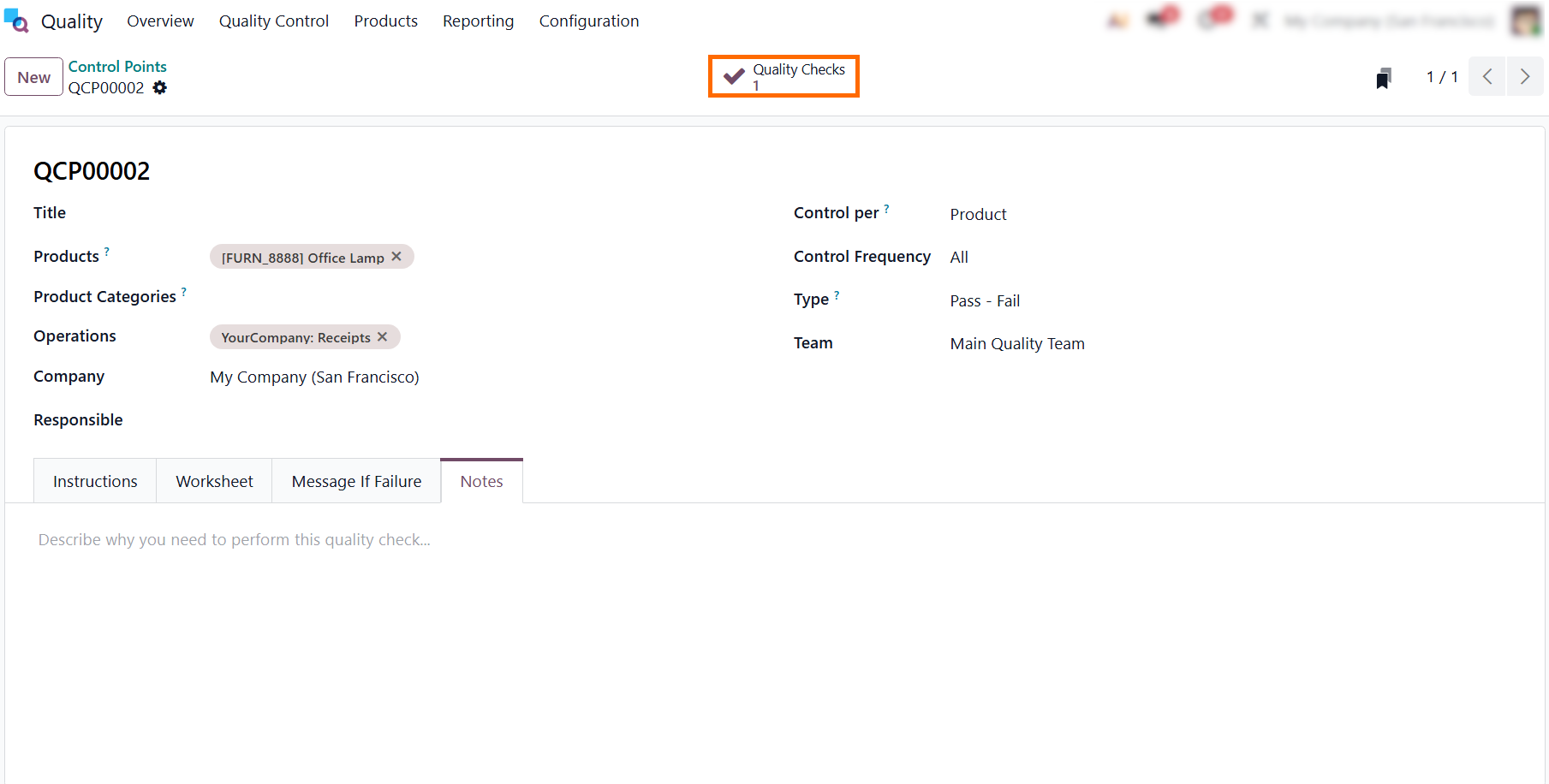
In Odoo Quality, configuring a Quality Control Point defines the precise criteria for automated or manual inspections during operational flows. When a user sets up or views a control point, the system provides a structured layout showing all active conditions and linked data. In practice, this allows quality managers to embed inspection checkpoints directly into inventory transfers, manufacturing orders, or purchasing steps without interrupting the operational flow. By standardizing these inspection rules, teams can automatically trigger checks, such as measuring dimensions, taking photos, or verifying pass/fail criteria. This reduces human error and ensures consistent product standards across the entire supply chain.
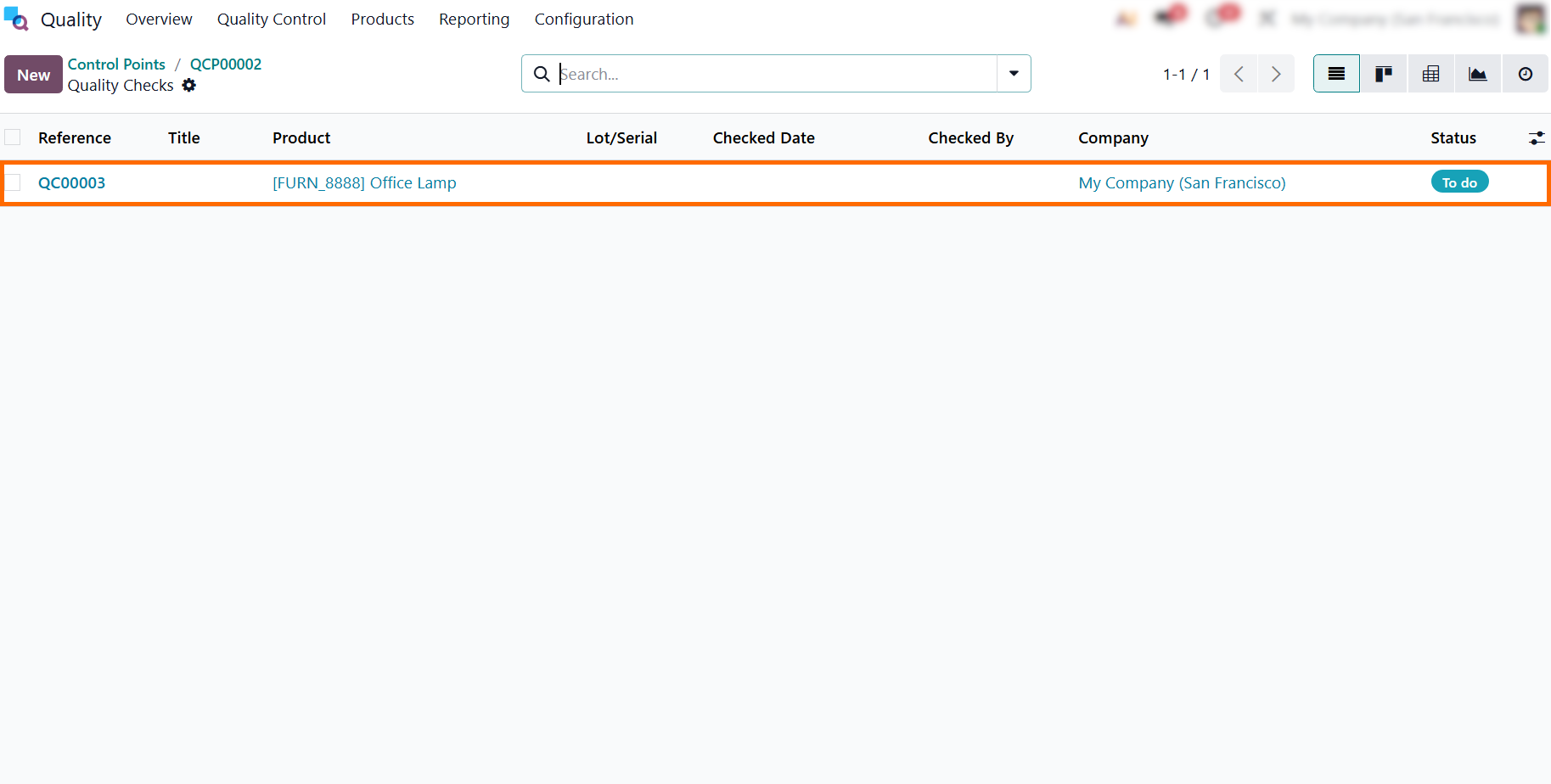
- Once the Quality Control Point conditions are met, Odoo automatically creates a Quality Check and adds it to the Quality Checks list with a “To Do” status, allowing inspectors to review the product and complete the required inspection.
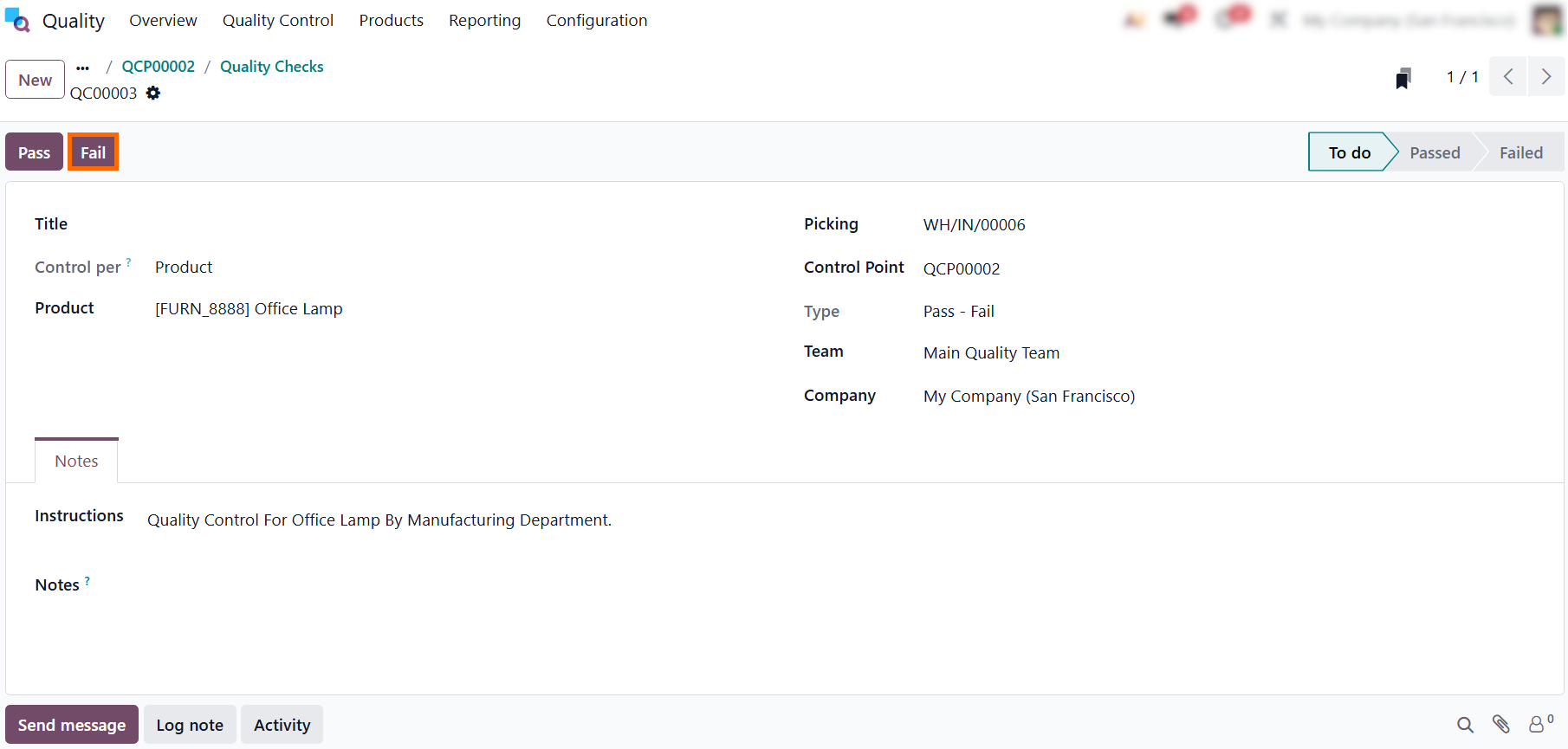
Select Fail and mark the product as defective to immediately halt its transfer, isolate the non-conforming items from the assembly flow, and prevent unverified or substandard materials from entering inventory.
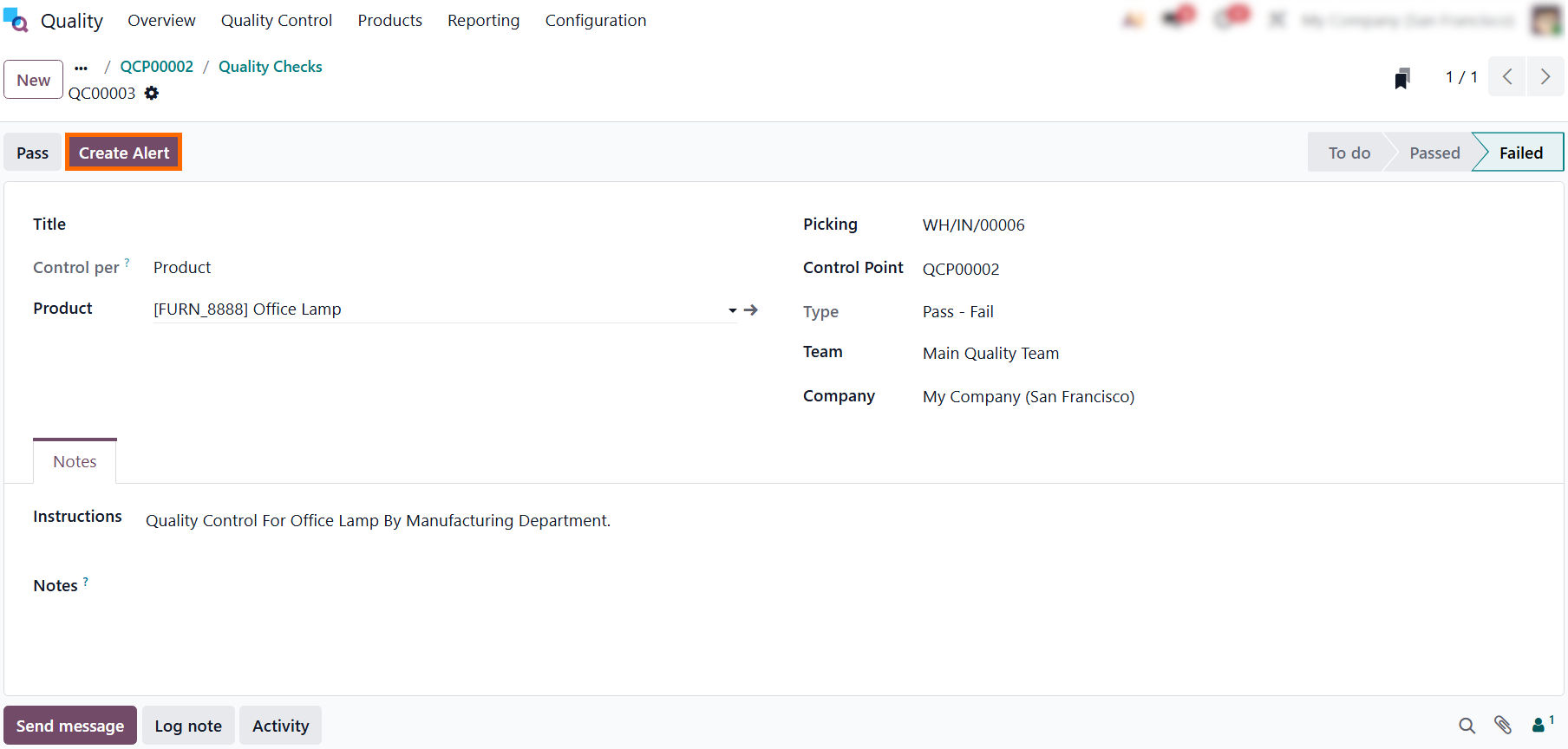
- After the quality check is marked as Failed, the transfer remains blocked to prevent the defective product from entering inventory. At this stage, click “Create Alert” to generate a Quality Alert and start the investigation and resolution process.
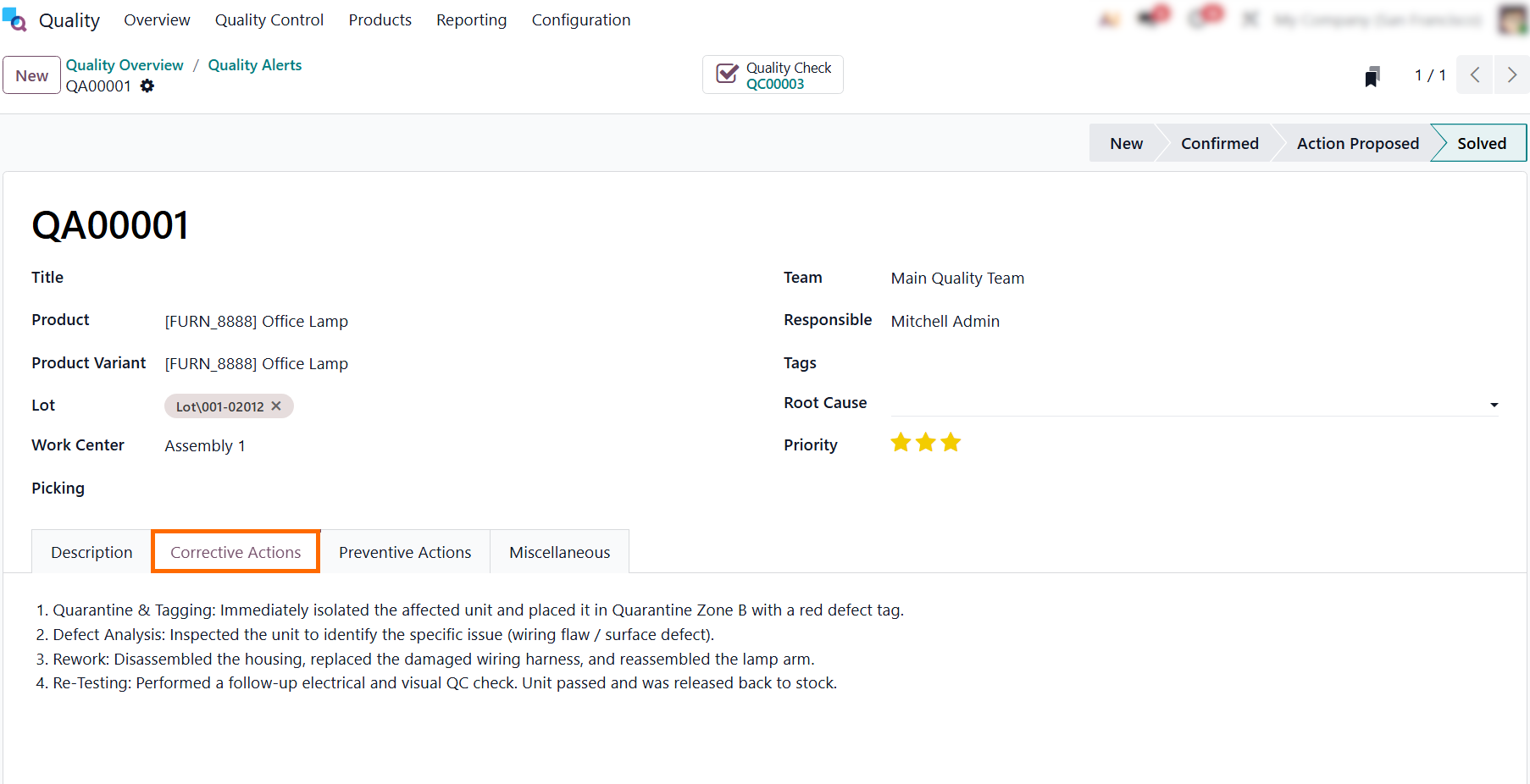
A Quality Alert is automatically created and linked to the failed quality check, providing a record of the issue. From here, use the Corrective Actions tab to document the steps
needed to investigate, resolve, and verify the defect before releasing the product.
Managing Equipment Breakdowns with Odoo Maintenance Requests
When equipment breaks down on the shop floor, immediate action is required to prevent production bottlenecks and maintain operational flow. Operators can submit an Odoo Maintenance Request directly from their workstation, instantly identifying the affected equipment and notifying the technical team. Using Odoo Maintenance ensures scheduling adjusts in real time, preventing new work orders from being assigned to faulty machinery while technicians resolve the issue.
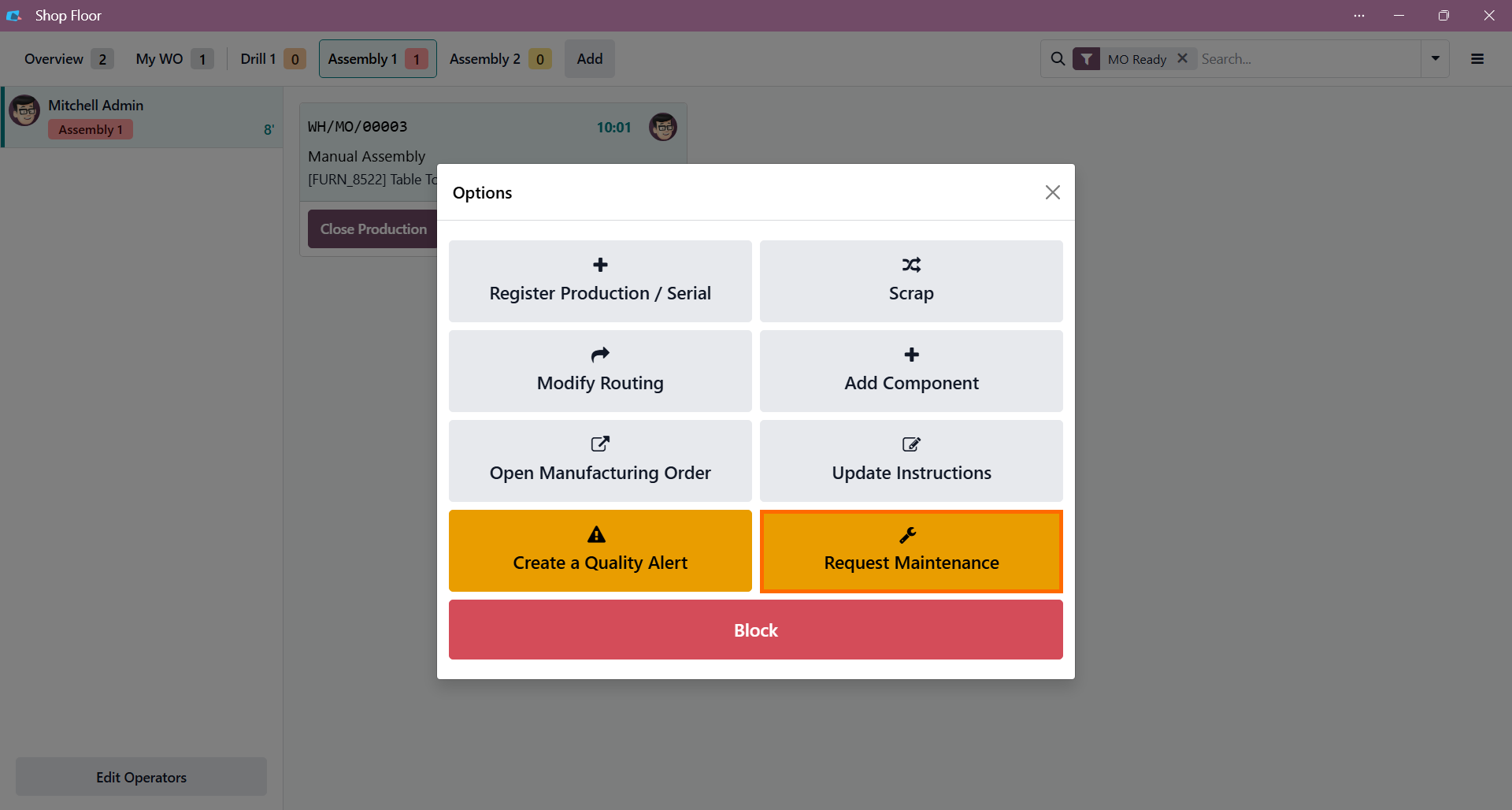
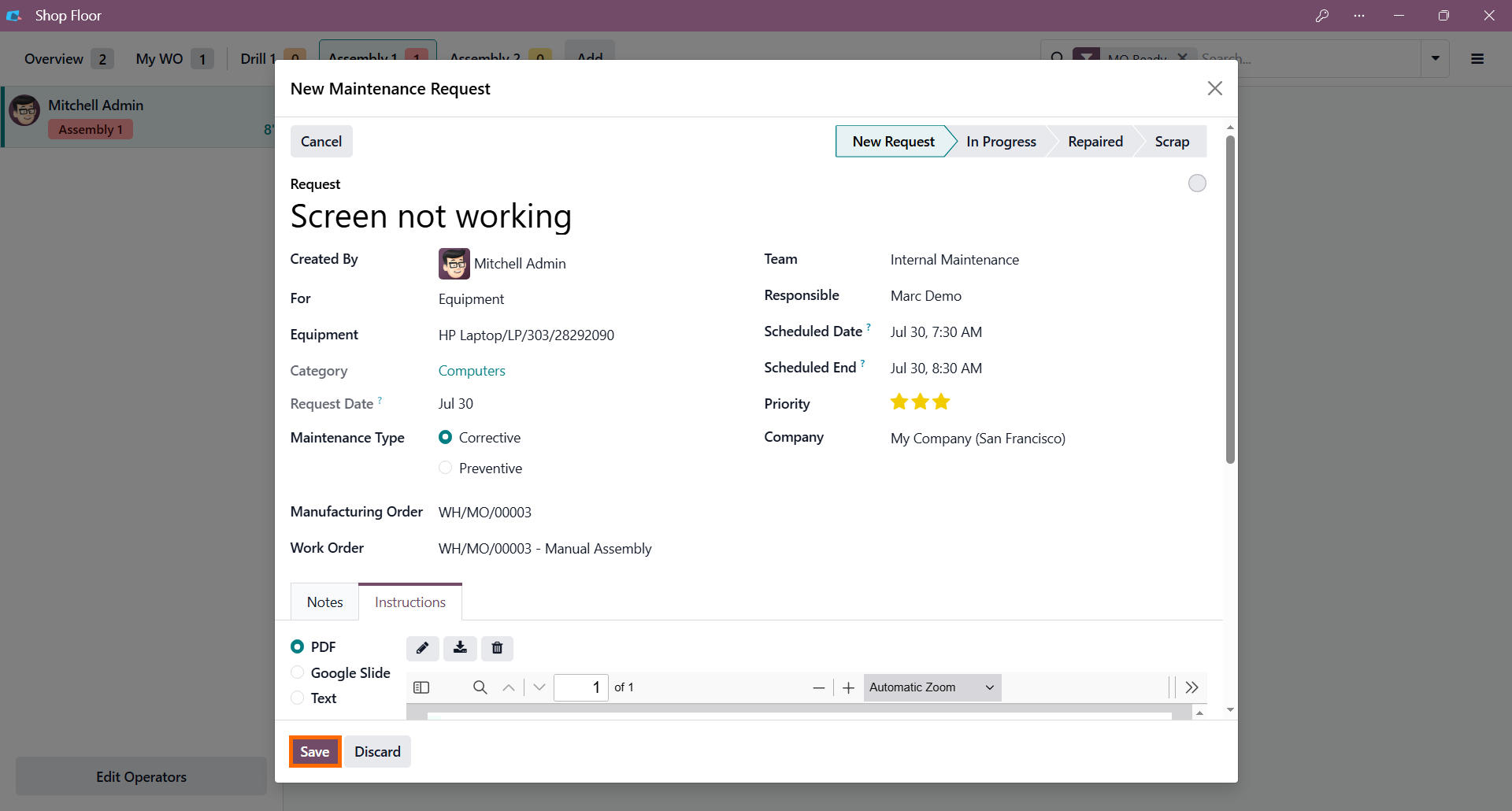
- If equipment breaks down during production, create a maintenance request directly from the Shop Floor screen. This quickly notifies the maintenance team without interrupting the manufacturing workflow.
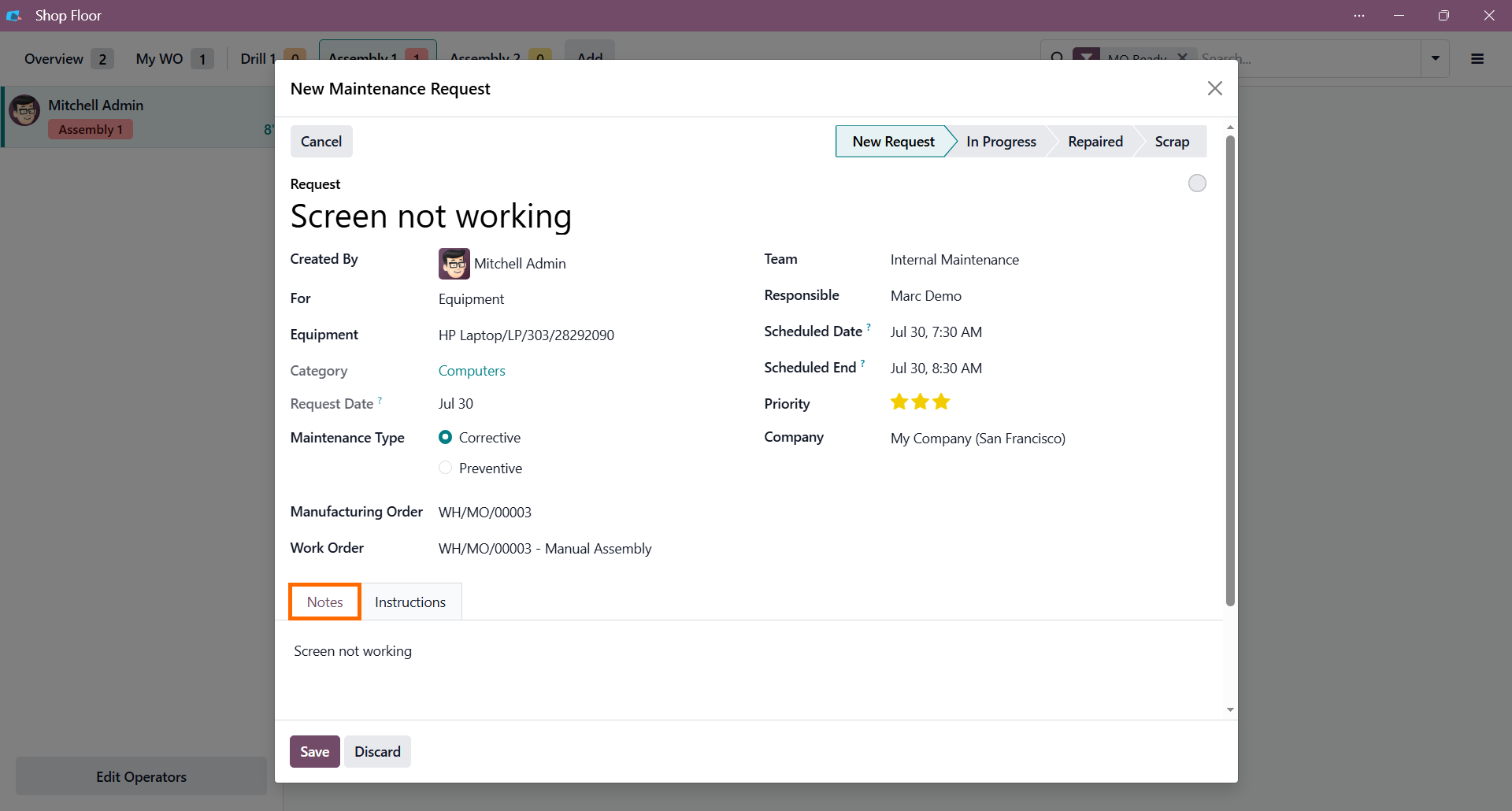
Enter a description of the issue in the Notes tab, set the appropriate priority, assign the request to a maintenance team or responsible technician if needed, and save the request to start the repair process.
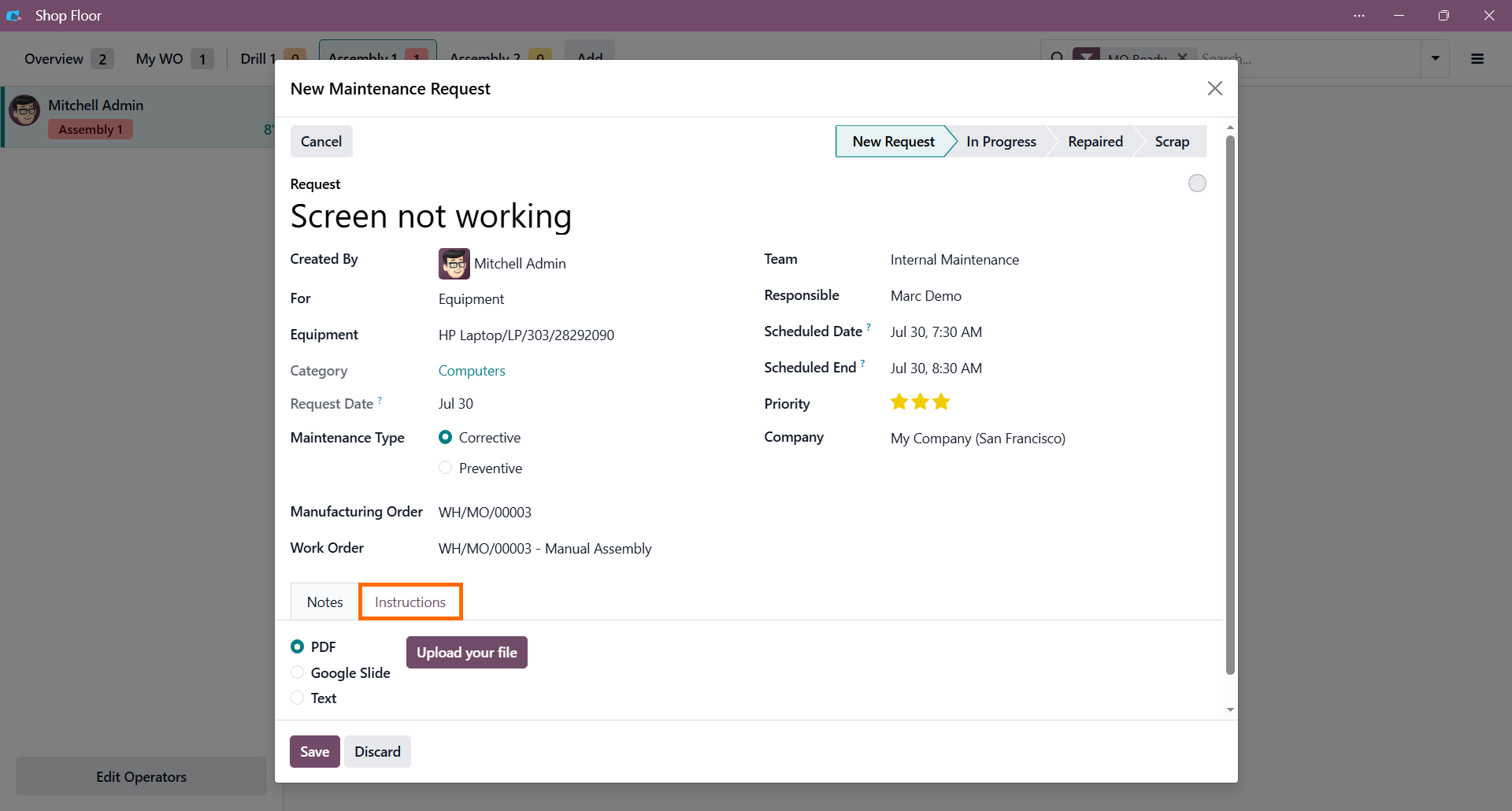
If needed, add repair instructions in the Instructions tab. Enter them as plain text or upload a supporting document, such as a PDF or presentation, to provide technicians
with the information required to complete the repair efficiently.
- Click “Save” in the bottom left corner to log your changes and notify the maintenance team. This keeps data accurate and gives technicians immediate access to updated instructions for faster repair response.
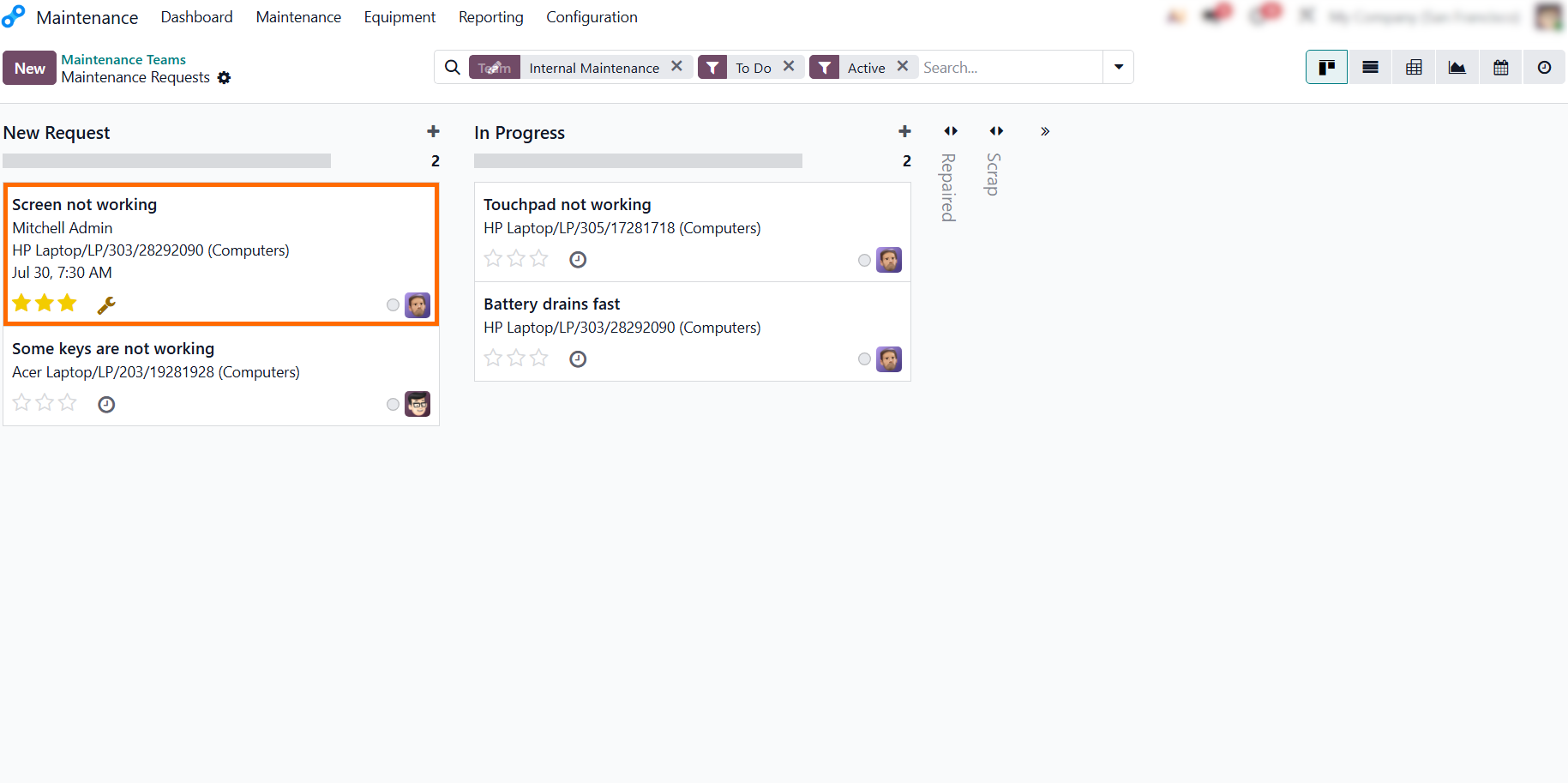
Once saved, the new maintenance request instantly appears in the New Request column on the Kanban board, allowing technicians to pick it up immediately and track its resolution status in real time.
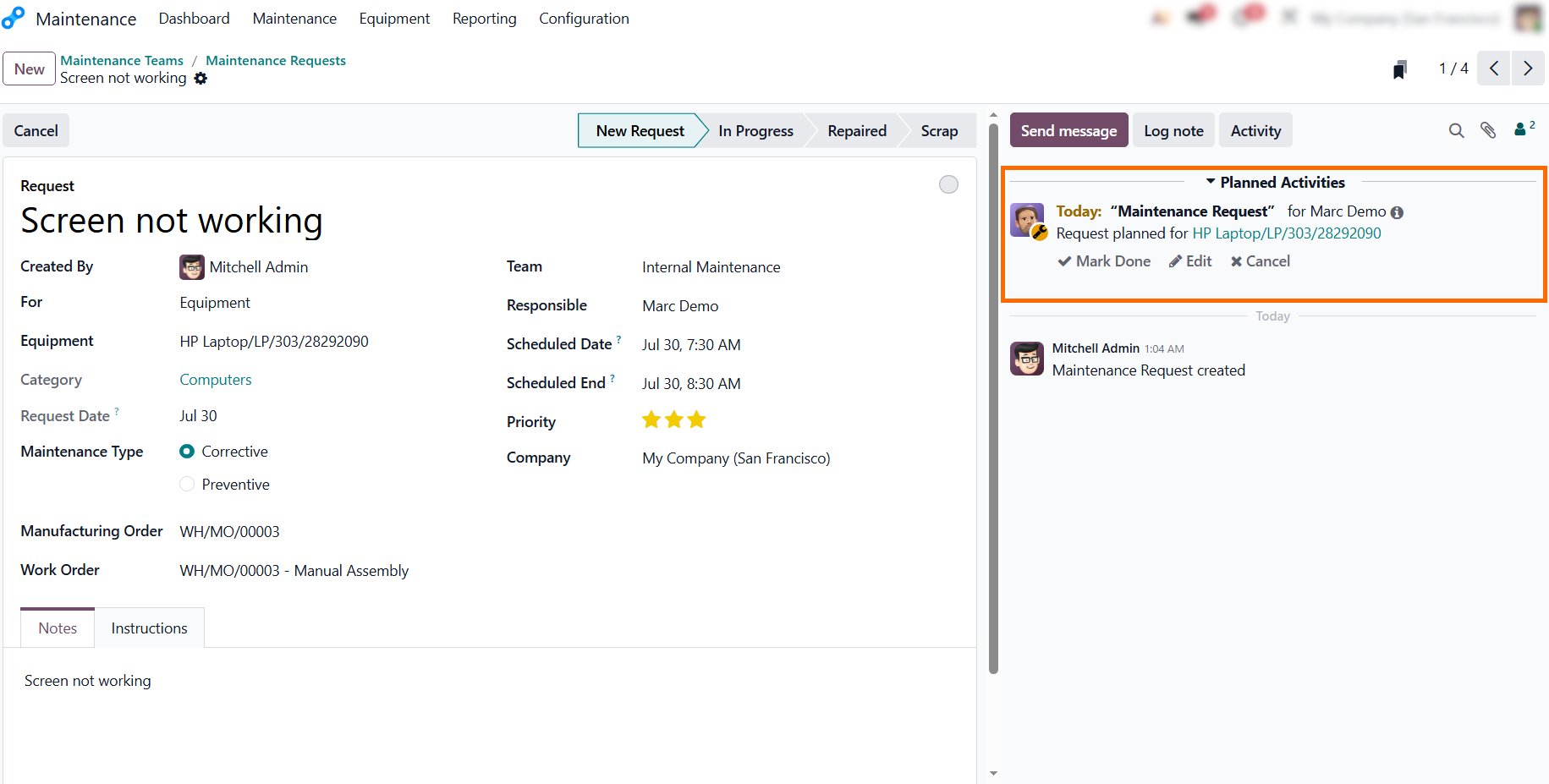
Odoo automatically schedules a maintenance activity for the assigned technician, such as Marc Demo. This keeps the maintenance team aligned upon submission without any manual overhead.
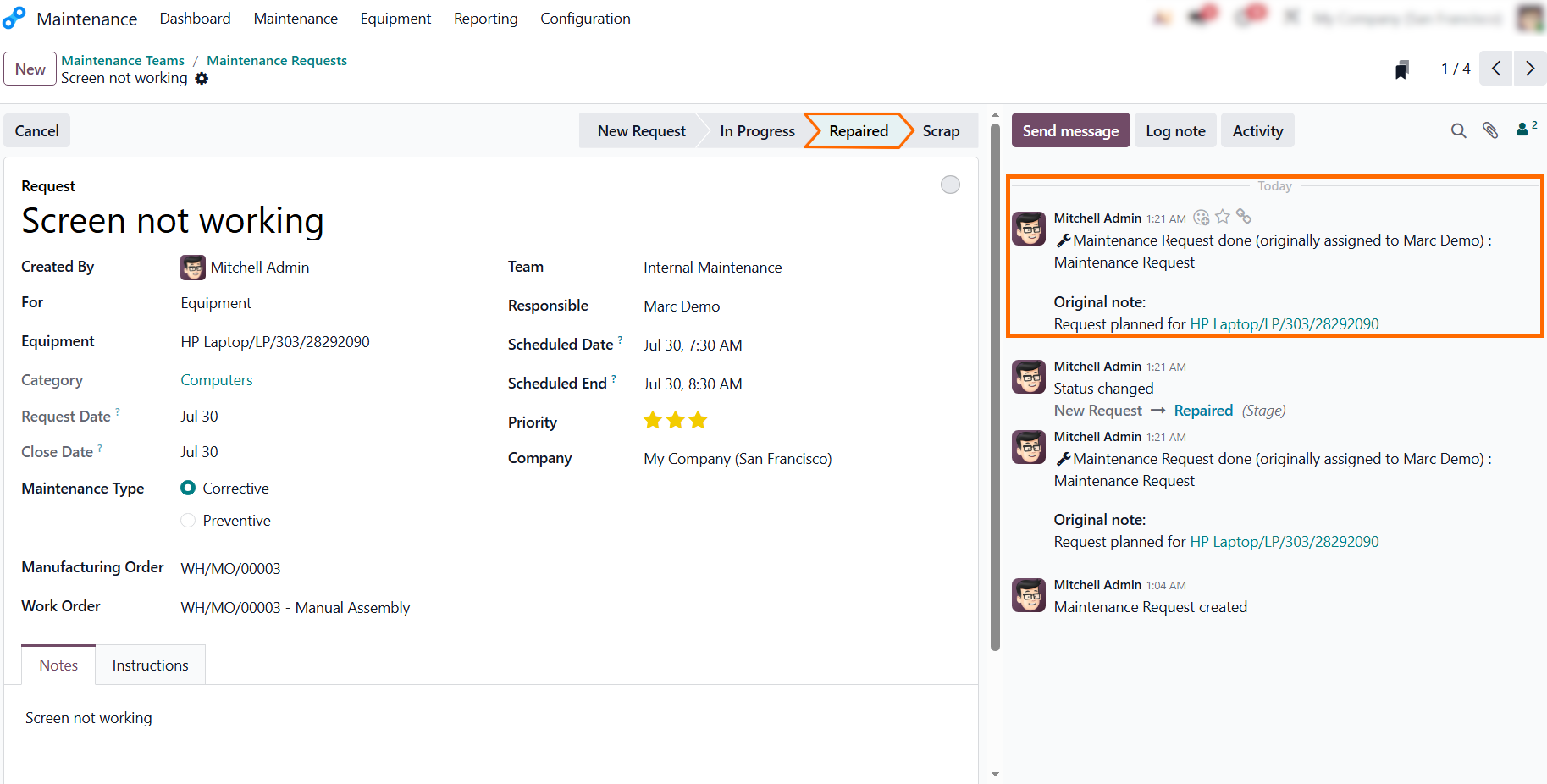
- After finishing the repair, the technician closes the activity
and updates the status to Repaired. This closes the feedback loop
instantly, providing management with accurate
data on resolution times and equipment lifecycle costs.
How to Keep Production Moving During Equipment Downtime with Odoo Maintenance
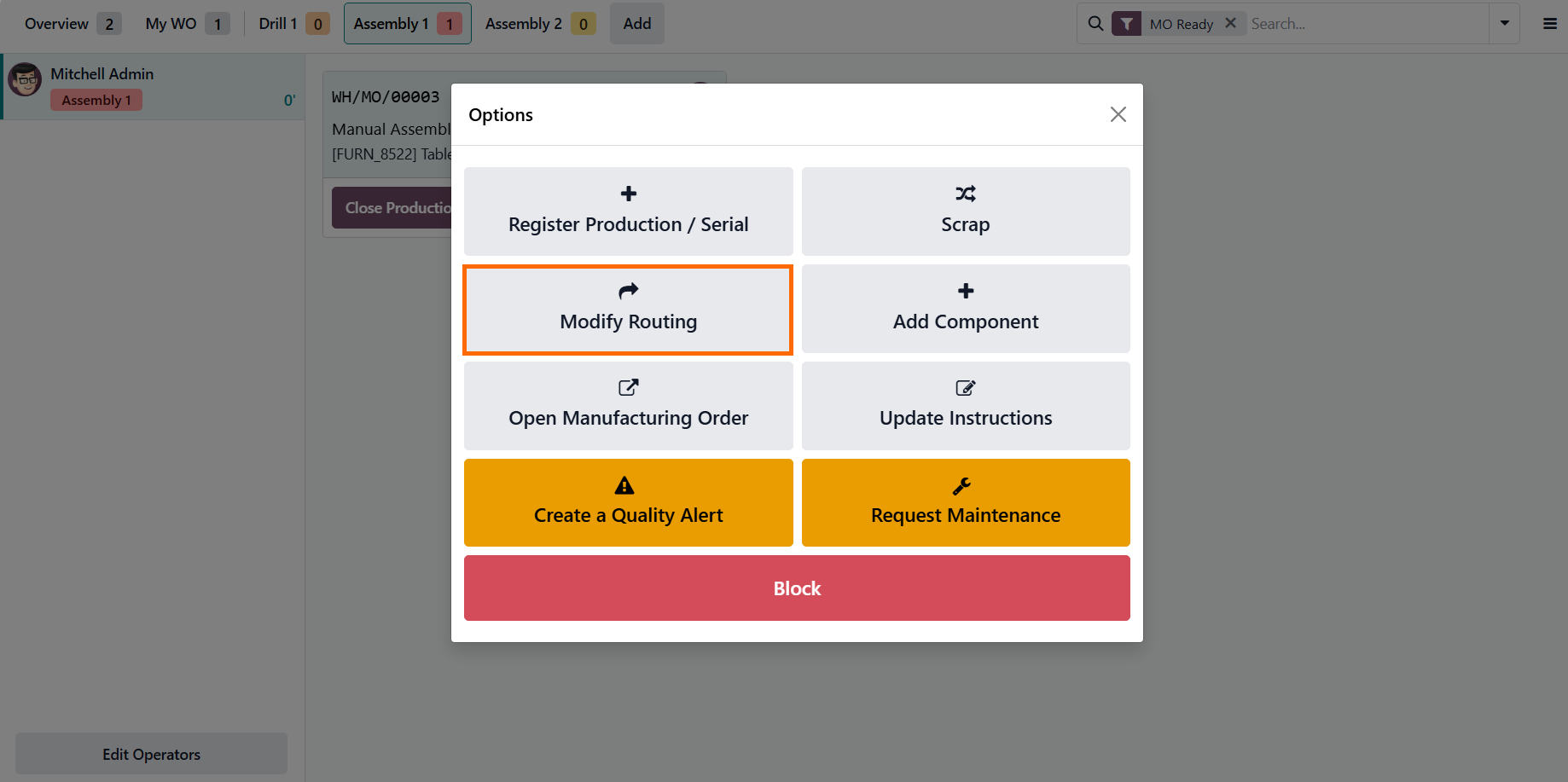
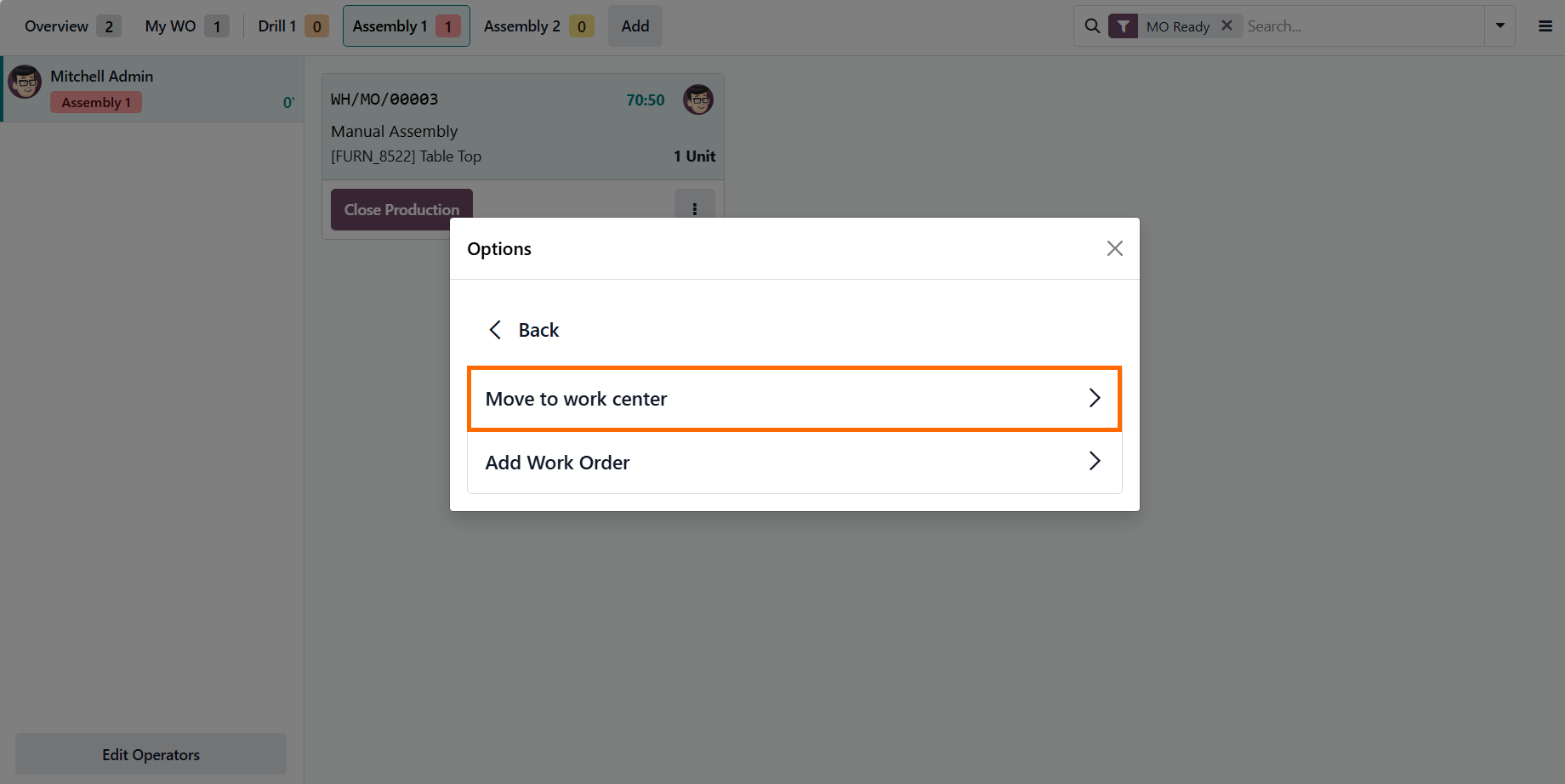
Equipment failures don't have to bring production to a standstill. Instead of waiting for maintenance to complete repairs, manufacturers can keep operations running by quickly redirecting work to available resources. This minimizes production interruptions, reduces bottlenecks, and helps maintain delivery schedules and workforce productivity. With Odoo Shop Floor, operators can adjust the workflow while a repair request is being handled. Using the Modify Routing feature, select Move to Work Center to temporarily transfer pending operations to another available workstation. This allows production to continue with minimal disruption while maintenance resolves the issue in parallel.
- Click “Modify Routing” in the card options menu to reassign the work order to an operational station. This prevents the job from stalling due to localized hardware issues and keeps production moving while maintenance addresses the problem.
Select “Move to Work Center” to transfer the operation to an available station. This keeps order progress updated and allows work to resume on an operational terminal without delay.
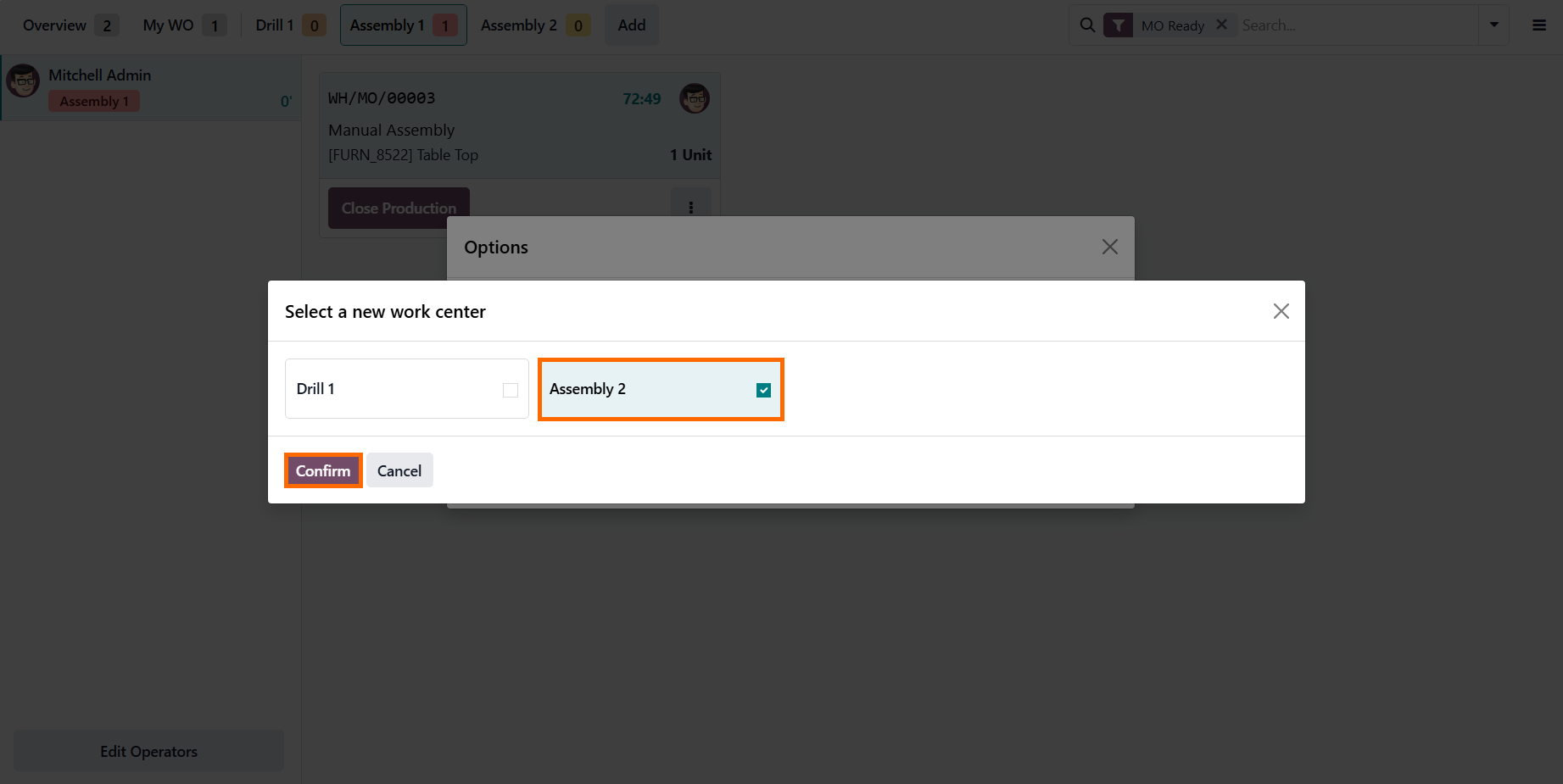
Select an available workstation and click “Confirm”. The work order will instantly move to the selected Work Center tab, allowing the operator to switch screens and resume
execution right away.
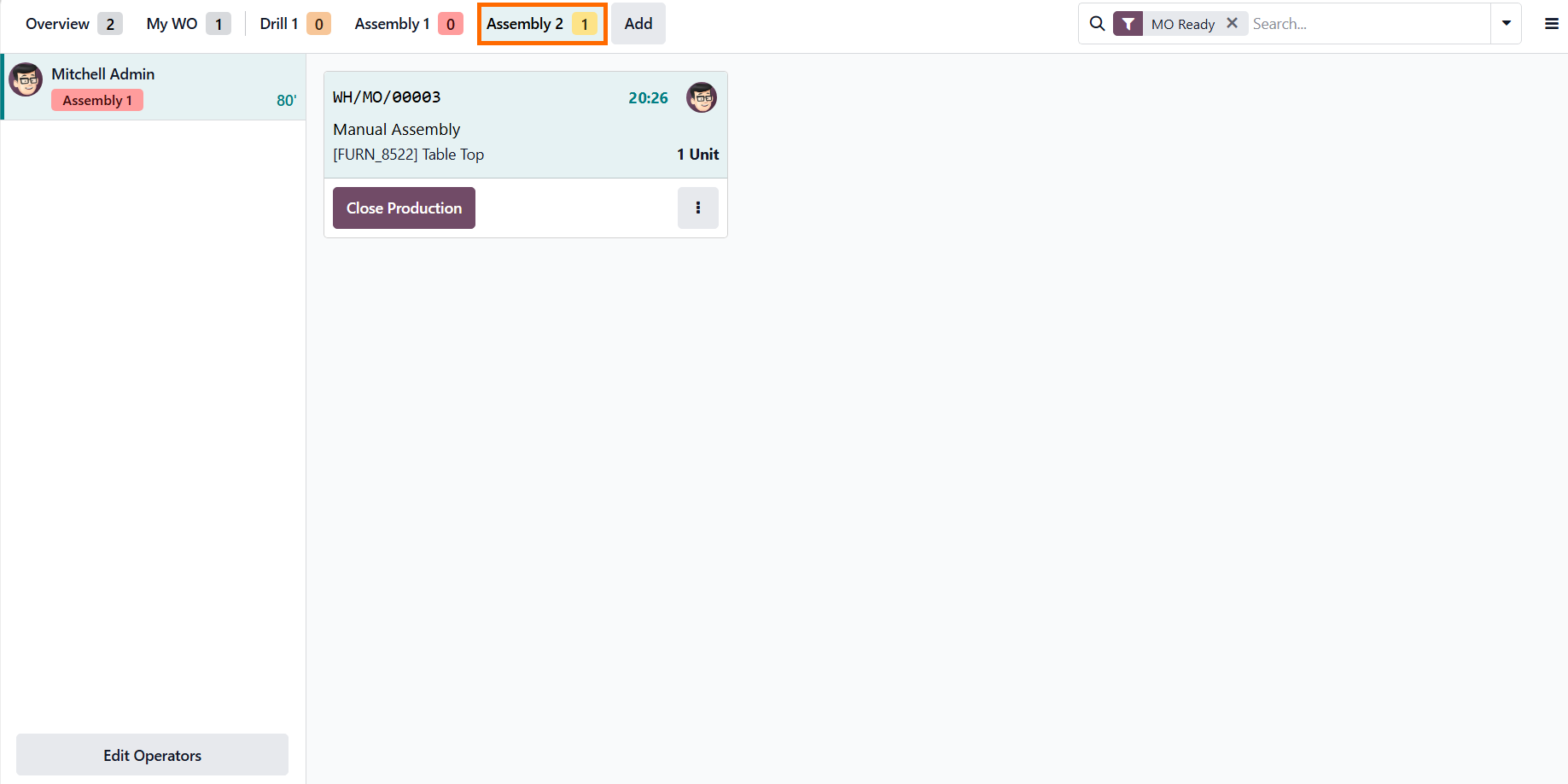
- Odoo displays an instant system notification to confirm the transfer. This real-time feedback ensures the workflow update is live across all terminals, preventing duplicate actions and keeping shop floor tracking synchronized.
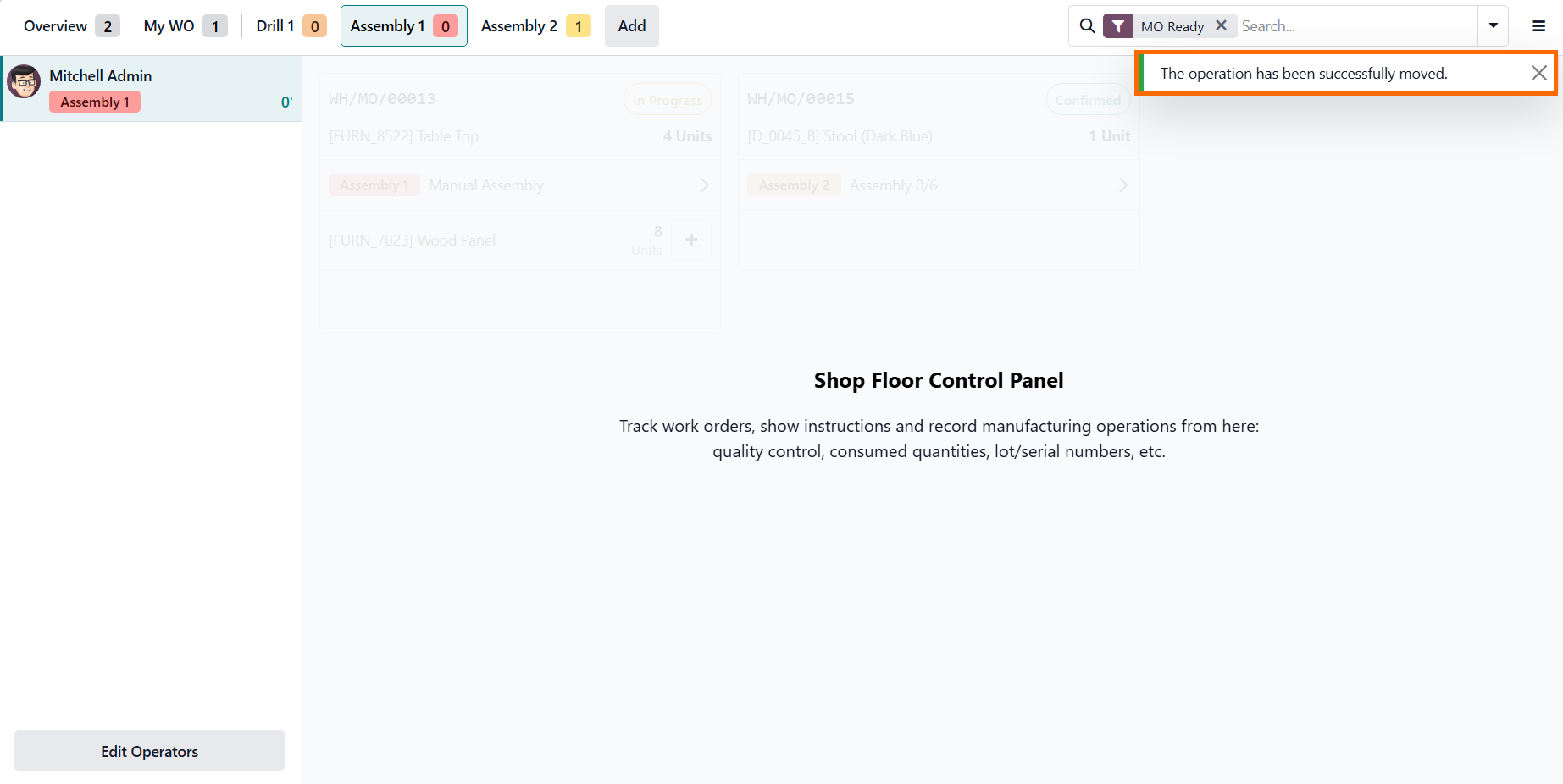
The operation instantly appears under the new work center tab, keeping assembly moving without delays while maintaining complete operational visibility and accurate
shop floor tracking.
Conclusion: Minimizing Manufacturing Downtime with Odoo Real-Time Alerts
Manufacturing disruptions are inevitable, but extended downtime does not have to be. By connecting Manufacturing, Quality, Maintenance, and Shop Floor in a single workflow, Odoo helps teams detect issues sooner, coordinate responses faster, and keep production running with minimal disruption.
Instead of relying on end-of-shift reports, managers can respond to equipment failures and quality issues as they occur. Real-time alerts, maintenance requests, and flexible work center routing reduce downtime, maintain production continuity, and help teams make informed decisions based on live operational data. With the right data at hand, keeping production moving is no longer a challenge, but a standard daily workflow.