MRO (maintenance, repair, and operations) inventory includes replacement parts, such as bearings and belts, which are tracked individually, and maintenance supplies, such as lubricants and filters, which are bought in bulk and monitored by quantity. When a critical part is unavailable, even a minor equipment issue can lead to extended downtime. Accurate stock records and clear replenishment rules help planners keep essential parts available without excess inventory. Odoo inventory management supports MRO inventory management through the Inventory app, which monitors stock levels and replenishment, while Purchase handles vendor selection and procurement, and Maintenance manages repair requests. Together, these tools help manufacturers reduce stock shortages and avoid unnecessary delays.
- In the Inventory app, open Products, filter the list by Goods, and choose the spare part you want to track. In this guide, we use a bolt, a low-cost consumable that is easy to overlook but can delay a repair if it runs out.
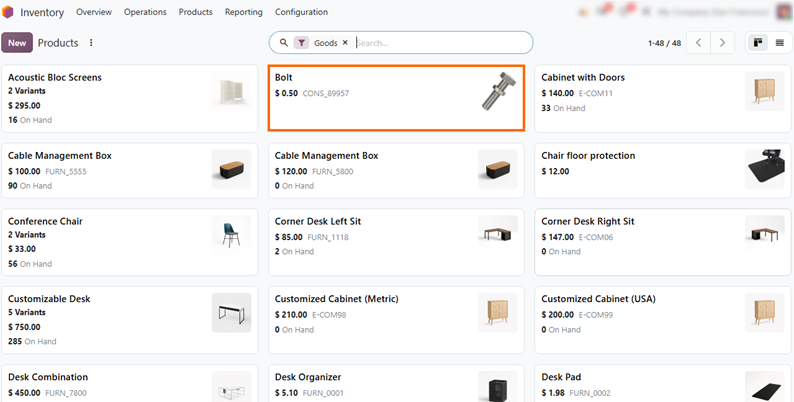
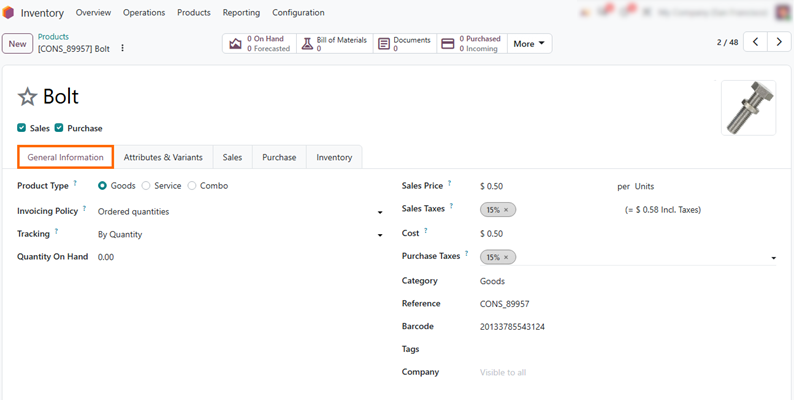
Review the product's general information. On the General Information tab, confirm that Product Type is set to Goods and Tracking is set to By Quantity, so Odoo counts the bolt as stock. Check the Cost and Purchase Taxes fields as well.
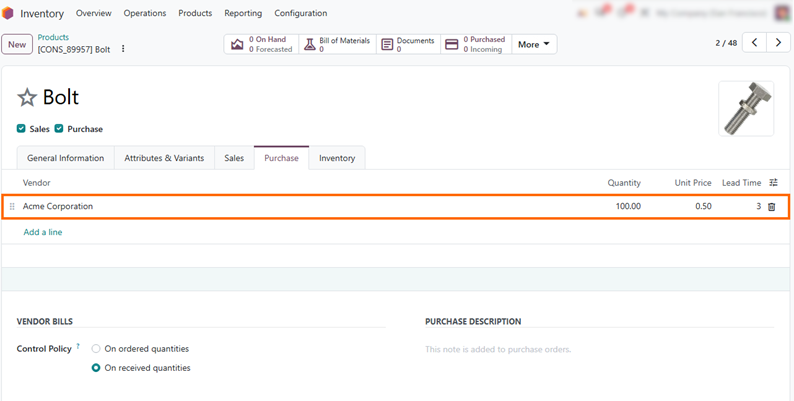
Open the Purchase tab and click Add a line under Vendors. Select a vendor and enter the Quantity, Unit Price, and Lead Time. Lead Time specifies the days between ordering and receiving parts, helping determine when to reorder.
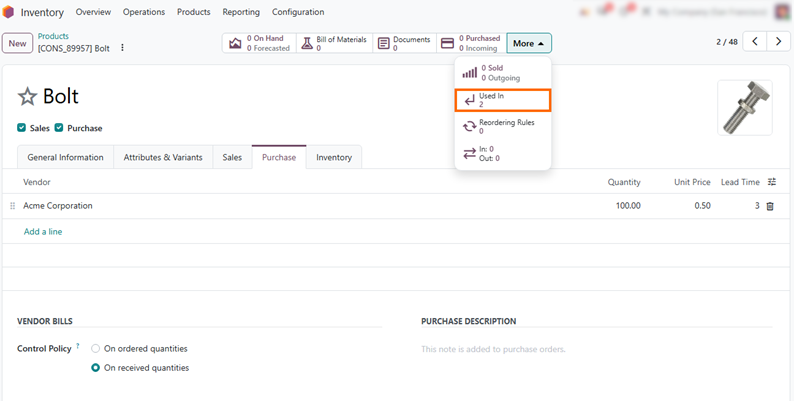
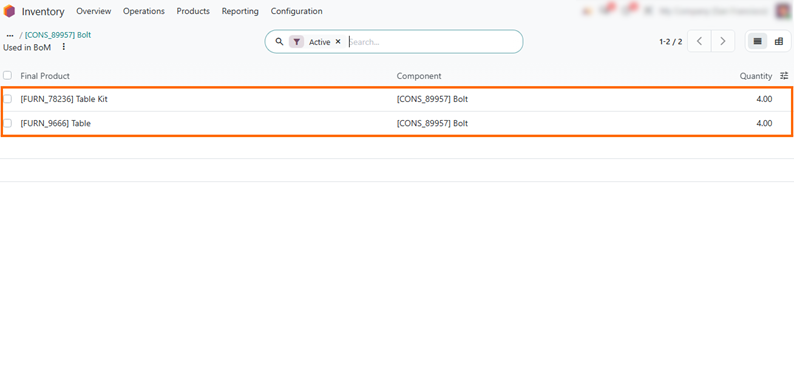
Check where the part is used. Click Used In to view the two products that include the bolt and see which may be affected by a shortage. This opens the related bills of materials (BoMs), where you can review component requirements.
The Used in BoM list shows which products include the bolt and the required quantity for each: four units for both Table Kit and Table. This helps estimate component needs across products.
Set Up Odoo
Reordering Rules for Spare Parts
Keeping spare parts available requires more than recording product details and supplier information. Inventory managers also need to define when stock should be replenished and how much to order. Odoo reordering rules use minimum and maximum quantities to help maintain spare parts inventory as parts are consumed and new supplies arrive. Setting these thresholds according to component usage and vendor lead times helps maintenance and purchasing teams reduce shortages without building up unnecessary stock. A well-set rule orders the right quantity before a shortage stalls a repair, not after.
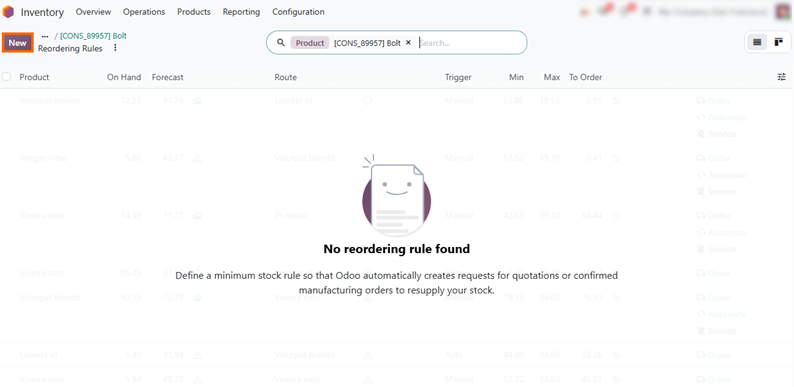
- Create a reordering rule. On the Bolt product form, click the Reordering Rules smart button and select New to create a rule for the part. This keeps the rule tied to the right product without searching through other menus.
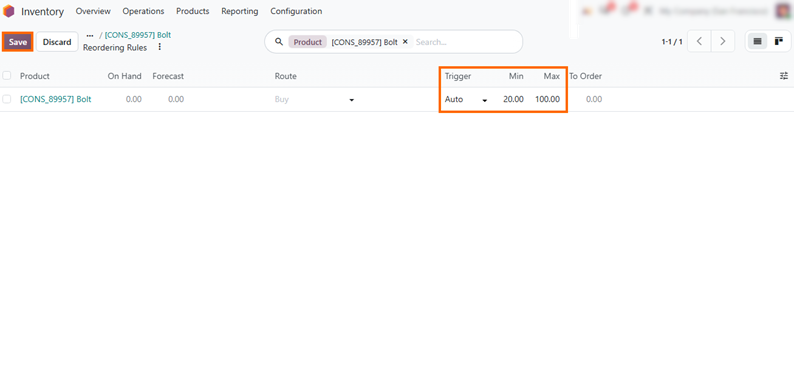
Set minimum and maximum quantities. Enter 20 in Min and 100 in Max, select Buy, and click Save. Odoo triggers replenishment when forecasted stock falls below 20, ordering up to 100. Set higher minimums for critical parts or longer lead times.
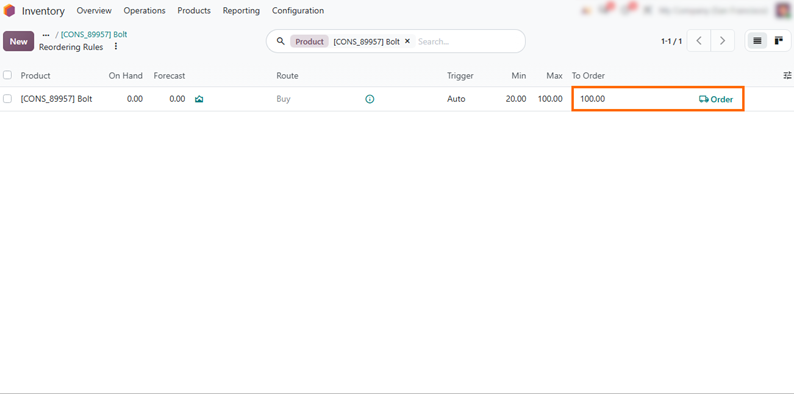
- With no bolts in stock, To Order shows 100 units. Click Order to create an RFQ manually, or let the Auto trigger generate it when the scheduler detects forecasted stock below the minimum.
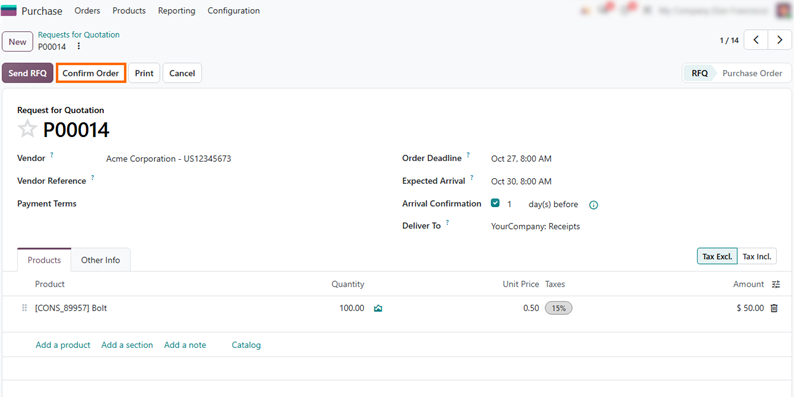
Confirm the purchase order. Review the request for quotation (RFQ) that Odoo creates for 100 bolts, using the price and lead time set on the product. Then click
Confirm Order to turn the RFQ into a purchase order.
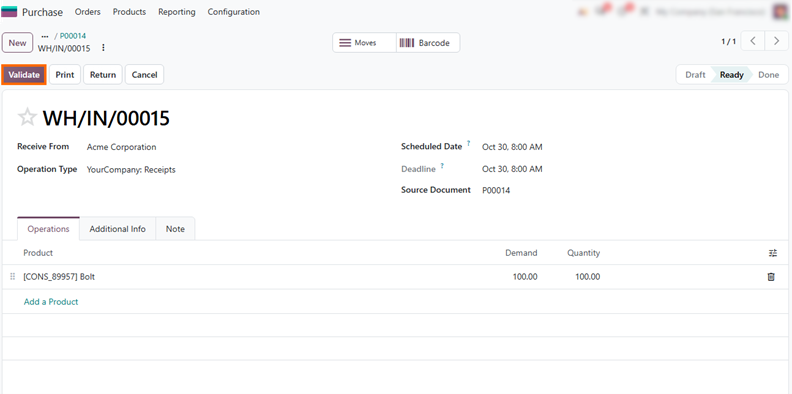
- Validate the receipt. On the purchase order, click Receive to open the receipt, check that the bolt quantity matches the order, and click Validate. Odoo records the delivery and adds 100 bolts to stock.
Check On-Hand and Forecasted Spare Parts Quantities
After receiving the order, confirm that stock records match what is on the shelf. Odoo shows two figures for every spare part: On Hand, the quantity physically in stock, and Forecasted, which also accounts for incoming and outgoing movements. Together, they show whether current stock can meet upcoming maintenance needs or further replenishment is required. Reviewing both regularly helps teams spot a shortage while there is still time to order. A part that looks well stocked on the shelf may already be committed to upcoming work, which is why the forecast matters as much as the physical count.
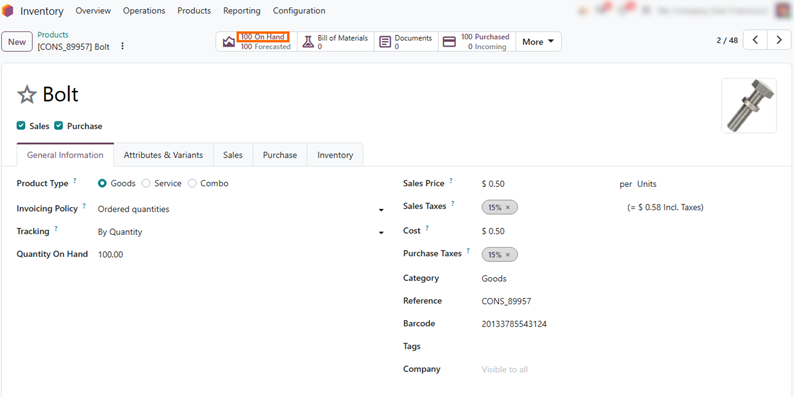
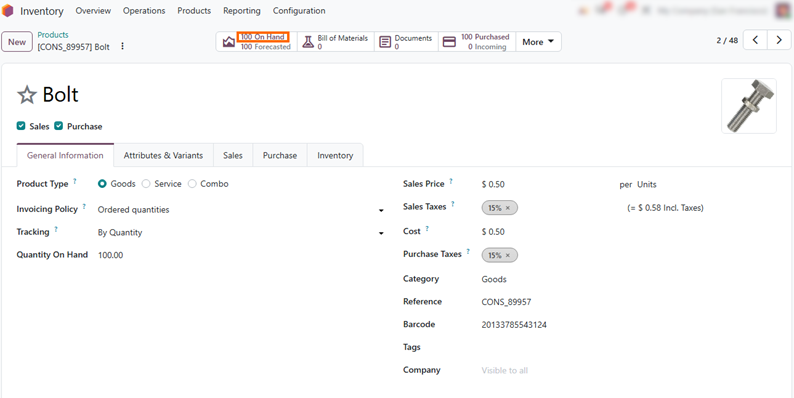
- Check the updated stock. Open the Bolt product form again. The On Hand quantity now shows 100 units, restoring the spare parts inventory to the maximum defined in the reordering rule.
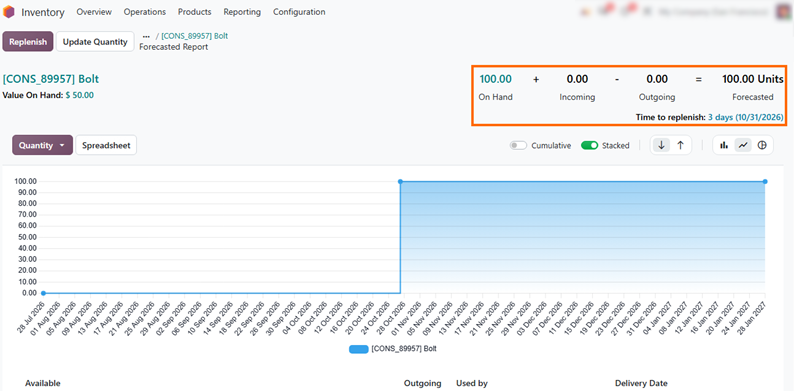
Check the forecasted quantity. On the Bolt product form, click the Forecasted button to review expected stock after planned stock movements. The Time to replenish date indicates when the next replenishment is due.
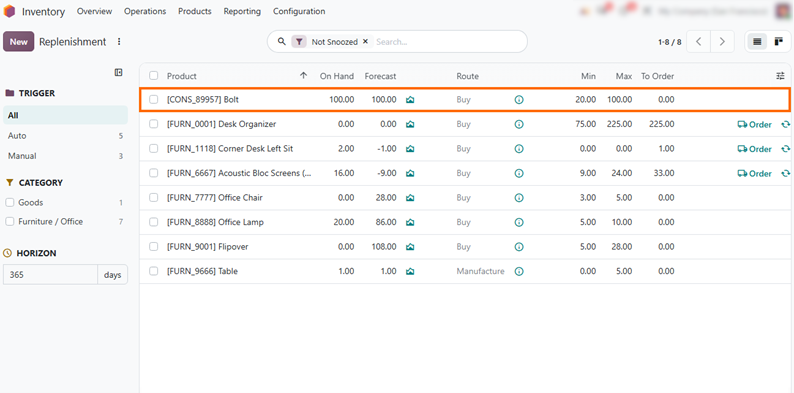
Compare stock with the reordering rule. In Inventory, go to Operations, select Replenishment, remove the To Reorder filter, and find the Bolt. With 100 units forecasted against a minimum of 20, To Order is 0, so no replenishment is needed.
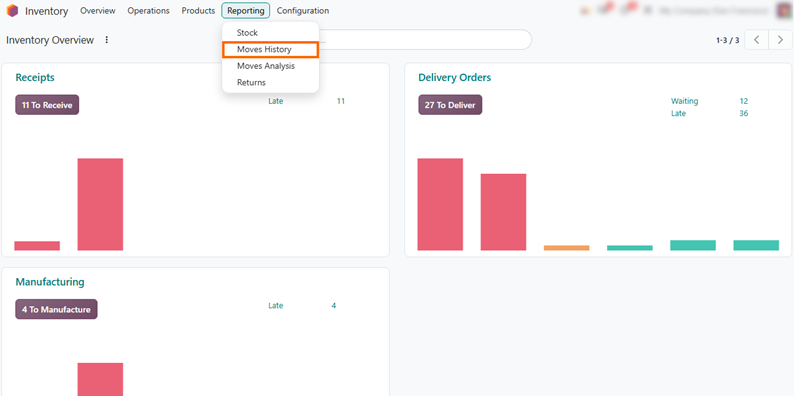
- Open the stock movements. In
Inventory, go to Operations, select Moves History,
and filter the list by the Bolt product. This gives maintenance planners a full record of how the stock changed.
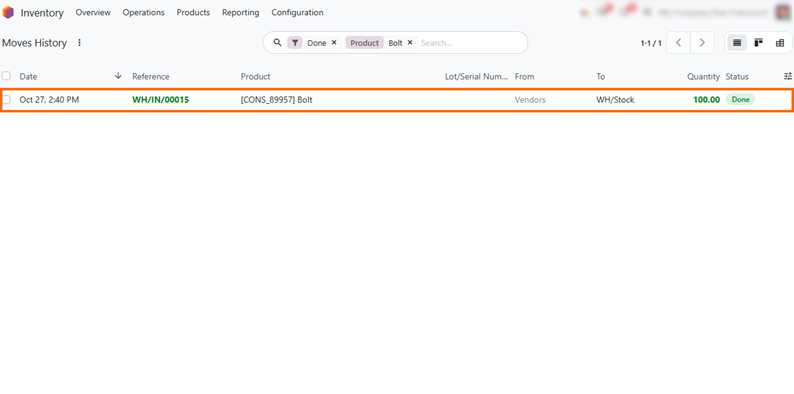
Review the receipt. Find the 100-unit receipt WH/IN/00015, moved from Vendors to WH/Stock. It confirms that stock matches the purchase order, so any difference between what was ordered and what arrived can be traced back to this movement.
Connect Maintenance Requests to Spare Parts Stock
Maintenance requests describe what needs repairing, while spare parts are tracked in Inventory. In Odoo 20, requests are linked to equipment or work centers, so planners check part availability separately before scheduling the work. This is an important step in spare parts inventory management, especially for critical equipment, where a missing bolt can turn a short repair into extended downtime. Reviewing stock levels, replenishment rules, and vendor lead times alongside each request helps teams decide which parts to order first and avoid starting a repair they cannot finish.
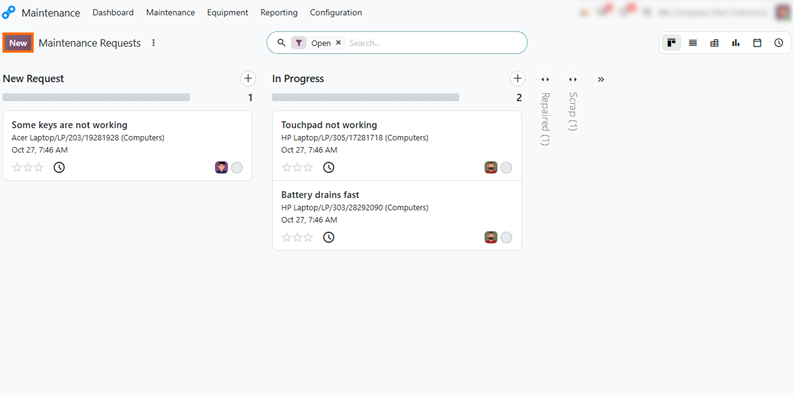
- Open a new maintenance request. In
the Maintenance app, go to Maintenance Requests and click New. This is
where planners record equipment that needs
repair.
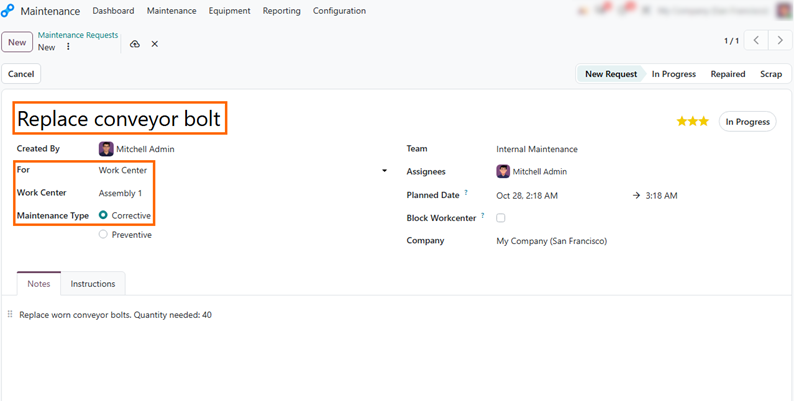
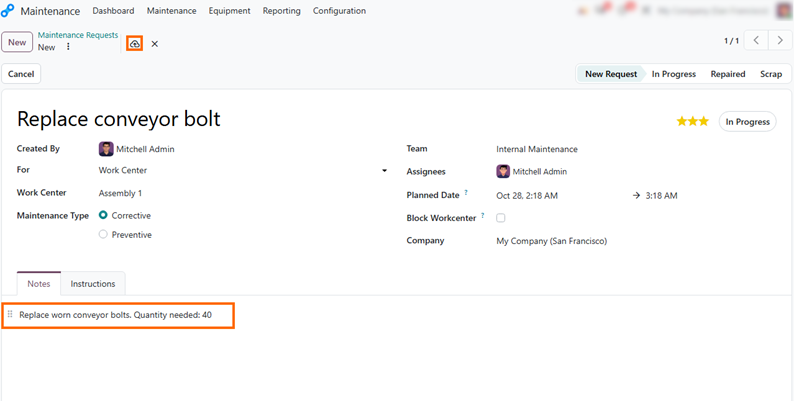
- Add a name, select Work Center (or Equipment) in the For field, and set Maintenance Type to Corrective. In the Notes tab, specify the bolt and quantity needed, for example, “Quantity needed: 40”, so the planner can check stock before scheduling.
Click the save icon to create the request. It appears in the Maintenance Requests list and can be scheduled once the bolt stock is confirmed, giving the team a shared
record of the repair.
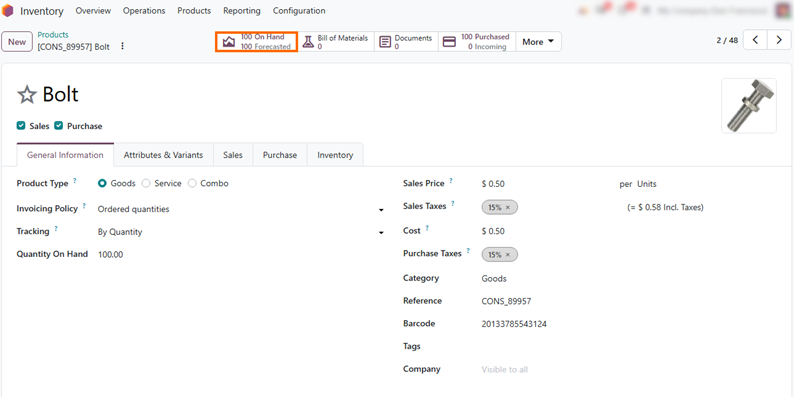
- Open the Bolt product form and review the On Hand and Forecasted quantities. The 40 bolts in the request notes are only a reminder, so both figures remain at 100 units.
Check part availability. Compare the 100 units in stock with the 40 bolts the repair needs. The stock covers the repair, so it can be scheduled without waiting for a
purchase.
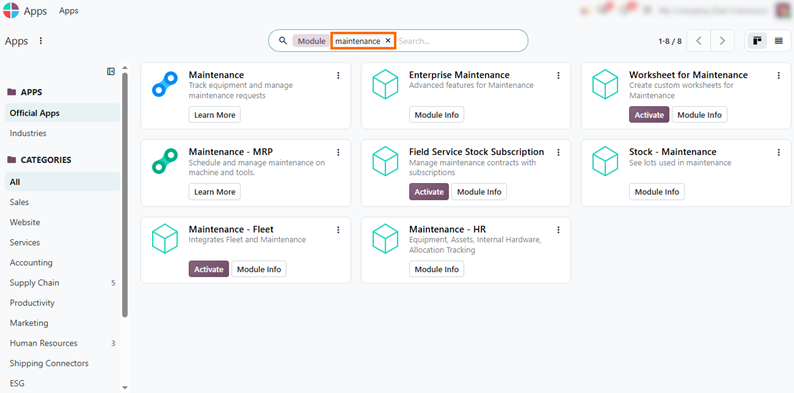
- Know the limitation. Maintenance requests do not reserve or consume parts from Inventory. Linking parts to a request and tracking their use per request requires a third-party module or customization.
Conclusion: Keep Spare Parts Available Without Overstocking
Effective spare parts inventory management connects stock levels, reordering rules, and vendor lead times to maintenance needs. In Odoo 20, Inventory and Purchase handle availability, inventory replenishment, and procurement out of the box. Odoo reordering rules with sensible minimum and maximum quantities help planners keep critical parts like bolts available without building up excess inventory.
The same approach applies to other maintenance supplies, such as lubricants and filters, which can be monitored with on-hand and forecasted quantities. Linking spare parts to individual maintenance requests is where standard functionality ends, so teams that need that level of tracking can extend their Odoo inventory management setup with a custom module or a third-party app. For most MRO inventory, the standard workflow already gives planners a reliable view of stock on hand and on order.