Odoo 20 introduces AI and automation capabilities that can support manufacturing workflows, from retrieving production information and assisting with operational tasks to automating actions and handling production or quality exceptions. Odoo 20 AI agents and automation can support these capabilities in day-to-day operations, including Shop Floor workflows. For companies considering a future transition to Odoo 20, these features can also be evaluated against existing workflows. This guide explores how they work together across practical manufacturing scenarios, from Shop Floor operations to quality and maintenance workflows.
- Start with the Odoo 20 AI Agents setting. Introduce its
interface and available capabilities, then explore how it can support
manufacturing workflows beyond
individual AI agents
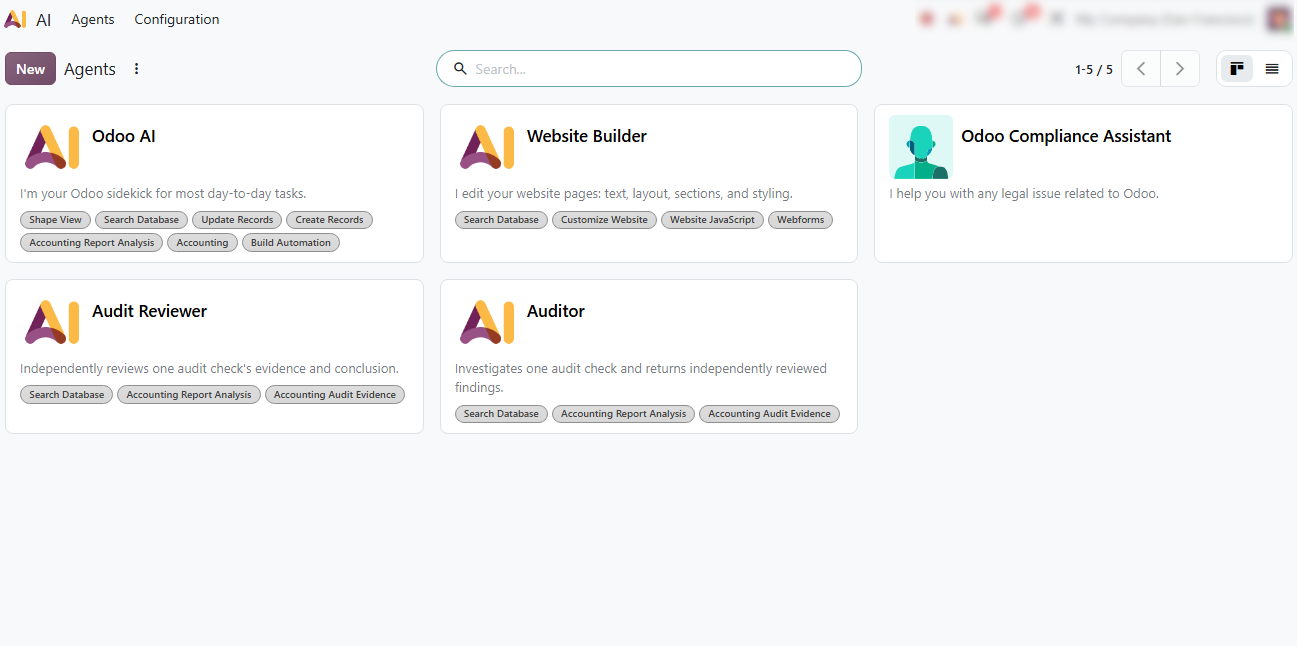
- Explore how AI agents can be configured for specific manufacturing workflows by defining their instructions, skills, tools, and sources, and see how these capabilities can fit different operational needs.
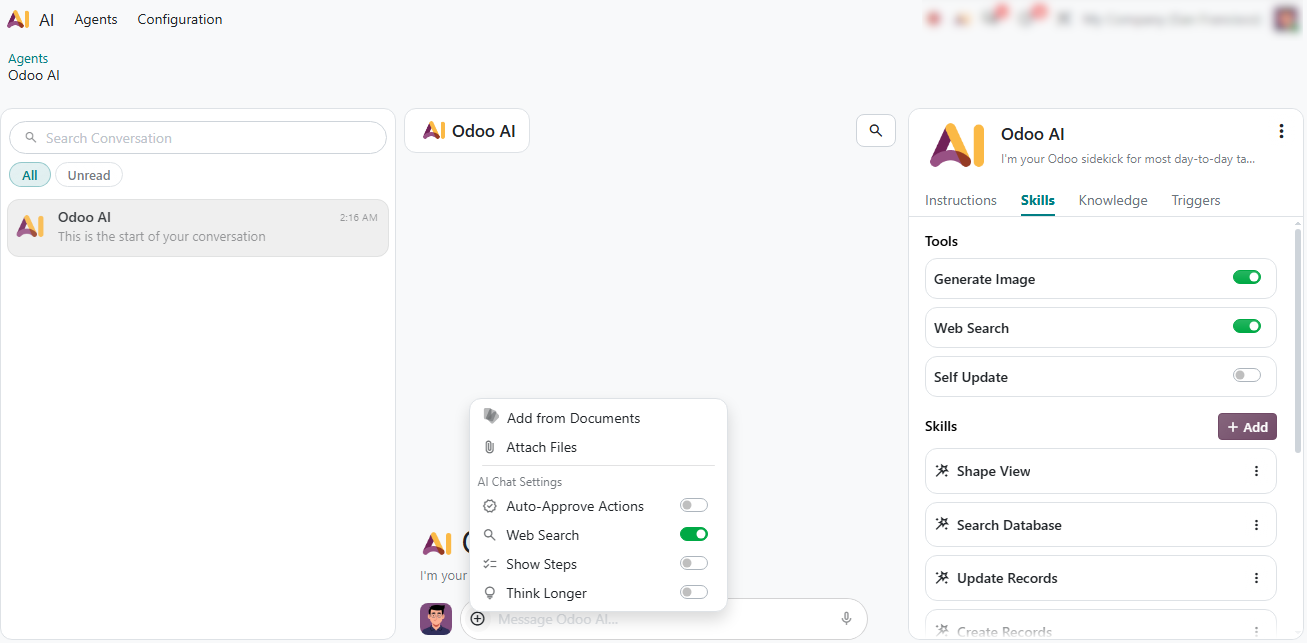
See how natural language prompts can retrieve manufacturing insights like delayed orders or work center status by asking the AI to check overloaded work centers and delayed orders for the week.
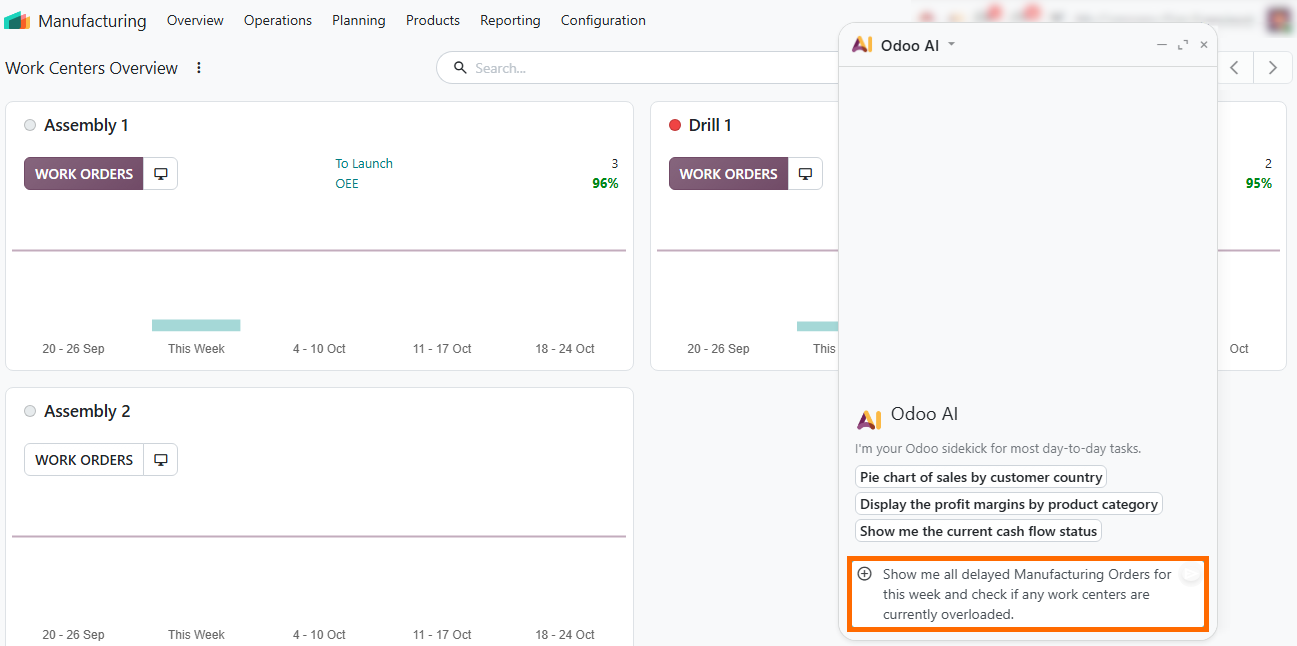
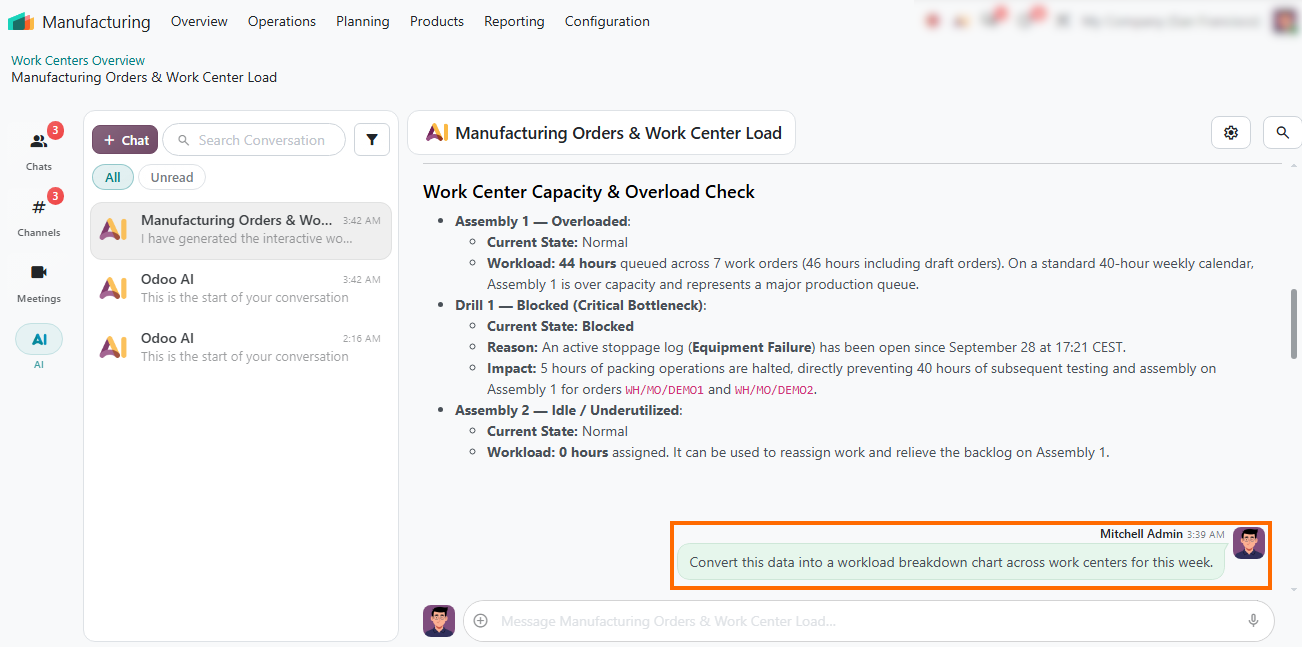
Observe how the AI agent breaks down work center status, identifying overloaded centers, capacity constraints, and underutilized resources with links to affected manufacturing orders.
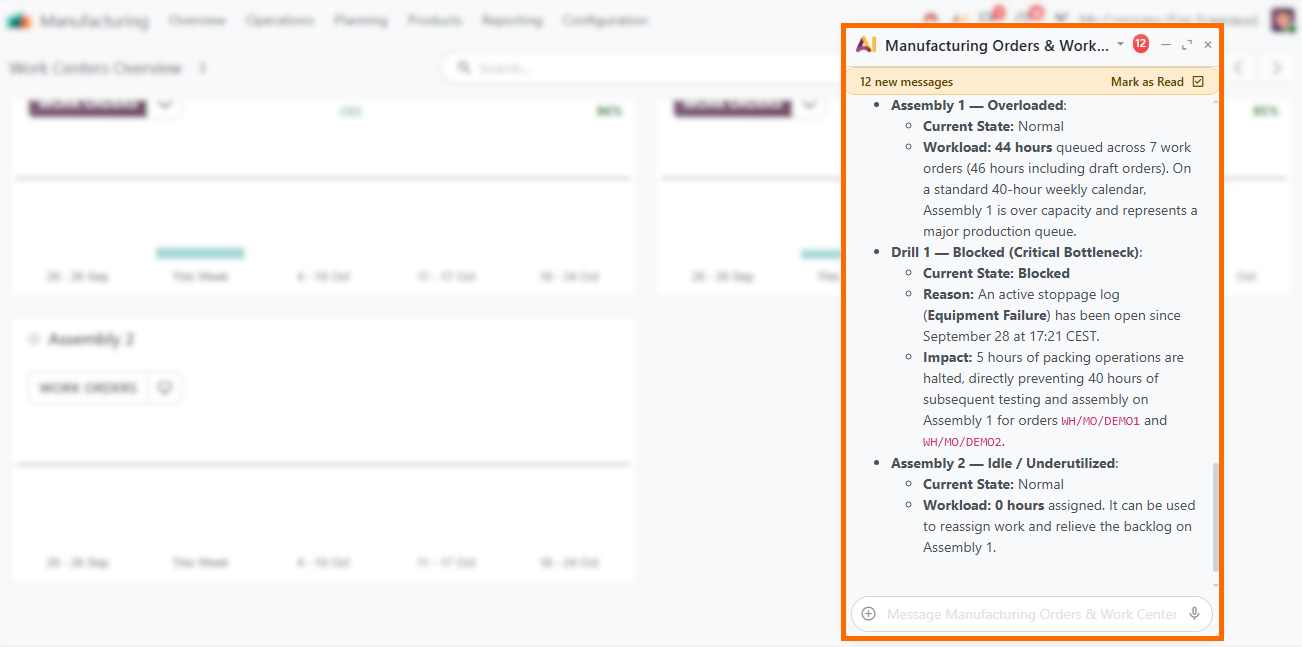
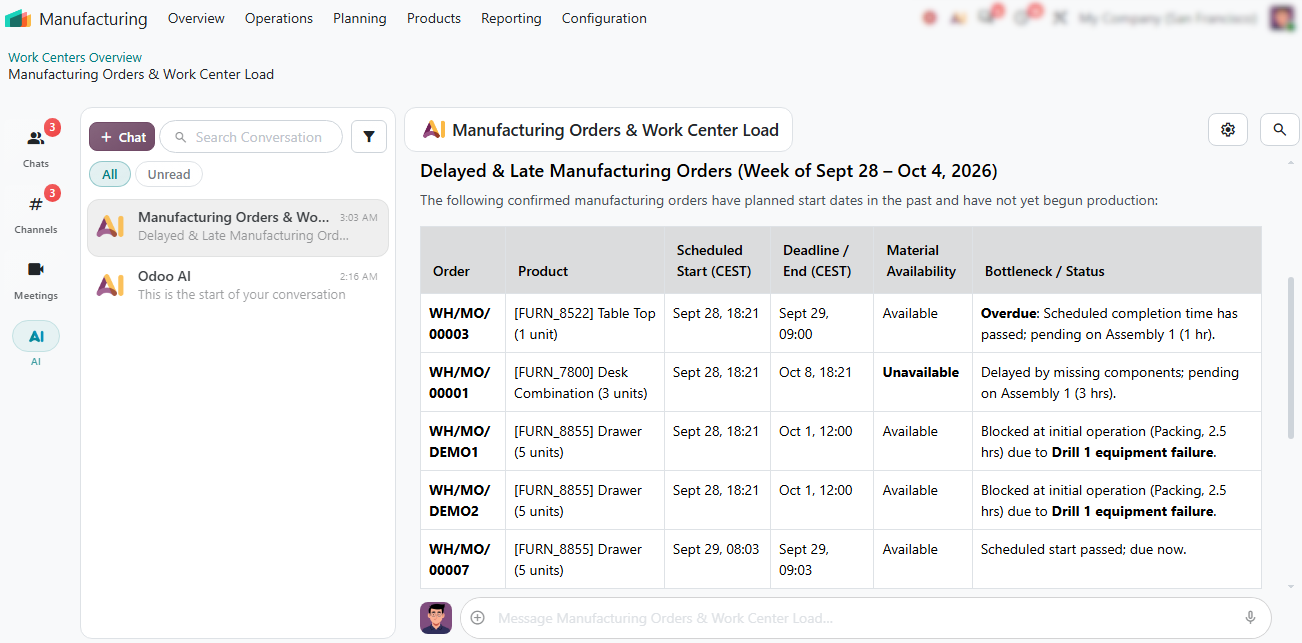
Open the full conversation view to see how the AI compiles delayed orders into structured tables showing scheduled dates, material availability, and production bottlenecks.
Prompt the AI to convert text data into visual analytics when tables are not enough, asking it to generate a workload breakdown chart across work centers for the current week.
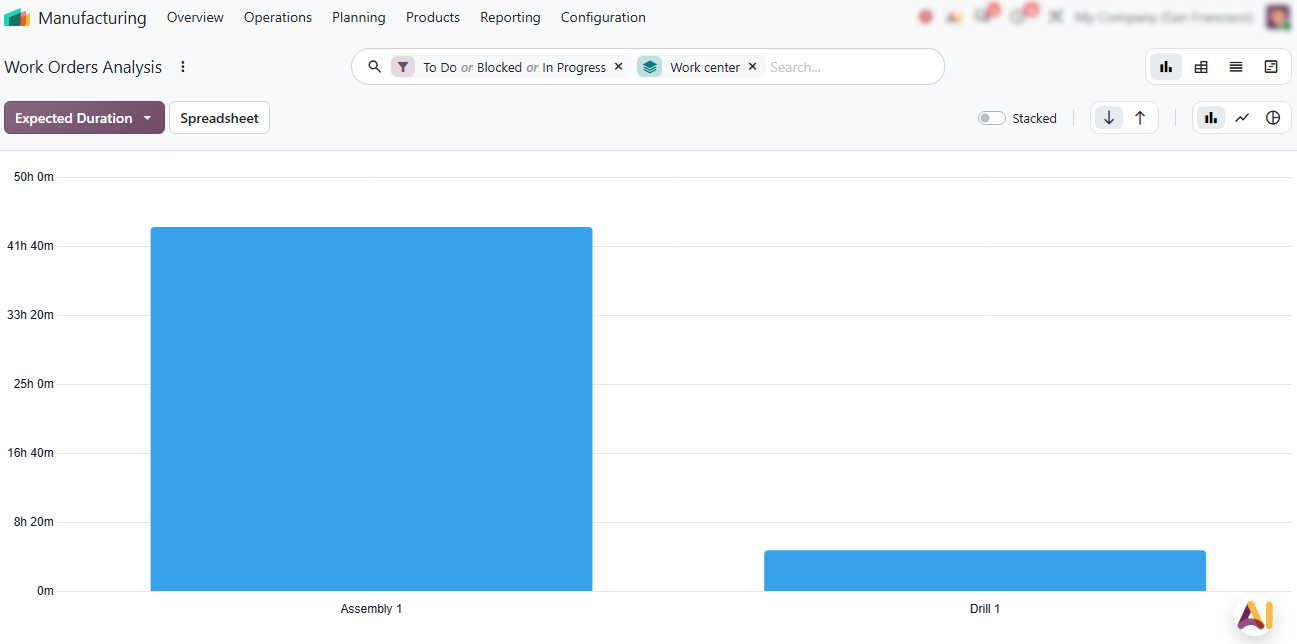
Open the Work Orders Analysis dashboard as Odoo AI automatically generates the requested chart and opens the native reporting view with pre-applied filters.
Turn Odoo 20 AI Insights into Shop
Floor Actions
Once AI-assisted planning and analysis are in place, the next step is to connect these capabilities with production execution. Shop Floor provides a workspace where operators can manage work orders, track production progress, record quantities, and respond to changes during manufacturing. Combined with Odoo 20 AI and automation, these workflows can connect production insights with actions on the shop floor, including adjustments to how work is routed when production requirements change. The following workflow shows how this works in practice.
- Explore the interactive Shop Floor station view to monitor real-time operation timers, review assigned work orders, and launch production tasks directly from the operator-facing interface.
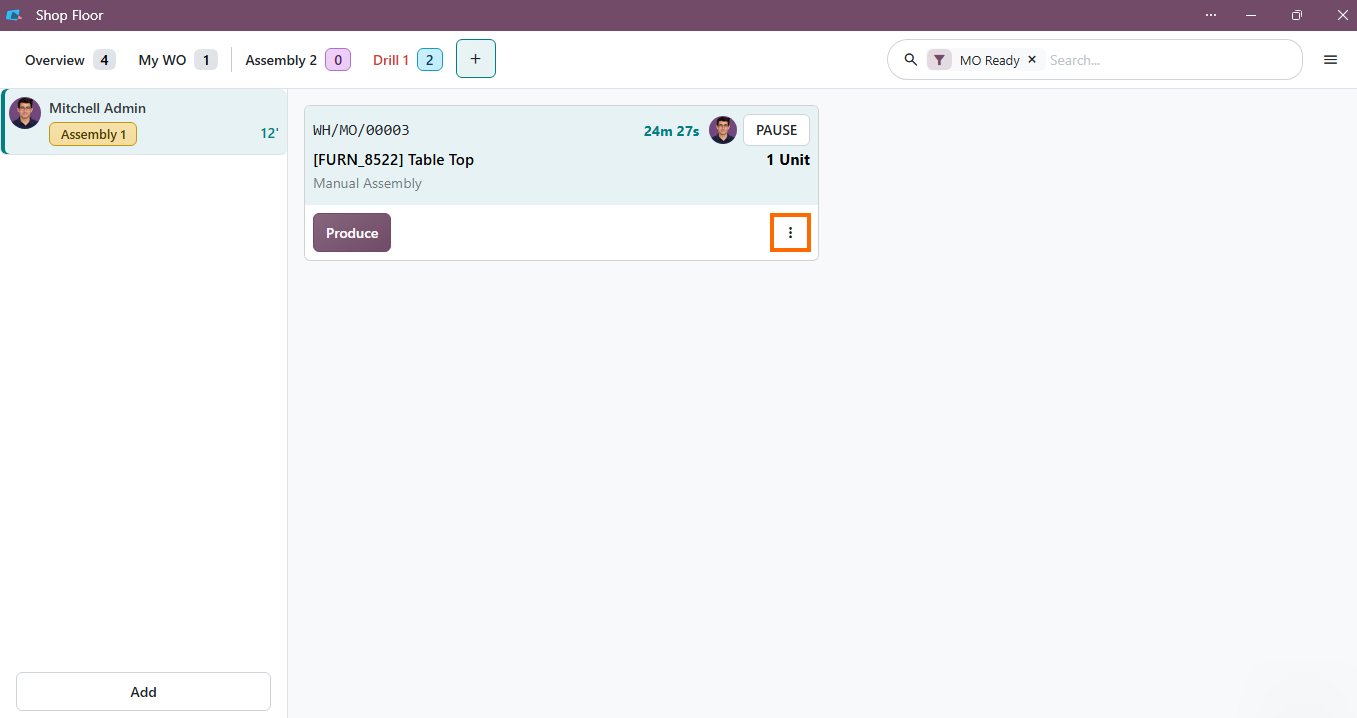
Use the unified Shop Floor control panel to manage in-progress workstation operations, including component tracking and routing adjustments, while keeping production activities visible to operators.
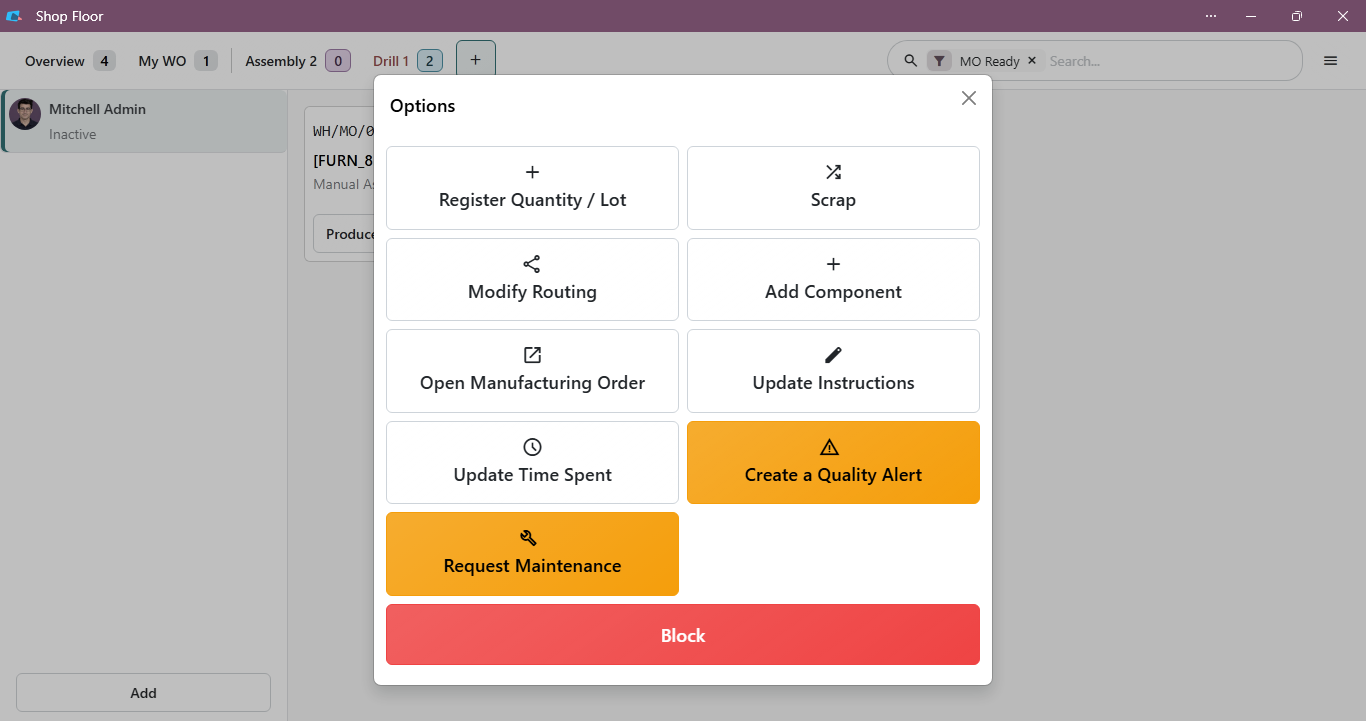
- Next, assign a serial number to the product directly from Shop Floor during production, allowing individual units to be tracked throughout the work order and demonstrating unit-level traceability in Odoo 20.
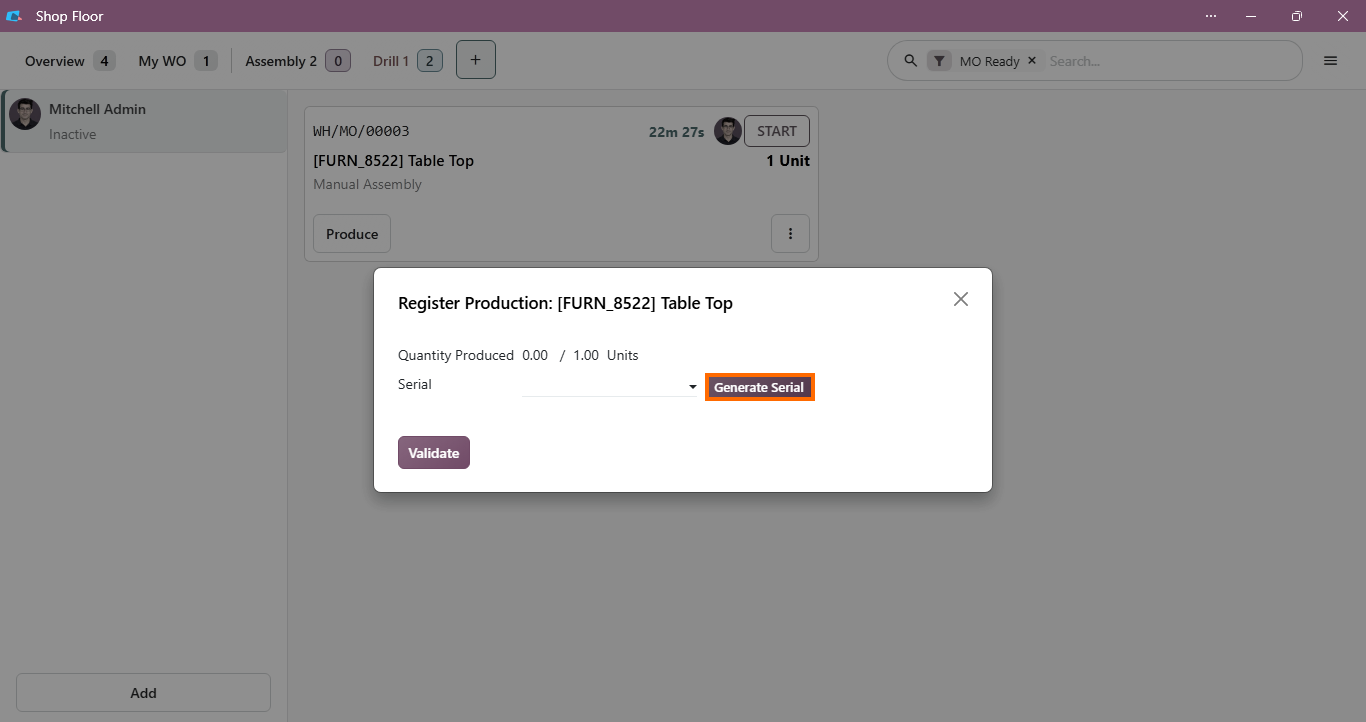
Select Modify Routing from the Shop Floor options menu to dynamically adjust work center operations and routing steps during live execution, helping operators adapt when production requirements change.
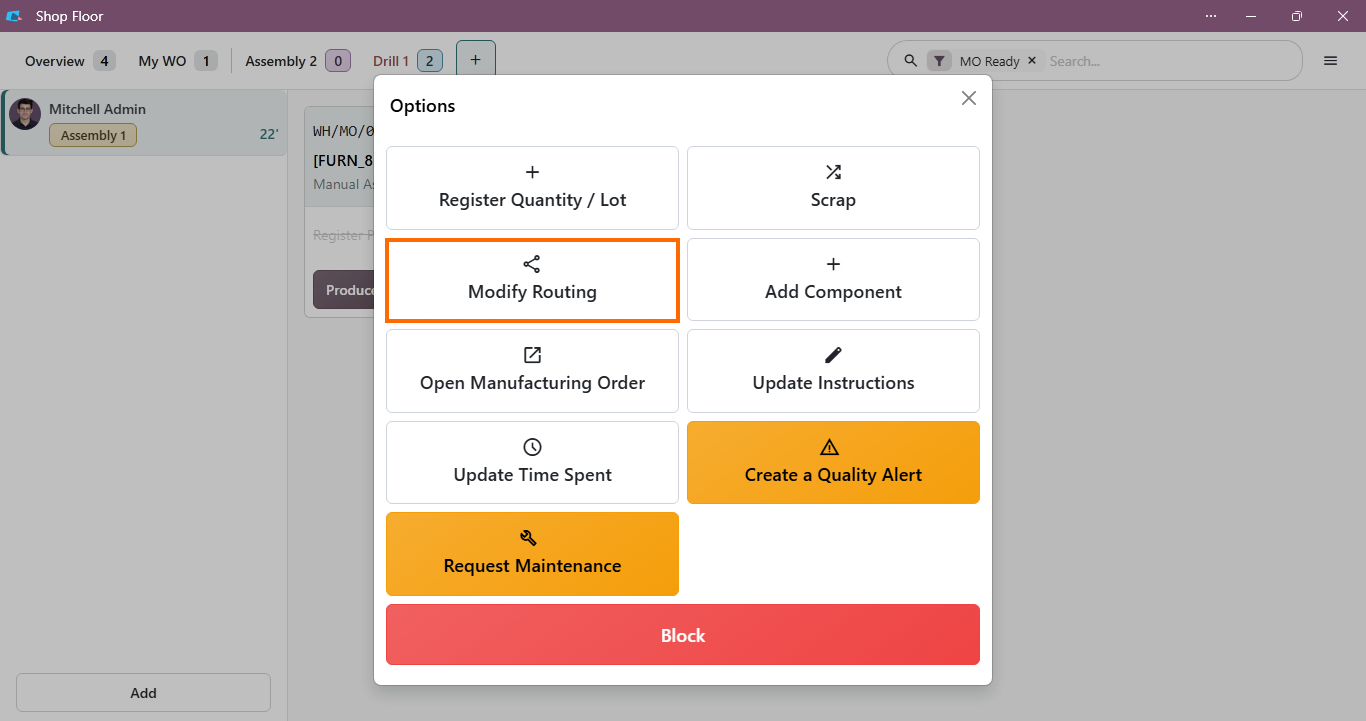
- Modify operational routings on the fly using the dedicated Options wizard to either reassign operations with Move to work center or introduce immediate processing steps via Add Work Order without changing the core BOM.
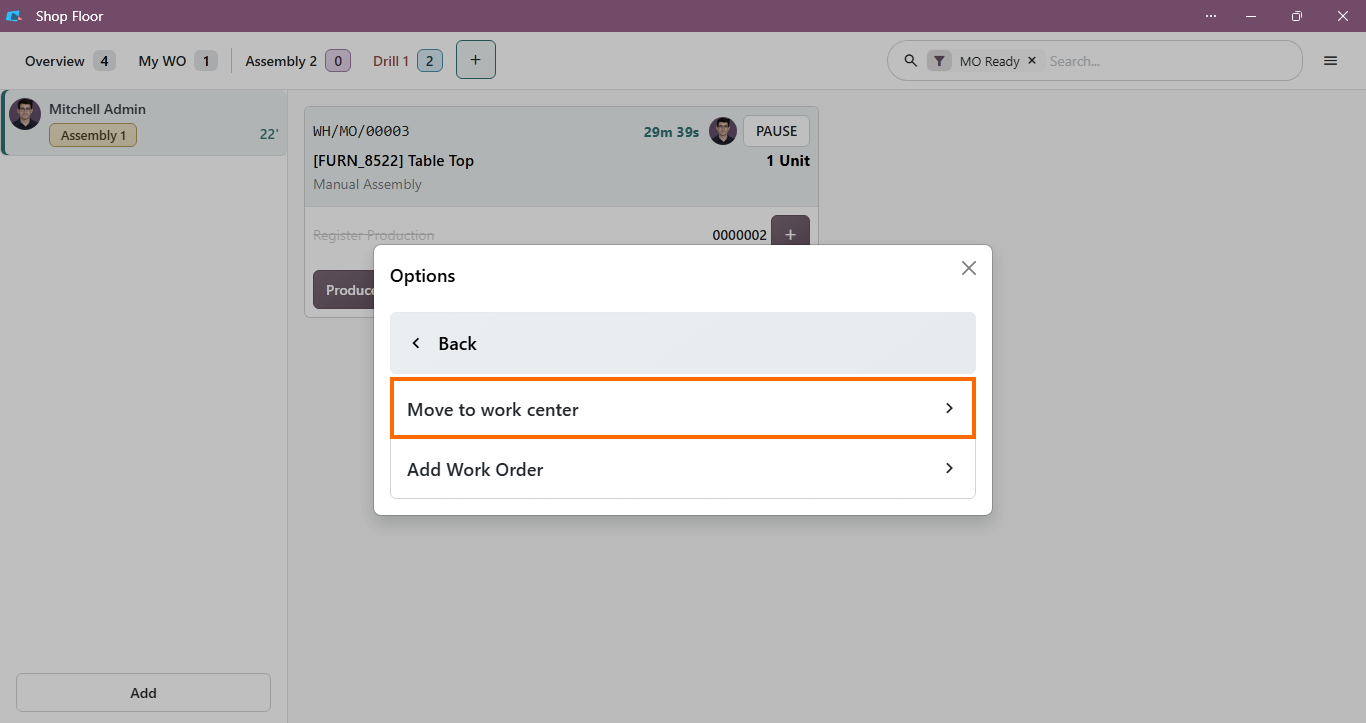
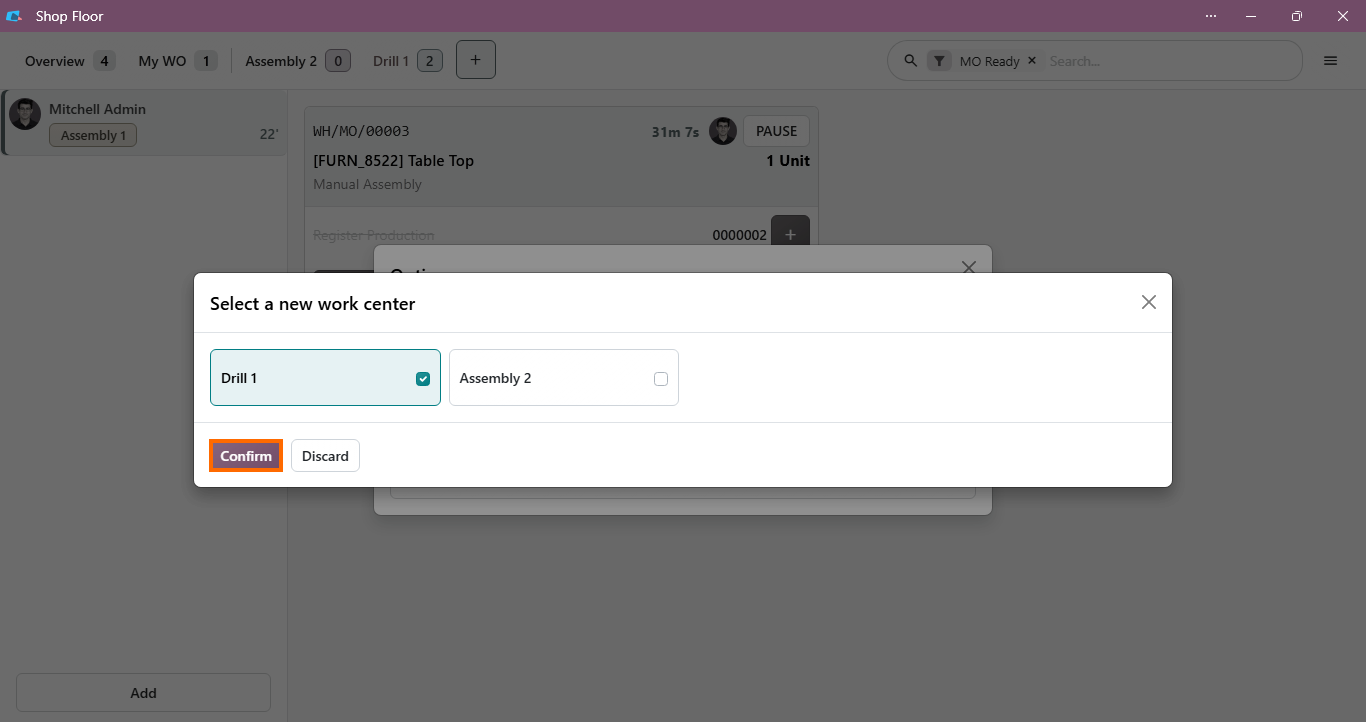
Reassign active operations to alternative target work centers by selecting the new station directly from the list and confirming the transfer to immediately clear
bottlenecks without administrative delays.
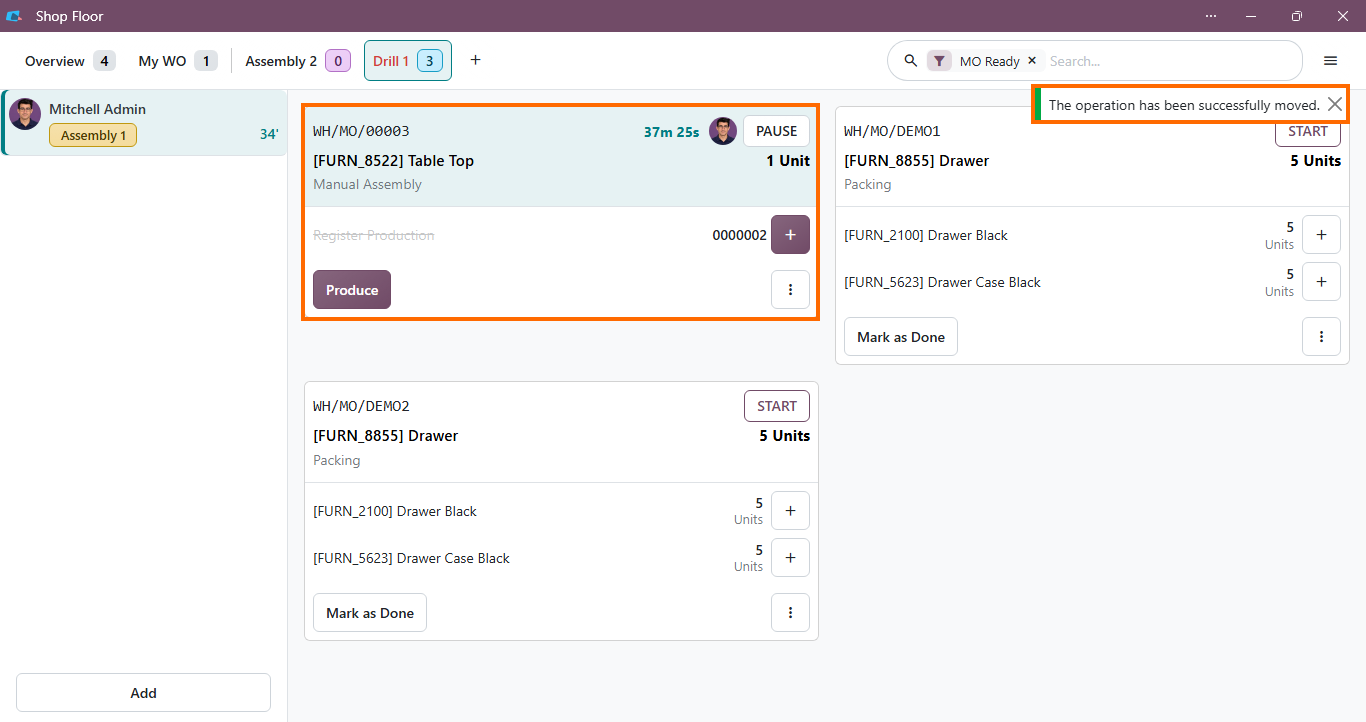
- Transition work orders across stations as Odoo automatically updates the active work center context and resets operator station timers while continuously aggregating total order execution duration.
Capture Quality Issues Where Production Happens
Production issues do not always require changes to the manufacturing route. When an operator identifies a quality problem during execution, Odoo 20 enables immediate, paperless reporting directly from the workstation interface. Instead of halting operations or filing manual reports, operators can log deviations in real time, automatically linking the issue to the relevant work order, work center, and available production or traceability information. This gives quality teams immediate visibility into the issue and keeps the defect connected to the relevant production records. The following scenario shows how a quality issue can be recorded and followed through the related Odoo records.
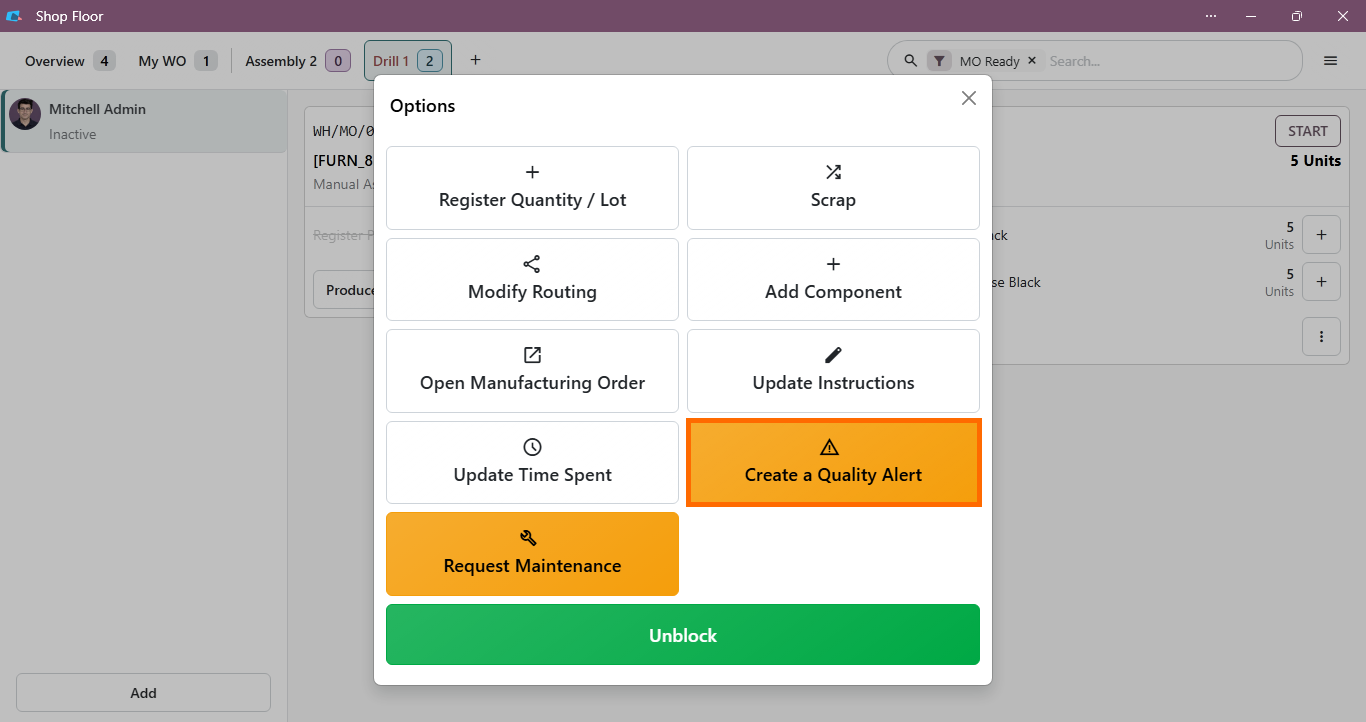
- Pause the active operation and trigger a quality alert directly from the Shop Floor panel by selecting Create a Quality Alert to document defects and log critical context for the quality control team.
At the point of failure, review how Odoo automatically populates the quality issue with the product, work center, and manufacturing order context, keeping the problem connected to the relevant production workflow.
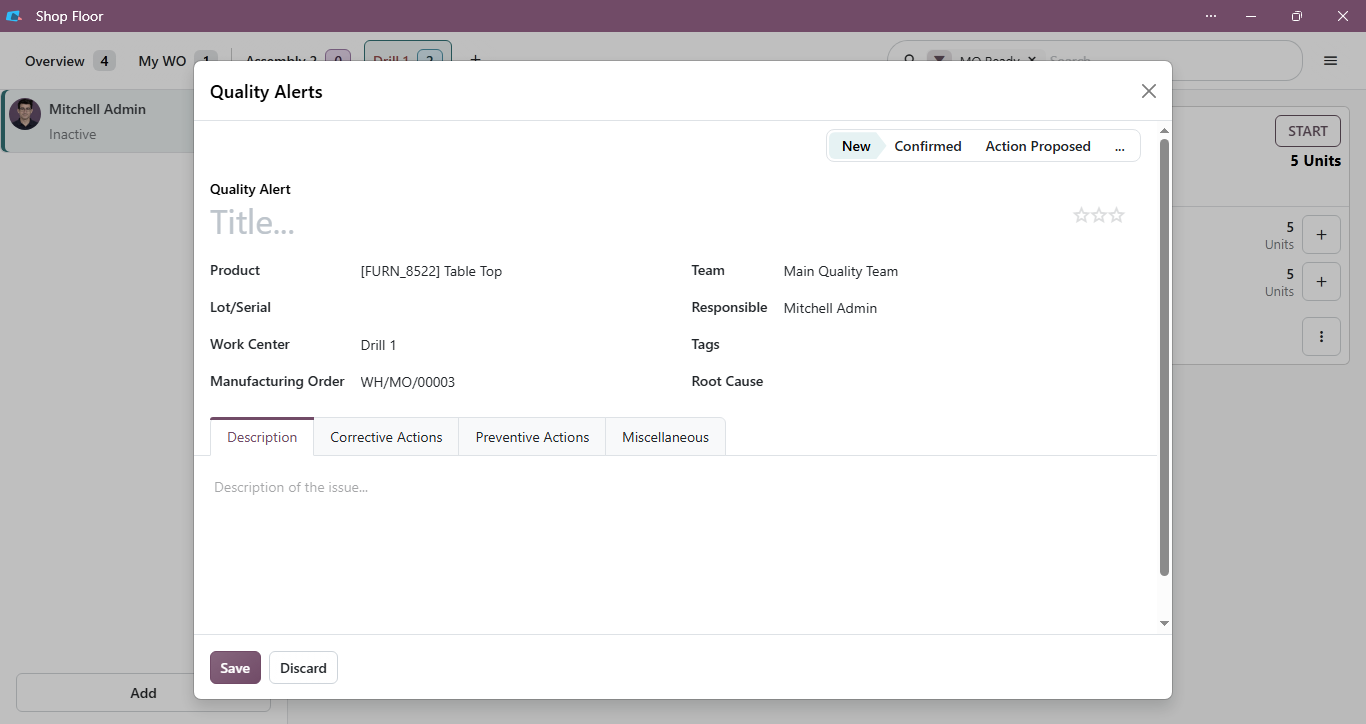
Complete the issue from the operator’s perspective by adding a title, priority, and specific defect description, then review the recorded details for further quality follow-up.
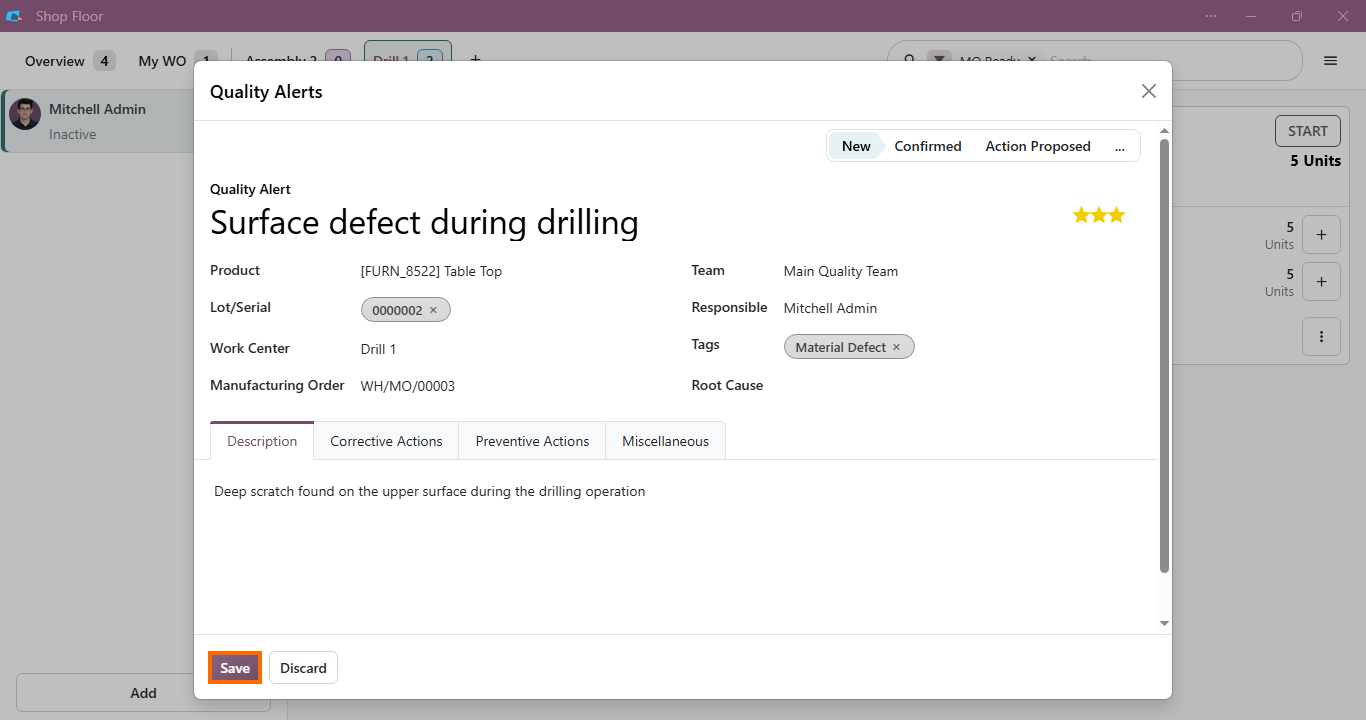
Follow the issue through the quality workflow to document the problem, review its current status, and determine the next action based on the recorded defect details.
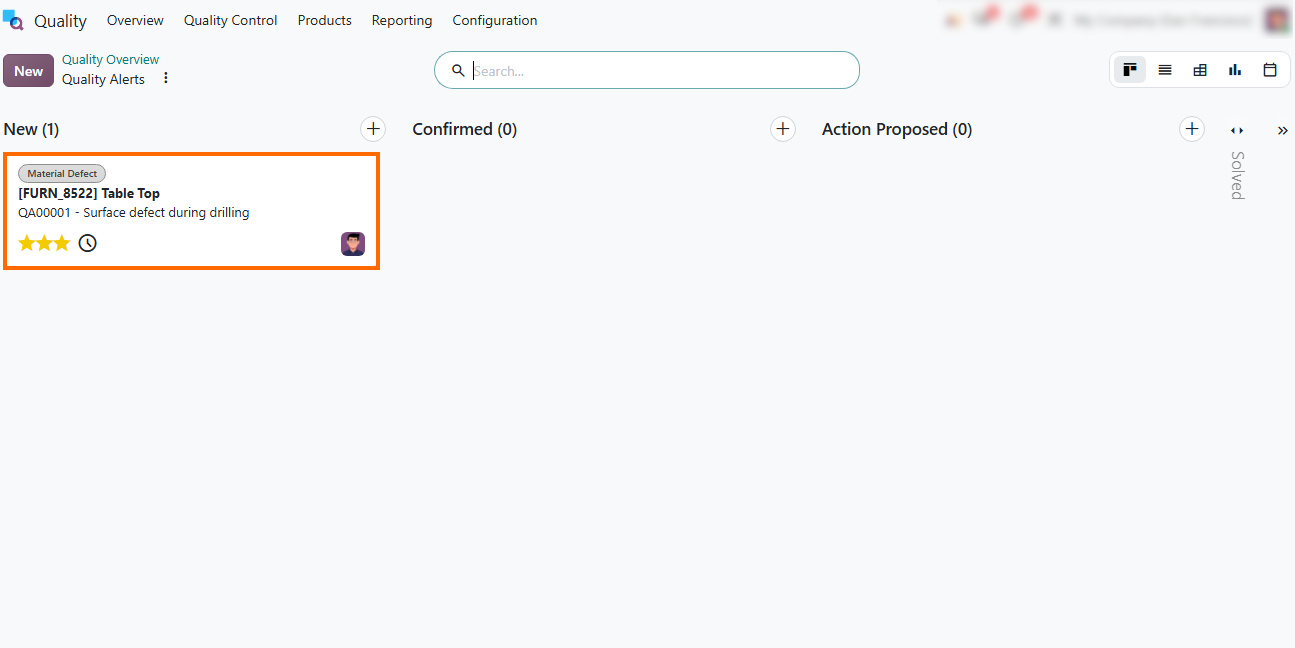
Process quality alerts through the resolution workflow to analyze defect root causes, update issue statuses, and record corrective actions from the Quality app.
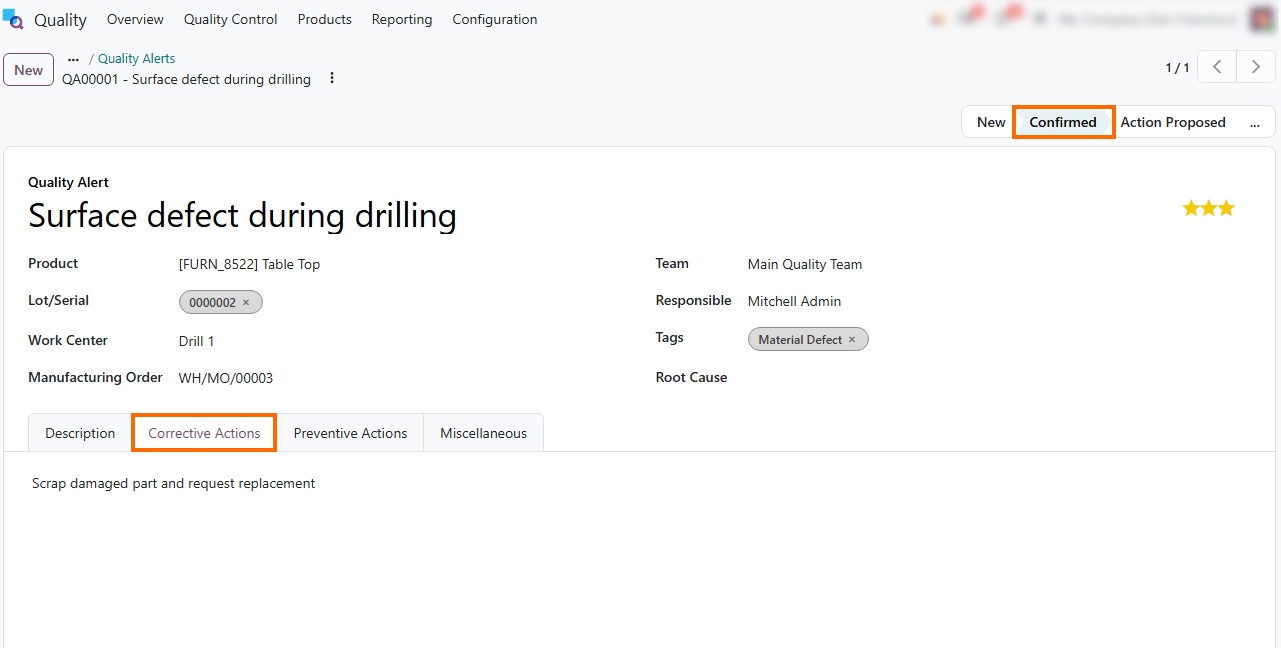
Execute corrective actions within the Quality workflow by assigning resolution status and defining recovery steps, such as scrapping the damaged component and triggering replenishment to resolve the defect record.
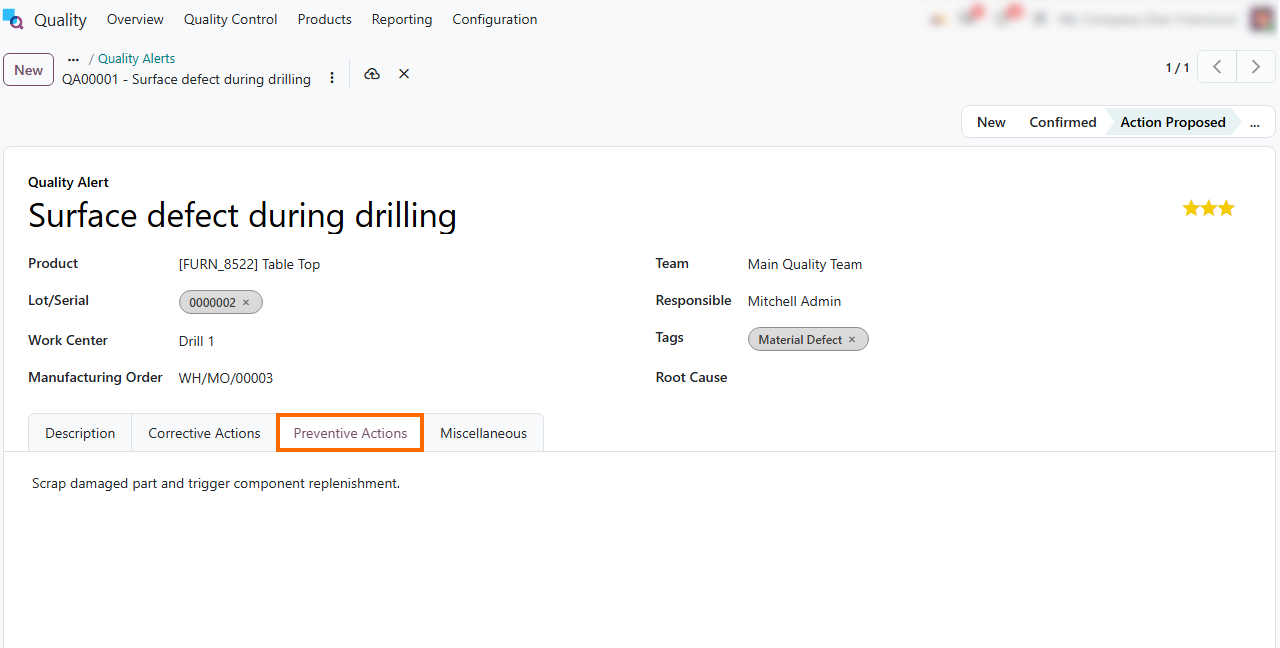
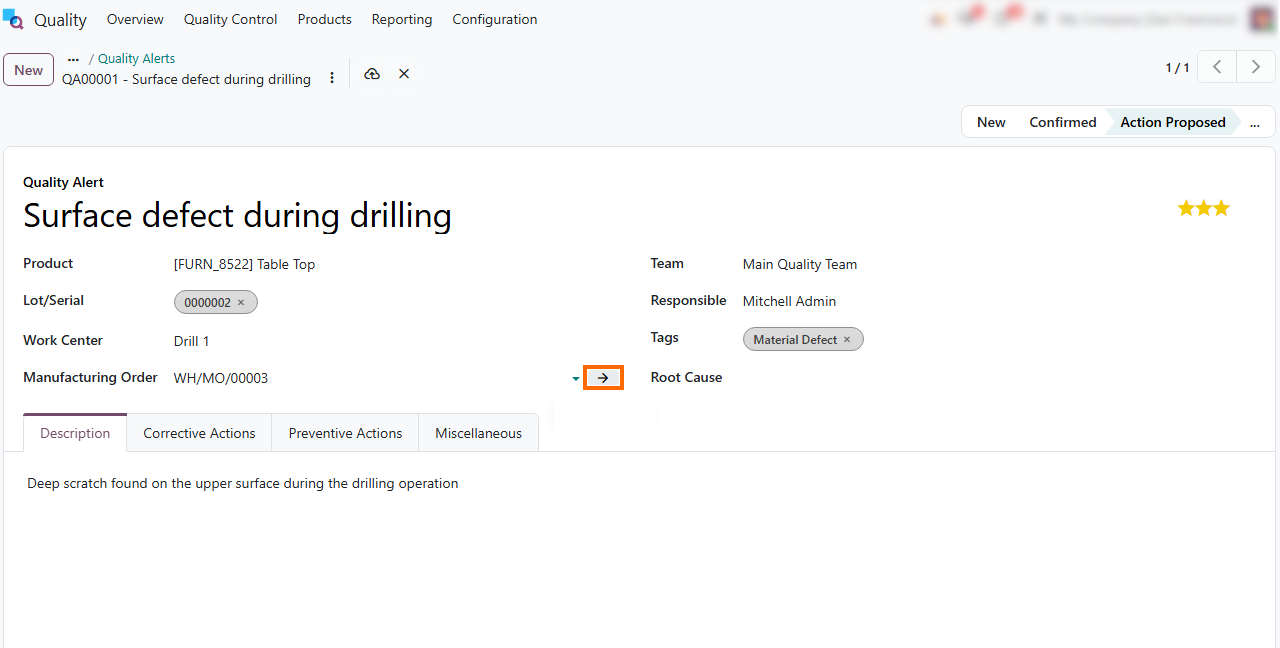
Verify end-to-end traceability by clicking the linked Manufacturing Order field to review how the quality issue connects back to the original production record and component history.
Move Equipment Problems from Shop Floor to Maintenance
Production exceptions are not always related to product quality. Equipment problems can also interrupt work orders and require a separate maintenance workflow. In Odoo 20 Shop Floor, operators can identify issues during production and connect them with the relevant maintenance process, keeping the equipment and production context available for follow-up. This helps maintenance teams respond to equipment problems without losing the production context in which they occurred. The following scenario shows how an equipment issue can move from Shop Floor execution into the maintenance workflow for follow-up.
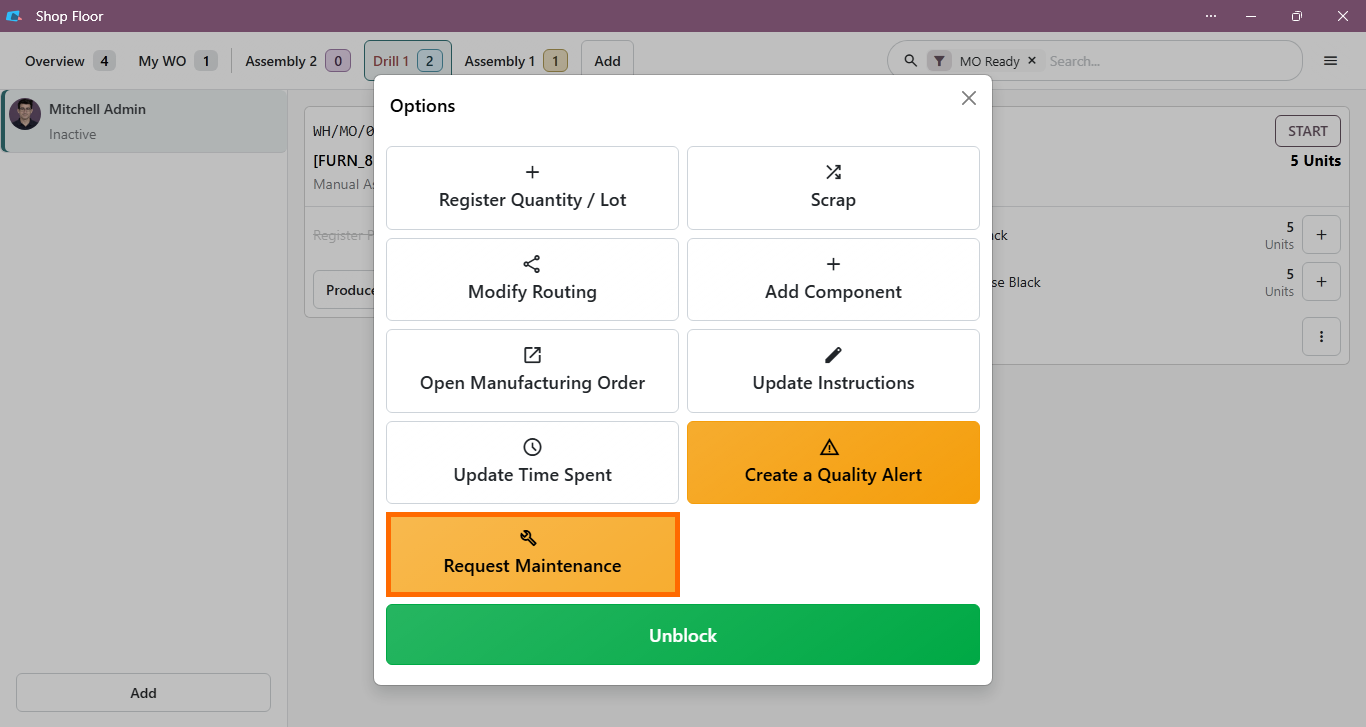
- Identify an equipment issue during Shop Floor execution and open the related maintenance workflow, keeping the problem connected to the operation where it occurred.
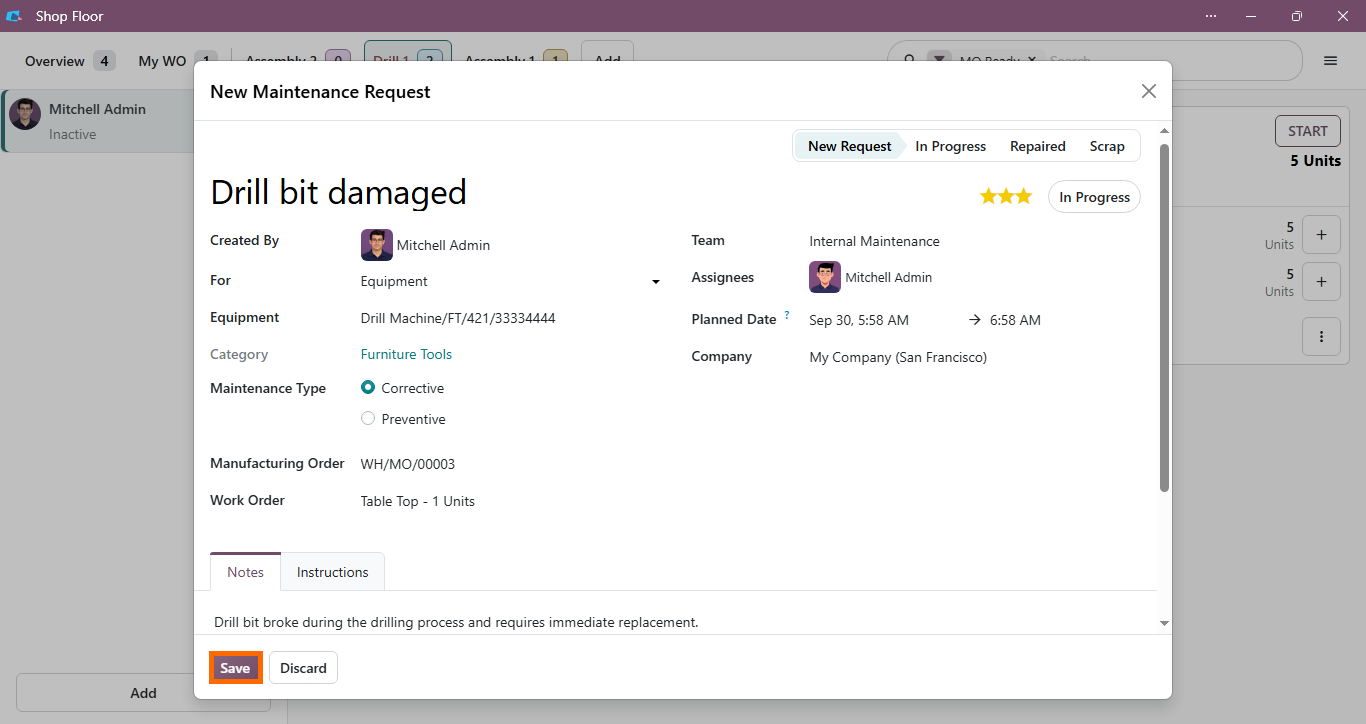
Submit maintenance requests directly from the Shop Floor by capturing equipment issues, assigning work center context, and setting priority levels for follow-up by the maintenance team.
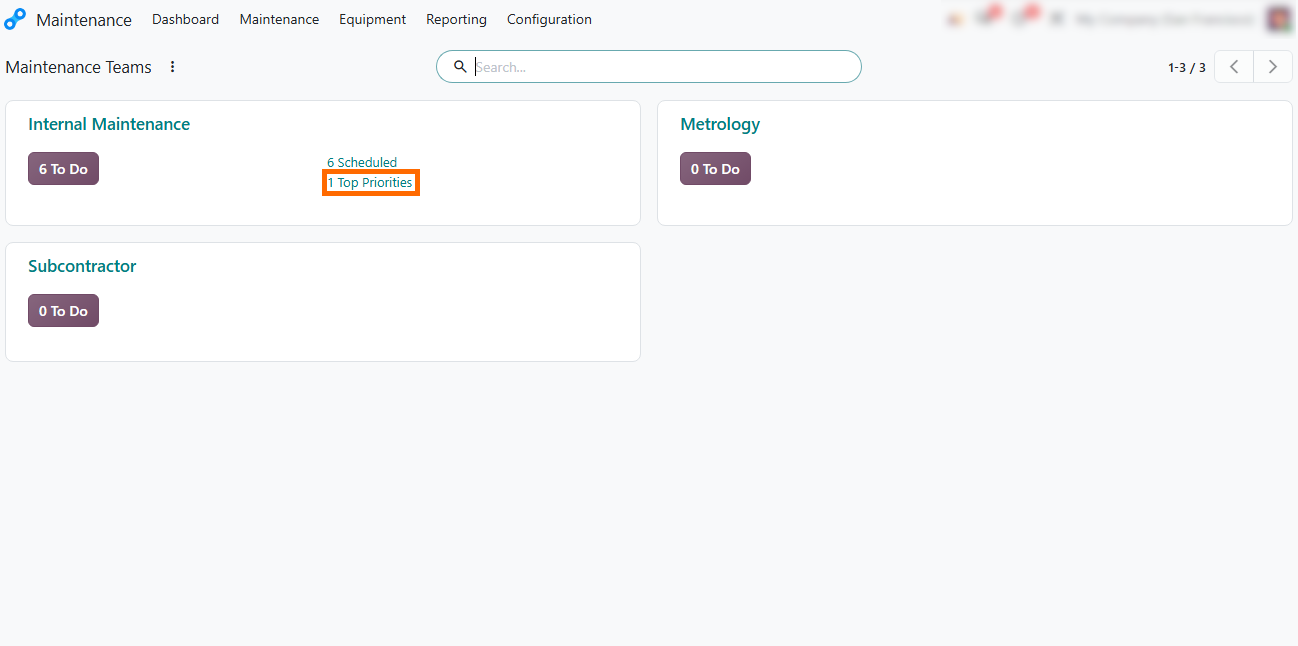
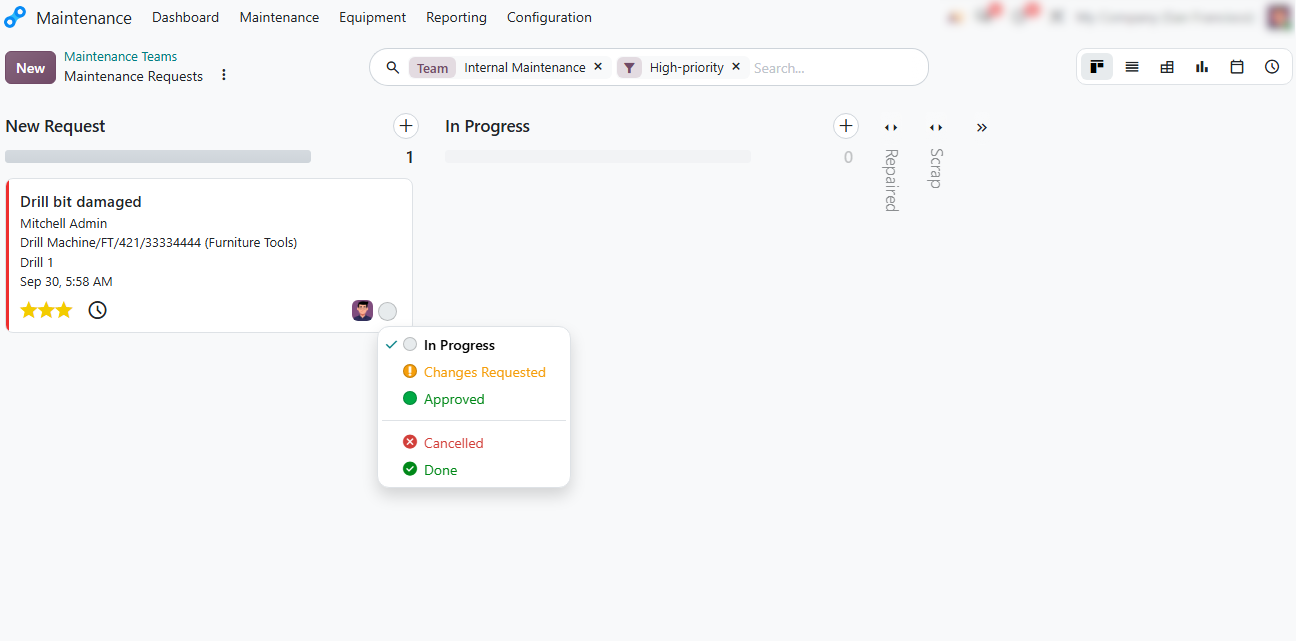
Monitor equipment repair priorities in Maintenance Teams by tracking incoming Shop Floor requests and high-priority alerts directly from the Maintenance dashboard.
Manage equipment repair pipelines in Maintenance by processing high-priority requests from the Kanban board, updating task statuses, and scheduling technical interventions directly from the workflow view.
Automate the Follow-Up to Manufacturing Exceptions
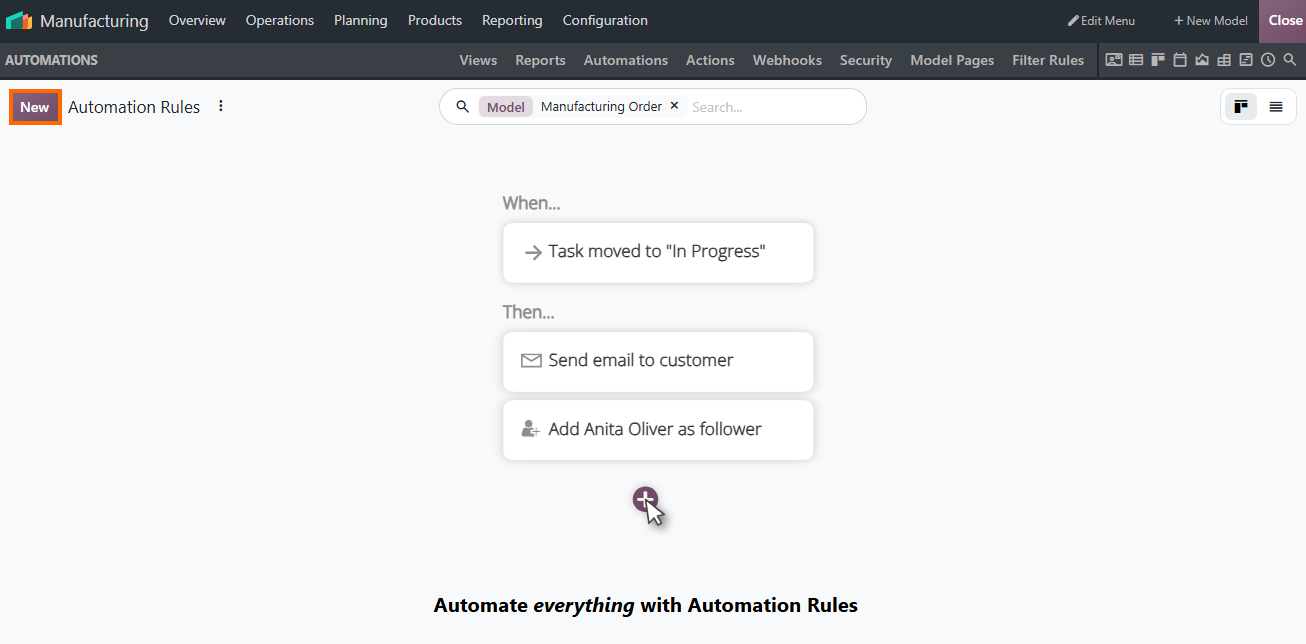
Once production, quality, and equipment workflows are connected, automation can reduce manual follow-up when defined manufacturing conditions occur. Odoo 20 automation allows teams to configure rules that respond to specific record changes and trigger predefined actions. For manufacturing teams, these rules can automate follow-up actions when production-related conditions are met, reducing the need for manual intervention. The following workflow demonstrates how an automated rule can be configured, triggered, and followed through to the resulting action.
- Create an automation rule for the relevant maintenance record and select the trigger that determines when the automated workflow should run, such as when a maintenance request is created or updated.
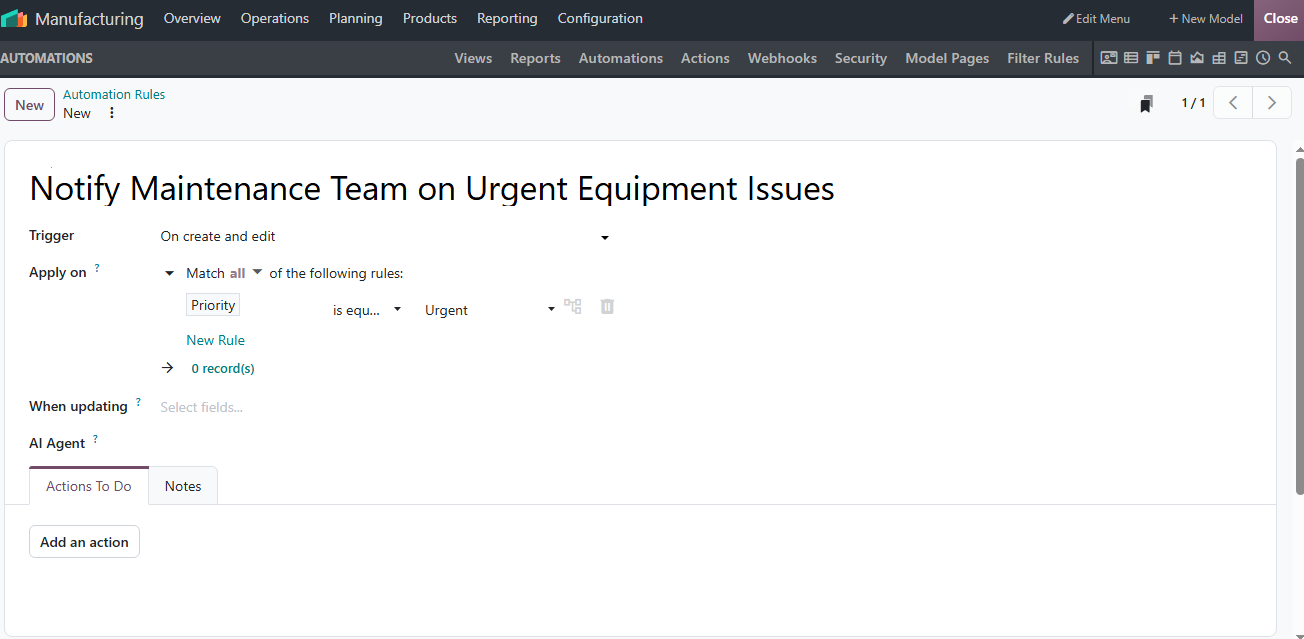
Configure automation triggers and domain conditions in Odoo Studio by defining specific evaluation rules, such as urgent priority thresholds, to automatically flag
equipment and production exceptions.
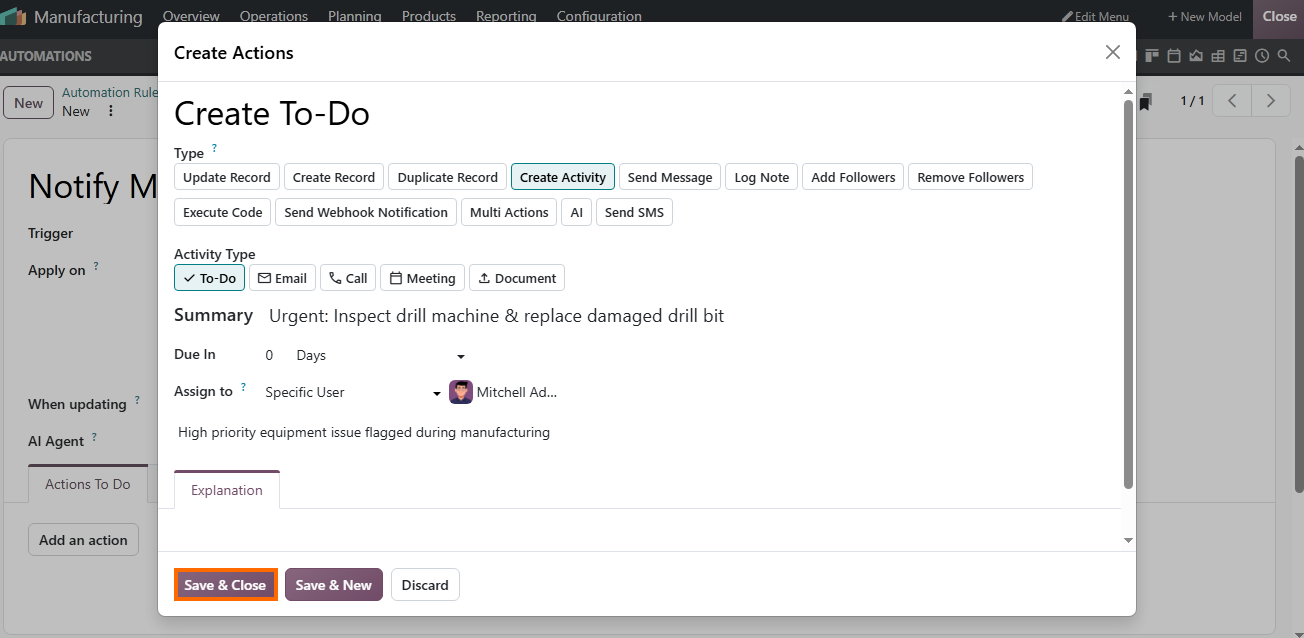
- Define automated follow-up actions by configuring a Create Activity rule that automatically assigns urgent inspection tasks to the maintenance team whenever equipment issues occur.
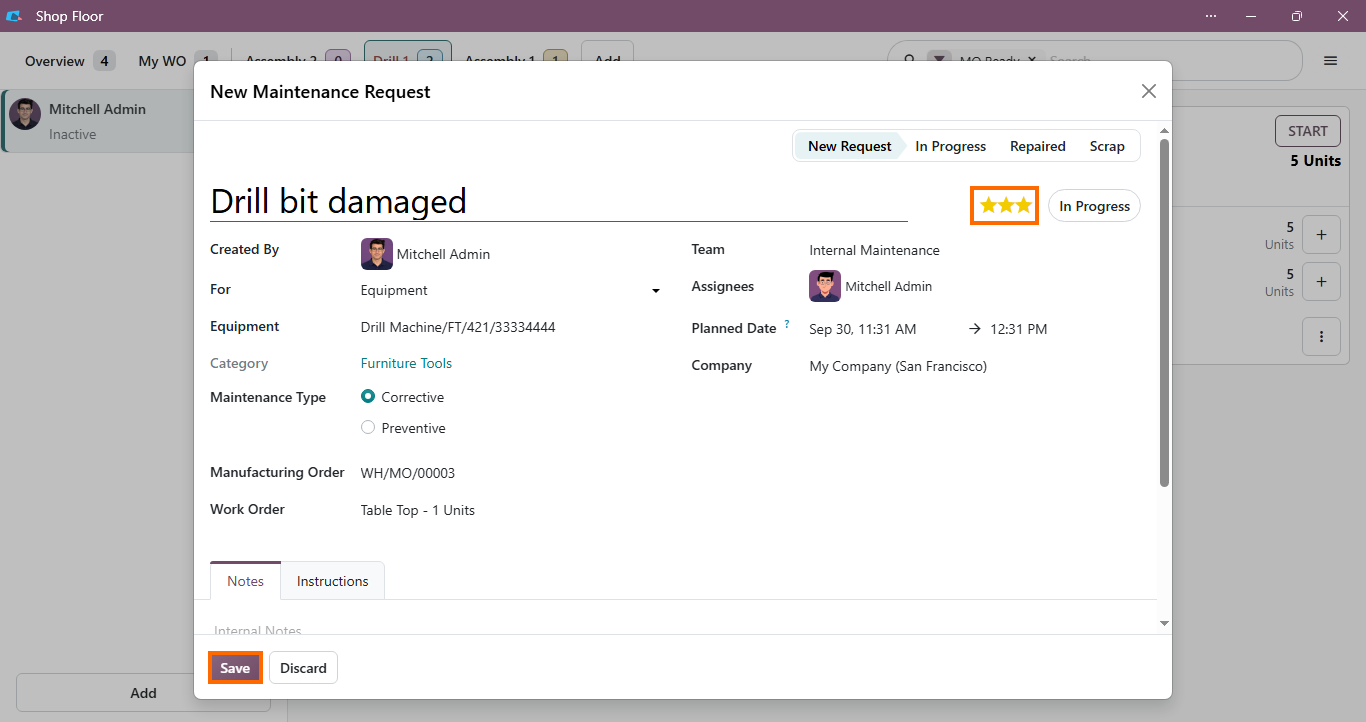
Trigger the automated workflow by submitting an urgent maintenance request for damaged equipment in the Shop Floor interface. Saving the request triggers the automation rule when configured conditions are met.
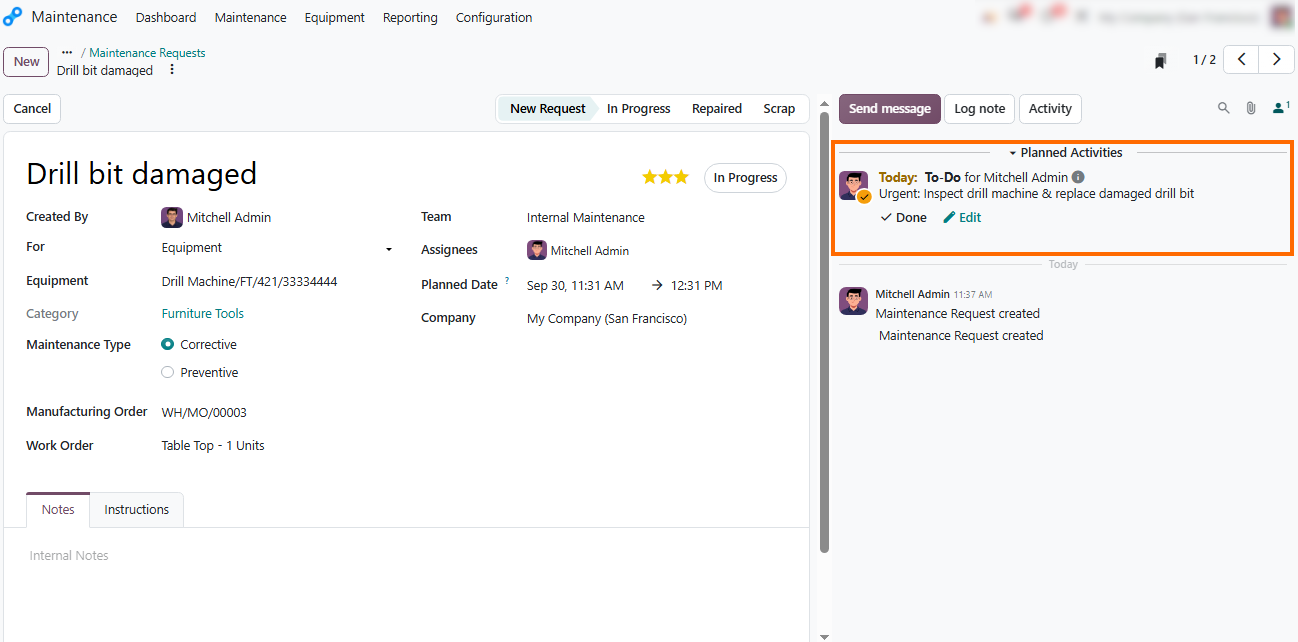
- Verify the resulting automated action in the record's Chatter log, where Odoo creates the follow-up activity based on the configured rule, simplifying administrative work and keeping maintenance on track.
Evaluate Odoo 20 AI and Automation
in Manufacturing
By combining Odoo 20 manufacturing AI with real-time shop floor execution, operations teams get immediate visibility into production delays without manual reporting. AI agents can retrieve production information and support operational tasks, while Odoo 20 manufacturing automation can trigger follow-up actions when defined manufacturing conditions occur. Shop Floor connects these capabilities with day-to-day execution, allowing operators to respond to quality and equipment issues as they arise.
For manufacturers evaluating a future transition to Odoo 20, the workflows covered in this guide provide practical scenarios to compare against existing production, quality, maintenance, and automation processes.