Keeping production moving becomes harder when operators have to leave their workstation to check manuals, search for files, or clarify the next step. This can slow down routine tasks, increase the risk of errors, and make processes less consistent across the shop floor. Odoo Shop Floor brings work orders and instructions directly to the workstation, giving operators the information they need without interrupting the production flow. With Odoo digital work instructions, teams can standardize procedures, reduce paper dependency, and support Odoo paperless manufacturing across the Shop Floor. This guide shows how to configure and manage these instructions in the Shop Floor, from reviewing existing steps to adding new ones for specific production operations.
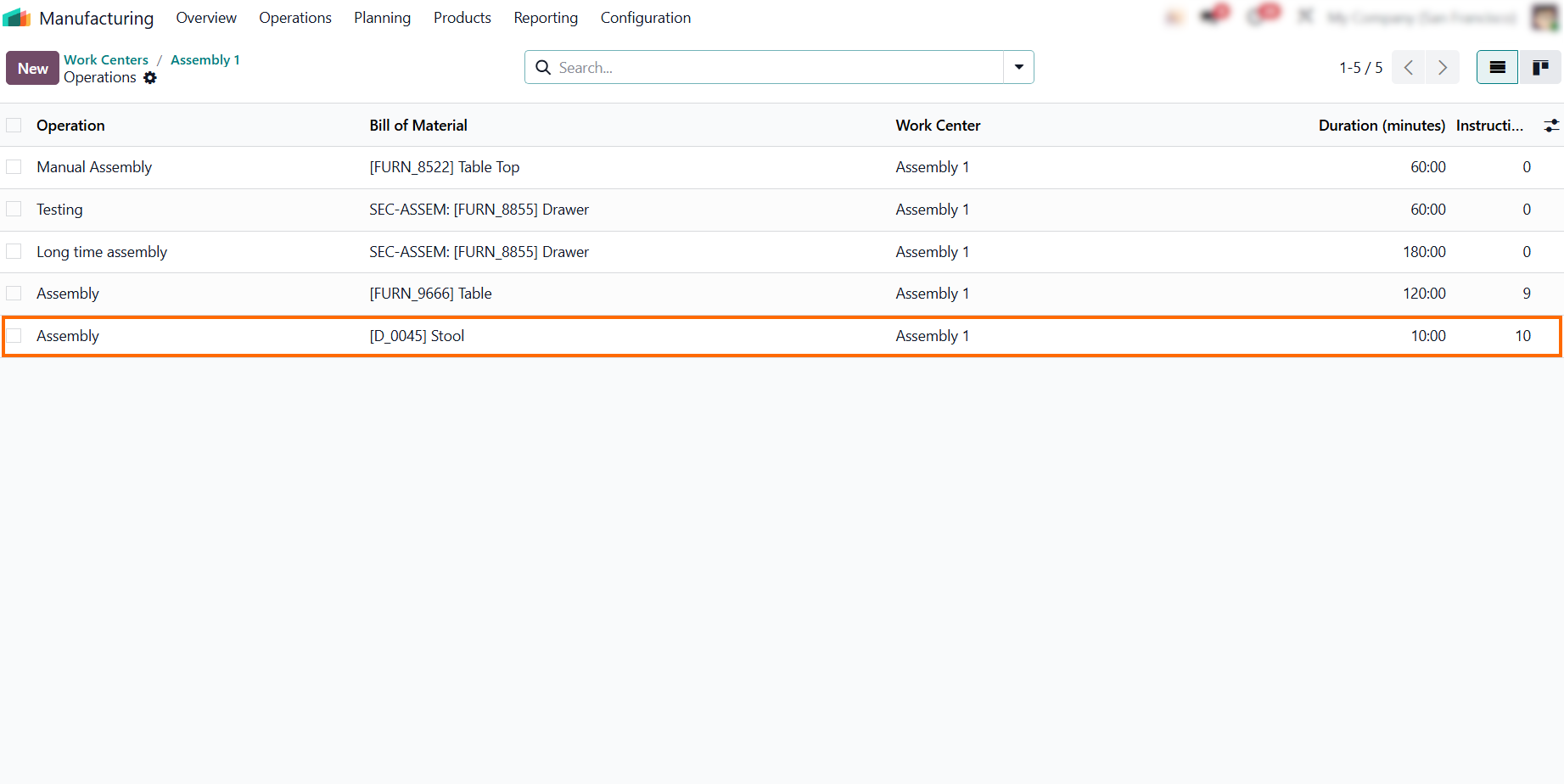
- Odoo Manufacturing organizes production operations by dedicated Work Centers, helping operators focus on tasks assigned to their station. The Odoo Shop Floor app also shows the expected duration and number of attached instructions for each operation.
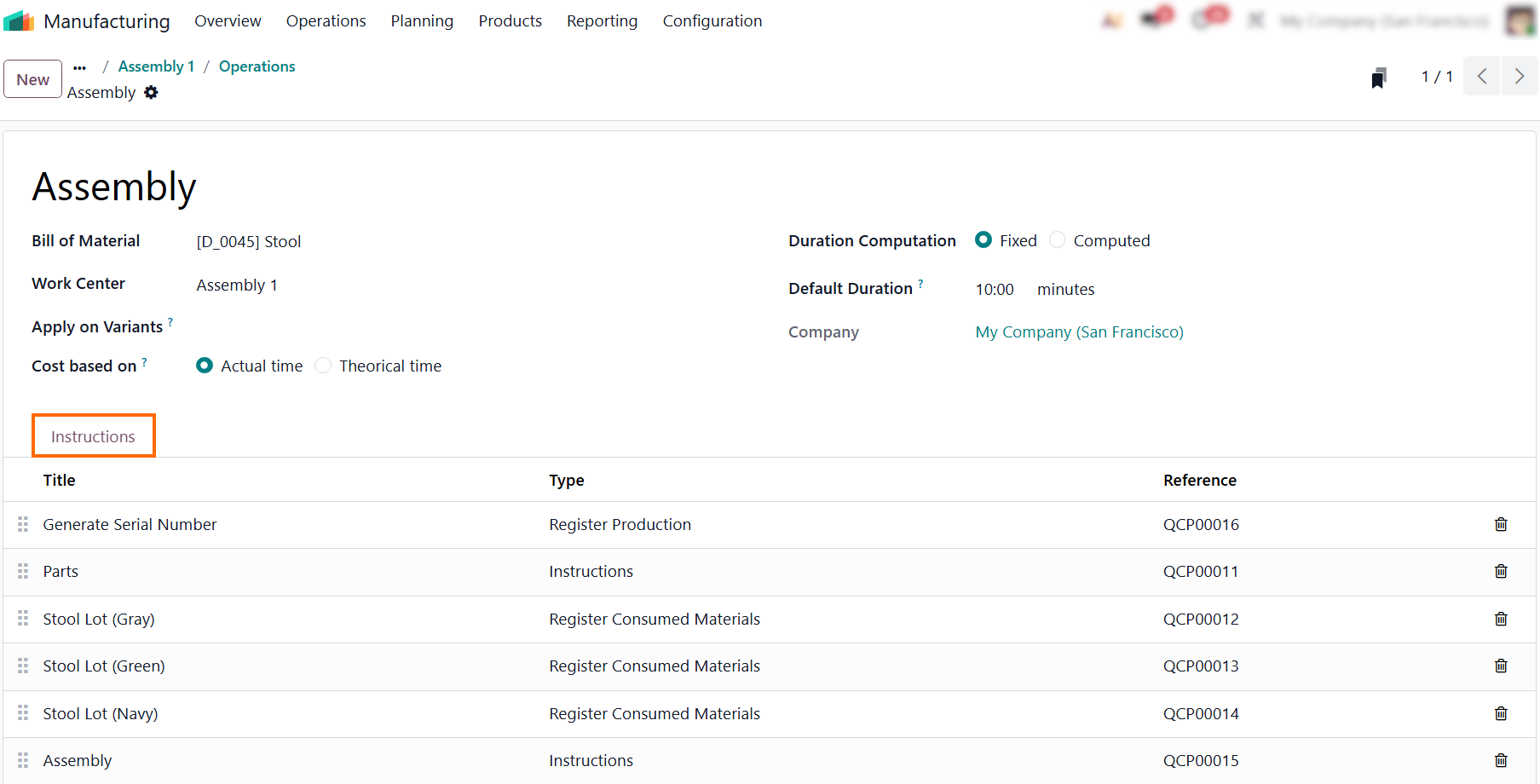
Review the instructions and quality checks configured for the selected operation in the Instructions tab, including the steps, required measurements, and other information operators need to complete the task correctly.
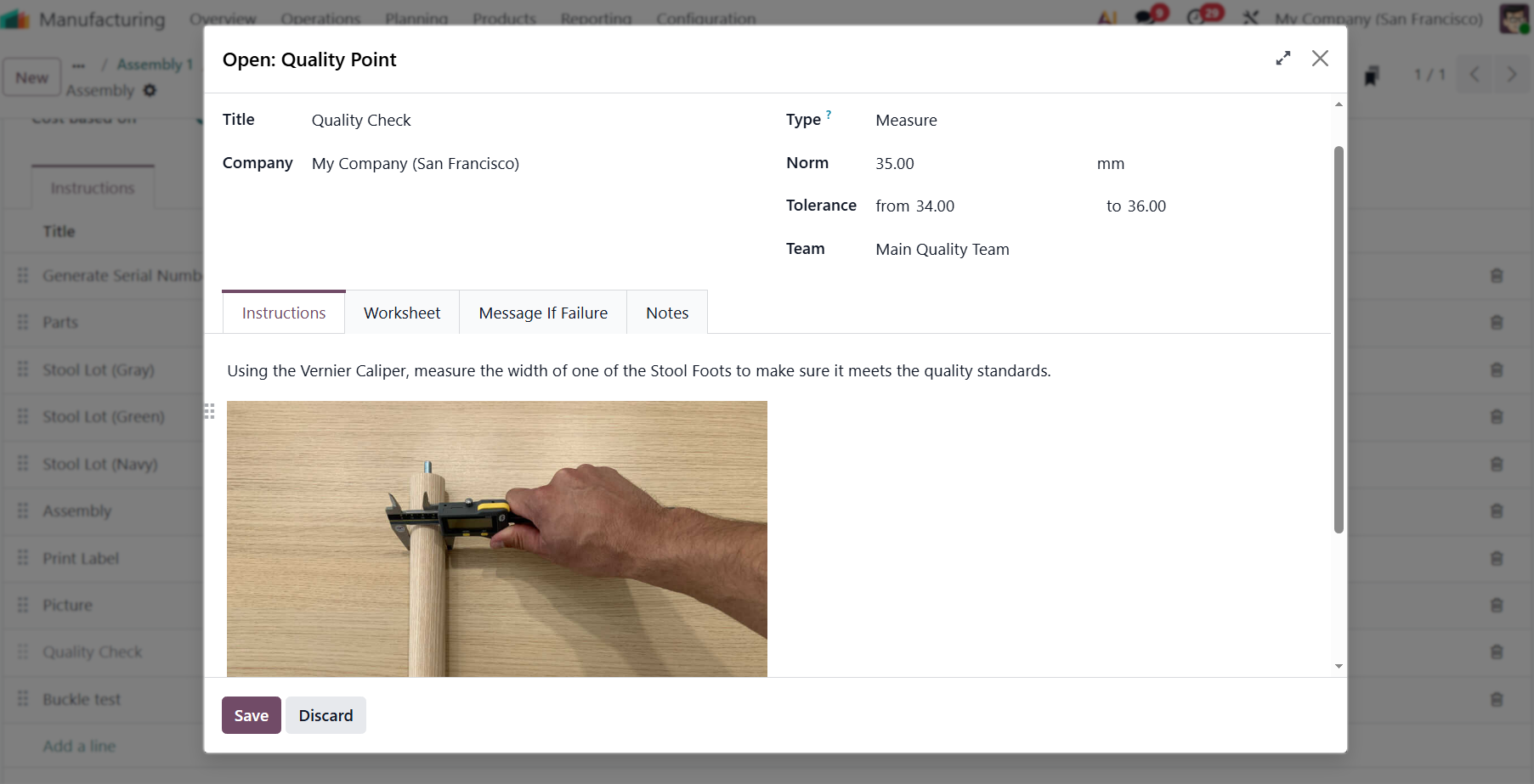
Click an instruction to open its setup window and review or define the requirements for the operator, including expected measurement values, acceptable tolerance ranges,
step-by-step notes, and visual guides.
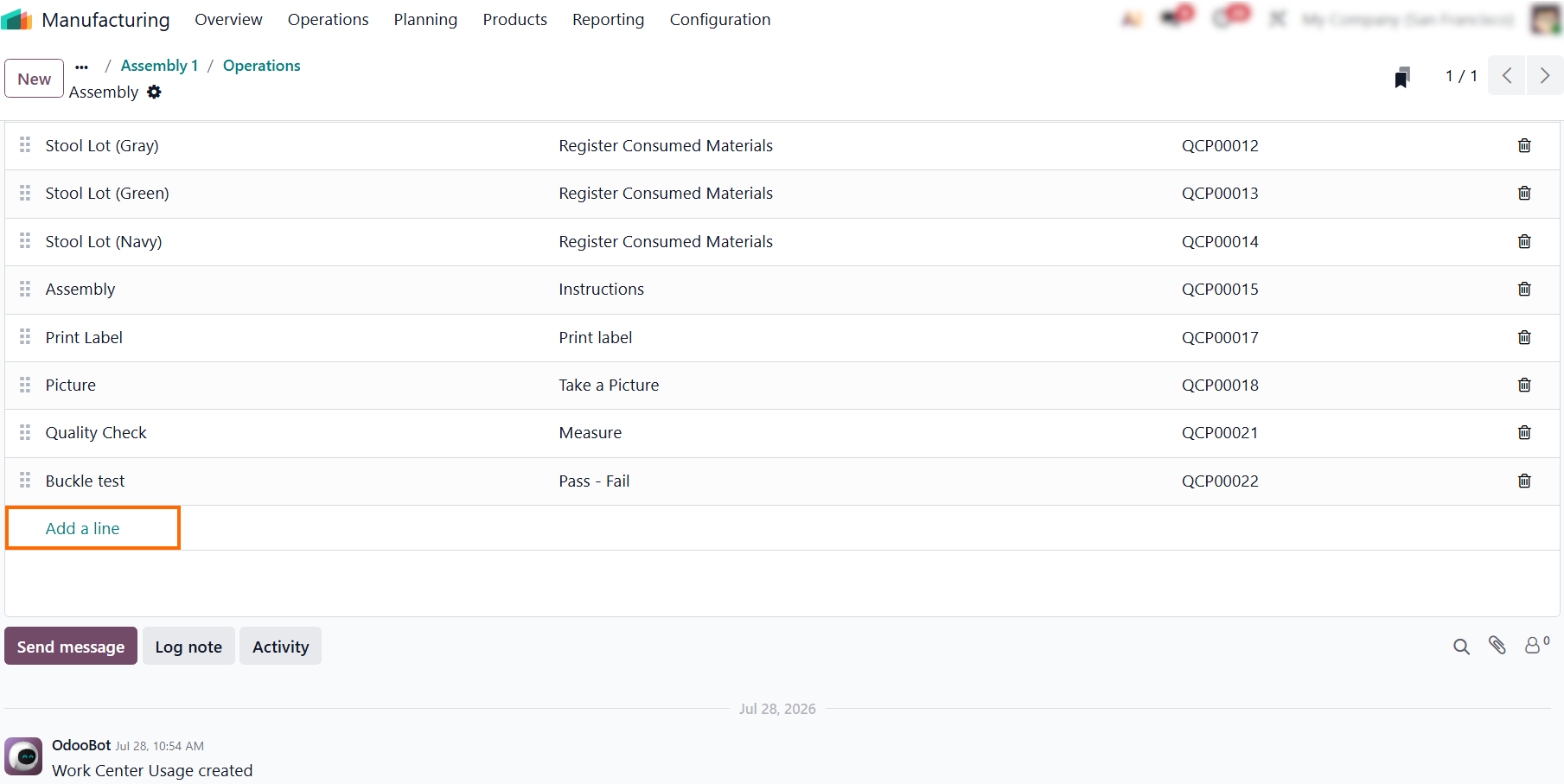
- Click “Add a line” at the bottom of the instruction list to
add new steps. Combine visual instructions with quality checks,
measurements, or serial number scans to give
operators the information they need at the workstation.
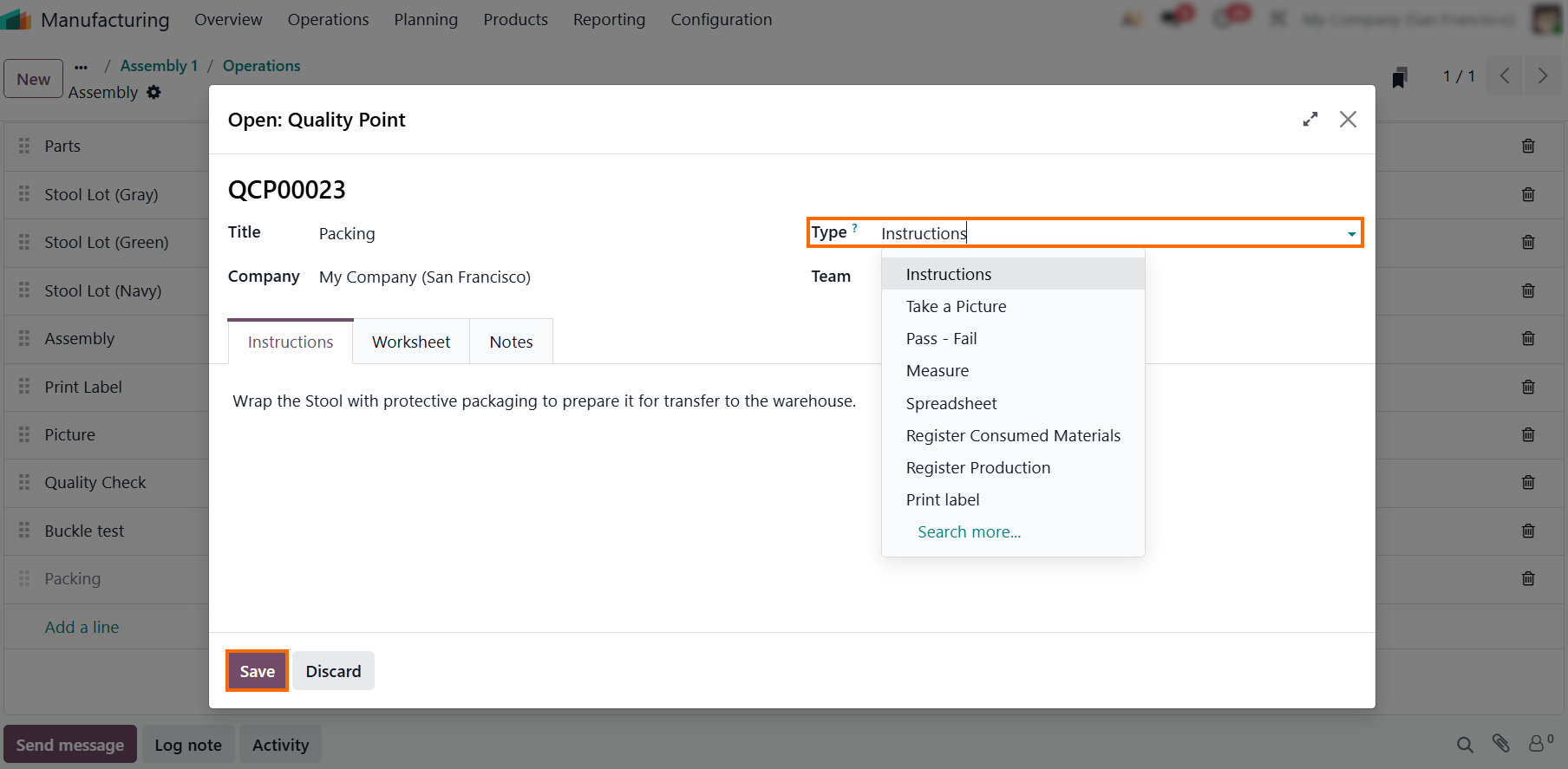
- Enter a Title, select the step Type, add text or visual
instructions under the Instructions tab, and click “Save” to apply the
step and make it available to operators during the
operation.
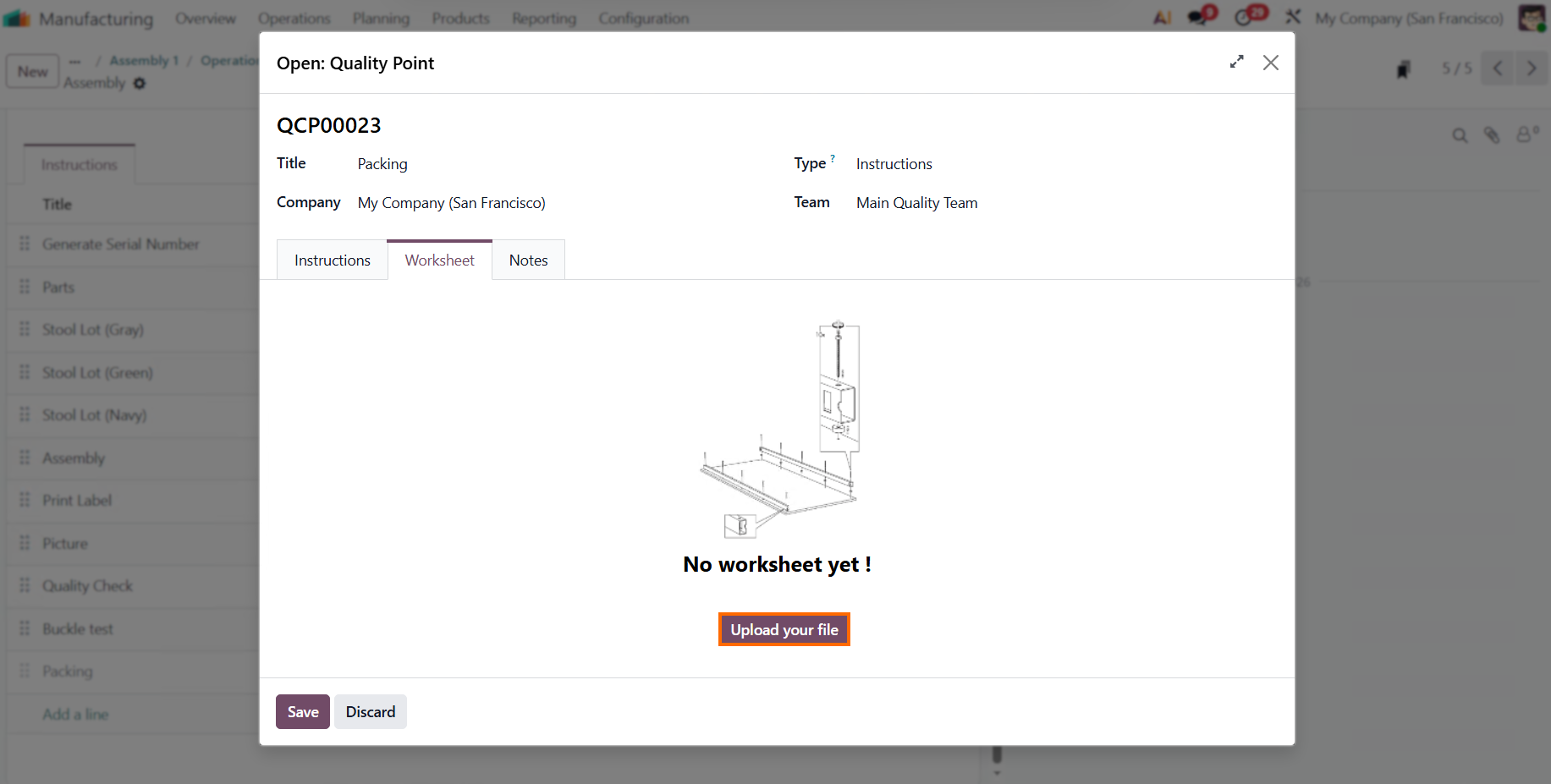
- Switch to the “Worksheet” tab to upload a detailed instruction document. Click “Upload your file”, select the file from your computer, and attach it to the operation for easy access on the shop floor.
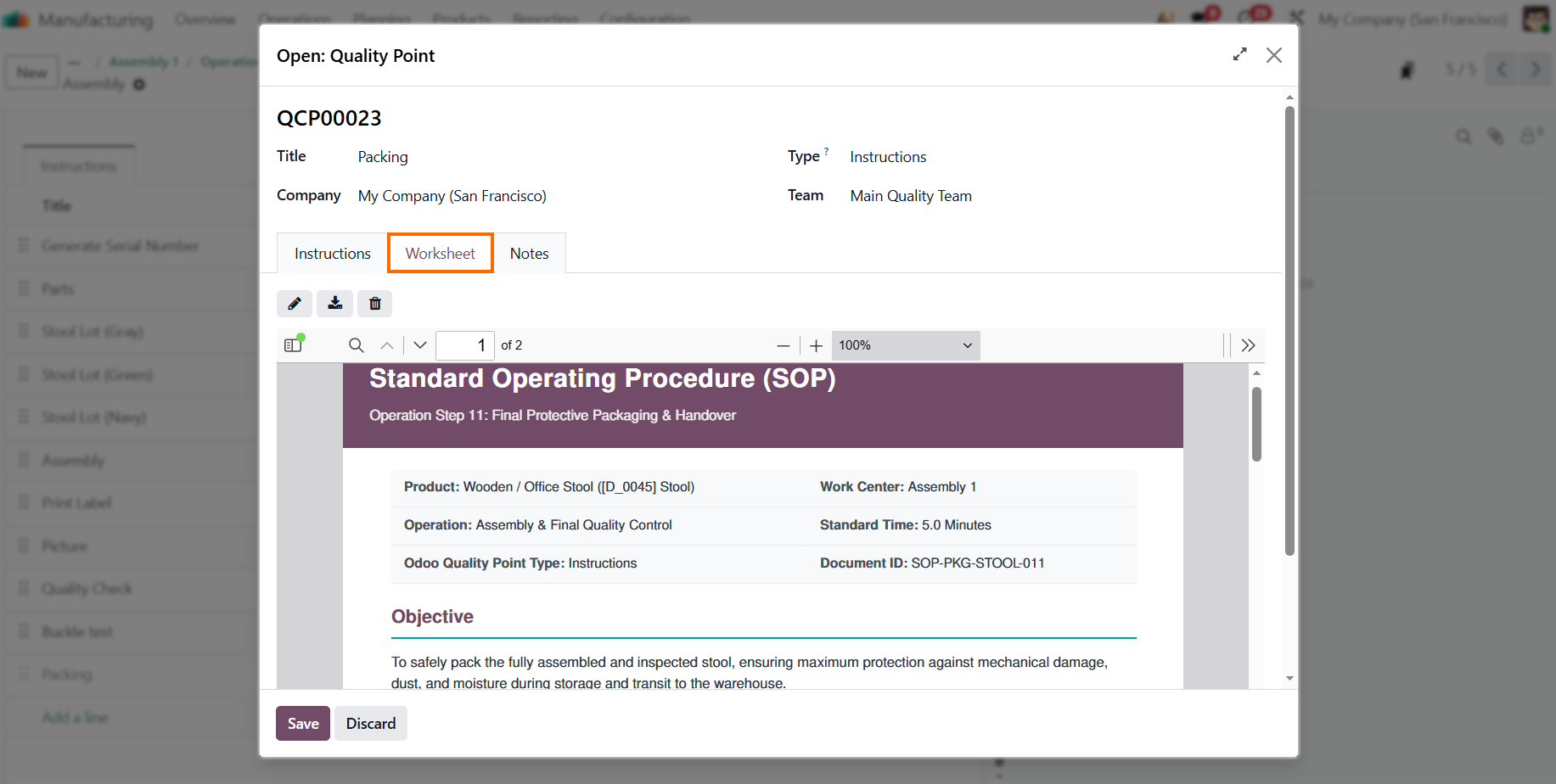
Review the embedded PDF preview under the Worksheet tab to ensure the right digital SOP is attached, giving operators instant access to clear visual guides right at their workstation.
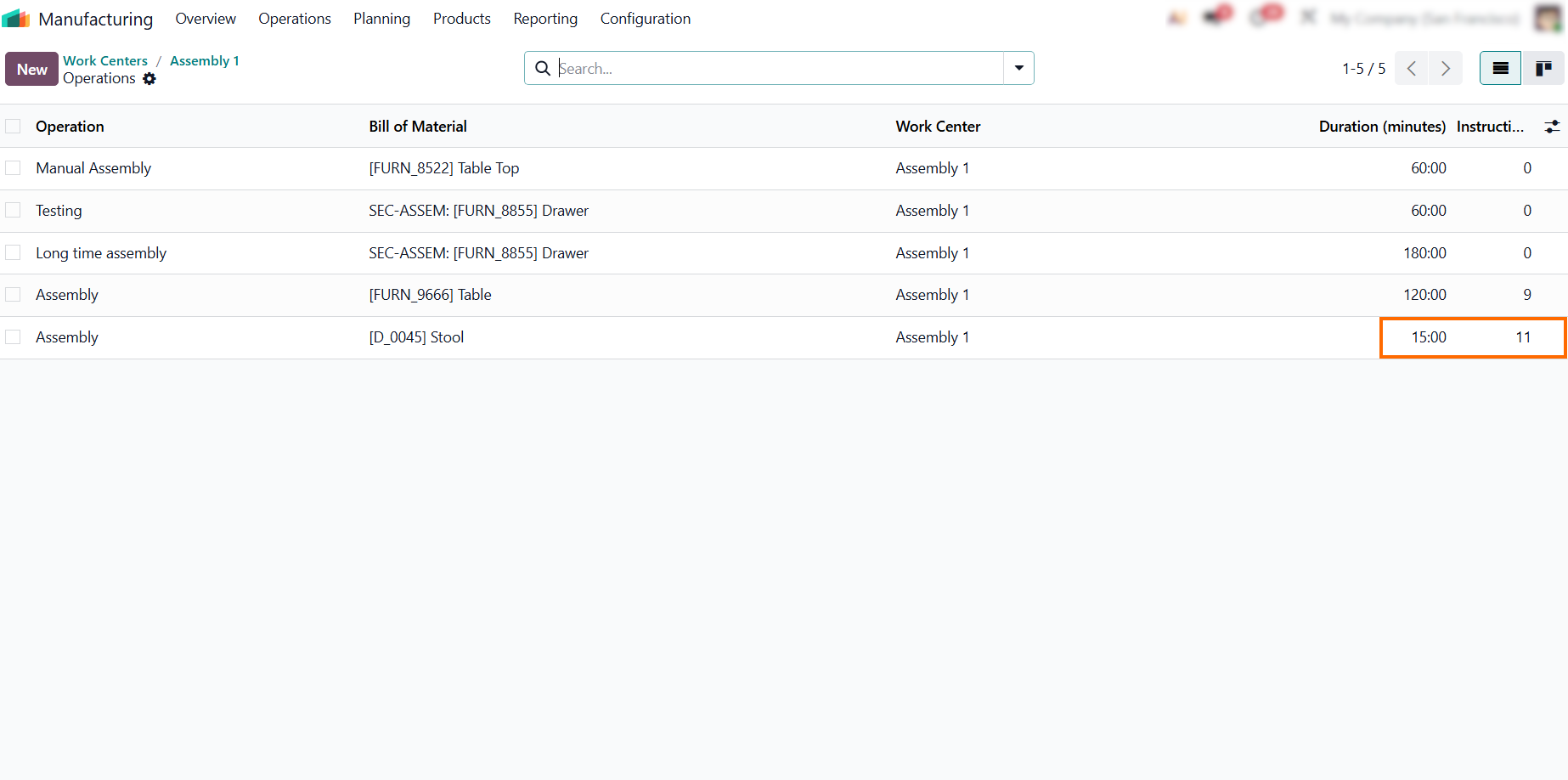
- Saving reflects your changes in the Work Center overview,
including the updated instruction count and duration, giving teams
real-time visibility and helping keep
operators aligned.
Executing Work Instructions in the Odoo Shop Floor App
Configuring instructions is only half the process. The real efficiency comes from delivering them to the Odoo Shop Floor without extra administrative steps. By linking instructions directly to Odoo MRP work orders, each new production order includes the latest Odoo work order instructions. This keeps the production workflow consistent from order release through execution. Operators can then follow the same guidance for each operation without switching between the production order and separate documentation. This reduces manual paperwork, speeds up order release, and helps operators work with accurate, standardized guidelines on every production run. The following steps show how to create a Manufacturing Order and access these instructions during production.
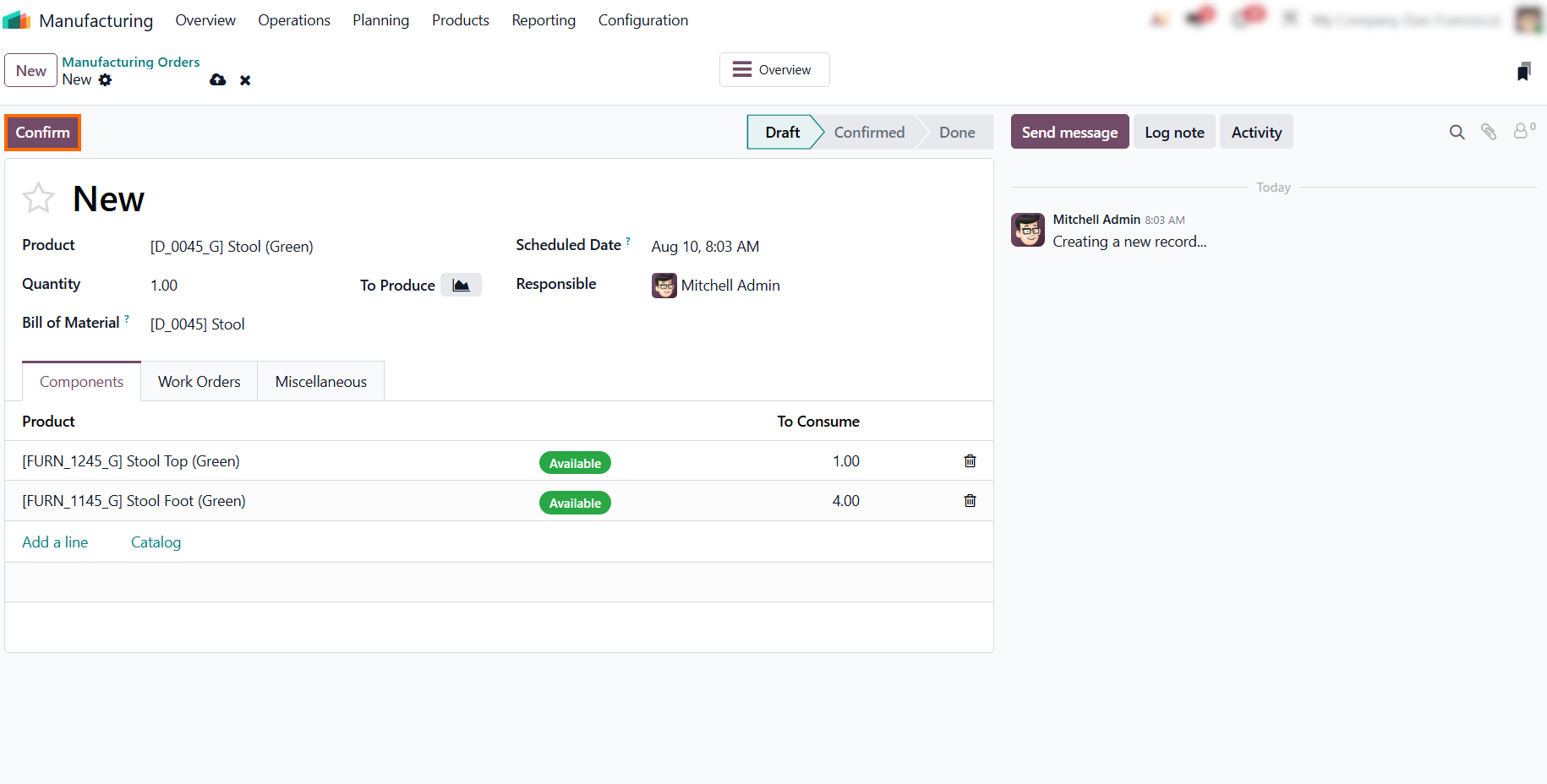
- Open Odoo Manufacturing Orders, click “New”, and select the product with the newly configured instruction step. Click “Confirm” to create the required Work Orders and apply the instructions to the production process.
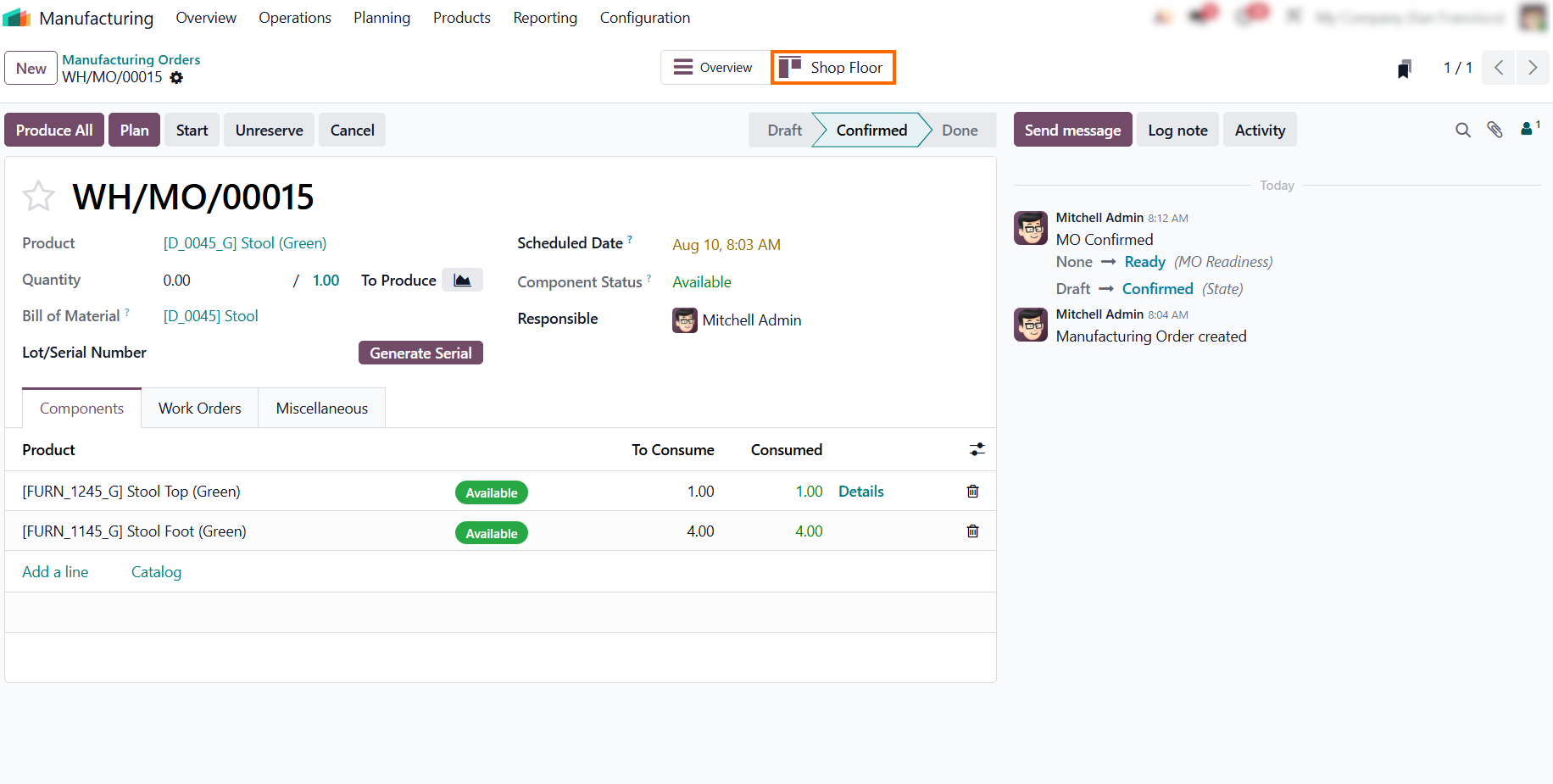
Confirming the order automatically shifts its state to Confirmed and reveals the Odoo Shop Floor smart button at the top, providing a direct link to launch and track execution on operator workstations.
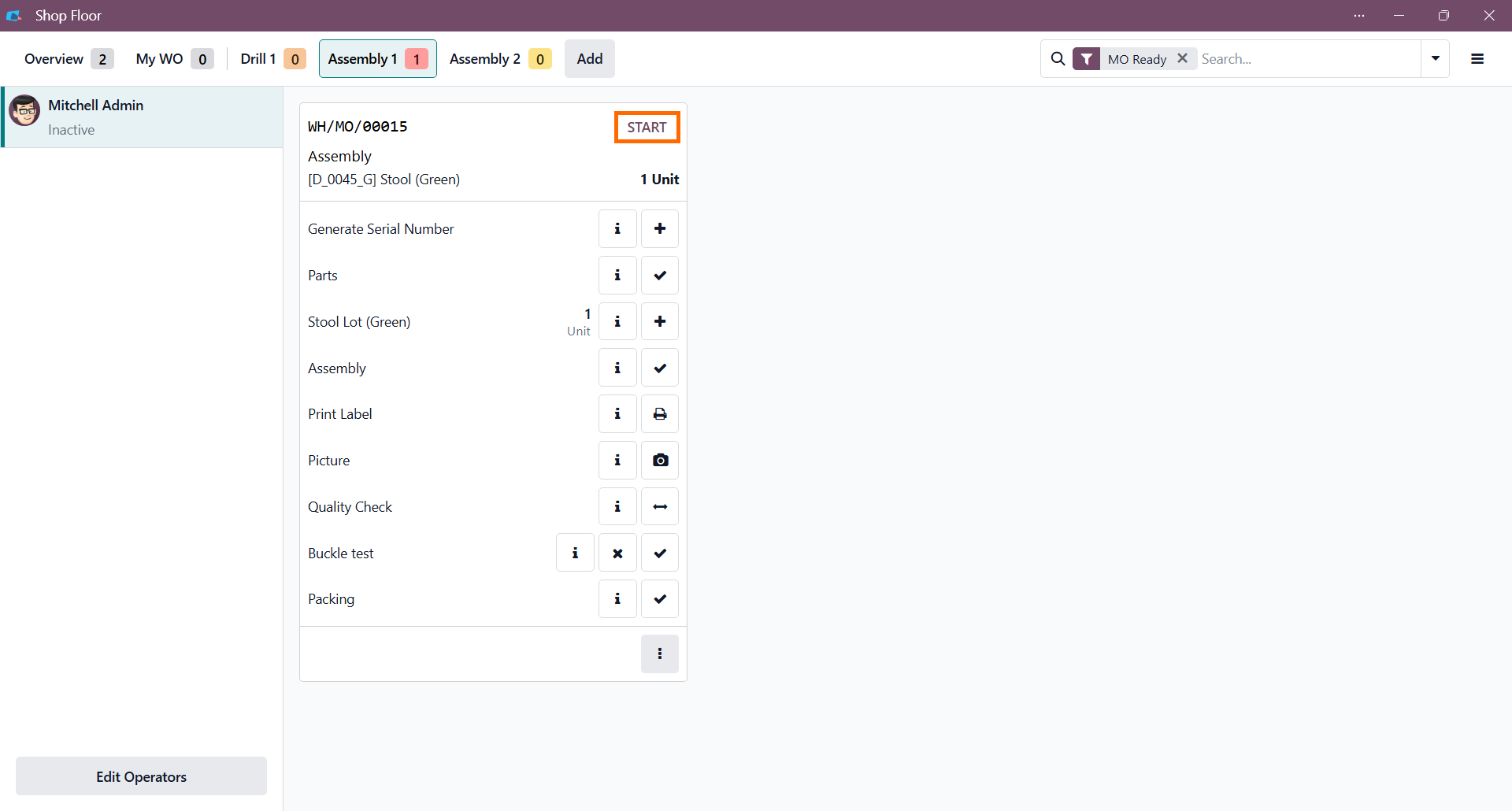
Open the active order card in the Odoo Shop Floor app to review the step sequence and access the configured work instructions for the operation. Click “Start” to begin tracking time and start the production operation.
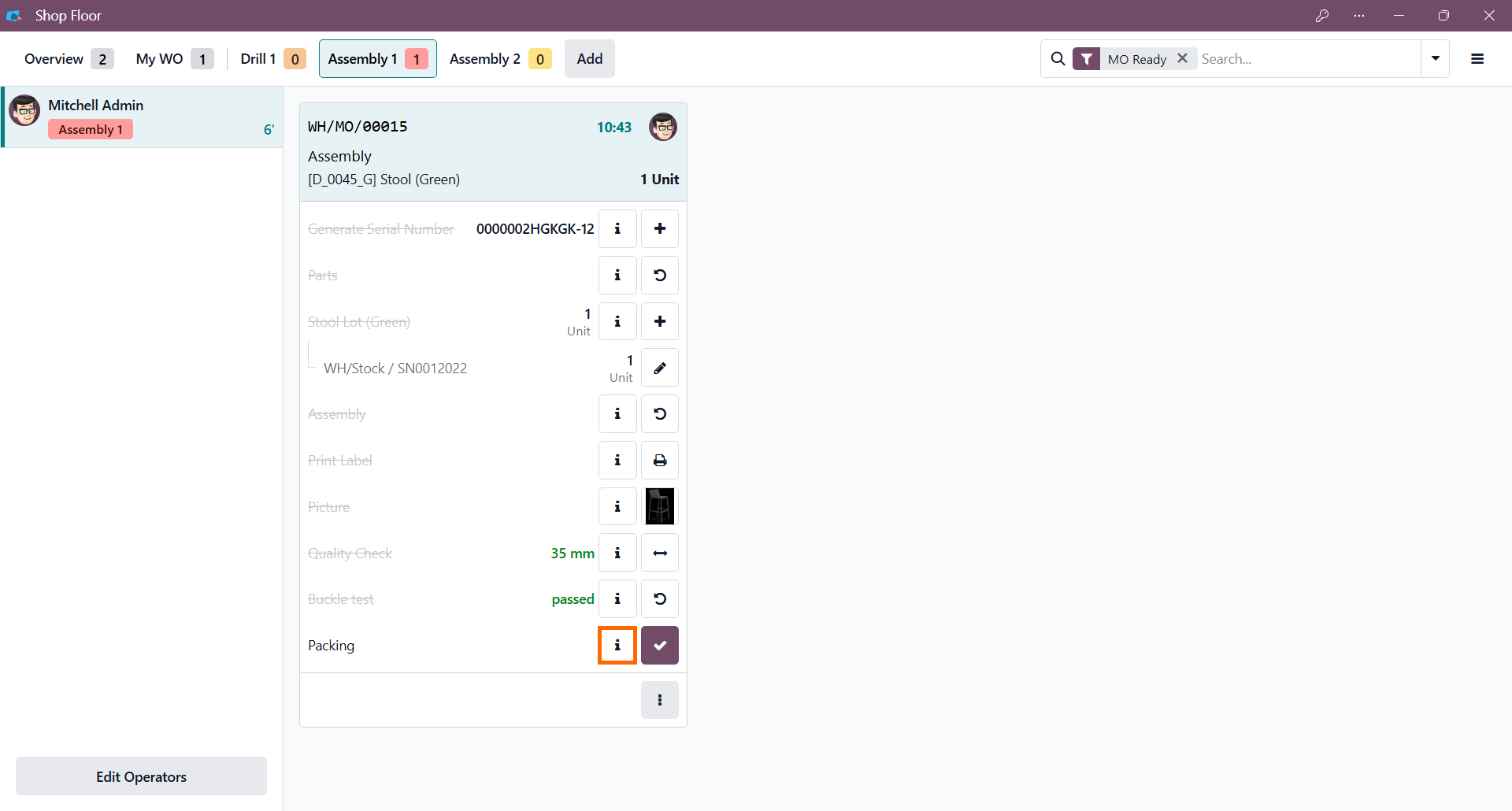
Click the info (i) icon on the final Packing step to instantly open its assigned SOP, giving operators real-time visual guidance to ensure proper packaging and reduce shipping errors.
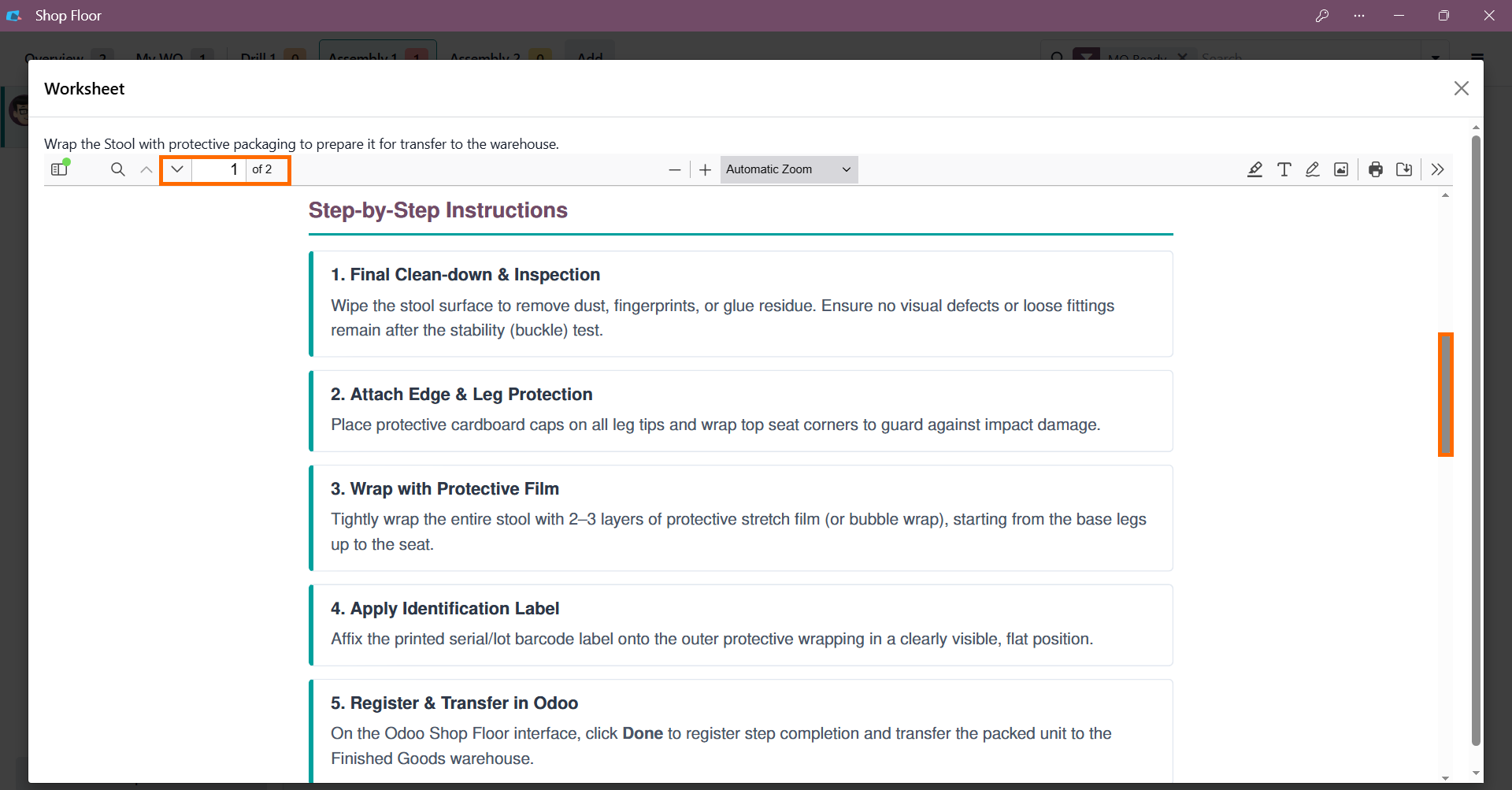
Use the page controls and scrollbar to review multi-page SOPs without leaving the interface, keeping full visual documentation immediately accessible at the workstation and helping operators follow each step without interrupting the workflow.
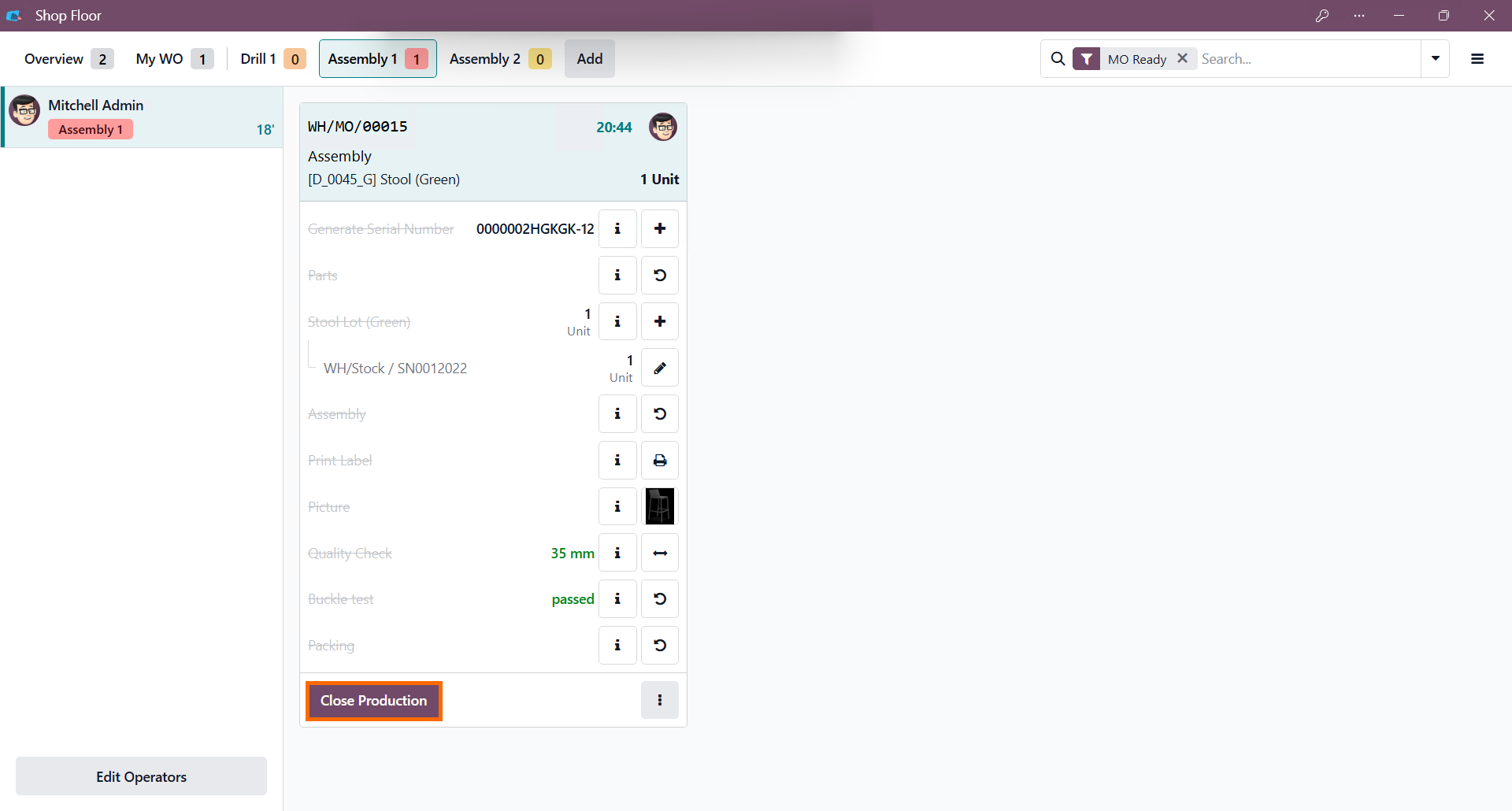
- Once all steps are finished, click “Close Production” to finalize the order. This automatically stops time tracking and logs the exact execution time, giving management clear visibility into actual cycle times versus targets.
Analyzing Actual and Planned Work Order Times in Odoo Shop Floor
Tracking actual execution time alongside planned durations gives teams a clearer view of how production performs in practice. Odoo real-time OEE tracking can further connect these execution times with overall Work Center performance. Comparing these values can reveal where an operation consistently takes longer than expected. This makes work order timing useful not only for tracking production, but also for identifying where adjustments may improve shop floor efficiency. Reviewing these differences over multiple work orders helps teams determine whether a time variance is an isolated case or a recurring pattern that requires attention.
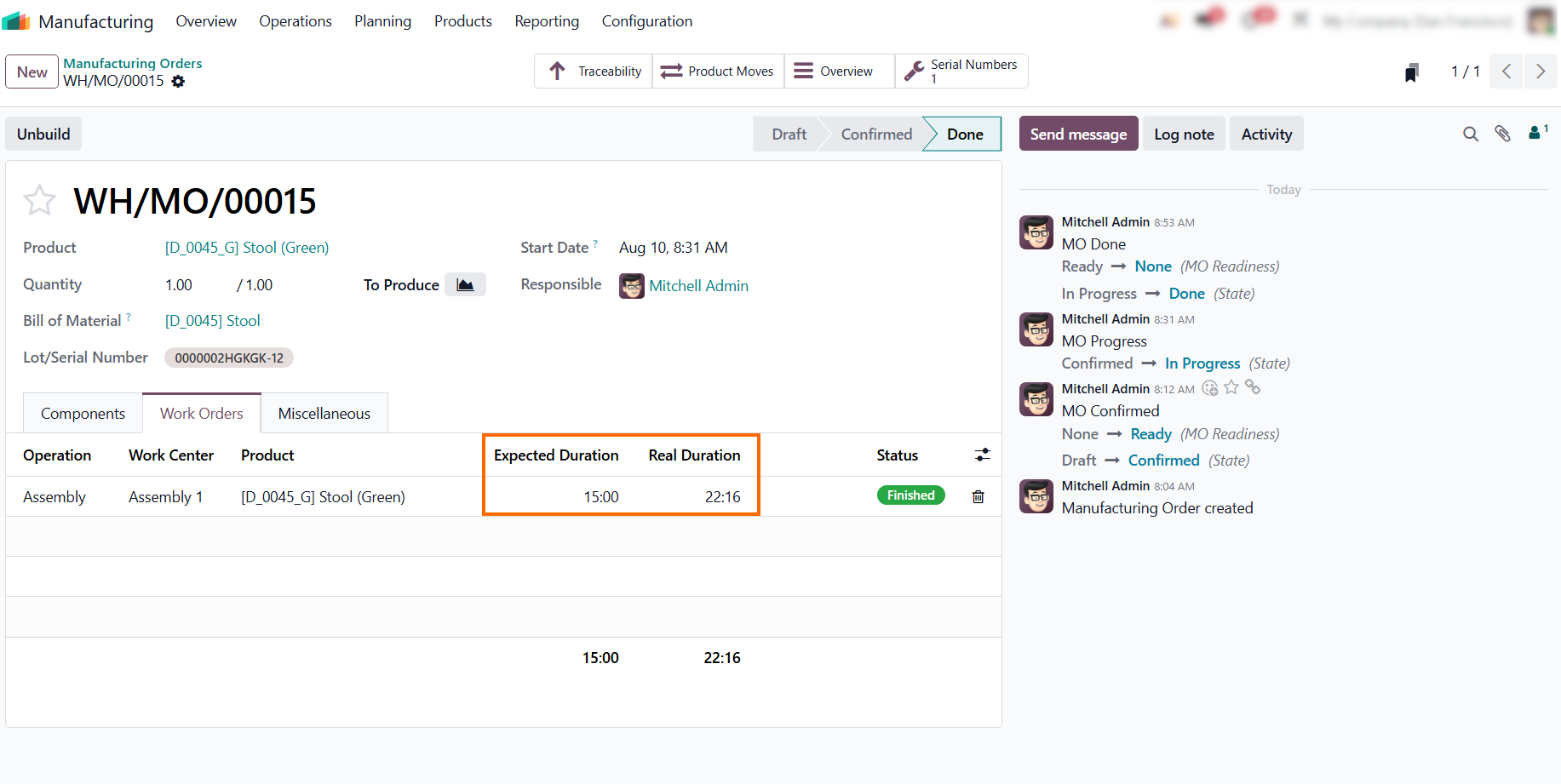
- Closing production automatically updates the MO status to Done and displays Expected Duration alongside Real Duration directly under the Work Orders tab, giving managers immediate visibility into variances without generating additional reports.
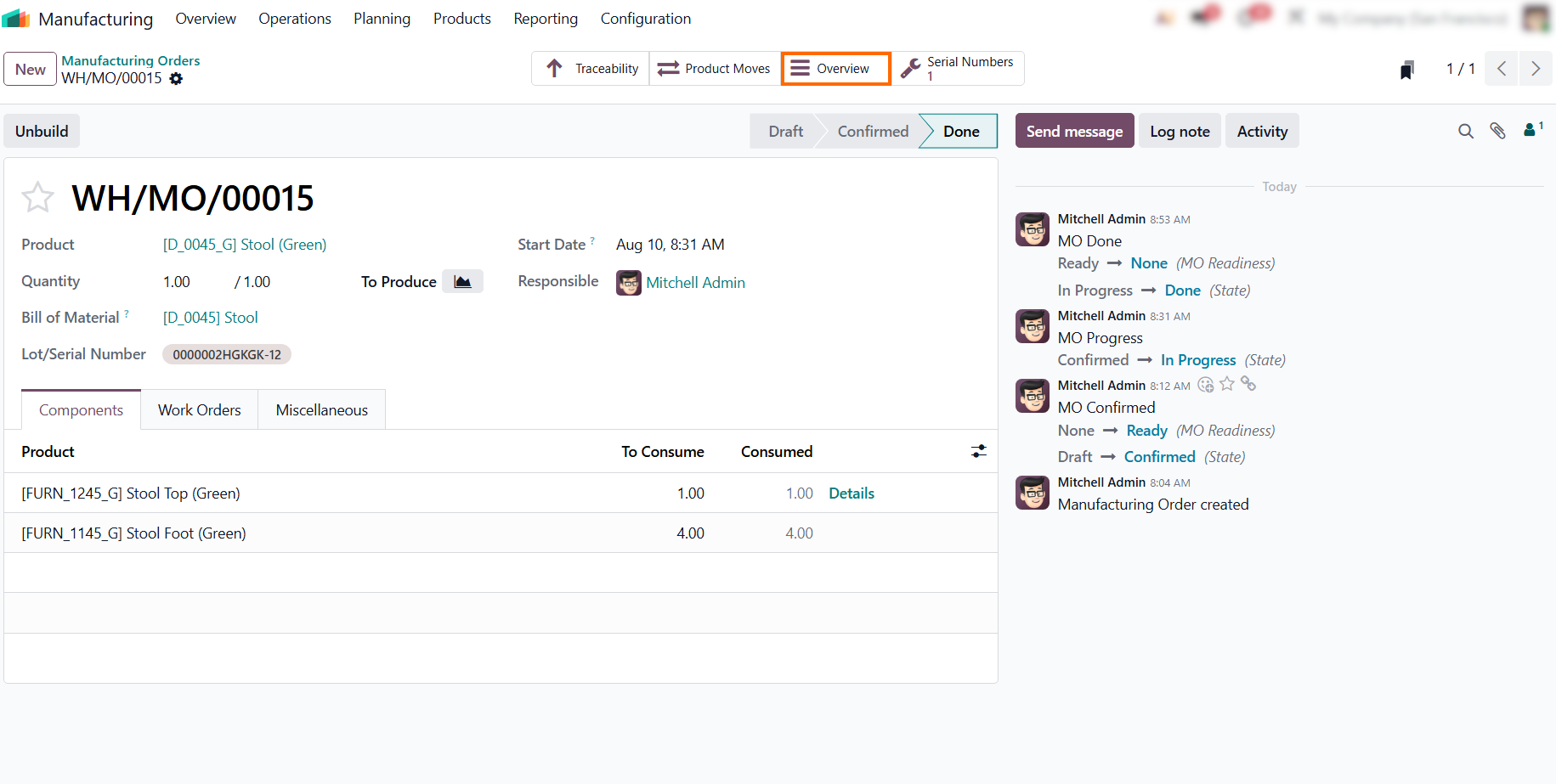
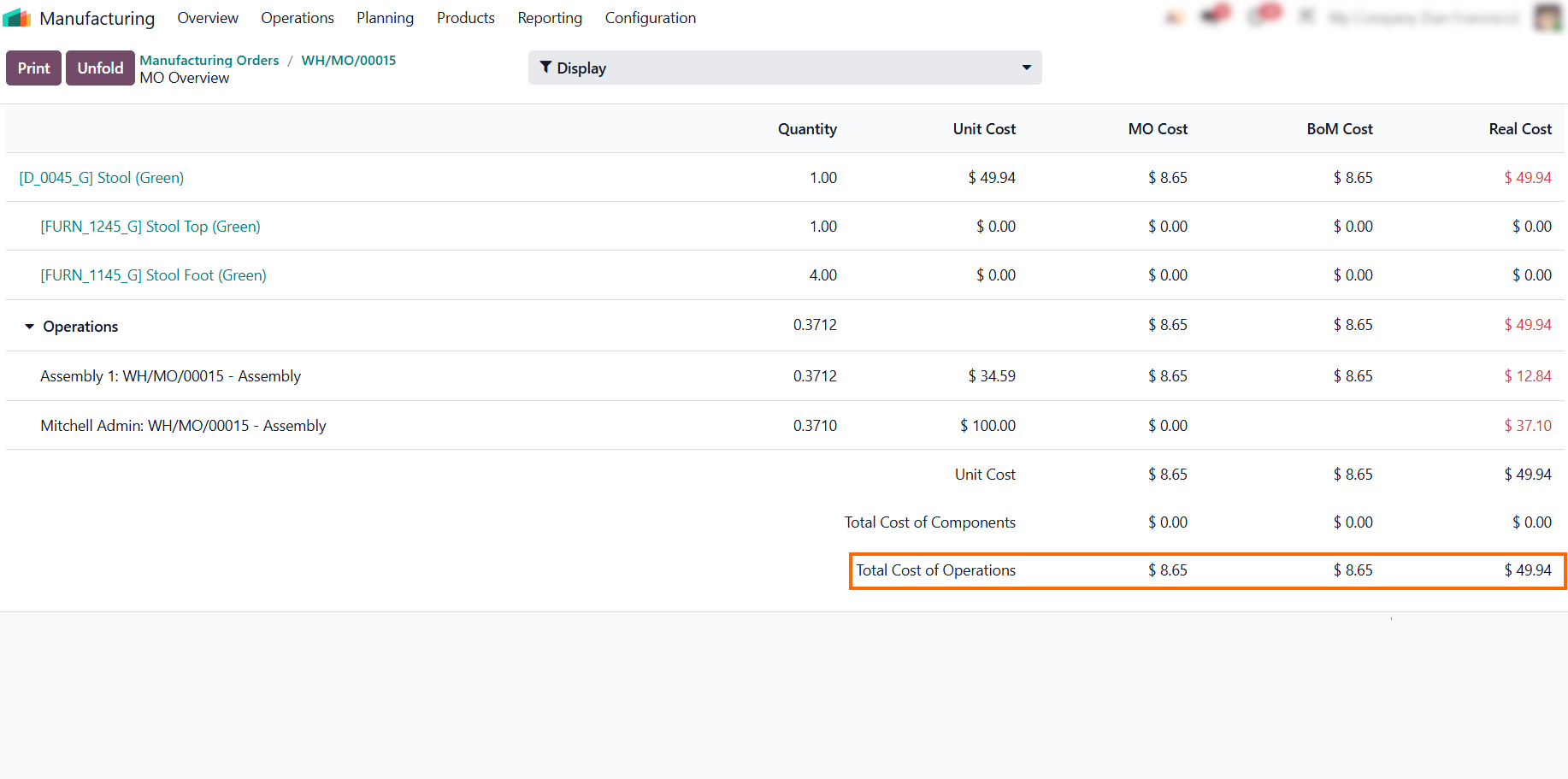
Click the “Overview” smart button on the MO form to open a consolidated report that breaks down total real costs, component usage, and operational labor time for the
completed order.
- Enabling the MO Cost and BoM Cost display columns allows managers to contrast planned costs ($8.65) against actual execution costs ($49.94), showing how shop floor time and labor rates impact final product costing.
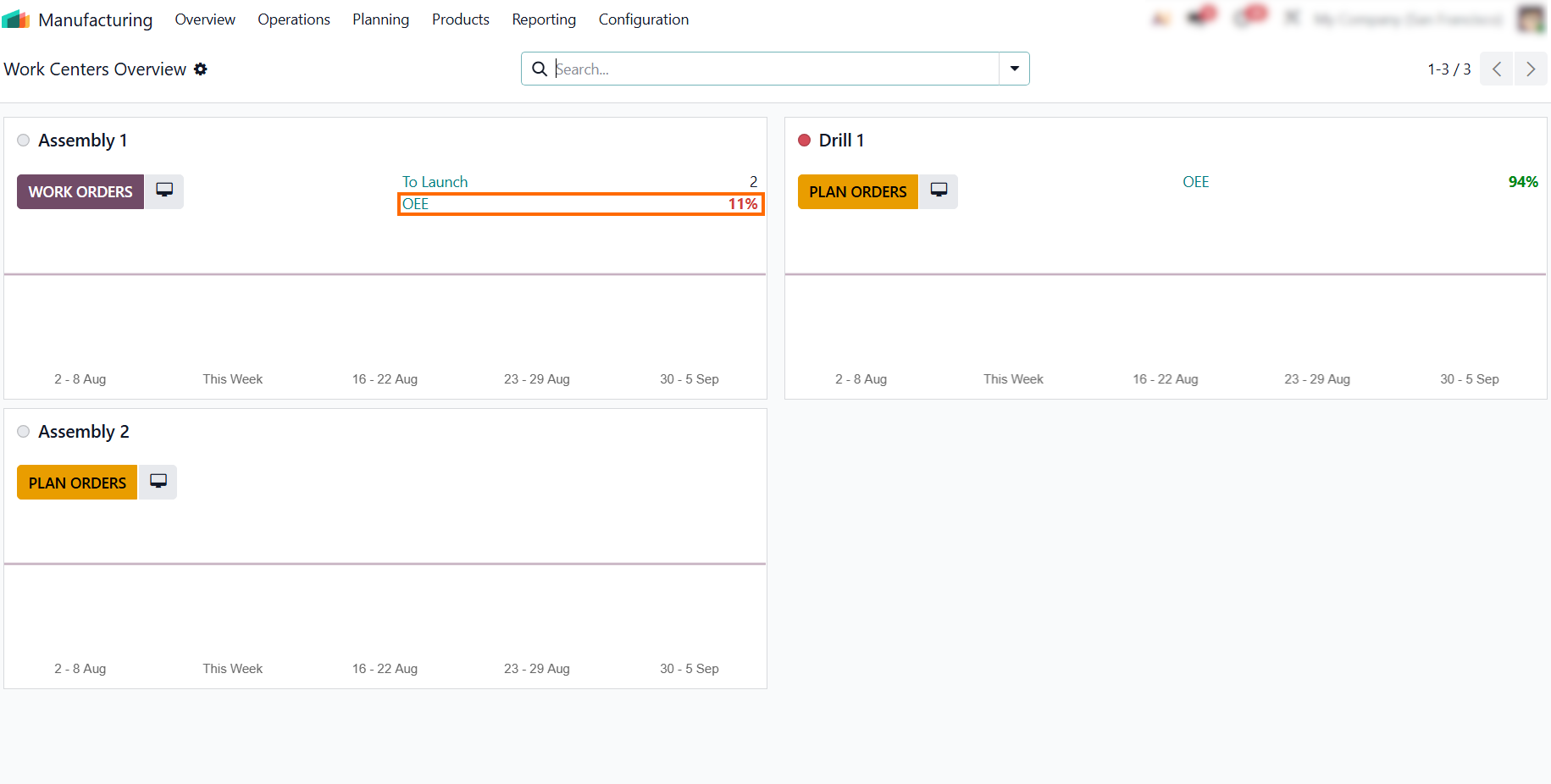
Return to the main Manufacturing Overview dashboard to monitor equipment efficiency.
Logged time updates performance metrics and highlights underperforming work centers, such as Assembly 1 at 11% OEE due to execution delays.
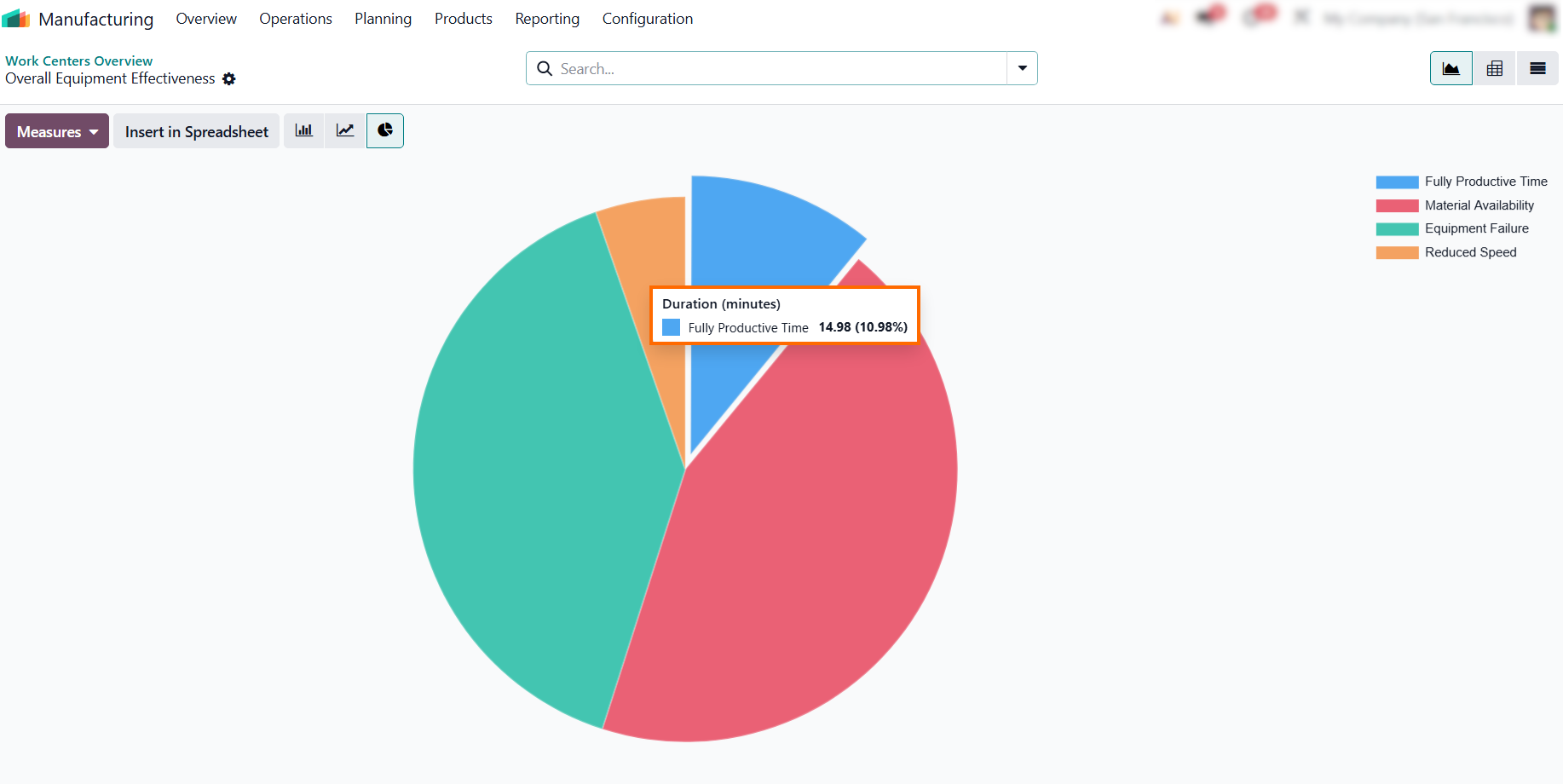
- Hovering over chart segments in the Overall Equipment Effectiveness report displays exact duration metrics for categories like Fully Productive Time (14.98 min / 10.98%), allowing managers to identify specific efficiency losses.
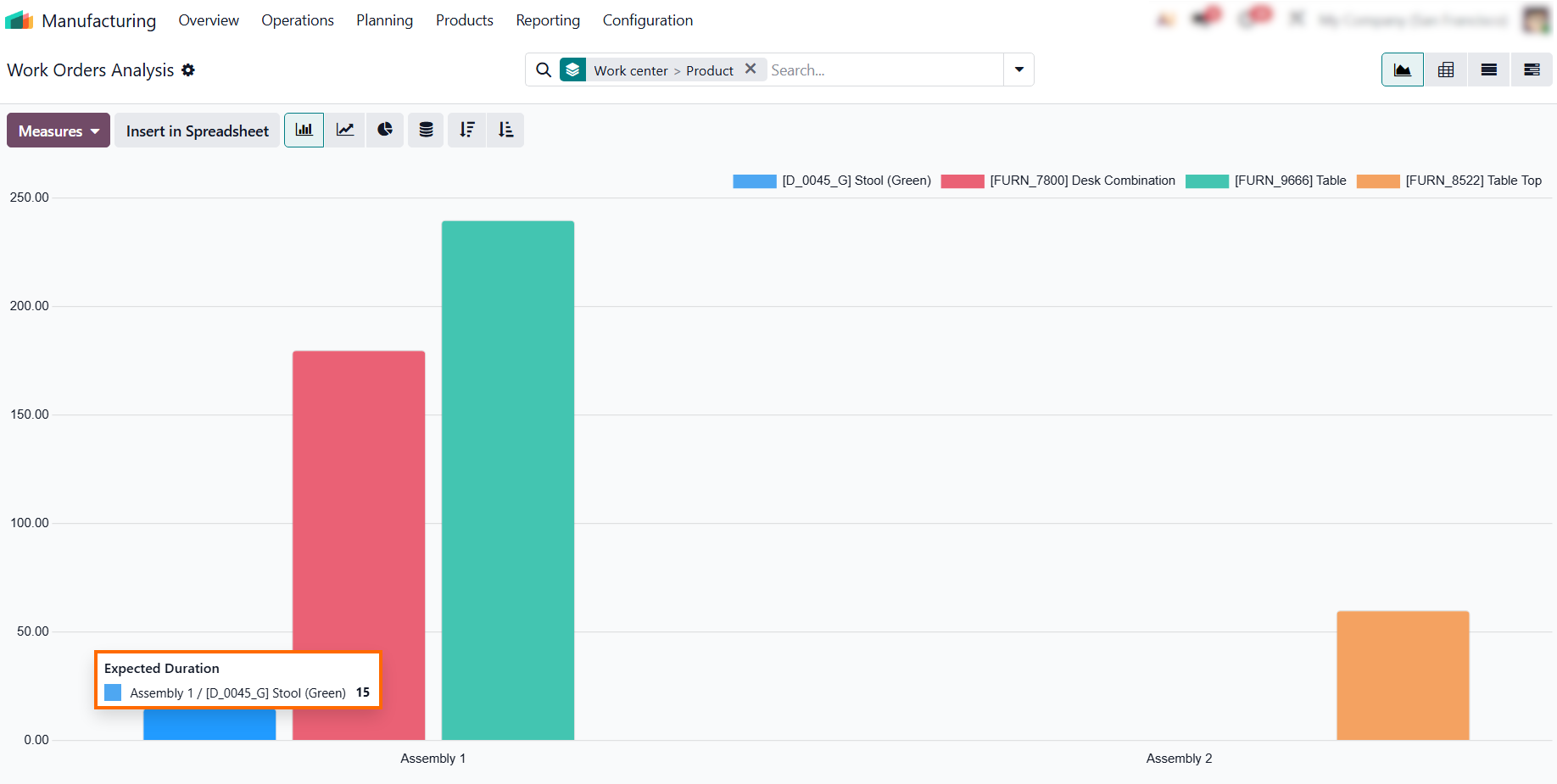
In the Work Orders Analysis report, group by Work Center and Product to compare planned execution times across items and assess capacity requirements for each work center.
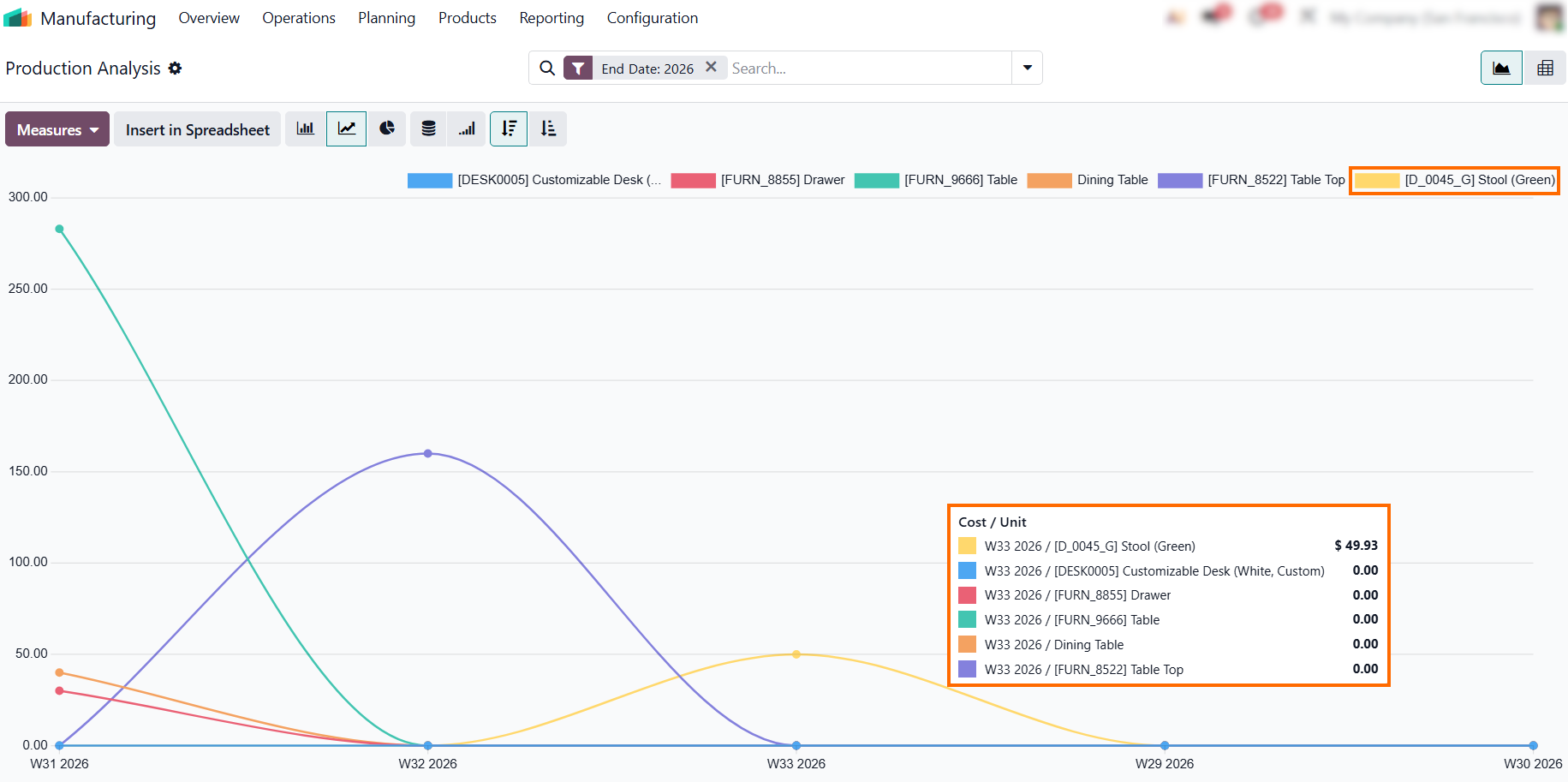
- Open the Production Analysis report to track how shop floor
execution affects product costs. Select the stacked area chart and Cost /
Unit measure to view cost shifts across
production runs and highlight product cost variances, such as the Stool at $49.93.
Ensuring Quality Control and Error Prevention in Odoo Shop Floor
Integrating digital SOPs and quality checks directly into the Odoo Shop Floor interface helps detect defects before they reach the next stage of production. By embedding mandatory check steps, precise measurements, and visual quality notes into operator workflows, teams can ensure immediate compliance with standard operating procedures. Real-time logging and instant Quality Alert creation empower operators to catch issues early, protect output consistency, and resolve non-conformances without disrupting shop floor operations. This approach also gives supervisors a clear record of quality issues, making it easier to identify recurring problems and improve production processes.
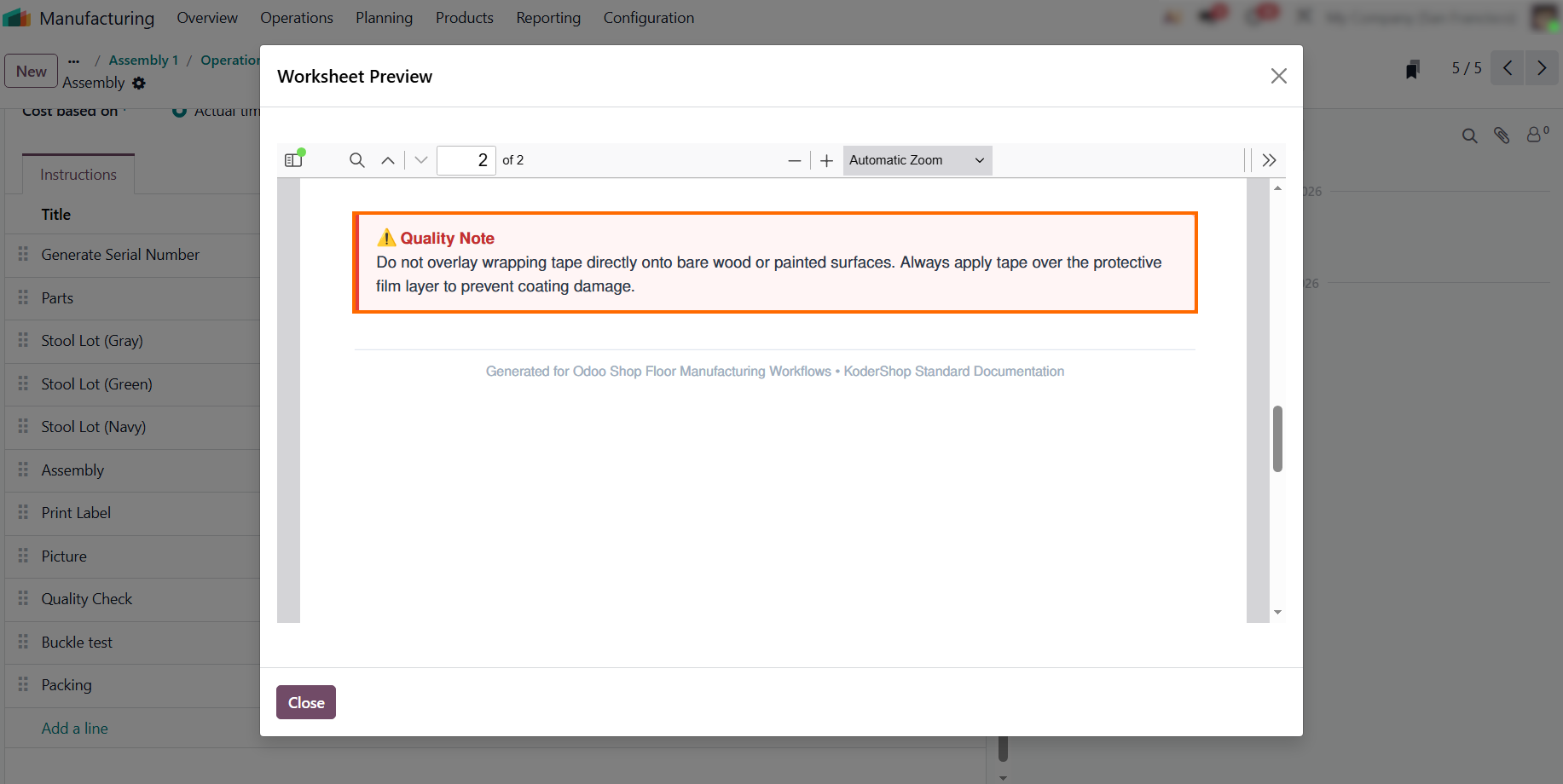
- Open the “Packing” instruction to access its assigned worksheet and view the attached SOP directly from the operation. Operators can use the document as a ready reference while completing the task.
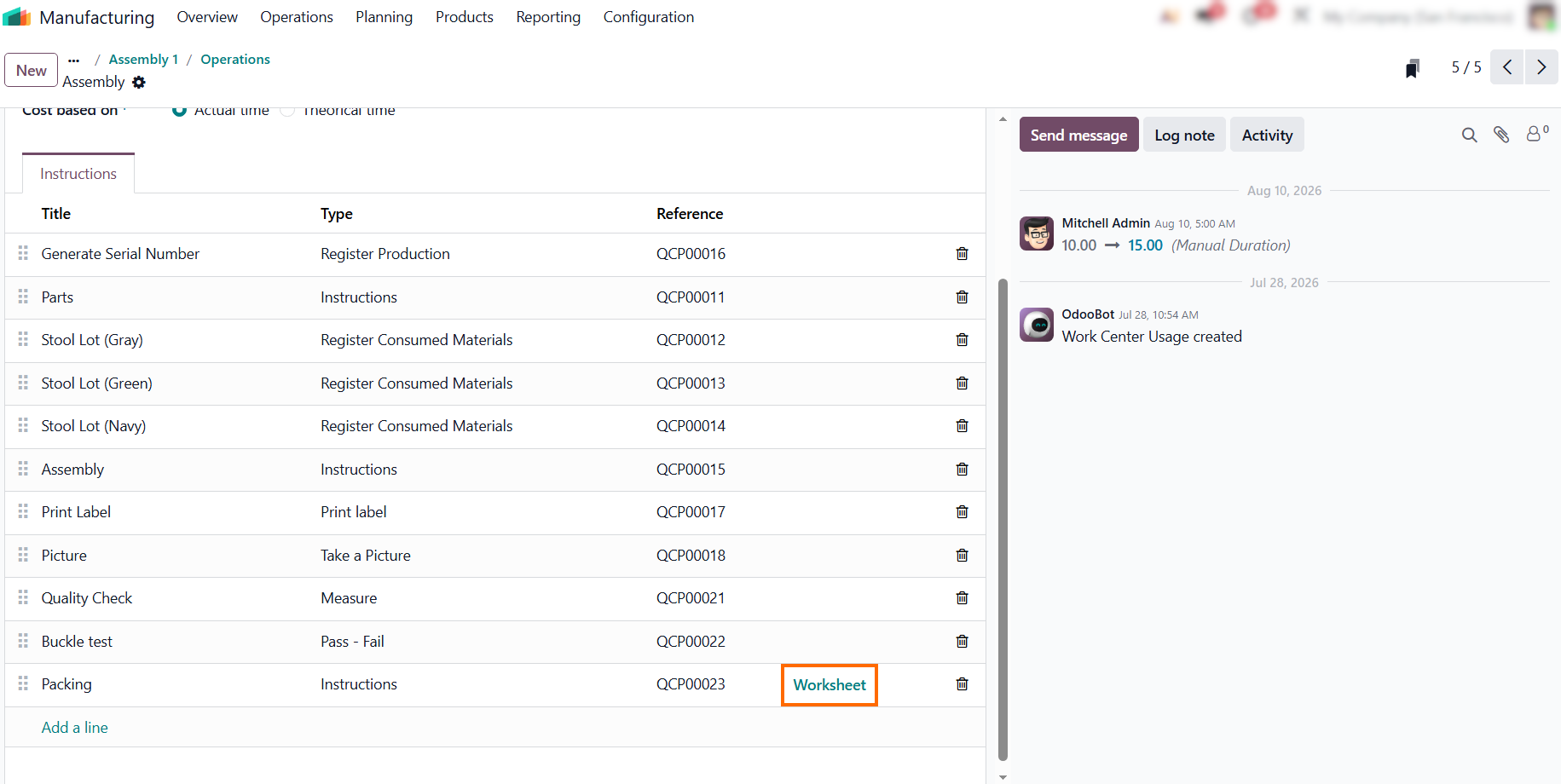
Use clear PDF diagrams and visual checkpoints to guide new or temporary operators through complex assembly routines, helping reduce initial training time and maintain
consistent execution.
- Embed mandatory measurements and Pass/Fail validations directly into critical operations. Requiring operators to confirm key metrics before proceeding helps prevent non-conforming parts from moving downstream.
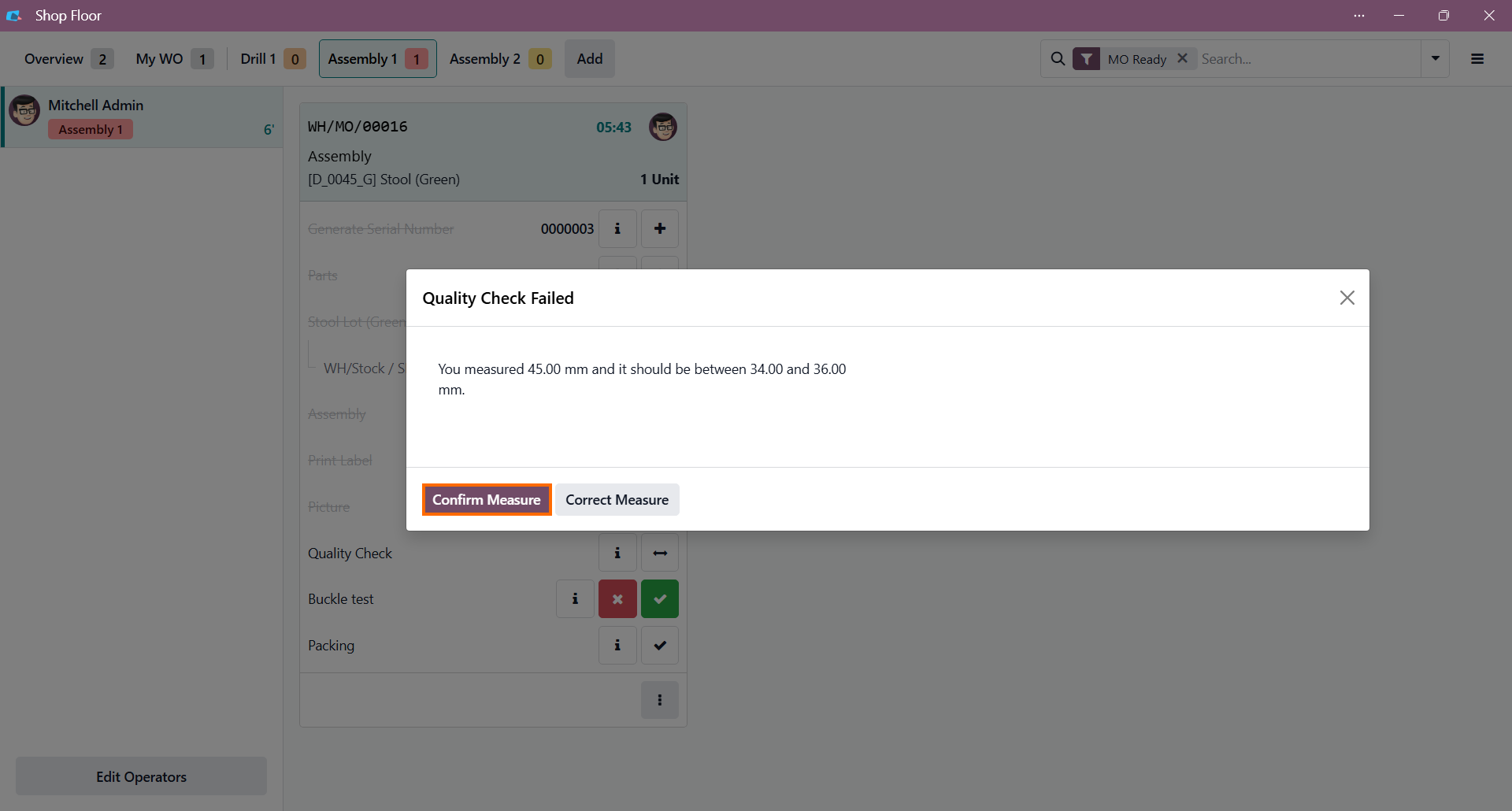
When an operator enters a measurement outside the acceptable tolerance limits, Odoo Shop Floor automatically marks the Quality Check as "failed," flagging the non-conforming result for further action.
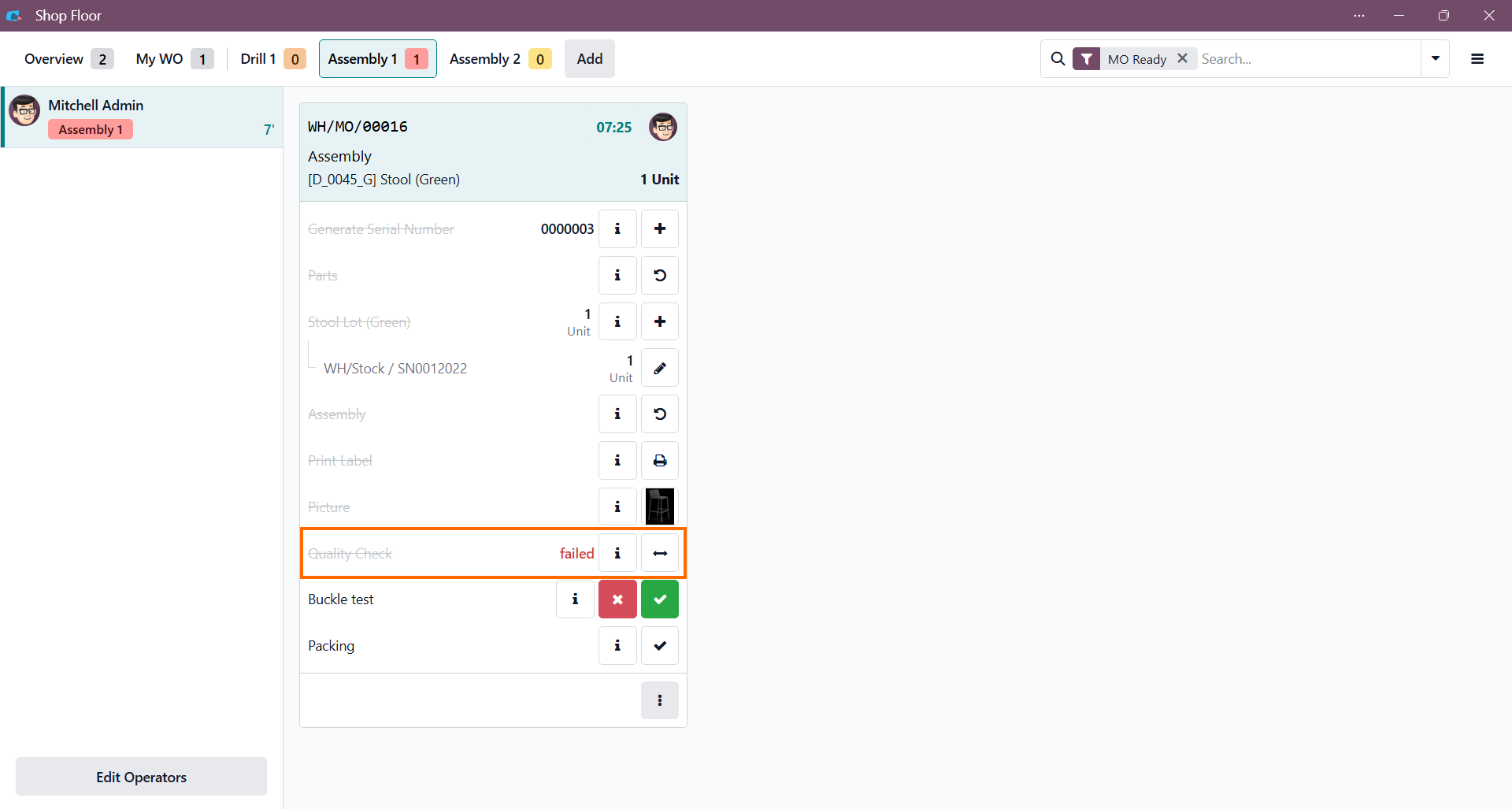
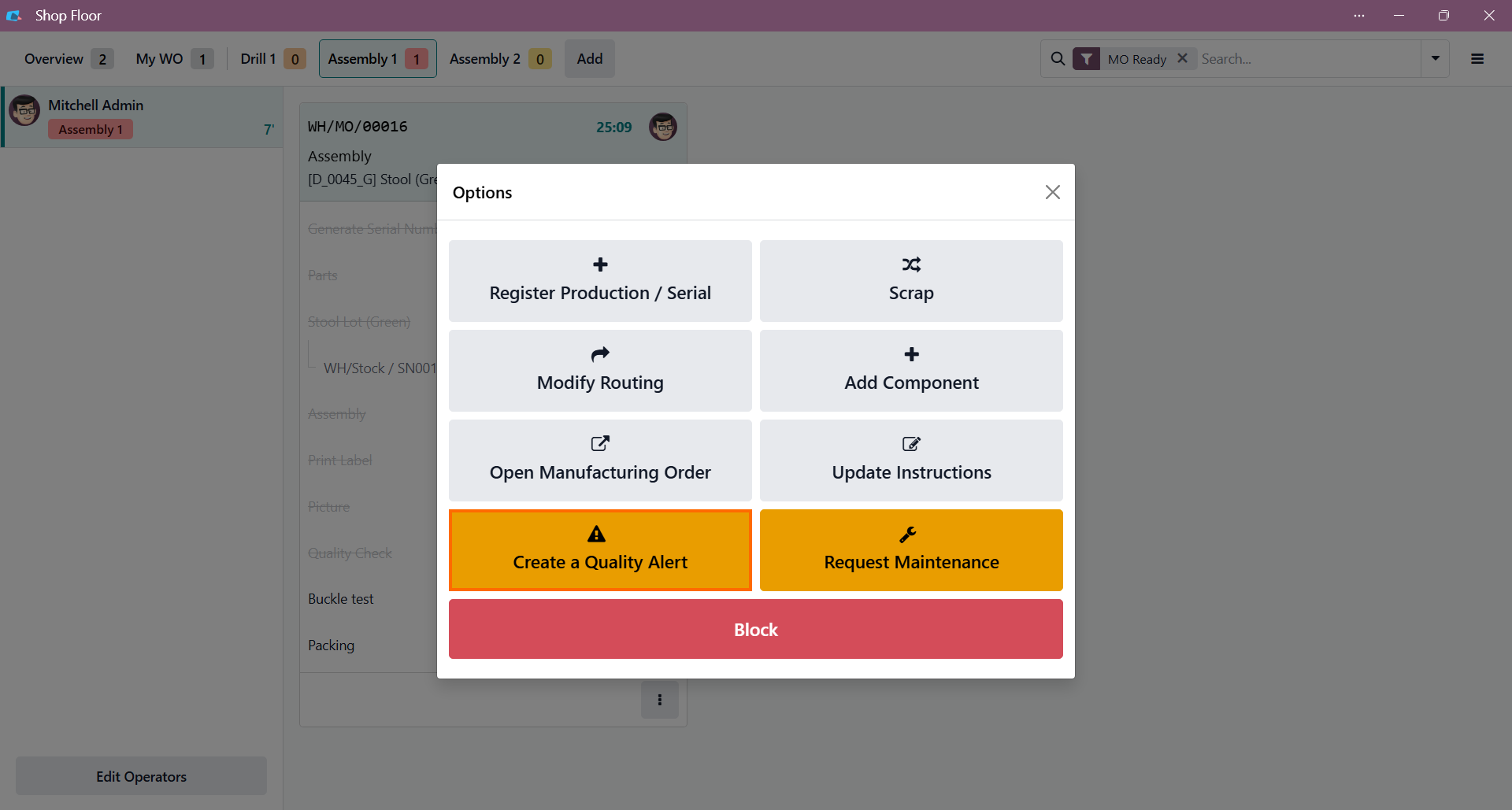
Operators can instantly log a Quality Alert via the action menu, notifying the quality team without leaving the workstation.
This reduces manual paperwork and floor delays by enabling immediate issue escalation.
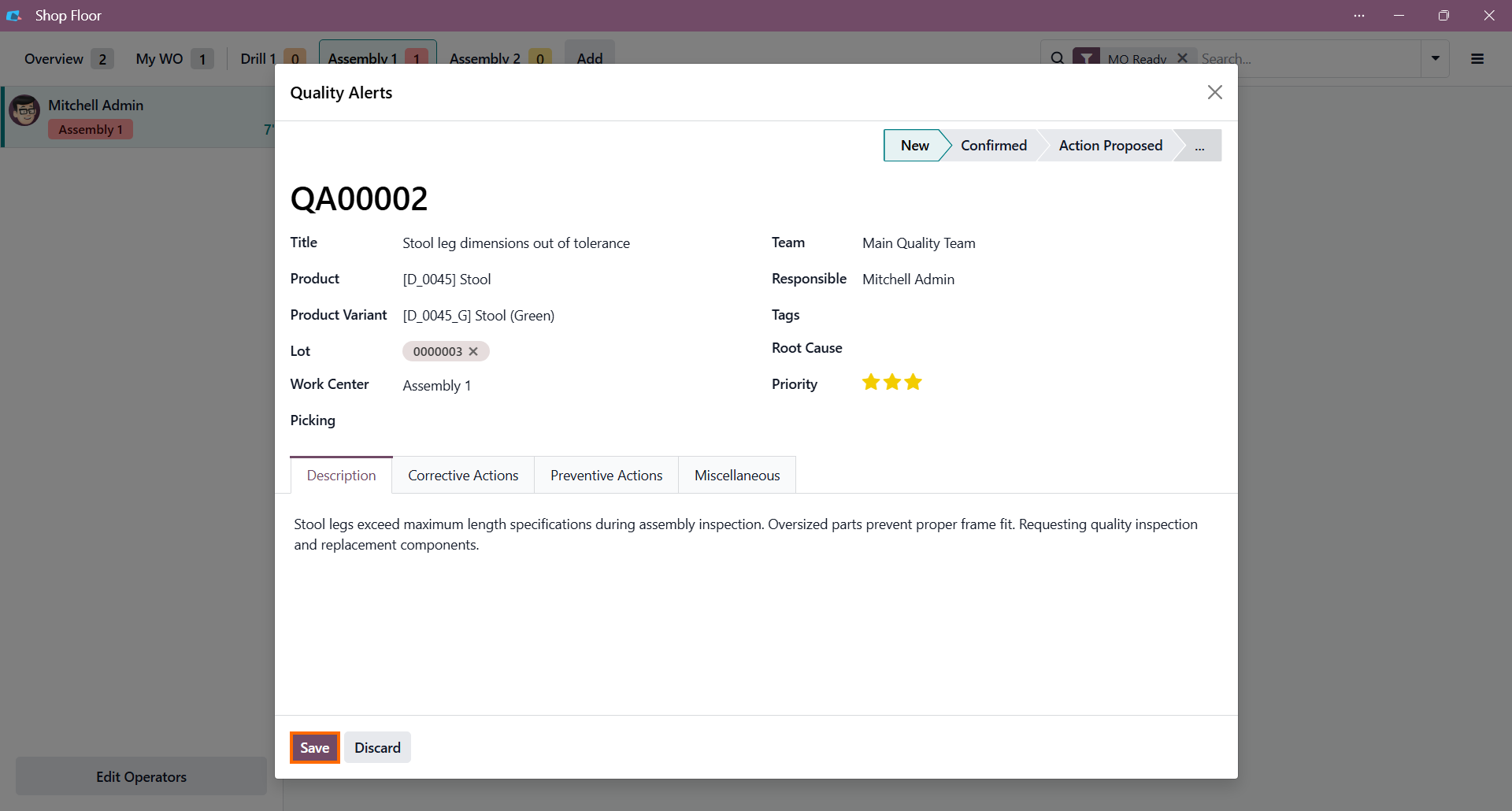
- Adding issue descriptions, priorities, or corrective actions directly to the alert ensures full traceability and gives quality managers the details needed to investigate and resolve defects.
Conclusion: Streamlining Shop Floor Execution with Odoo Digital SOPs
Odoo Shop Floor brings digital work instructions, quality checks, and production tracking directly to the workstation, helping operators access the information they need without leaving the production flow. By combining Odoo digital SOPs, Odoo paperless manufacturing, and Odoo Quality checks integration, manufacturers can standardize procedures, keep quality requirements accessible, and support more consistent Shop Floor operations.
With digital instruction and real-time execution data available at the workstation, teams can reduce manual paperwork, catch quality issues earlier, and identify recurring production delays. This helps operators complete tasks with less interruption, while giving supervisors better visibility into Shop Floor performance and opportunities for process improvement.