Unplanned downtime occurs when equipment failures or other interruptions stop production. Odoo 20 Manufacturing provides work center settings, productivity loss records, and OEE reports to track production interruptions and analyze their effect on operations. Without consistent downtime records, how can production managers identify recurring stoppages and determine where production losses occur? Before recording downtime, configure the relevant work centers, review productivity loss types, and check how Odoo collects work order data.
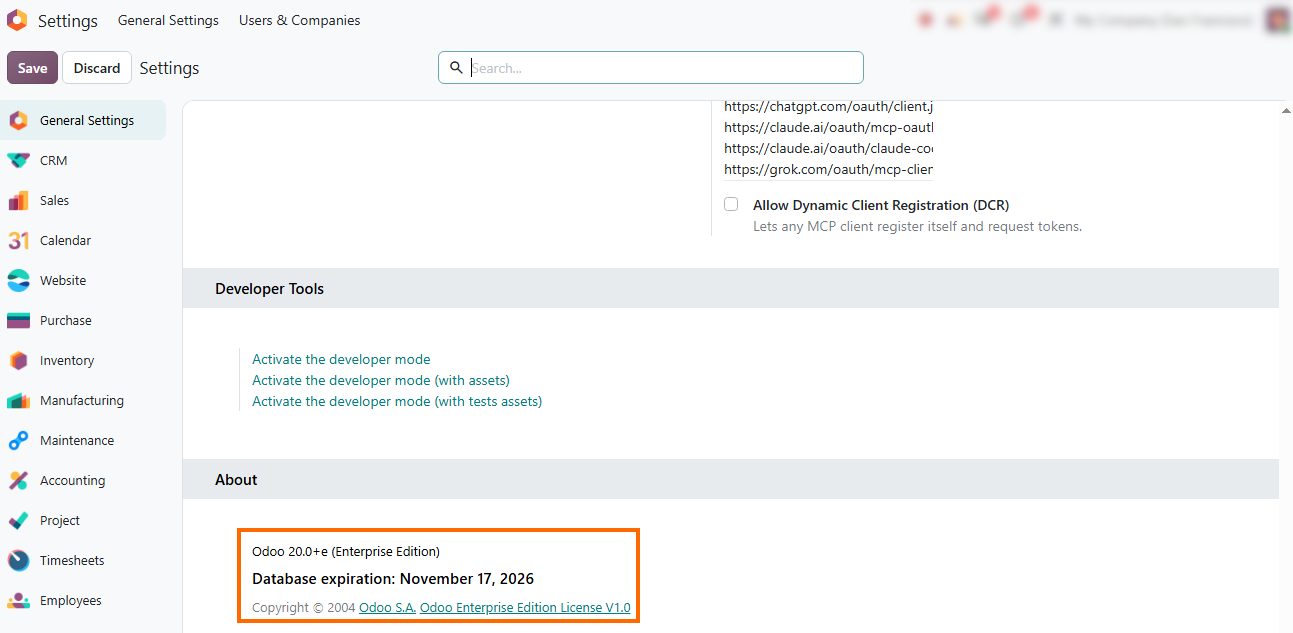
- Verify that your database uses Odoo Enterprise. You can check the edition and database status at the bottom of the Settings page. The steps below use Odoo 20 manufacturing features.
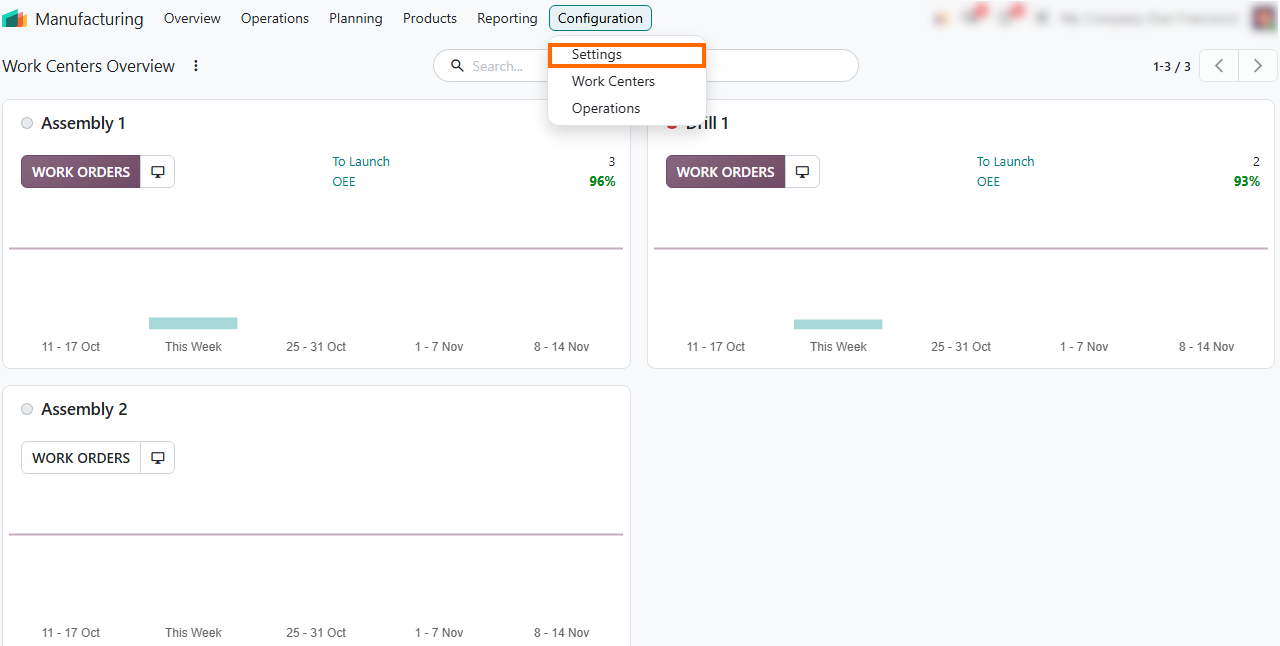
Navigate to Manufacturing, open Configuration, select Settings, and check Work Orders under Operations to enable work center management and allow logging downtime during production.
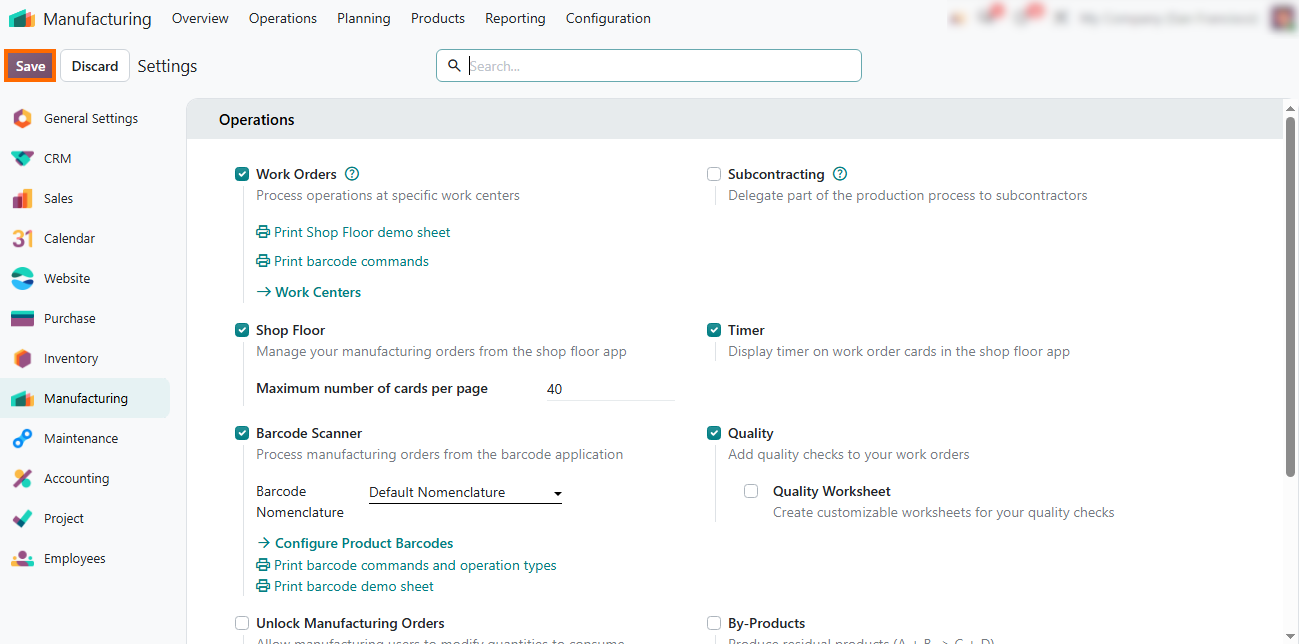
Enable Shop Floor and Timer in the same Operations section to let operators control manufacturing orders, start operation timers, and log unplanned interruptions directly from the Shop Floor app.
Open Configuration and select Work Centers to view all active work centers and see their current efficiency metrics. This list gives a quick summary of baseline OEE targets and capacity across your workstations.
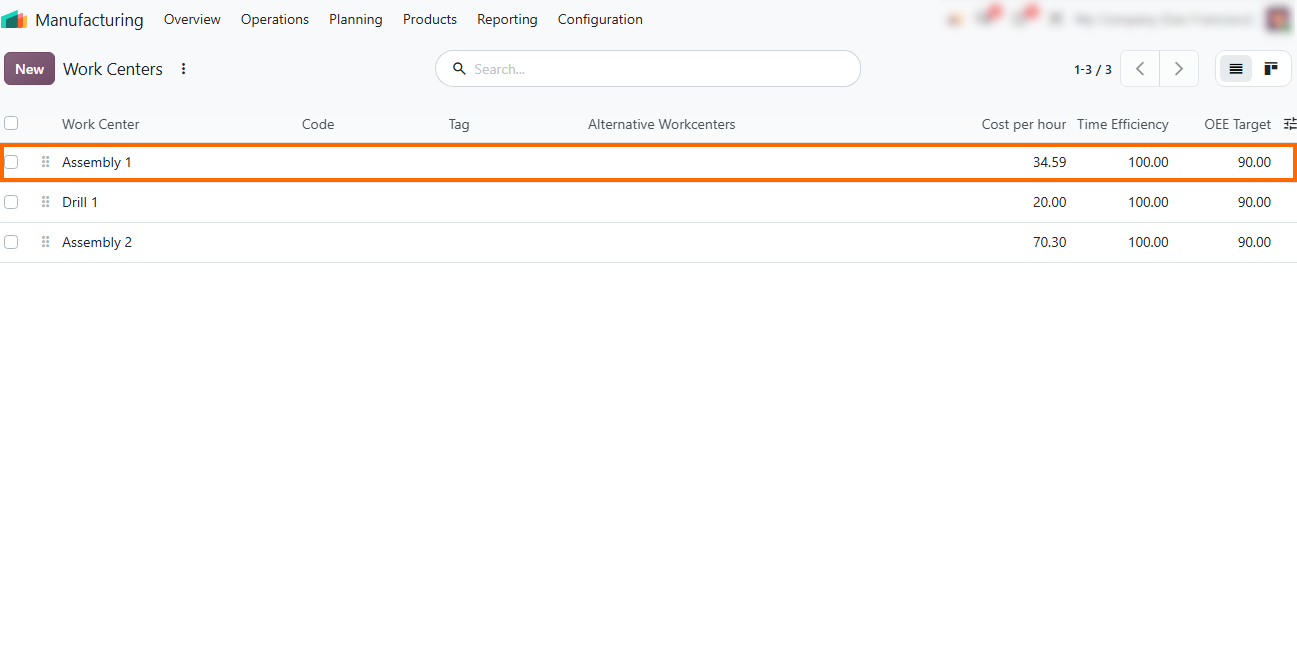
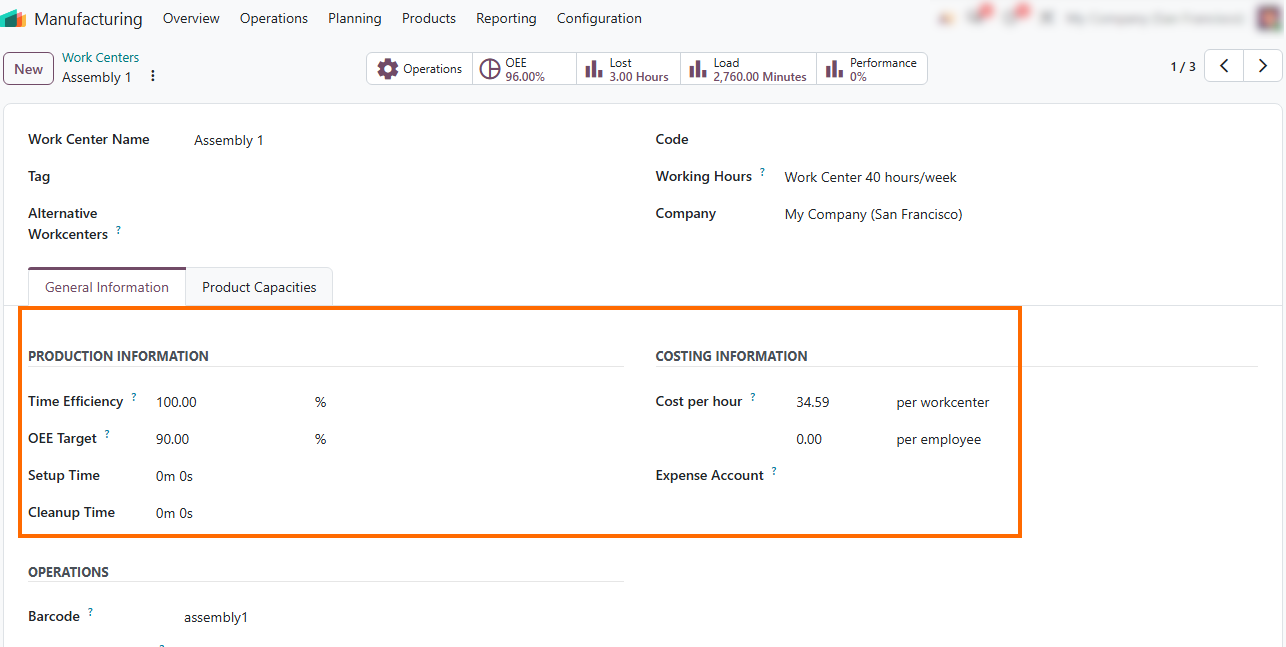
Open a work center card, such as Assembly 1, to configure production settings like Time Efficiency, OEE Target, Setup Time, and set the hourly cost under Costing Information for accurate operational accounting.
Configure Equipment and Work Centers
Equipment records help production teams connect manufacturing interruptions with the machines involved and the work centers they affect. In Odoo 20, equipment cards store operational details, identify maintenance responsibilities, and link machinery to specific work centers. This information provides context for investigating equipment failures and analyzing recurring downtime. Keeping these records up to date helps teams trace equipment-related issues to the relevant production area.
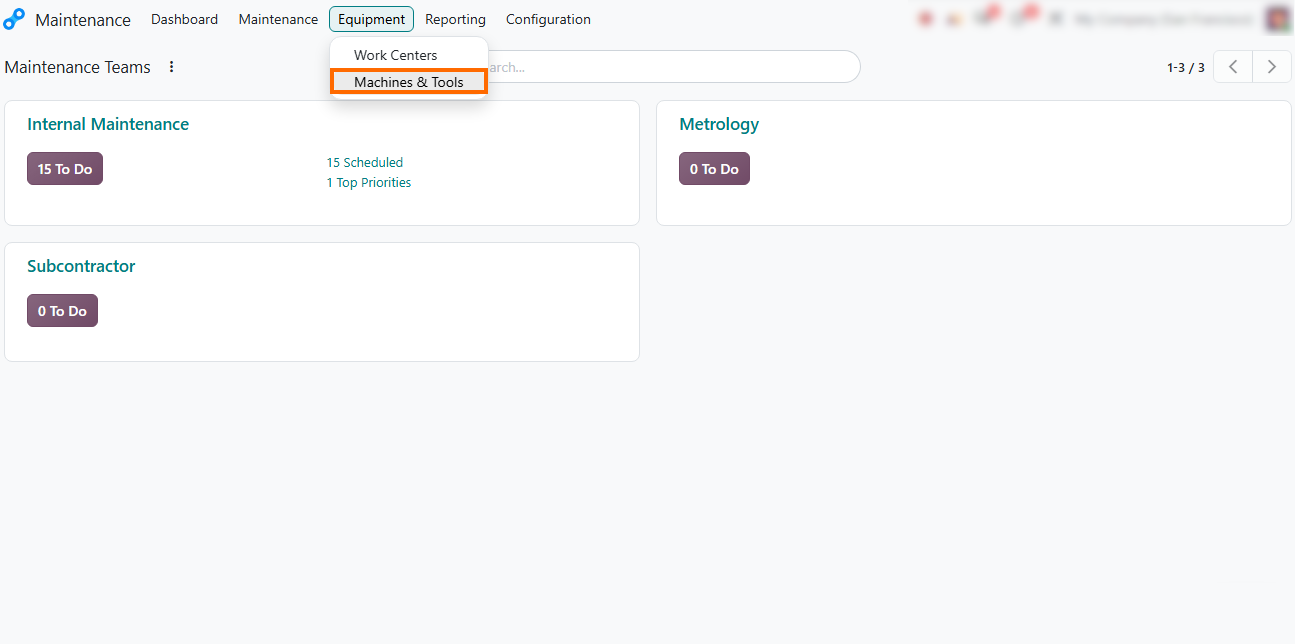
- Navigate to Maintenance, open Equipment from the top menu, and select Machines & Tools to view existing machinery or register new production equipment for equipment downtime tracking.
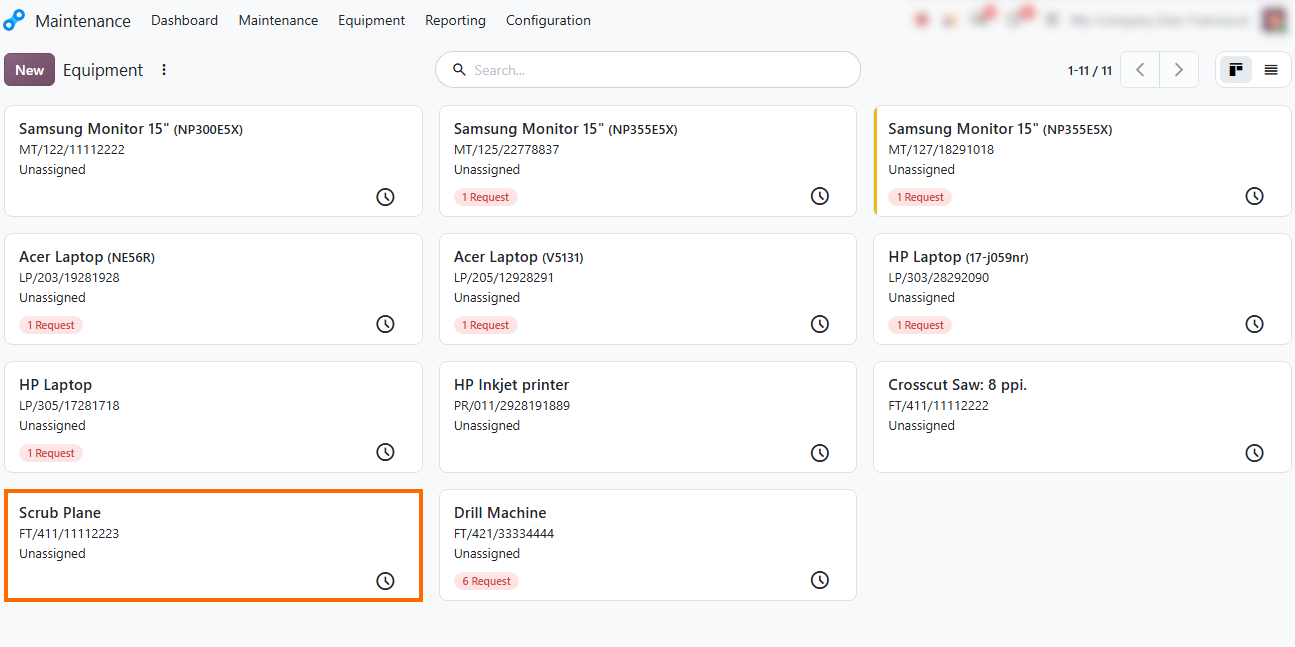
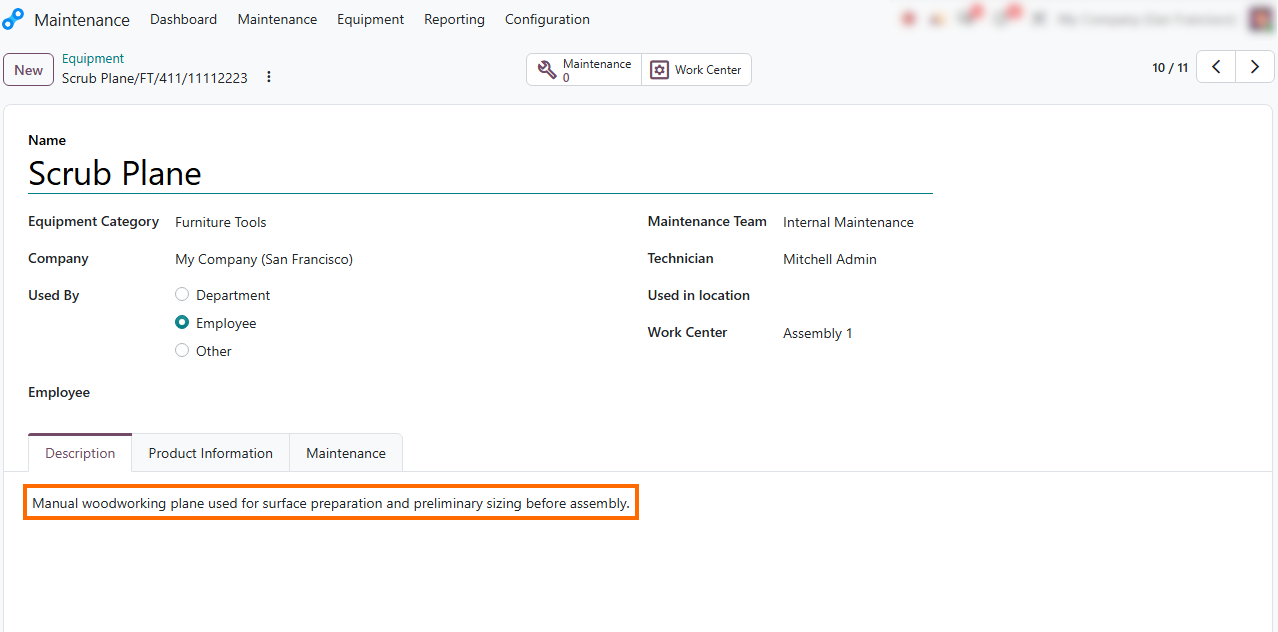
Select an equipment card, such as Scrub Plane, to view its operational parameters and link it to your manufacturing operations for accurate downtime attribution.
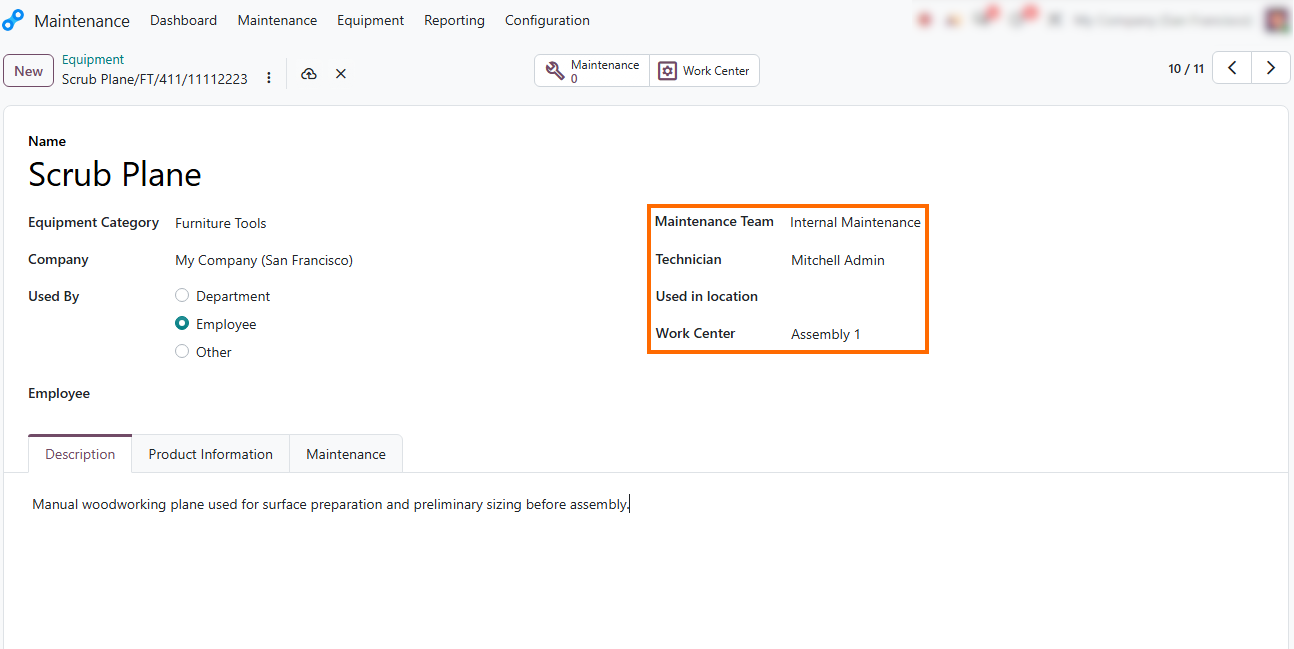
- Assign a Maintenance Team (Internal Maintenance), Technician (Mitchell Admin), and Work Center (Assembly 1) to establish clear ownership and link breakdown records directly to that workstation.
Add a brief functional note under the Description tab to record tool specifications or operational details that help technicians during equipment failure troubleshooting.
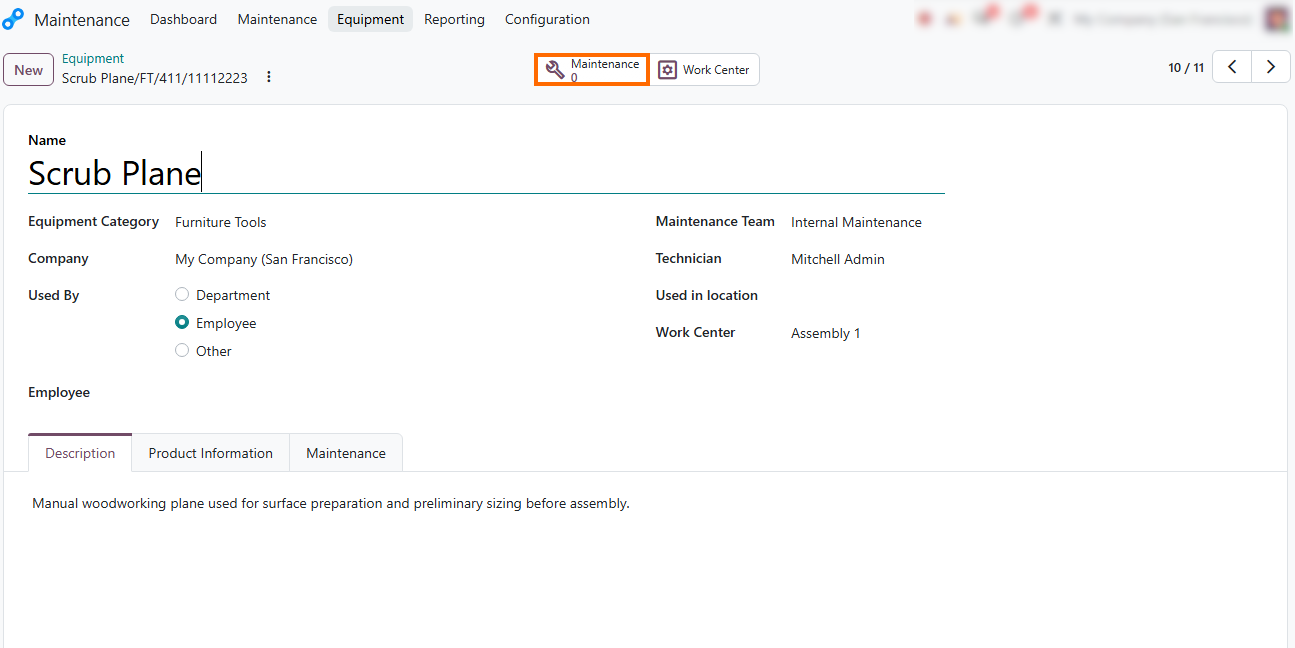
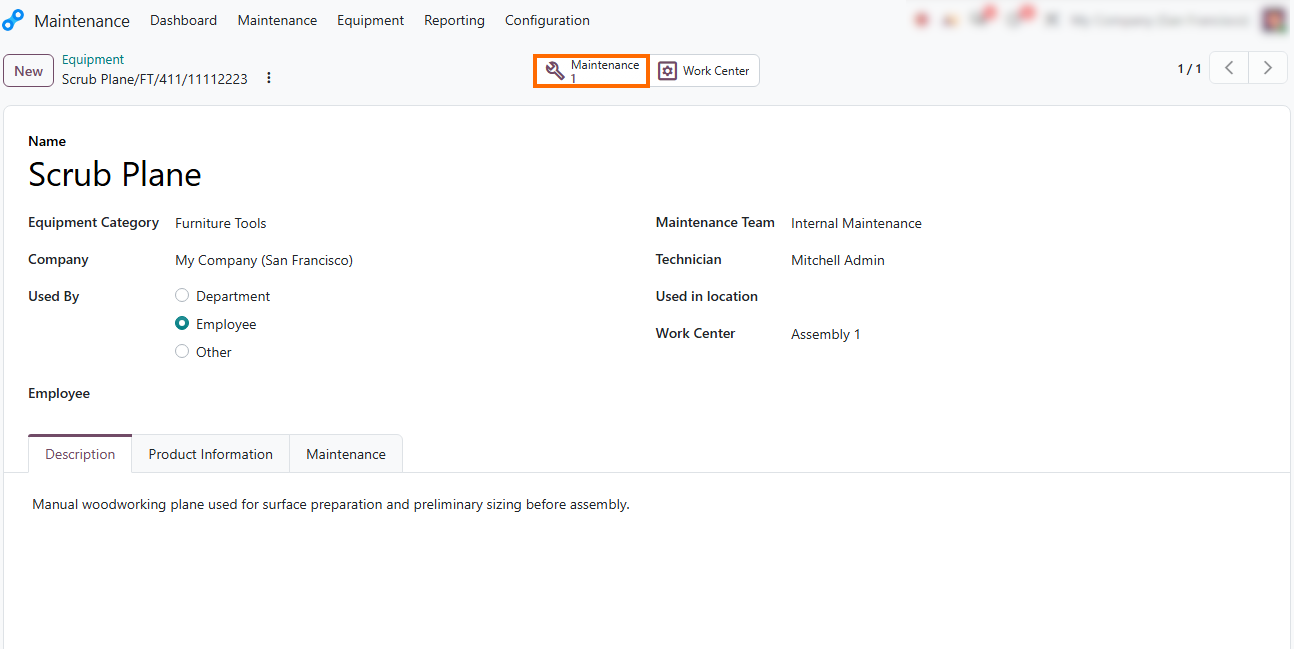
Review the Maintenance smart button at the top of the equipment card to view all maintenance requests linked to that equipment, including both open and completed requests.
Review Work Center Performance in Odoo 20
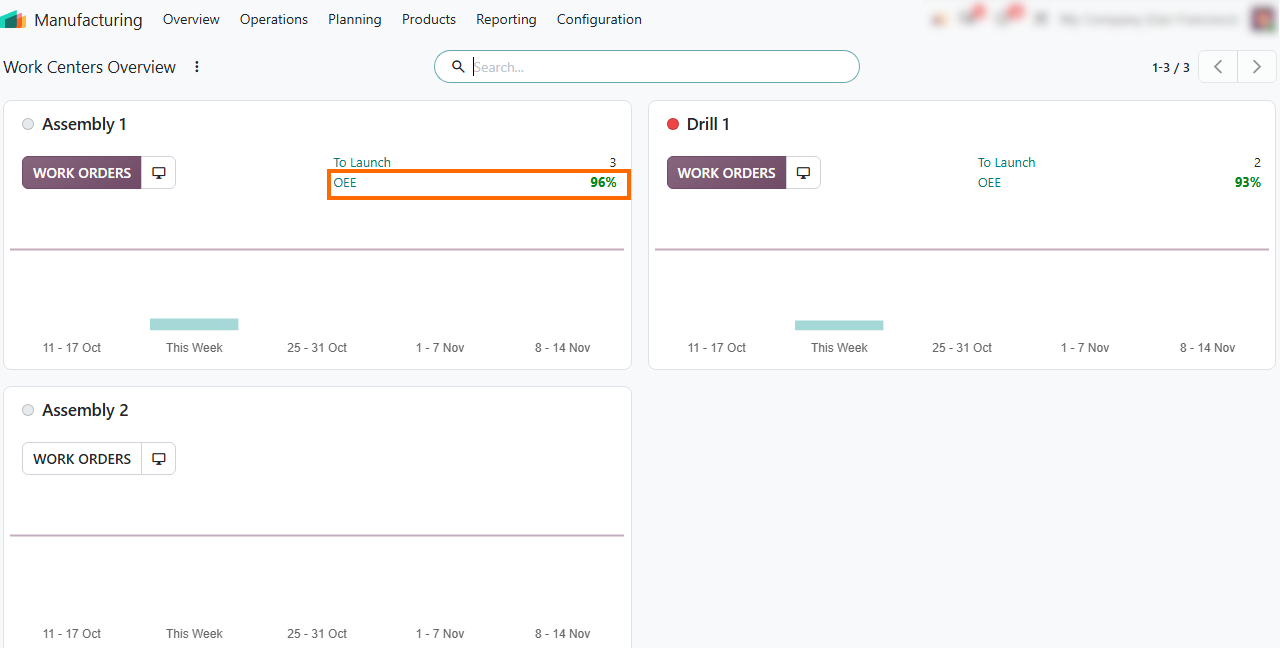
Before recording unplanned downtime, review current work center performance to establish a reference point for later downtime analysis. The Manufacturing Overview in Odoo 20 displays OEE figures and production order counters for individual work centers, helping production managers assess manufacturing efficiency and understand the workload awaiting processing. Recording current OEE values and checking queued manufacturing orders provides context for evaluating how equipment failure, manufacturing downtime, and other interruptions affect production output and contribute to production losses.
- Review the Assembly 1 work center
card and record its current OEE percentage as a reference point. After
logging an unplanned downtime
event, compare the
updated metrics to assess how the interruption affects work center performance.
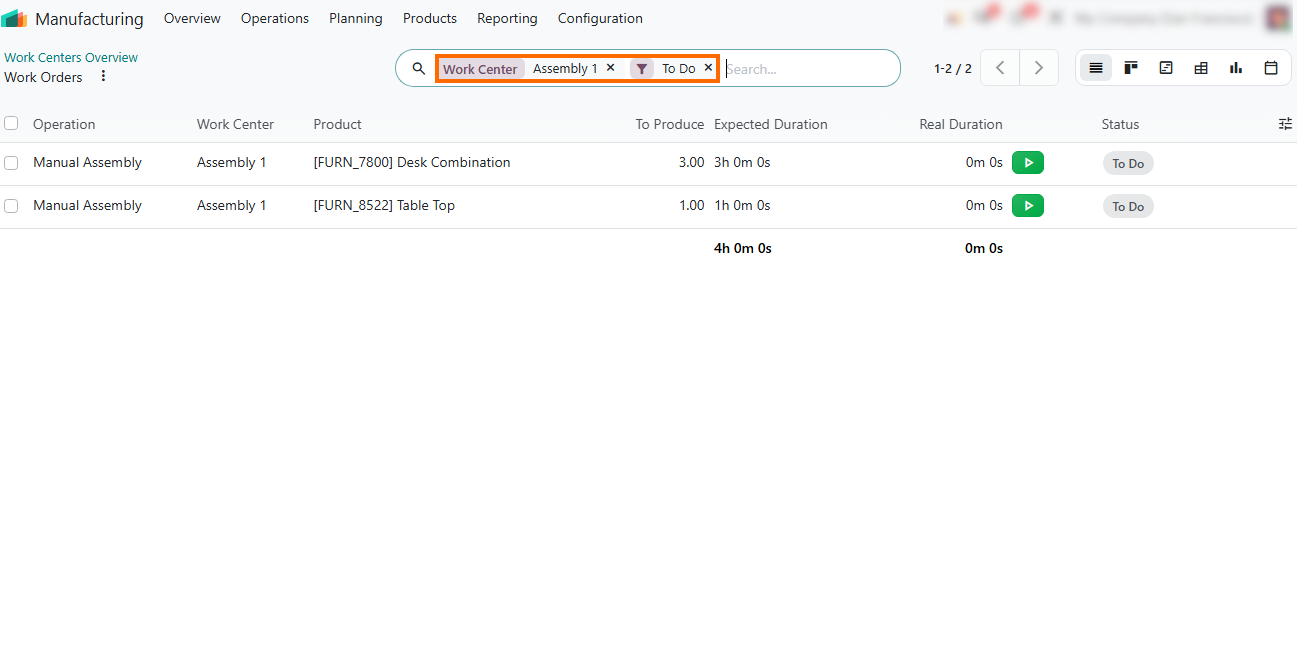
- Filter the Work Orders list by Work Center (Assembly 1) and status (To Do) to evaluate pending queue volume and assess how potential equipment failure could delay production deadlines.
Open a work order form, such as Manual Assembly, and click Open Shop Floor to transition from administrative management to the operator interface for real-time tracking.
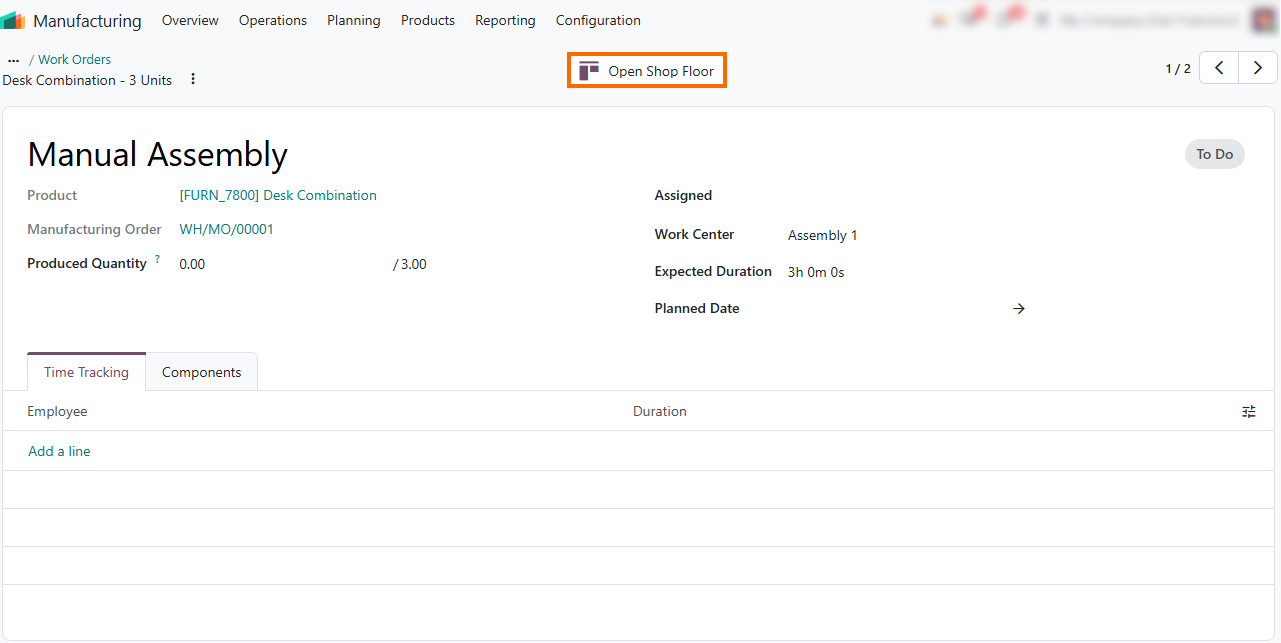
Record Equipment Issues in Odoo 20 Shop Floor
With Assembly 1 configured and its initial OEE recorded, the next step is to document unexpected equipment issues and review their potential impact on production. In Odoo Shop Floor, operators can create a maintenance request directly from an active work order when an equipment issue requires attention. Linking the request to the relevant equipment and work order helps maintenance and production managers investigate the incident alongside work center performance and available OEE data.
Click the three-dots menu on the active work order card to access the contextual actions available in Shop Floor.
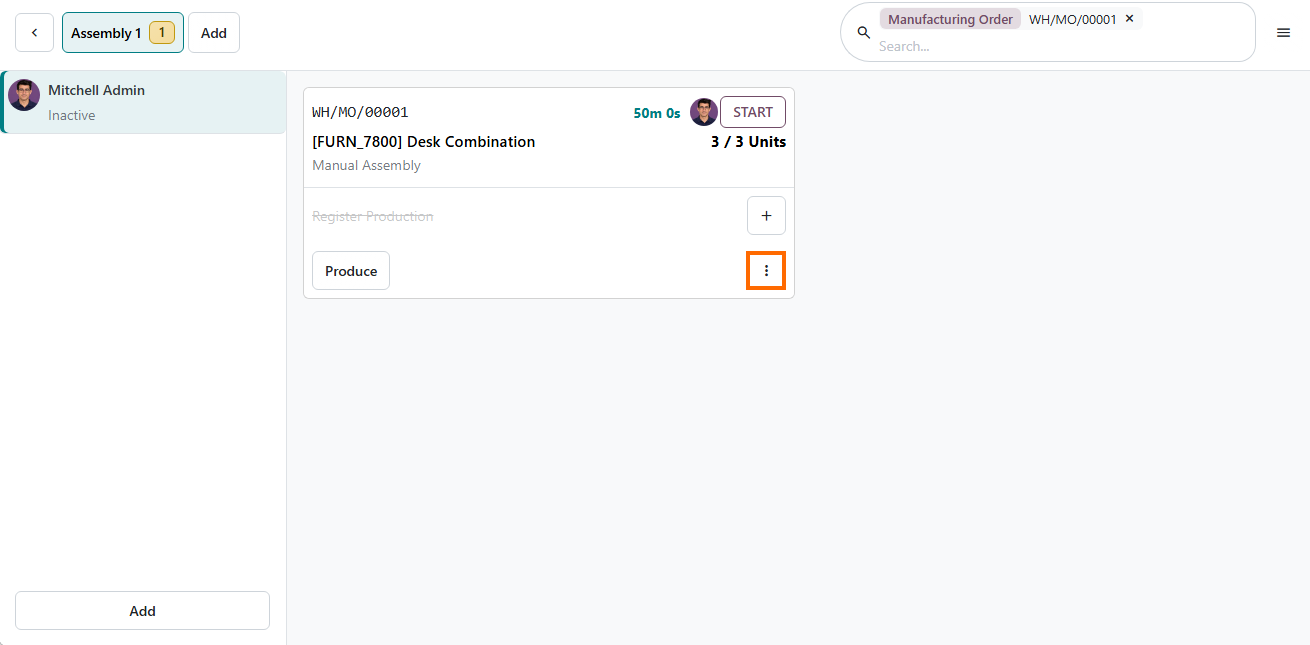
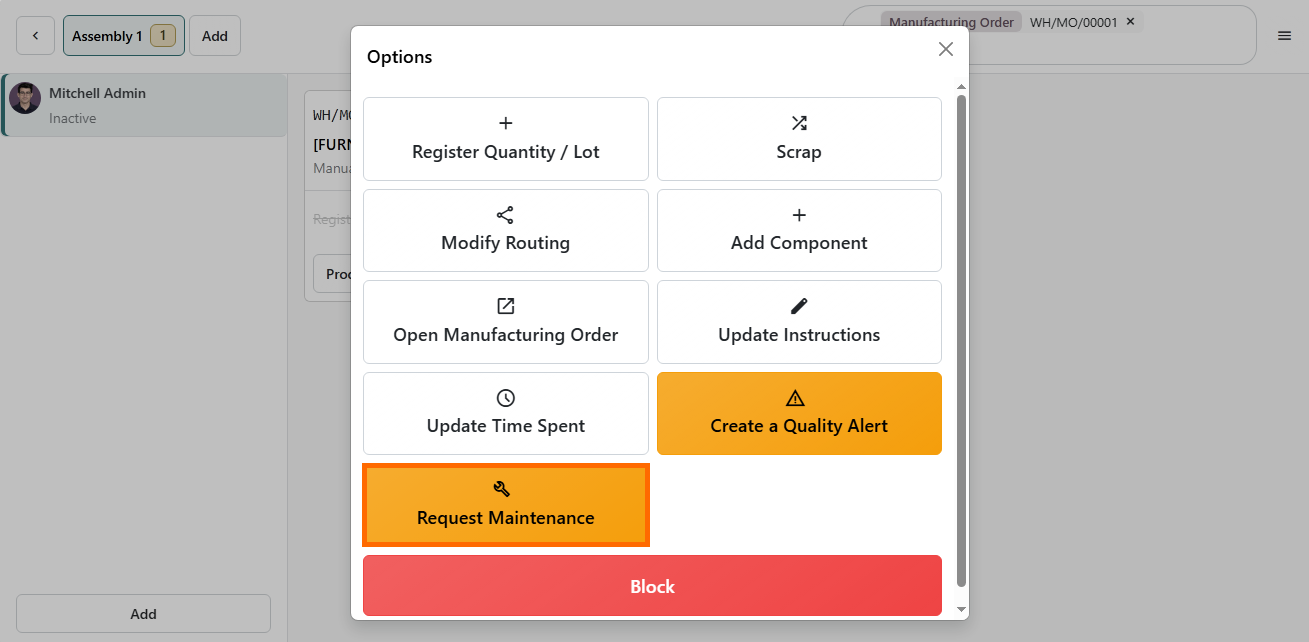
- Select Maintenance from the work order card’s menu to create a maintenance request for the work center and document the equipment issue directly from Shop Floor.
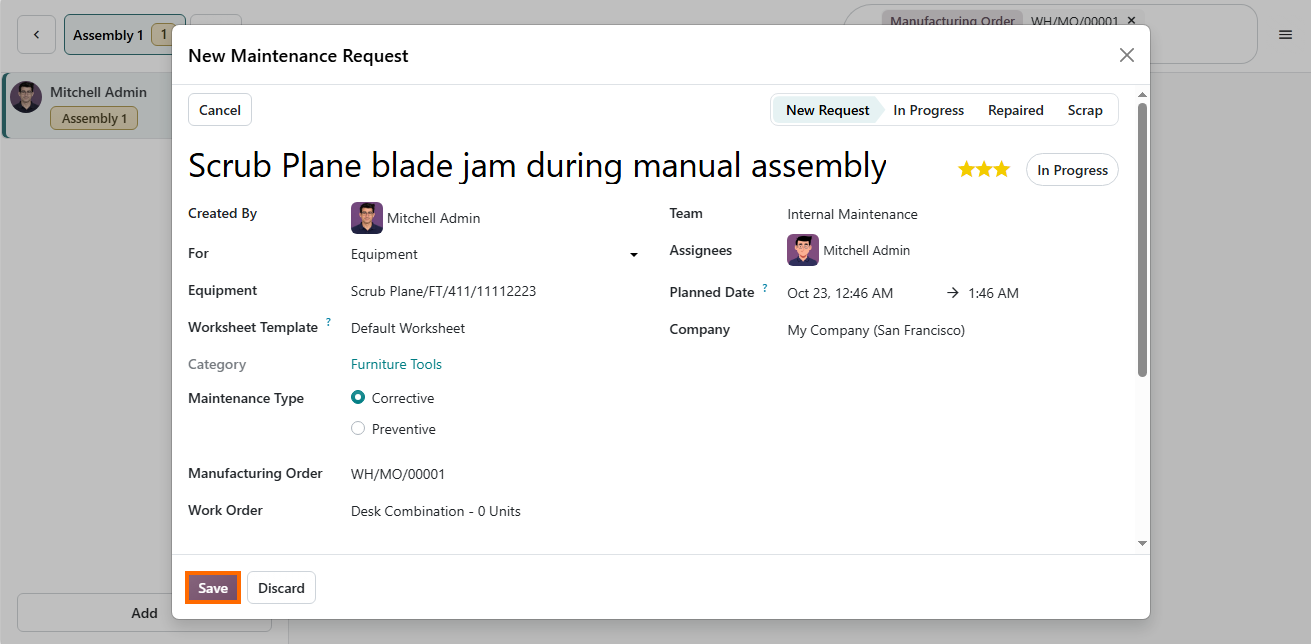
Complete the New Maintenance Request modal by entering a descriptive title and selecting a Worksheet Template. Review the available equipment and work order links to confirm that the request is associated with the relevant production activity.
Review the equipment form to verify that saving the ticket updates the Maintenance smart button, directly linking the newly logged repair request to the Scrub Plane record.
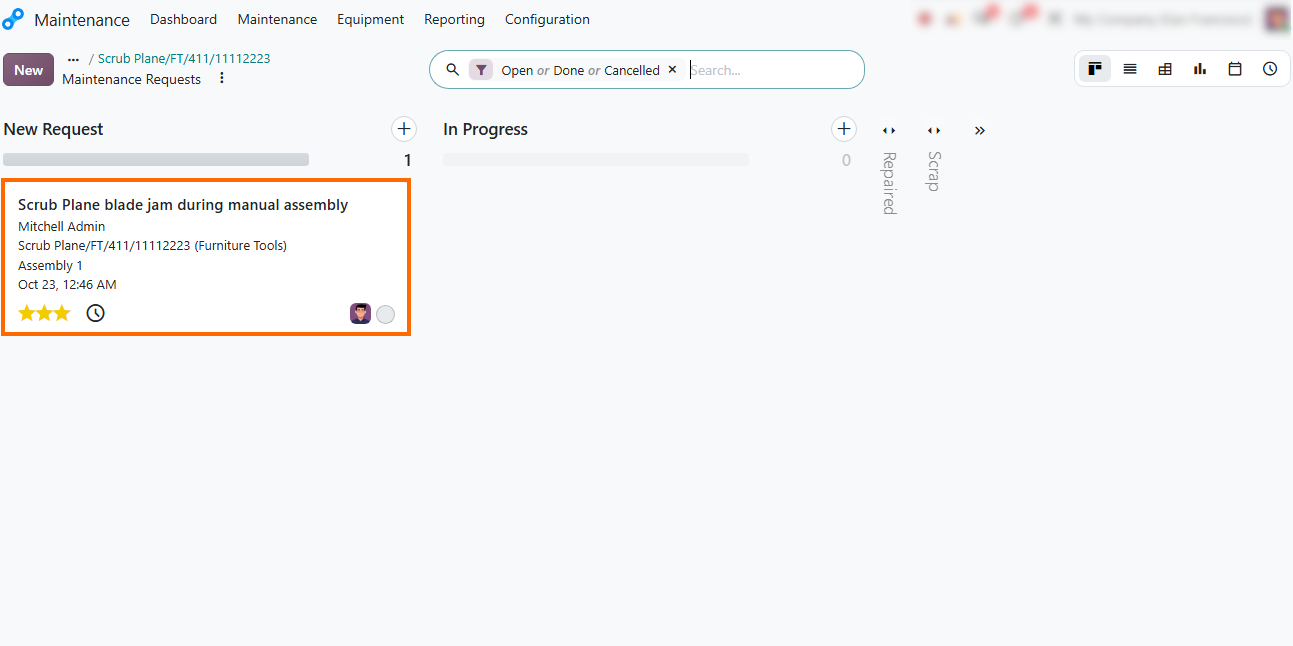
View the Maintenance Requests board to track the newly generated ticket in the New Request column, where the maintenance team can manage, assign, and process the maintenance.
Analyze OEE Metrics and Measure Financial Impact in Odoo 20
After operators log production interruptions in Shop Floor, managers must evaluate how these stoppages affect capacity and operating efficiency. Odoo 20 aggregates real-time time tracking data and productivity loss records into centralized performance reports. Analyzing OEE metrics and work order duration deviations provides structured visibility into operational losses, enabling managers to isolate equipment failure trends, identify work center bottlenecks, and assess how production delays and equipment downtime affect operating costs using available work order and cost data.
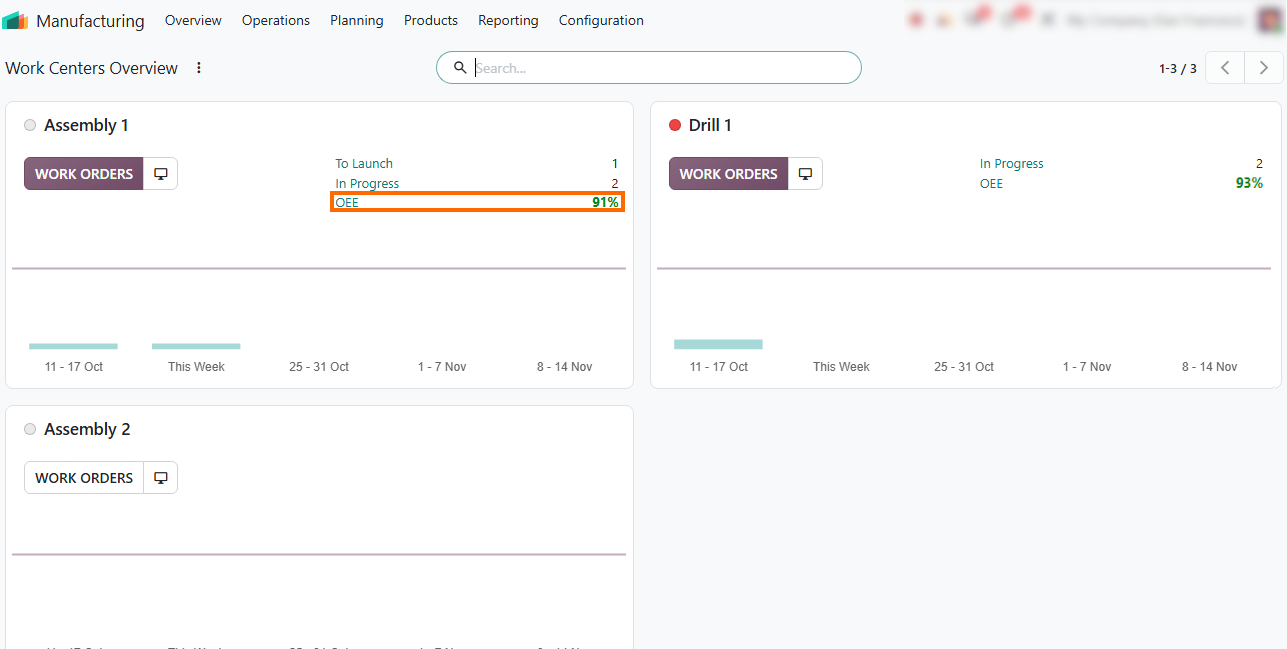
- Open Overview in the Manufacturing app to review the Work Centers Overview dashboard. Compare the OEE for Assembly 1 before and after the maintenance-related breakdown, noting the decrease from 96% to 91%.
Navigate to Reporting and select Work Orders, switching the metric to Duration Deviation (%) to evaluate execution delays and compare planned vs. actual
operation times across work centers.
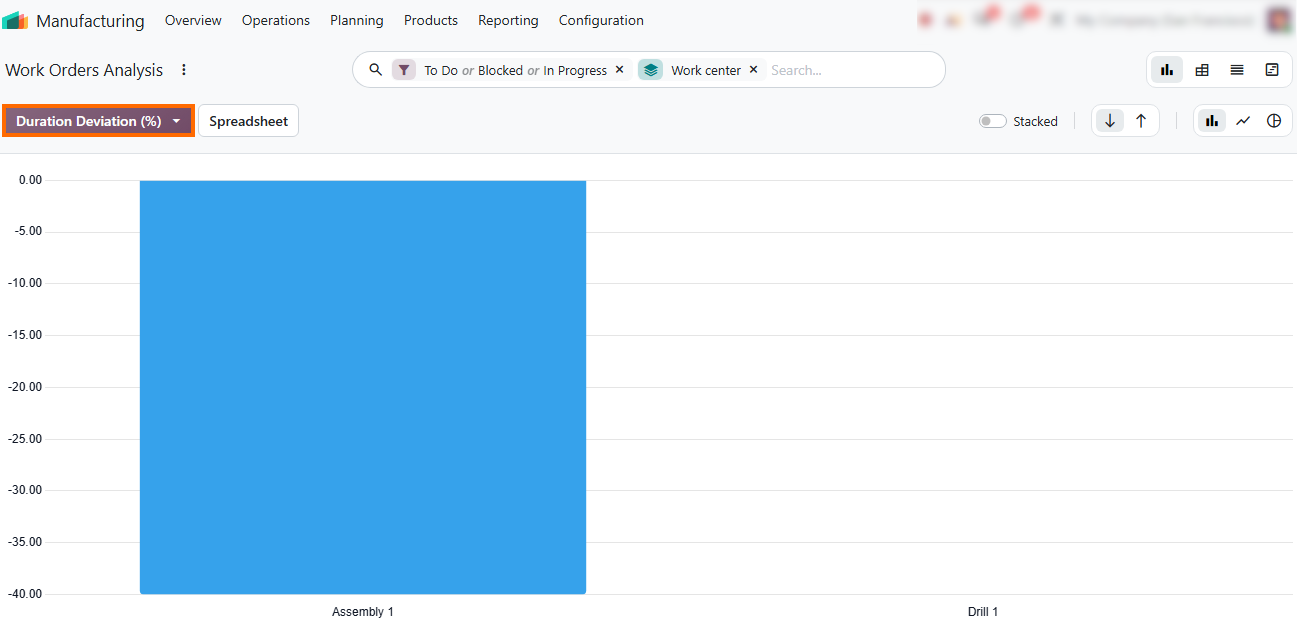
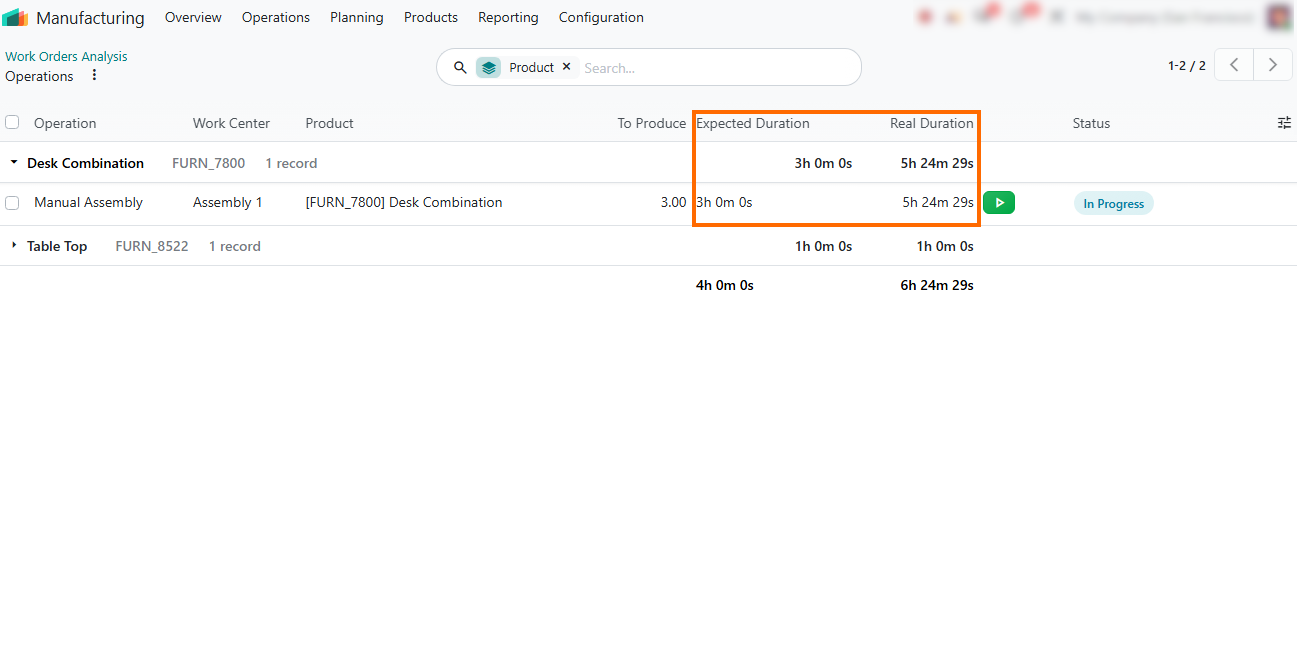
- Click the Assembly 1 bar in the chart to drill down into specific work order records, comparing the Expected Duration (e.g., 3h) against the Real Duration (5h 24m) to confirm the exact schedule overrun.
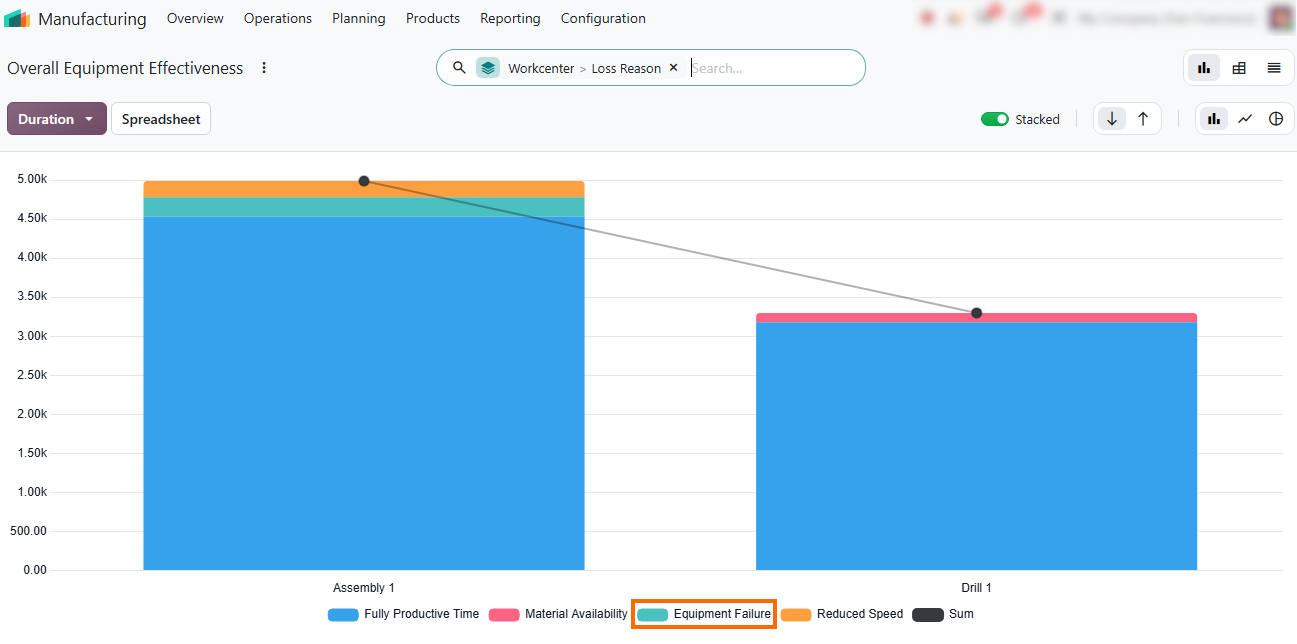
Click to Reporting and select Overall Equipment Effectiveness to review duration breakdowns by Loss Reason, analyzing operational availability and performance
loss categories on Assembly 1.
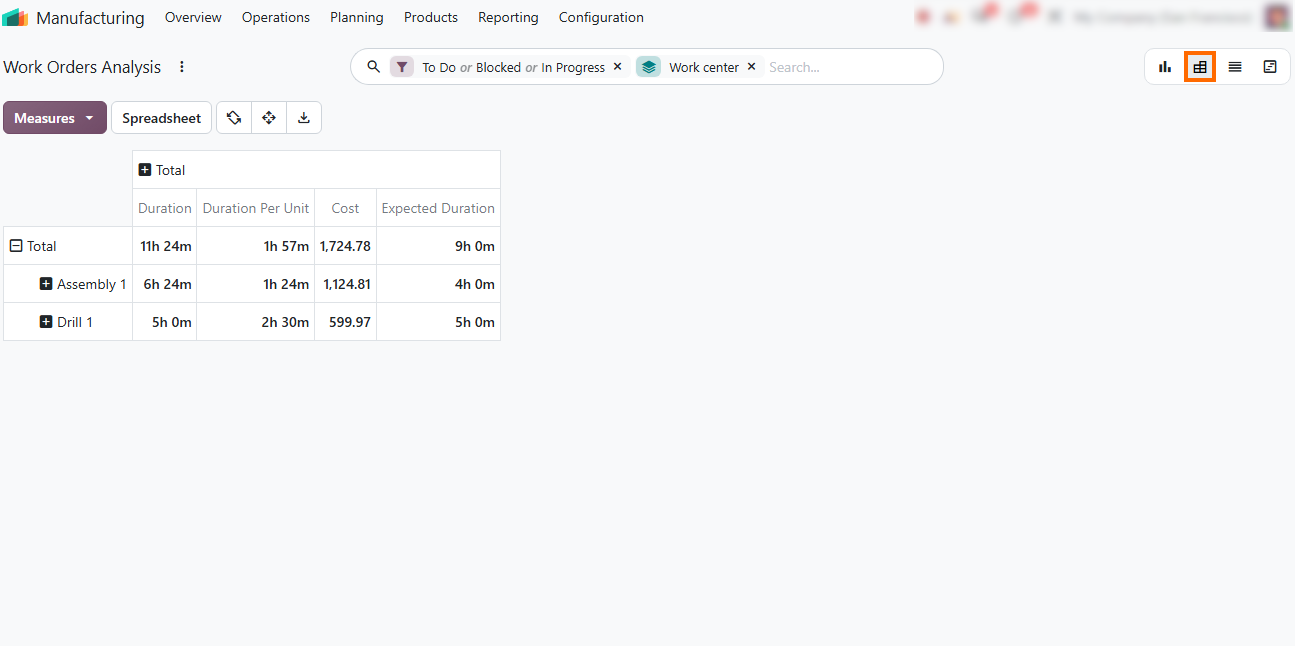
- Switch to the Pivot view in Work Orders Analysis, group the records by Work Center, and select Duration, Expected Duration, and Cost to compare actual and planned operation times and review associated costs.
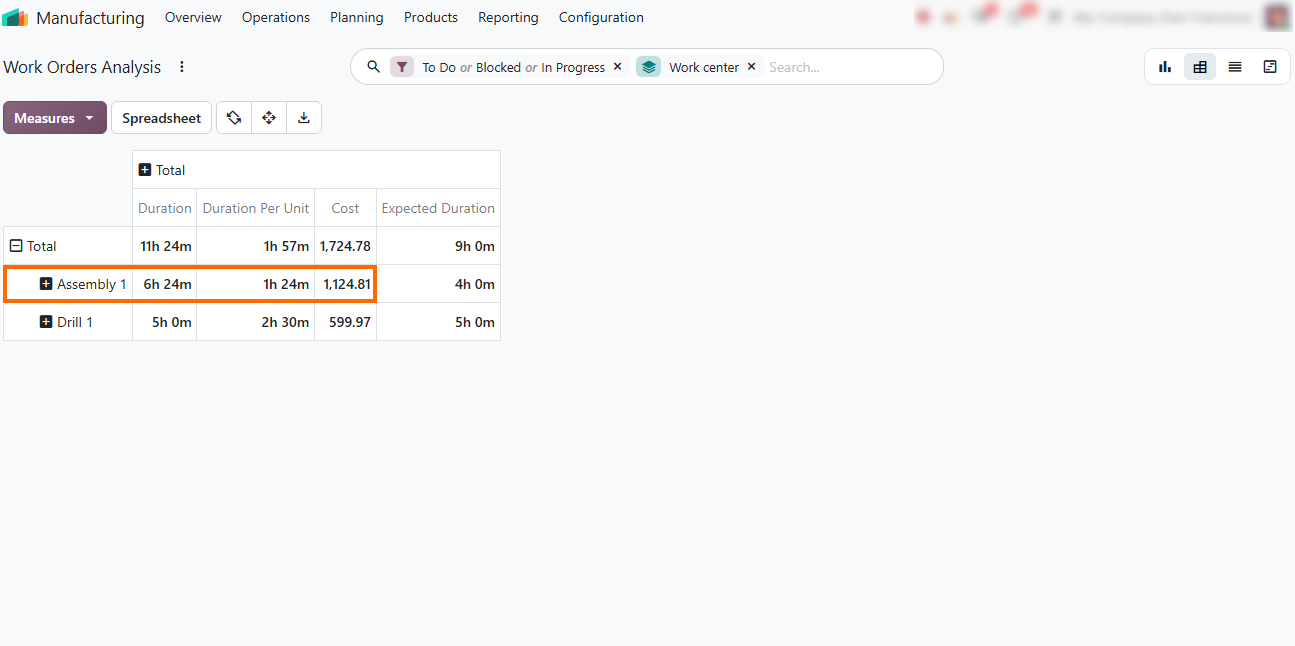
Review the Assembly 1 row to compare actual (6h 24m) and planned (4h) operation times. The total cost of $1,124.81 includes work center and material costs, showing how production time affects final manufacturing costs.
Schedule Preventive Maintenance in Odoo 20
Corrective maintenance addresses existing equipment failures, while preventive maintenance helps reduce recurring breakdowns and unplanned downtime. Reviewing maintenance history and downtime records helps identify equipment that needs more frequent servicing. In Odoo 20, teams can schedule recurring maintenance requests to plan inspections, reduce interruptions to work orders, and limit the impact of equipment failures on production time and costs.
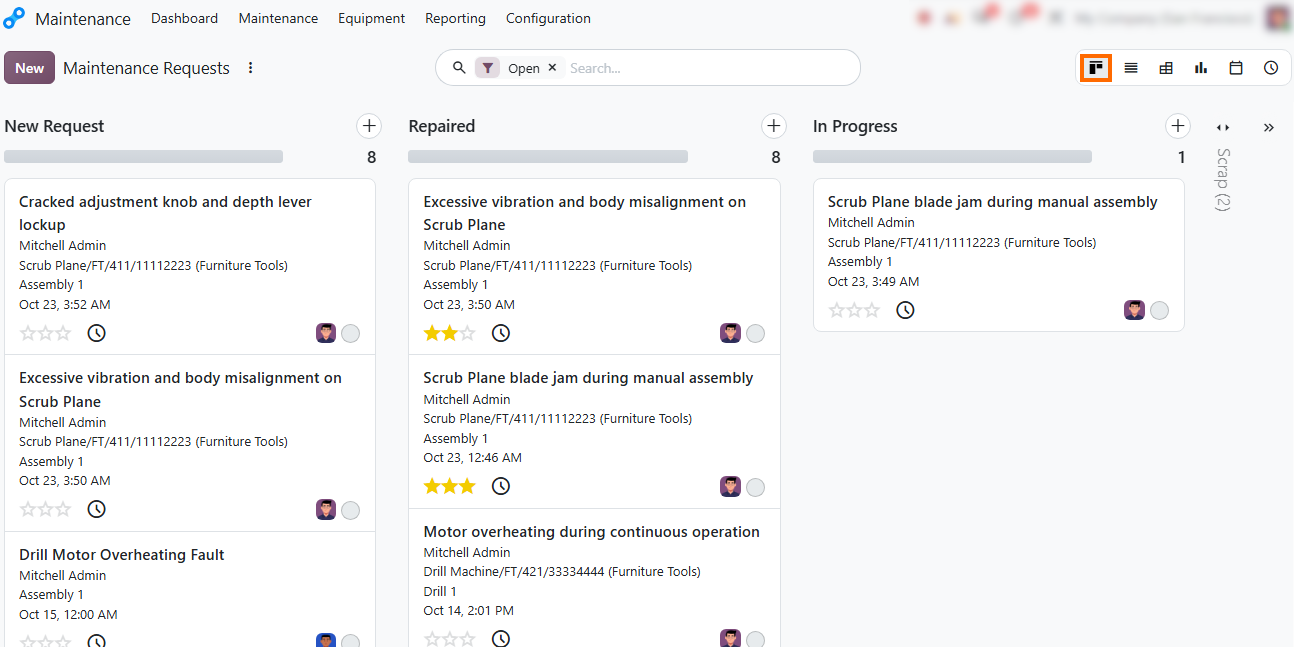
- Analyze maintenance requests by
equipment, failure type, and frequency to identify recurring problems and
prioritize machines for preventive servicing, helping reduce
repeated breakdowns and production downtime.
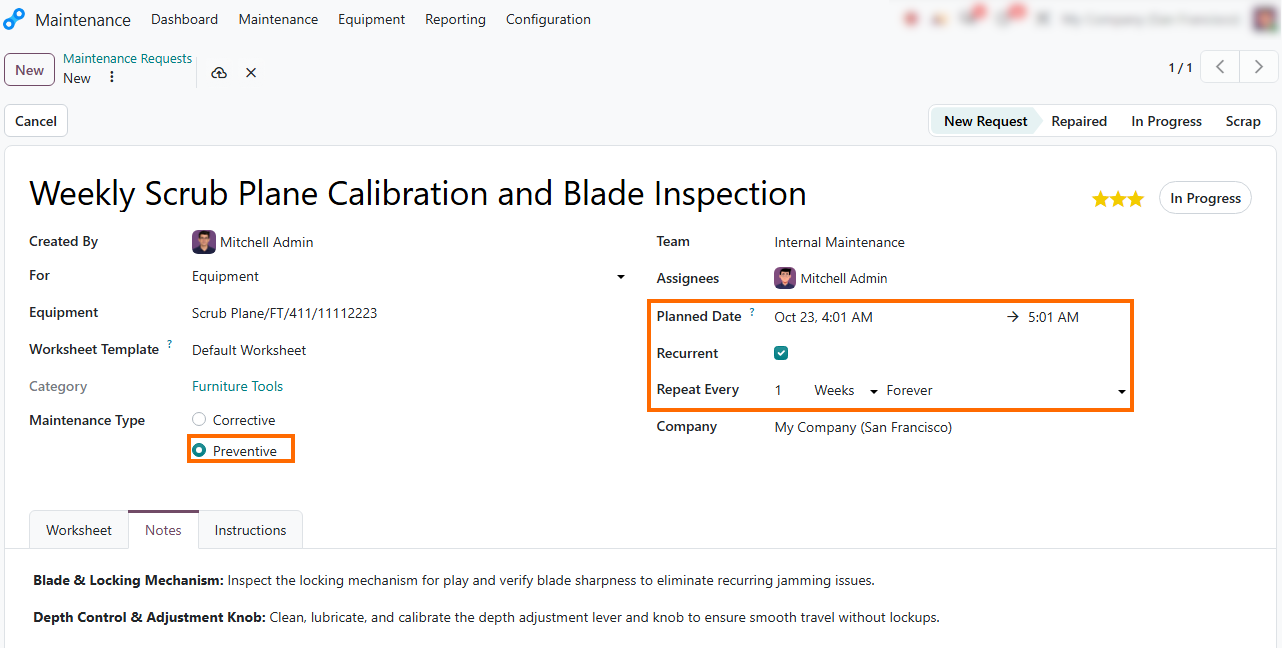
- Schedule regular preventive
maintenance for high-load machinery to plan
inspections and servicing before equipment failures interrupt active work orders.
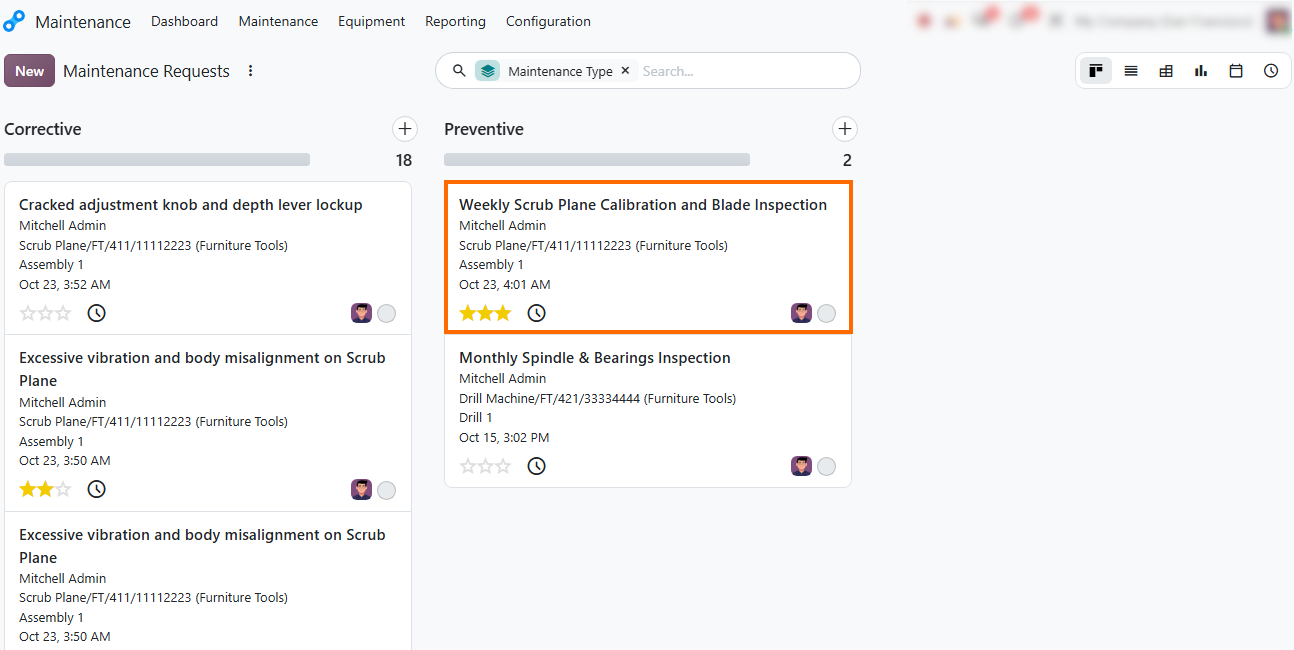
- Filter maintenance requests by type and status to track corrective repairs and scheduled preventive maintenance. This helps managers monitor open issues, follow repair progress, and coordinate planned servicing with urgent repairs.
Conclusion: Turn Downtime Analysis
into Better Production Decisions
Unplanned downtime affects more than equipment availability. A failed machine can interrupt work orders, reduce production capacity, delay delivery deadlines, and increase operating costs. Odoo 20 Manufacturing, Odoo Shop Floor, and Maintenance provide connected workflows for recording equipment issues, reviewing maintenance requests, and analyzing work center performance.
By using Odoo OEE reports alongside work order durations and available cost data, production managers can identify recurring bottlenecks, investigate equipment failure patterns, and assess how production losses affect manufacturing efficiency. This downtime analysis helps teams prioritize maintenance and operational improvements based on actual production data rather than isolated incidents. Consistent tracking of manufacturing downtime gives production and maintenance managers a clearer basis for reducing repeated stoppages and keeping production schedules on track.